

Top 10 Software Options for Remote Support iOS
Remote support iOS allows help from technicians on iPhones and iPads. This article reviews ten software options, highlighting AnyViewer for its security and user-friendliness, to help readers choose the best tool for remote support.

By Ellie / Updated on March 27, 2026


In today's digital landscape, providing efficient remote assistance to an iPhone or iPad from a computer is a necessity for IT professionals and family tech support alike. Whether it is troubleshooting a software glitch or guiding a user through complex settings, the right tool makes all the difference.
This guide evaluates the top 10 software solutions for remote support to iOS from PC.
Due to Apple's strict security and privacy sandboxing, most third-party remote support tools are limited to "real-time screen viewing" rather than "full remote control." While you can see what the user sees, you typically cannot perform touch actions on their behalf.
At a Glance: Comparison of 10 iOS Remote Support Tools
This table summarizes the core capabilities and pricing structures of the top 10 tools:
| Software | Free Tier | Target Audience | Key Advantage |
| AnyViewer | Yes | Individuals/SMEs | No-ad experience, High speed |
| BeyondTrust | No | Enterprise | Extreme security & compliance |
| TeamViewer | Yes (Strict) | Large Teams | Extensive cross-platform support |
| Zoho Assist | Trial Only | IT Help Desks | Browser-based (No installation) |
| Splashtop SOS | Trial Only | Support Techs | High-performance video (60 FPS) |
| ConnectWise | Trial Only | MSPs | Powerful technician management |
| Chrome RD | Yes | Casual Users | Completely free via browser |
| LogMeIn Rescue | No | Call Centers | Professional-grade diagnostics |
| GoToAssist | Trial Only | IT Admins | Robust session reporting |
| ISL Light | Trial Only | Enterprise | Flexible licensing (Pay-per-use) |
10 software for remote support of iOS
This article explores the top 10 software solutions for providing iOS remote support.
Option 1. AnyViewer [Highly-recommended]
AnyViewer is a high-performance remote access solution for iOS designed for speed and simplicity. It bridges the gap between technical complexity and user-friendly accessibility, offering a streamlined pathway for PCs to access iPhone and iPad screens instantly. By focusing on low-latency image transmission and robust encryption, AnyViewer ensures remote sessions are fluid and secure, making it a premier choice for free remote support for iPhone from PC.
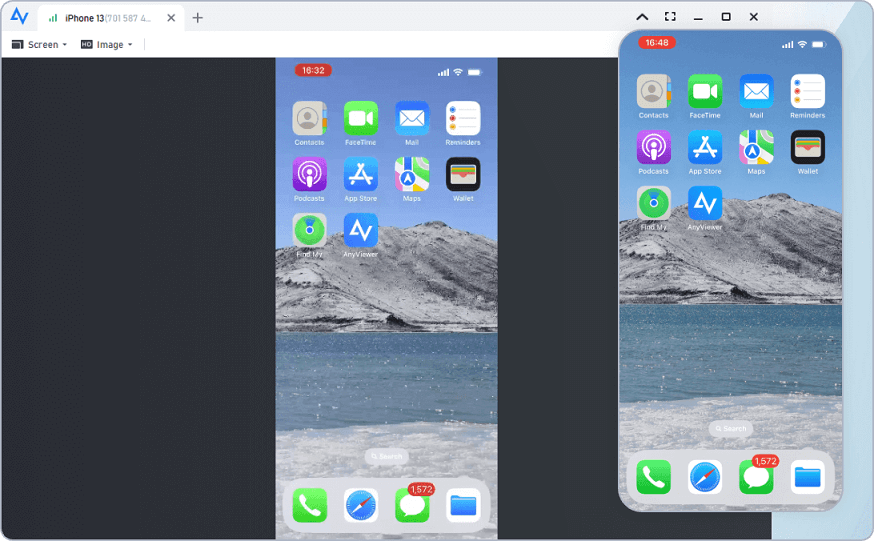
Features of AnyViewer:
- High-Sync Screen Mirroring: Experience real-time iOS screen viewing with industry-leading low latency. This ensures that the technician sees exactly what the user sees without the "lag-gap" common in other tools.
- Fast File Transfer: Seamlessly share files between a PC and iOS devices. This feature allows for the quick exchange of logs, documents, or screenshots during a support session.
- Bi-Directional Flexibility: While providing support to iOS, users can also use their iPhone/iPad to remotely control Windows PCs or Android devices, making it a versatile tool for mobile productivity.
- Bank-Grade Security: Every session is protected by end-to-end ECC 256-bit encryption. Multi-layered authentication prevents unauthorized access, keeping sensitive mobile data private.
- Multi-Session Management: Support teams can manage multiple remote connections simultaneously from a single dashboard, significantly improving resolution times for IT help desks.
- Comprehensive OS Compatibility: Achieves seamless connectivity across Windows, macOS, iOS, and Android. It fully supports the latest iOS 18 remote support features, ensuring compatibility with the newest Apple hardware.
Why Choose AnyViewer for iOS Remote Support?
In short, AnyViewer is the top choice for iOS remote support because it strikes the perfect balance between professional performance and extreme simplicity.
Unlike competitors that often block free users or require complex setups, AnyViewer offers:
- Zero "Commercial Use" friction for personal tasks.
- High-sync, low-latency screen mirroring for real-time troubleshooting.
- Instant ID-based connection, making it accessible even for non-technical users.
- All-in-one functionality, including fast file transfer and full iOS 18 support, secured by bank-grade encryption.
It is the most reliable, "zero-barrier" solution for anyone needing to support an iPhone or iPad from a PC.
Option 2. BeyondTrust Remote Support
BeyondTrust Remote Support, previously called Bomgar, empowers teams to deliver remote assistance for iPhones, ensuring a mobile workforce remains productive. This tool enhances the skills of customer service agents by enabling them to share screens, observe app installations and operations, view screenshots from iOS devices, and communicate through a secure chat. Technicians can utilize the BeyondTrust Console to send notifications to mobile users within the company, keeping them updated while they work remotely.
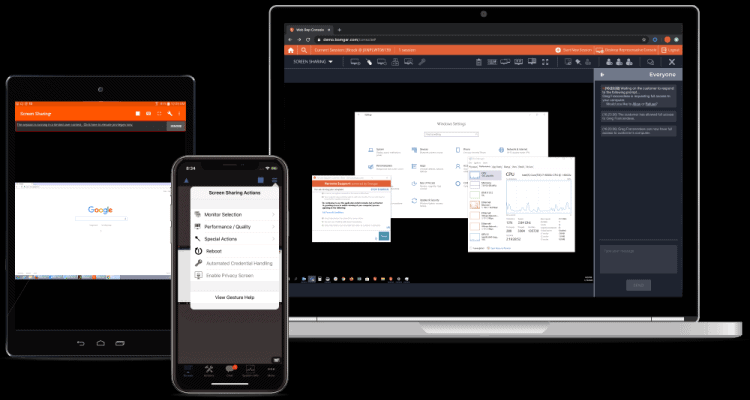
Features:
- Screen Co-Browsing: The BeyondTrust iPhone remote support app enables support representatives to see the same apps and websites that users are currently accessing on their iPhones or iPads. This facilitates efficient problem-solving and enhances customer satisfaction.
- Screen Snapshot Viewing: Users can capture screenshots of their device's display to share with the support team, making it easier to convey issues visually.
- Secure Session Chat: Real-time chat plays a crucial role in diagnosing and resolving user problems. This feature allows both users and support staff to communicate and exchange files, leading to faster issue resolution.
- Push Web Updates: Support teams can send URLs directly to users, providing them with system configuration files or updates regarding the issues being addressed.
Pros
- Robust security measures safeguard user data.
- Customizable features to align with business requirements.
- Various deployment options available for flexibility.
Cons
- The interface may pose navigation challenges.
- There is a risk of unexpected crashes.
- User experience can suffer due to application stability issues.
Option 3. TeamViewer Quicksupport
The TeamViewer QuickSupport app allows technicians to offer remote assistance to iPhone users who have installed the program on their devices. To receive support, users must first download and install the app before reaching out to their company’s helpdesk.
Once the app is installed on their iPhones, users can receive assistance from their technical team regardless of their location. The app generates a unique ID, which users share with the support technician. A connection is established through a request from the technical team, which the remote user must accept.
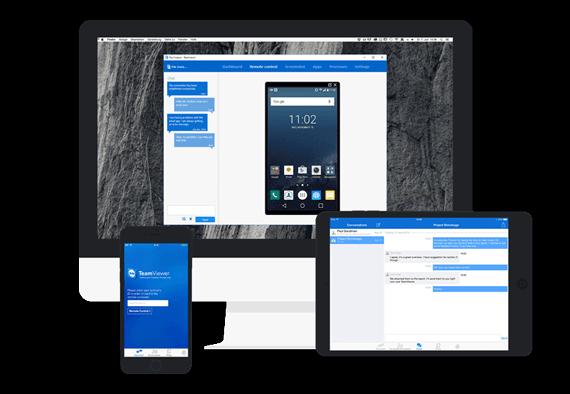
Features:
- Robust Security: The app employs 256-bit AES encryption alongside a 2048-bit RSA key exchange, ensuring top-notch security for all sessions.
- Screen Sharing: Users can share their screens with other mobile devices or computers, enhancing collaborative troubleshooting.
- Real-Time Chat: Instant messaging capabilities facilitate efficient communication between users and support staff.
- Screen Broadcast: Supported on iOS 11 and later, this feature allows users to broadcast their screens for more effective assistance.
- Enhanced Functionality: The iOS remote desktop app enables users and support teams to transfer files seamlessly, push WiFi settings directly, access device information, record the screen of an iOS device, add and manage email accounts, and configure devices using imported profiles.
Pros:
- Free for non-commercial use
- File sharing via drag-and-drop across multiple devices
- Supports a variety of operating systems and a wide range of endpoints, including IoT devices
- Easy installation without requiring router configuration
- Offers multiple communication options, including video, chat, and VoIP
- Facilitates team training sessions for up to 25 participants
- Exceptional customer support
- Allows for remote sharing of entire desktops or specific app windows
Cons:
- Can be costly for large commercial deployments
- Limited ability to share large files
- No support for proxy servers
- Requires a stable and fast internet connection
Option 4. Zoho Assist
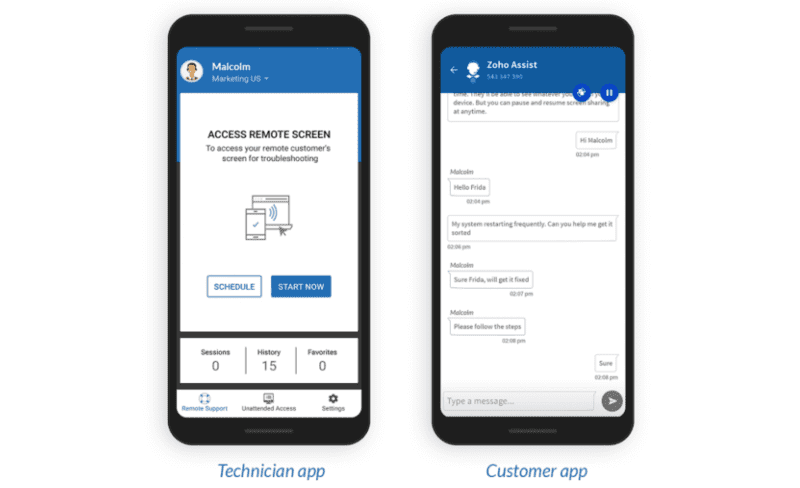
Zoho Assist enables technical staff to remotely connect to iOS devices through on-demand support sessions. This cloud-based tool utilizes a web interface, allowing access from any location with an internet connection. Secure remote support sessions can be initiated in just seconds. Centralized support teams can efficiently manage an organization’s servers and mobile devices using Zoho's unattended remote access feature.
The user-friendly interface allows end-users to easily share their screens with support staff. Files can be transferred seamlessly in both directions, and real-time communication with technicians enhances the speed of problem resolution. Support personnel can connect to an iOS device while the client observes their actions on the iPhone or iPad.
Security in the Zoho Assist customer app is maintained through a nine-digit session key provided by the technician. Customers use this key to start the session and can choose to share their screens with the support team.
Features:
- Quick Session Initiation: Instantly establish remote support sessions for immediate assistance.
- Unattended Administrative Functions: Carry out administrative tasks without requiring user intervention.
- File Transfer: Effortlessly move files between devices during support sessions.
- Multimedia Communication: Engage in voice, text, and video chat for effective collaboration.
- Remote Reboot and Reconnect: Reboot devices remotely and reconnect to maintain support continuity.
- Multi-Monitor Navigation: Seamlessly navigate across multiple monitors for enhanced support efficiency.
Pros:
- Simple and quick connectivity setup
- Support for multiple-monitor navigation
- Secure and straightforward file transfer capabilities
- Intuitive and user-friendly interface
Cons:
- Users may encounter lag during sessions
- Remote calls can face connectivity issues
- Continuous internet connectivity is necessary for system stability
Option 5. Splashtop SOS
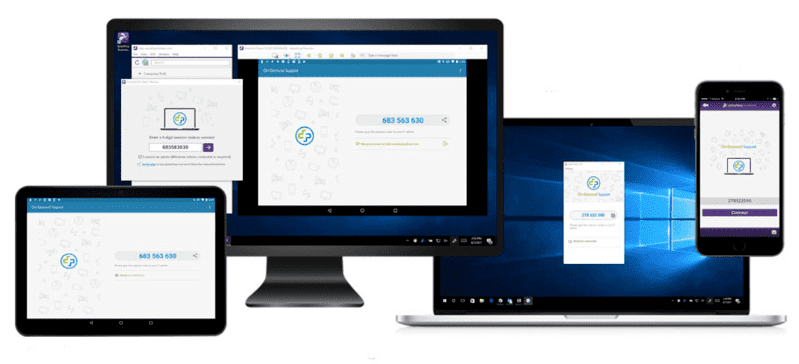
Splashtop SOS provides a user-friendly solution for iOS remote support, allowing end-users and support teams to connect easily. Sessions are initiated on-demand by the end-user, who can access sos.splashtop.com to obtain a 9-digit session code. Support technicians then use the Splashtop Business app along with this code to securely access the remote device.
Splashtop equips iOS remote support teams with all the essential tools needed to assist a mobile workforce. Unattended access enables technicians to update apps and schedule device restarts. They can share user screens for effective problem-solving, transfer files with a simple drag-and-drop action, and utilize an on-screen keyboard to interact with the iOS device directly.
Features:
- On-Demand Access: Supports instant access for Windows, macOS, iOS, and Android devices.
- Remote Reboot and Reconnect: Offers functionality to reboot devices remotely and reconnect as needed.
- Unlimited Screen Sharing: Facilitates enhanced collaboration through unlimited screen-sharing capabilities.
- Unattended Remote Access: Provides unattended access to macOS, Windows, and Linux systems.
- Real-Time Screen Viewing: Allows for real-time monitoring of remote iOS device screens.
- File Transfer and User Management: Enables file transfers and user management directly from the tool.
- Cost-Controlled Licensing: Offers per technician licensing to help manage expenses effectively.
- Custom Branding: Available options for custom branding to align with your organization’s identity.
Pros:
- Fast and reliable video connections
- Simple setup and user-friendly operation
- Ability to access multiple computers simultaneously
- Competitive pricing plans
Cons:
- Large enterprises may require more extensive management capabilities
- No integration with iOS widgets
- Lack of support for unattended iOS access
Option 6. ConnectWise Control
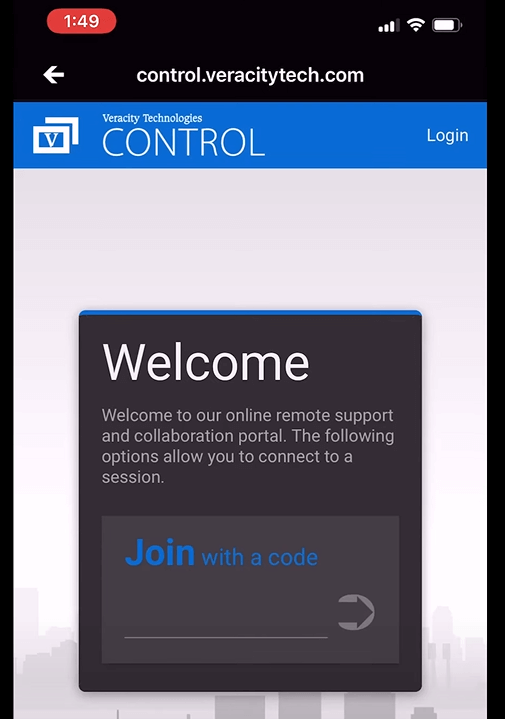
ConnectWise Control Support connects clients with support technicians, facilitating remote assistance for iPhone and iPad users as part of a comprehensive help desk strategy. This tool allows mobile employees to access essential files and applications from anywhere, enabling centralized teams to support a mobile workforce and resolve issues remotely. This capability not only accelerates problem resolution but also saves time and reduces costs.
To get started, end-users simply need to install an app on their mobile device and grant permission for the support team to view their iPhone or tablet screen. The company is transitioning to a cloud-based infrastructure, which simplifies security requirements for implementing ConnectWise Control. Both businesses and help desks benefit from the features offered by this remote iPhone support solution.
Features:
- Flexible Session Hosting: Utilize an existing control instance to host or join attended or unattended remote support sessions.
- Interactive Communication: Technicians can chat with users, transfer files, and send commands to their devices for effective assistance.
- Centralized Control: Manage remote workstations and computers from a central location, streamlining support operations.
- Screen Broadcasting: iPads and iPhones running iOS 11 or higher can broadcast their screens for enhanced visibility during support sessions.
Pros:
- Can be deployed on a standalone basis or via group policy
- Many third-party add-ons enhance the tool's functionality
- Upgrading the software is a simple and streamlined process
- Includes functionality for hosting and managing online meetings
- Comes with a powerful command-line tool
Cons:
- Resolving support issues can sometimes be challenging
- Changes made in the portal may not be reflected in the backend databases
- Users may prefer the older user interface to the newer version
Option 7. Chrome Remote Desktop
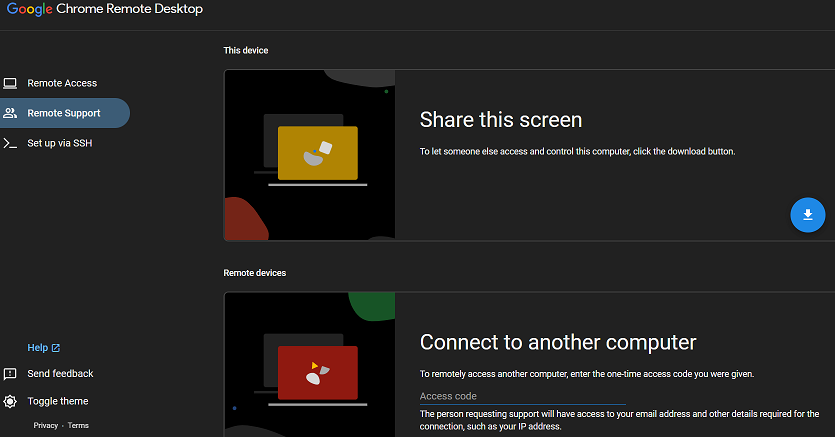
Chrome Remote Desktop offers a free solution for providing iOS remote support. It ensures secure connectivity through one-time access codes exchanged between the user and the support technician, allowing for issue diagnosis and resolution without the need for a physical visit.
The tool supports access to Windows, Mac, and Linux machines from any platform that utilizes the Chrome browser. While the mobile apps for iOS and Android offer limited functionality, they still provide a viable method for accessing remote desktops.
Although the free features may suffice for some scenarios, the lack of certain capabilities may render it unsuitable for other organizations. Limitations such as no support for remote printing, live chat, or drag-and-drop file transfers can hinder its effectiveness in some situations. Users can transfer files, but they must rely on Google Drive for sharing.
Features:
- Easy Remote Access: A straightforward solution for remote access from any platform.
- Secure Connectivity: Utilizes a one-time access code to ensure secure connections.
- Mobile App: Connect to your desktop while on the go using the mobile application.
Pros:
- Completely free remote iPhone support tool
- Compatible with Windows, Mac, Linux, iOS, and Android devices.
Cons:
- Lacks chat, file transfer, and remote printing functionality
- Installation of the Chrome browser is necessary on all devices being used for hosting.
Option 8. LogMeIn Rescue
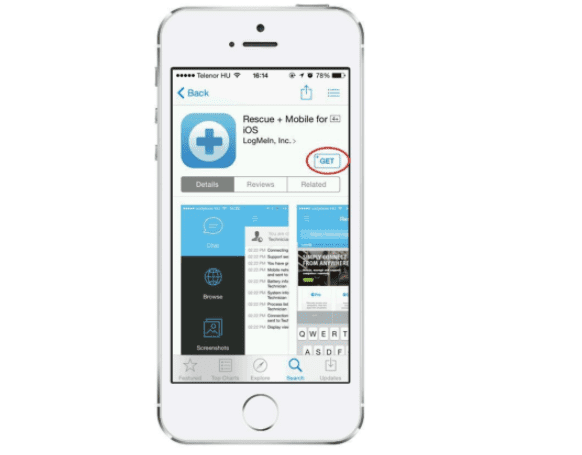
LogMeIn Rescue enhances customer satisfaction and loyalty by providing remote support for iOS, Android, and macOS devices. Issues with iPhones or iPads can be swiftly resolved through a remote web session.
This tool enables centralized support teams to efficiently assist users with iOS devices. Technicians can demonstrate features to new users, configure settings remotely, and take control of devices to facilitate effective problem diagnosis and resolution.
Features:
- Automatic Screenshot Sharing: Customers can effortlessly share screenshots by uploading them directly to a connected support specialist.
- Direct System Information Retrieval: LogMeIn enables technicians to pull system information straight from the user's device for efficient troubleshooting.
- Co-Browsing Functionality: Both tech support members and users can collaborate in a browser window using the co-browsing option, allowing them to address issues together more effectively.
Pros:
- Increases customer satisfaction through faster resolution of end-user issues and more efficient training solutions
- Reduces costs by minimizing onsite technical support calls and streamlining ticket resolution
- Boosts support team productivity by allowing multiple remote support sessions to be opened simultaneously
Cons:
- The interface can be complex for new users
- Limited reporting capabilities
- Sessions may have a short timeout when not actively in use
Option 9. GoToAssist
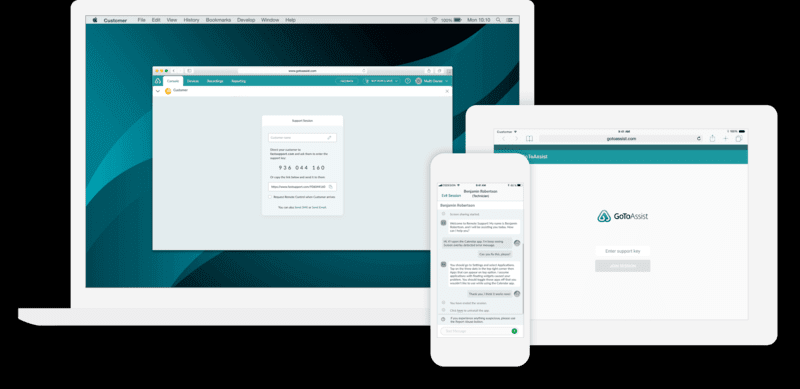
GoToAssist adopts a distinctive approach to iPhone remote support, effectively addressing mobile device issues. The solution is lightweight, quick, and responsive, offering users the flexibility to choose between a modern web browser or a desktop console. GoToAssist is easy to install and use, providing customers with a comprehensive range of features for enhanced support.
Features:
- Camera Sharing: Allows users to share their device's camera for enhanced visual support.
- No Software Download Required: Users can access support without needing to install any additional software.
- Multi-Agent Collaboration: Enables multiple agents to work together on a single support session for more effective problem resolution.
Pros:
- Easy to set up and use
- Offers unattended remote access
- Web-based platform for convenient access
Cons:
- More expensive compared to other solutions
- Additional fees for mobile add-ons
Option 10. ISL Light
ISL Light is a flexible iOS remote support solution that allows users to easily share their screens with online technicians. It also enables users to control Windows, Mac, or Linux machines directly from their iOS devices. Businesses can personalize the tool’s interface through white labeling, incorporating brand colors and logos.
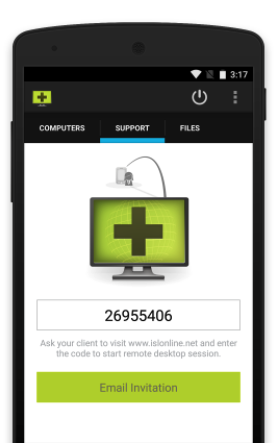
Secure connectivity is achieved with AES 256-bit encryption and two-factor authentication. Technicians can invite users to support sessions using a unique code generated by the software, which can be shared via a link. Additionally, email invitations can be sent to transfer active sessions to other operators, enhancing team productivity. ISL Light is available in 20 languages and is utilized in over 100 countries worldwide.
Features:
- Real-Time Screen Sharing: Enables real-time sharing and viewing of iOS screens for immediate support.
- Multi-Monitor Support: Allows users to switch between multiple monitors seamlessly.
- Automatic Screen Resolution Adjustment: Adjusts the screen resolution automatically for optimal viewing.
- Flexible Connectivity: Connect to remote machines using WiFi, LTE, or 3G networks.
- Remote Control and Command Sending: Provides the ability to control and send commands to remote computers.
- Instant Connection Resumption: Quickly resumes connections after remote machines are rebooted.
- Text Chat Support: Facilitates communication with remote users through text chat.
Pros:
- Provides unattended access, allowing systems to be accessed without users physically present
- Facilitates fast file transfers between connected systems
- Offers easy access to status information on remote machines for technicians
Cons:
- Configuration and customization can be complex and challenging
- Requires a connection to display the status of always-on machines
- Features a basic chat interface that may lack advanced functionalities
Conclusion
In summary, remote support for iOS is an essential tool for efficiently assisting users with their devices from anywhere. It enables technicians to troubleshoot issues, provide guidance, and even control devices remotely, all without the need for physical presence.
Among the many software options for iOS remote support, AnyViewer stands out as the leading option, especially as an alternative to TeamViewer QuickSupport and others. It offers strong security, an easy-to-use interface, and works across different platforms. AnyViewer helps businesses quickly resolve technical issues, boost productivity, and improve customer satisfaction, making it a valuable tool for remote assistance.
FAQs
Can I remotely control an iPhone from a PC, or just view the screen?
How do I enable "Screen Recording" permissions to start a session?
- Open the Control Center.
- Long-press the Screen Recording icon.
- Select the support app (e.g., AnyViewer) from the list.
- Tap Start Broadcast to begin sharing the screen with the technician.



 as a preferred
source on Google
as a preferred
source on Google