

How to Tell if Someone Has Access to Your iPhone
Your iPhone may be at risk if you notice strange behavior like fast battery drain, odd apps, or unknown devices on your Apple ID. This article explains simple steps to spot if someone has access to your iPhone and how to protect your data from spying or hacking.

By Ellie / Updated on September 11, 2025


Introduction
Your iPhone is more than just a smartphone; it's practically a personal vault containing private messages, photos, emails, financial details, and sensitive documents. If someone gains unauthorized access to your iPhone, they can spy on your conversations, steal your identity, or even commit fraud in your name. iPhones are known for their strong security, but that doesn't mean they're completely immune to snooping or hacking attempts.
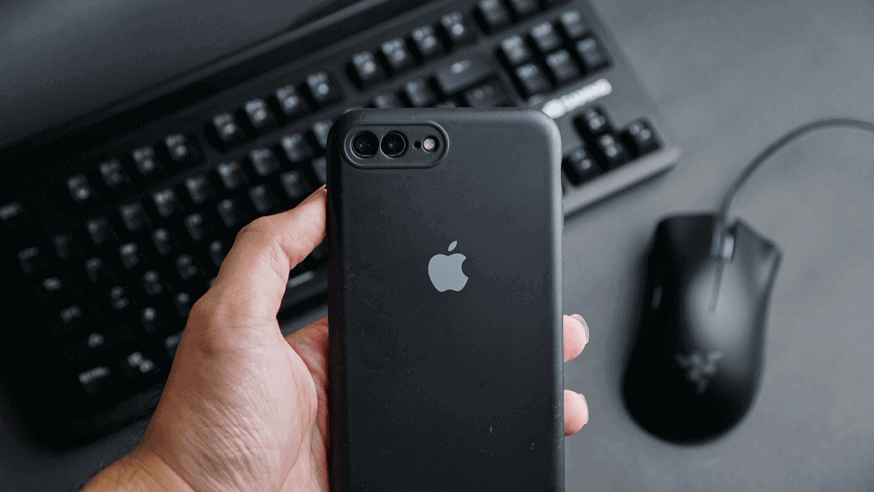
The scary part? Most people don't realize their iPhone has been compromised until it's too late. You might notice your device acting strangely, but dismiss it as a technical glitch. That's why it's crucial to know the red flags that suggest someone might be accessing your iPhone without your knowledge.
In this guide, we'll answer key questions like how to tell if someone has access to your iPhone. We'll walk through the telltale signs of unauthorized access, how to check your settings for suspicious changes, and the steps you can take to secure your iPhone against intruders. By the end, you'll have a clear roadmap to keeping your personal data safe.
How to Tell if Someone Has Access to Your iPhone
This section covers exactly how to tell if someone is accessing your iPhone remotely through signs and behavioral changes.
Common Signs Someone Might Have Access to Your iPhone
One of the easiest ways to detect unauthorized access is by paying attention to how your iPhone behaves. While some signs could be caused by normal wear and tear or software glitches, a combination of unusual activities should raise a red flag.
1. Rapid battery drain
If your battery suddenly starts draining faster than usual, it could mean there's spyware running in the background. These programs constantly monitor your activity and send data to a third party, which consumes power.
2. Strange data usage patterns
Have you noticed unusually high data consumption even when you're not actively using your phone? Hidden apps and malware may be transmitting your information over the internet, leading to spikes in data usage.
3. Suspicious apps or settings changes
If you see apps you didn't download or notice that settings like location services or Bluetooth are turned on without your input, it's a strong indication someone has tampered with your iPhone.
4. Unexpected pop-ups or reboots
Unexplained crashes, restarts, or random pop-up messages could be signs that malware or spyware is interfering with your device.
5. Messages marked as read or sent
If you notice text messages marked as read when you haven't opened them, or worse, messages being sent from your device without your knowledge, someone could be remotely accessing your iPhone.
These warning signs shouldn't be ignored. While a single occurrence might not mean much, multiple issues happening together suggest a deeper problem that requires immediate action.
Checking for Spyware or Tracking Software
Spyware is a common way intruders monitor iPhone activity. If you're asking how can I see if someone has access to my iPhone, spyware is one of the first things to check for.
1. What spyware looks like on an iPhone
Spyware is designed to hide itself, but sometimes you may notice apps with generic names like "System Service" or "Data Manager."These apps don't appear in your home screen but may show up in settings or storage usage.
2. Identifying hidden apps
Go to Settings > General > iPhone Storage. Look for apps that take up space but don't appear on your home screen. That's often a sign of hidden spyware.
3. Tools to detect spyware
You can use security apps designed for iOS, like Malwarebytes or Certo AntiSpy, to scan your iPhone for hidden tracking software. While Apple limits deep system scans, these apps can still flag unusual activity.
4. Signs of spyware without tools
Even without a scanner, signs like overheating, delays in performance, and mysterious network activity may suggest spyware is present.
Remember, spyware usually requires physical access to your iPhone to be installed. If you suspect someone close to you might have tampered with your device, it's even more important to perform a thorough check.
Reviewing iPhone Settings for Suspicious Changes
Your iPhone's settings are a goldmine of information. If someone has tampered with your phone, chances are they've left behind digital fingerprints in your settings.
1. Checking privacy settings
Go to Settings > Privacy & Security. Review which apps have access to your camera, microphone, and location. If you notice apps you don't remember granting access to, that's a sign someone changed them.
2. Reviewing Apple ID and iCloud account activity
Your Apple ID is the key to your iPhone's ecosystem. If someone knows your credentials, they could be monitoring your backups, emails, and photos. Head to Settings > [Your Name] > iCloud and check what's being synced. Unusual devices connected to your account should be removed immediately.
3. Verifying Face ID / Touch ID changes
If your Face ID or Touch ID was modified, your iPhone will notify you. Go to Settings > Face ID & Passcode to ensure no extra fingerprints or facial profiles have been added.
4. Checking call forwarding and sharing
Hackers sometimes set up call forwarding to reroute your calls and messages. Go to Settings > Phone > Call Forwarding and ensure nothing suspicious is activated.
Reviewing your settings regularly is one of the best ways to stay ahead of intruders. The sooner you detect changes, the faster you can secure your iPhone before further damage is done.
Checking Your Apple ID for Unauthorized Devices
Your Apple ID is the central hub for your iPhone. If someone gains access, they can control not just your phone but all Apple devices linked to your account. That's why it's crucial to check for unauthorized access.
1. Viewing devices linked to your Apple ID
Go to Settings > [Your Name]. Scroll down to see all devices connected to your account. If you notice devices you don't recognize, someone else has access.
2. Steps to remove unknown devices
Tap on the suspicious device, then choose Remove from Account. This ensures the device can no longer access your iCloud, messages, or Apple services.
3. Enabling two-factor authentication (2FA)
If you don't already use 2FA, enable it immediately under Settings > [Your Name] > Password & Security. This way, even if someone steals your Apple ID password, they won't be able to log in without your verification code.
4. Monitoring account activity
Apple sends notifications when your Apple ID is used to log in from a new device. Pay close attention to these alerts and take immediate action if something looks suspicious.
By actively monitoring your Apple ID, you make it significantly harder for hackers or snoopers to maintain long-term access to your iPhone.
Monitoring App Permissions and Activity
Apps are often the hidden culprits behind unauthorized access. While most are harmless, some may overstep their boundaries by demanding permissions they don't need. That's why reviewing app permissions regularly is key to keeping your iPhone safe.
1. How to review app permissions
Navigate to Settings > Privacy & Security. Here, you'll see a breakdown of which apps have access to your location, camera, microphone, and contacts. If a game, for example, has access to your microphone, that should raise concerns.
2. Identifying suspicious apps with unusual access
Apps requesting constant background location tracking or microphone use, even when not in use, may be spying on you. Double-check any apps you don't remember installing or ones that look suspicious with generic icons.
3. Checking background activity
Head to Settings > General > Background App Refresh to see which apps are running in the background. If unknown apps are refreshing frequently, disable them. Malicious apps often rely on background processes to gather and send your data.
4. Reviewing app updates and developer information
Click on the app in the App Store and verify the developer. Hackers sometimes disguise malicious software as legitimate-looking apps. If an app has no developer details or poor reviews, it's best to delete it immediately.
Regularly auditing your app permissions not only enhances your privacy but also minimizes the risk of being spied on without your knowledge.
Reviewing Safari and App Browser Activity
Your browsing history can reveal a lot about whether someone has been snooping on your iPhone. Safari, as Apple's default browser, logs activity across devices synced with the same Apple ID.
1. Signs of someone using your browser
Open Safari and check your history. If you find websites you never visited, that could mean someone is browsing through your device, or worse, remotely accessing your account.
2. How to clear browsing history
To prevent further snooping, go to Settings > Safari > Clear History and Website Data. This deletes cookies, caches, and browsing activity across all linked devices.
3. Preventing future access
- Disable Safari syncing in Settings > Apple ID > iCloud if you want to prevent browsing data from being shared across devices.
- Use Private Browsing Mode to avoid saving search history locally.
- Install a trusted content blocker or VPN for additional protection.
4. Checking app-based browsers
Don't forget apps like Facebook, Instagram, or TikTok have in-app browsers that can store browsing history too. Check their settings and clear cache regularly.
Keeping an eye on your browsing activity ensures you're not unknowingly sharing your personal web history with someone else.
Analyzing Security and Privacy Reports
Apple has made major strides in recent years to give users more control over their privacy. iOS now includes detailed privacy reports that show how apps use your data.
1. Using iPhone's built-in privacy reports
Go to Settings > Privacy & Security > App Privacy Report. This section displays which apps accessed your data, how often, and which websites they contacted. If you see unusual activity, it could mean a malicious app is misusing your data.
2. Monitoring location services usage
In Settings > Privacy & Security > Location Services, check the list of apps and see when they last accessed your location. If apps you rarely use are logging your location frequently, that's a red flag.
3. Checking microphone and camera access logs
Your iPhone shows orange and green dots in the top-right corner when the microphone or camera is in use. If you see these indicators randomly, it could mean an app is spying on you. Review which apps requested camera or mic access in the App Privacy Report.
4. Reviewing security notifications
Apple notifies users when suspicious login attempts occur on their Apple ID. Never ignore these alerts, change your password immediately.
By analyzing these reports, you gain powerful insights into how your iPhone is being used behind the scenes, making it easier to spot unauthorized access.
How to Detect Remote Access on Your iPhone
If you're specifically wondering how to tell if someone is accessing your iPhone remotely, focus on signs of MDM profiles or jailbreaking.
1. Signs of remote management
- Your iPhone settings change without your input.
- Apps install themselves automatically.
- You receive restrictions or warning messages you didn't set.
2. How to check for MDM profiles
Go to Settings > General > VPN & Device Management. If you see a profile you don't recognize, that's a red flag. MDM profiles are typically used by companies to manage employee devices, but if you're not part of a corporate network, you shouldn't have one installed.
3. Removing suspicious profiles
Tap on the profile and select Remove Management. You may need your device passcode. Once removed, your phone will no longer be remotely controlled.
4. Checking for jailbreaking traces
If your phone was jailbroken without your consent, it's more vulnerable to remote attacks. Look for apps like Cydia or unfamiliar settings. If found, perform a full factory reset to restore your phone's integrity.
Detecting and removing remote access tools is crucial to regaining full control of your iPhone and preventing hackers from spying on you.
What to Do If You Suspect Unauthorized Access
If you've noticed multiple red flags, it's time to take action immediately.
1. Change your Apple ID password
Go to Settings > [Your Name] > Password & Security > Change Password. Use a strong, unique password that you haven't used before.
2. Sign out of all devices
Under the same menu, choose Sign Out of All Devices. This forces any unauthorized users to re-enter your new credentials.
3. Run a full reset of your iPhone
If you suspect spyware or remote management, the safest solution is a factory reset. Go to Settings > General > Transfer or Reset iPhone > Erase All Content and Settings. Back up important data first.
4. Update iOS immediately
New iOS updates often patch security vulnerabilities. Keeping your device updated ensures you're protected against the latest threats.
5. Contact Apple Support
If you're still concerned, Apple can help check for unusual activity linked to your Apple ID and provide personalized security advice.
Taking immediate action not only protects your personal information but also prevents further damage from intruders.
Best Practices to Secure Your iPhone
The best way to protect yourself from unauthorized access is by taking proactive measures. Security isn't just about fixing problems after they appear; it's about building strong defenses before anything happens.
1. Create a strong passcode
Avoid simple passcodes like "1234" or your birthdate. Instead, use a six-digit (or longer) passcode that combines numbers in a unique sequence. You can even set an alphanumeric passcode by going to Settings > Face ID & Passcode > Change Passcode > Passcode Options.
2. Enable Face ID or Touch ID
Biometric authentication adds an extra layer of protection. Even if someone knows your passcode, they won't be able to unlock your iPhone without your face or fingerprint.
3. Turn off lock screen access
Restrict access to features from the lock screen. Go to Settings > Face ID & Passcode and disable things like Control Center, Wallet, and Siri. This prevents strangers from making changes without unlocking your device.
4. Avoid jailbreaking
While jailbreaking offers customization, it also disables many of Apple's built-in security protections. A jailbroken iPhone is far more vulnerable to spyware, malware, and hacking attempts.
5. Regularly check your settings
Make it a habit to review privacy settings, app permissions, and device management profiles. Prevention is easier than cleaning up after a breach.
By practicing these habits consistently, you create a stronger shield around your personal data, making it much harder for anyone to gain unauthorized access.
How to Protect Your iPhone from Future Attacks
Once you've secured your iPhone, you'll want to maintain that security. Cybercriminals are constantly coming up with new tricks, so staying vigilant is key.
1. Keep iOS updated
Apple frequently releases security patches in iOS updates. Go to Settings > General > Software Update and enable automatic updates. Outdated software leaves your phone vulnerable.
2. Only install apps from the App Store
Avoid downloading apps from third-party sites or links, as these are common sources of malware. Stick to trusted apps that have strong reviews and verified developers.
3. Be cautious with links and attachments
Phishing remains one of the biggest threats. Don't click on suspicious links in emails or text messages. Even if they look official, verify before opening.
4. Regularly review security settings
Set a reminder to review your iPhone's security settings every month. Check app permissions, Apple ID devices, and call forwarding to ensure nothing suspicious has changed.
5. Use strong, unique passwords
Don't reuse the same password across accounts. Consider using a password manager like 1Password or iCloud Keychain to generate and store secure credentials.
Following these steps not only keeps your current device safe but also helps you build long-term habits that protect against future threats.
Bonus Tip: Using AnyViewer for Secure Remote Access
When discussing iPhone security, it's important to remember that not all remote access tools are harmful. In fact, some applications are designed to help you control devices safely and efficiently. One example is AnyViewer, a trusted remote desktop and remote access solution.
1. What is AnyViewer?
AnyViewer is a professional remote desktop software that allows you to access and control computers, servers, or other devices from anywhere. It's designed for both personal and business use, offering a secure way to manage files, troubleshoot systems, or provide remote technical support.

2. Key features of AnyViewer
- Cross-platform access: Works on Windows, iOS, and Android, allowing you to connect your iPhone to remote devices.
- High security standards: Uses end-to-end encryption and strong authentication to ensure your sessions remain private.
- Fast connection speed: Optimized for smooth remote control, even on weaker networks.
- Unattended access: Set up trusted connections for devices you own, so you can access them anytime without physical permission.
3. How AnyViewer helps iPhone users
For iPhone owners, AnyViewer offers the ability to:
- Access a work or home computer remotely.
- Monitor devices safely without compromising iPhone security.
- Provide or receive remote tech support securely.
4. Why AnyViewer is safe compared to hidden remote tools
Unlike malicious spyware or unauthorized MDM profiles, AnyViewer requires explicit installation and account login, so you're always aware of when and how it's being used. It doesn't run in secret; it's transparent and fully under your control.
By using trusted apps like AnyViewer, you can enjoy the benefits of remote access while keeping your iPhone safe from unauthorized surveillance.
Conclusion
Your iPhone holds some of your most personal information, making it a prime target for unauthorized access. Knowing how to tell if someone has access to your iPhone allows you to recognize red flags early.
By regularly checking your settings, monitoring app permissions, and using built-in security features, you can drastically reduce your risk of being spied on. Add in best practices like using strong passcodes, keeping iOS updated, and avoiding suspicious apps, and you'll create a nearly impenetrable defense.
At the end of the day, iPhone security comes down to awareness and proactive habits. Stay vigilant, review your device regularly, and don't ignore suspicious behavior. Remember: your privacy is worth protecting.
FAQs
1. How do I know if my iPhone is being monitored?
Look for unusual battery drain, strange apps, unexpected data usage, or unknown devices linked to your Apple ID. Privacy reports in iOS can also reveal suspicious activity.
2. Can someone hack my iPhone with just my phone number?
While it's rare, hackers can use phishing or SIM swap attacks to compromise your accounts. Enabling two-factor authentication helps prevent this.
3. Does resetting my iPhone remove spyware?
Yes, a factory reset removes most spyware and malicious profiles. However, always back up important data before resetting.
4. How do I stop someone from tracking my iPhone location?
Go to Settings > Privacy & Security > Location Services and review app permissions. Disable sharing your location with unknown contacts in Find My iPhone.
5. What's the most secure way to protect my iPhone?
Use a strong passcode, enable Face ID or Touch ID, turn on two-factor authentication, and keep iOS updated. Adding a VPN further boosts security.



 as a preferred
source on Google
as a preferred
source on Google