

How to Fix Remote Desktop Only Showing On One Screen?
Frustrated by Remote Desktop stuck on one screen? Learn proven configurations to enable multiple monitors and resolve common remote connection display errors.

By Irene / Updated on March 20, 2026


🌟Quick Look: Fix Remote Desktop Only Showing on One Screen
If your Remote Desktop is stuck on a single monitor, it is most likely due to a disabled display setting or a Windows version limitation (such as Windows 10 Home). Use the following methods to enable multi-monitor support immediately:
-
The Instant Fix: Open Remote Desktop Connection > Show Options > Display Tab > Check "Use all my monitors for the remote session."
-
The Hardware Check: On the remote PC, press Win + P and ensure the projection mode is set to Extend.
-
The Shortcut Command: Press Win + R, type mstsc /span, and hit Enter to force a spanned display across all screens.
-
The All-in-One Alternative: If native RDP settings fail due to OS restrictions, use AnyViewer. It supports multi-monitor setups natively across all Windows versions, including Home editions, without complex configuration.
Why is remote desktop only showing on one screen?
Remote Desktop may sometimes display only on one screen instead of using multiple monitors. This usually comes down to three areas: software settings, system compatibility, or hardware.
In most cases, the problem is caused by software settings. If Remote Desktop is not configured correctly, it will only show on a single screen, but this can often be fixed by adjusting the RDP options.
System version can also be a factor. Not every version of Windows supports multi-monitor remote connections. You need to confirm that both the local and remote computers are running a Windows edition that allows multiple displays.
Hardware issues are less common but still possible, such as problems with the monitor or the computer itself.
✍ For reference, Windows Server editions from 2012 R2 to 2022 support multiple monitors. On Windows 7, only the Enterprise and Ultimate editions allow multi-monitor mode. On Windows 8.1, this feature is available only in the Professional and Enterprise editions.
How to fix remote desktop only working on one monitor
Fix 1. Configure the Remote Desktop Connection setting
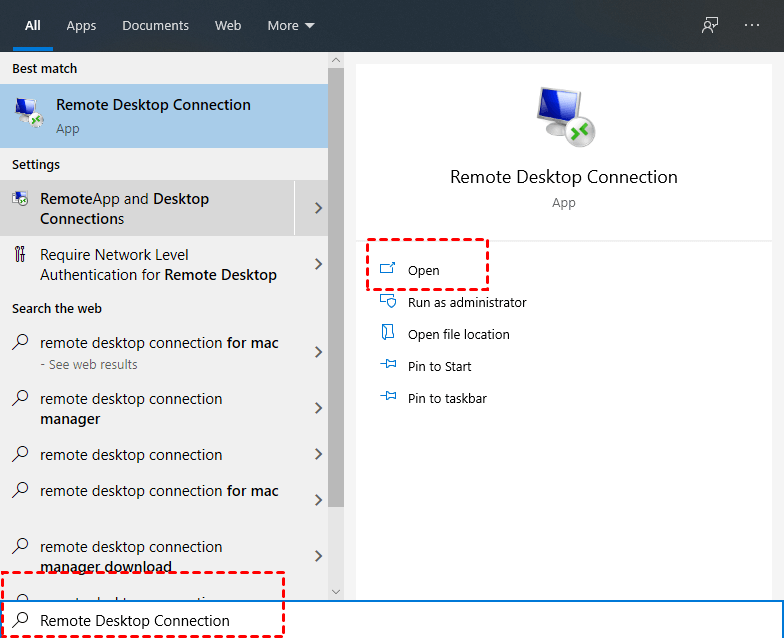
Step 1. Search for Remote Desktop Connection in the Search box. And then open it.
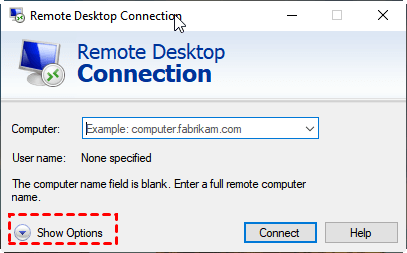
Step 2. In the Remote Desktop Connection dialog box, click Show Options.
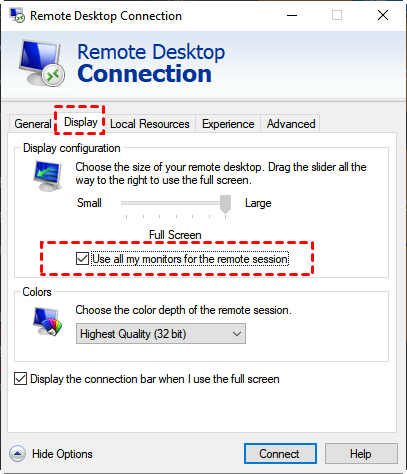
Step 3. Go to the Display tab, then check Use all my monitors for the remote session.
Fix 2. Check the screen connection
First, let's check whether the second screen is correctly connected to the remote computer.
Step 1. Ensure that the computer you want to remotely access is connected to the second display through HDMI.
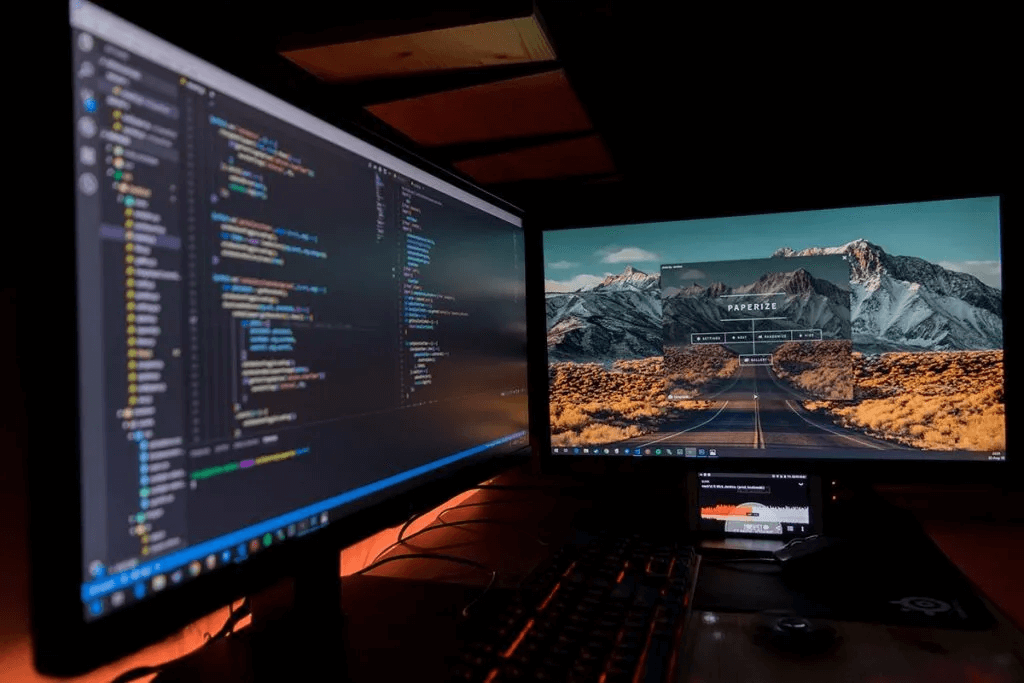
Step 2. On the remote computer, press the "Windows + P" keys. Then choose Extend.
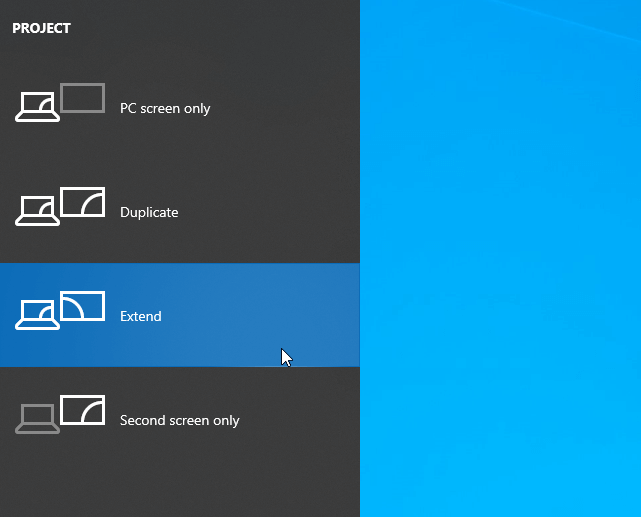
Fix 3. Enable multiple monitors directly
Press Win + R to invoke the Run dialog box. Then type in "mstsc /span".It's a bit clunkier than full multi-monitor support as it all appears as one monitor on the client computer but might work for the thing you want along with something like split view.
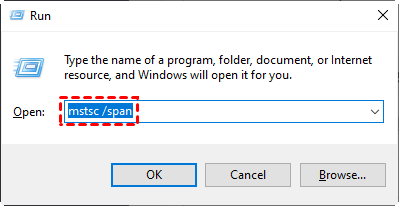
Fix 4. Use AnyViewer as an alternative
If Remote Desktop is still showing on only one screen, a quick and reliable solution is to use an alternative tool like AnyViewer. AnyViewer is free remote desktop software for Windows, iOS, and Android. It fully supports multiple monitors and makes switching between screens easy.
- ★Compared with Chrome Remote Desktop, AnyViewer offers several useful features:
- Instant chat: You can communicate directly with the remote user through a chat box, which Chrome Remote Desktop does not allow.
- Drag-and-drop file transfer: Easily transfer files between devices by dragging and dropping, instead of using the more limited upload and download method.
- No time limits: AnyViewer maintains a stable connection without interruptions, while Chrome Remote Desktop may ask for confirmation every 30 minutes when using a one-time code.
AnyViewer also has clear advantages over RDP. Unlike RDP, it works on more Windows versions, including Windows 10 Home. It also allows unattended access without needing an IP address and works smoothly even when devices are on different networks, without requiring port forwarding or VPN.
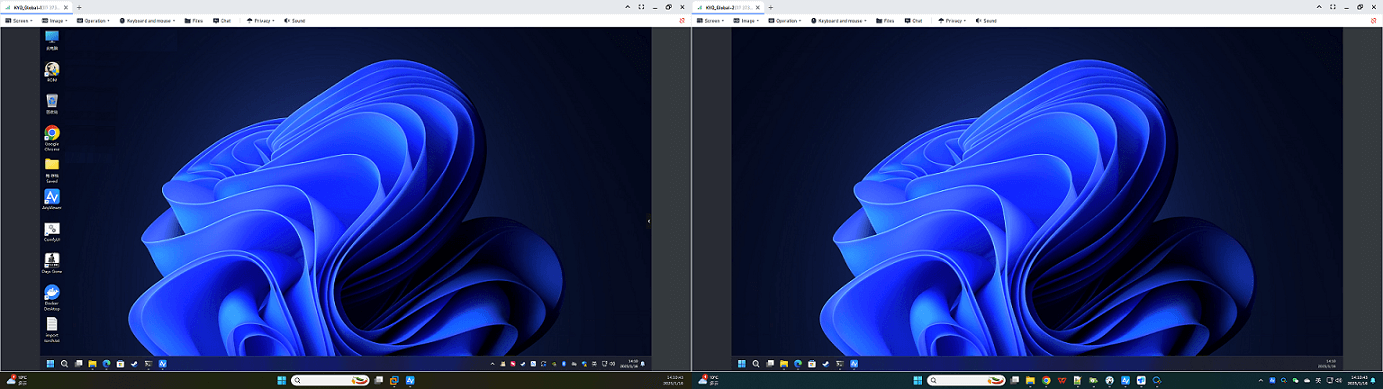
Most importantly, AnyViewer’s multi-screen display feature lets you control and manage multiple monitors at once. You can run different tasks on separate screens, making it ideal for multitasking, coding, editing, or monitoring several apps at the same time.
Simply download, install, and launch AnyViewer on both devices to enjoy a smoother, more flexible remote desktop experience.
Note: AnyViewer also has an iOS and Android version; you are also able to remotely control your PC from your iPhone or iPad.
Step 1. Go to Log in, and then click Sign up to create an AnyViewer account (If you already have signed up on its official website, you can log in directly).

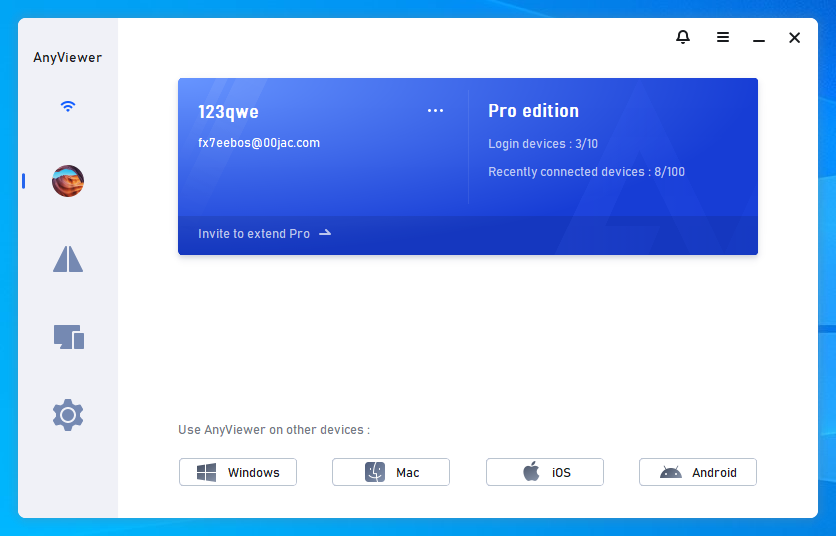
Step 2. Then you can see you successfully logged in to AnyViewer. Your device will automatically be assigned to the account and is shown on the My devices list.

Step 3. Log in to the same AnyViewer account on another device. Then go to Device, click the remote computer, and click One-click controlto achieve unattended remote access.

✍Note: If you want to assign more devices to achieve unattended remote access or control computers beyond 3 from one computer, then you can upgrade your account to a Professional or Enterprise plan. Also, you can unlock more features, like connecting to another computer in privacy mode, which means you can black the screen and block the mouse and keyboard of the remote computer.
Now you can realize Windows remote control with multiple monitors.
Conclusion
If Remote Desktop is only showing on one screen, the issue is usually linked to software settings, Windows version limitations, or hardware problems. You can try adjusting RDP display options, checking monitor connections, or enabling multi-monitor mode. If these fixes don’t work, using an alternative like AnyViewer is a smart choice. AnyViewer supports multiple monitors, works across more Windows versions, and offers extra features such as file transfer and instant chat. With the right setup or tool, you can easily enjoy smooth multi-monitor remote desktop access.
FAQs
🗨️ Why is my remote desktop only showing one monitor?
This usually happens because multi-monitor settings are not enabled, the Windows edition does not support it, or the display setup is not configured correctly.
🗨️ How to get remote desktop to display on 2 monitors?
Open Remote Desktop Connection, go to Display, and check “Use all my monitors for the remote session.” You can also run mstsc /multimon.
🗨️ Why is my display only showing on one screen?
It may be due to incorrect display mode, loose cable connections, or the system being set to “PC screen only” instead of “Extend.”
🗨️ Why is my PC not detecting my 2nd monitor?
Common reasons include faulty cables, outdated graphics drivers, or the monitor not being properly powered or connected.
🗨️ How do I force Windows to detect a second monitor?
Go to Settings > System > Display, scroll down, and click Detect. You can also press Windows + P and select Extend.



 as a preferred
source on Google
as a preferred
source on Google