

How to Fix Chrome Remote Desktop is Blocked by an Admin?
This article discusses why Chrome Remote Desktop is blocked by admin. It also offers clear troubleshooting steps for when the service isn't working or cannot establish a connection.

By Irene / Updated on February 3, 2026


🔶 Quick Summary: Fixing Chrome Remote Desktop Access Errors
If Chrome Remote Desktop is blocked by an admin or fails to connect, the issue usually stems from restrictive Google Workspace policies, strict firewall settings, or outdated browser components.
This guide helps you understand why you might encounter the "You don't have access to this service" error and provides proven steps to resolve it immediately. We cover critical fixes such as enabling the Chrome Web Store in the Admin Console, adjusting age-based access settings for education accounts, and manually restarting the background chromoting service on Windows or macOS.
For users facing permanent restrictions or persistent network instability, we also introduce professional alternatives like AnyViewer that operate independently of browser limitations. Read on to identify whether your device is managed by an organization and discover the fastest path to safely restoring your remote capabilities.
User case: Chrome Remote Desktop is blocked by an admin
Anyone else blocked from using Chrome Remote Desktop? "You don't have access to this service. To request access, contact the administrator for your organization’s Google services. If you’re a Google services administrator, you can turn on services. Learn more." Just started today. I am the admin. Couldn't see any service to turn back on...
- Question from www.reddit.com
Chrome Remote Desktop is widely used for remote work, technical support, and quick access to files on another computer. If Chrome Remote Desktop is blocked by an admin or fails to connect, it can be confusing and frustrating, especially when you are certain that you have the correct permissions. This problem can appear without warning and may start after a system update, a change in Google Workspace policies, or a temporary issue with account synchronization.
In some cases, the service is not actually turned off, but hidden restrictions, delayed policy updates, or account related errors prevent it from running normally. Network settings, browser data issues, or background service failures can also cause connection problems.
This guide is designed to help you understand why Chrome Remote Desktop may be blocked by an admin or not connecting at all. It covers the most common causes behind these access errors and explains them in clear, simple approaches. You will also find practical solutions that are easy to follow, even if you are not a technical expert. If you encounter the same issue, you can follow our gudie. By checking the right settings and applying the correct fixes, you can often restore Chrome Remote Desktop and get back to remote access quickly and safely.
How to fix Chrome Remote Desktop not connecting/working
Before moving on to specific fixes, please check that your internet connection is stable, since Chrome Remote Desktop relies heavily on a consistent network to function properly. Even small drops in connectivity can prevent it from connecting or cause sessions to fail unexpectedly.
Once you have confirmed your network is working normally, you can proceed with the steps below to identify and fix issues related to Chrome Remote Desktop itself.
Fix 1. Download a professional remote desktop software
When Chrome Remote Desktop cannot connect, using a professional alternative like AnyViewer is a practical first step. Many connection issues are caused by permission conflicts or service limits tied to the Chrome environment. AnyViewer is a stable and free remote desktop tool that works independently of browser extensions and Google account policies. This allows it to bypass common Chrome related restrictions and deliver a fast, reliable connection. If AnyViewer works normally, it also helps confirm that the problem is limited to Chrome Remote Desktop rather than your network or device.
AnyViewer runs as standalone software designed for smooth and secure remote access. Because it does not depend on Chrome services, it avoids frequent issues such as PIN errors, stalled background processes, or account sync problems. The setup is simple, making it suitable for users who need immediate access without complex configuration.
In addition to quick access, AnyViewer offers long-term reliability for remote work. It performs consistently across system updates and supports features like unattended access and file transfer. If Chrome Remote Desktop is blocked by admin policies or keeps failing, switching to AnyViewer is a clear and effective solution.
Step 1. Download, install, and launch AnyViewer on both computers. Go to Log in, and then click Sign up. (If you already have signed up on its official website, you can log in directly.)

Step 2. Fill in the signup information.

Step 3. Then you can see you successfully logged in to AnyViewer. Your device will automatically be assigned to the account you've logged in to.

Step 4. Log in to the same AnyViewer account on the two devices, then click One-click control to achieve unattended remote access.

- 🔥 You can upgrade your account to a Professional or Enterprise plan. Then you'll have the following rights:
- Assign more devices to achieve unattended remote access to more devices.
- Connect to another computer in privacy mode, which means you can black the screen and block the mouse and keyboard of the remote computer.
- Transfer files at a faster speed. Transfer speed for a free account is 500 KB/s, and for a paid account is up to 10 MB/s.
Fix 2. Update related components
Keeping your system updated is essential for Chrome Remote Desktop to work properly. The tool depends on your browser, extensions, and operating system working together smoothly. If any part is outdated, compatibility issues can easily occur and lead to connection failures or unstable performance. Updating software is one of the simplest yet most effective ways to resolve these problems, and it often restores normal functionality without advanced troubleshooting.
Step 1. Open your Chrome browser settings and check for available updates. Install the latest version to ensure Chrome Remote Desktop runs in a fully supported environment.
Step 2. Review your installed Chrome extensions and remove any that are unnecessary or unused. Some extensions can interfere with remote connections or cause unexpected conflicts.
Step 3. Clear your browser cache and temporary data to remove corrupted files that may affect Chrome Remote Desktop behavior.
Step 4. Check for operating system updates and install them if available. System-level updates often include security patches and performance improvements.
Step 5. Update your display and network drivers to ensure proper screen rendering and stable network communication.
If Chrome Remote Desktop still does not work after updating everything, the issue may be related to service settings or account permissions, which can be checked next.
Fix 3. Enable the Chrome Web Store in your browser
If you want to use Chrome Remote Desktop, it is important to make sure the Chrome Web Store is enabled. This allows the necessary extensions to run properly and prevents access errors.
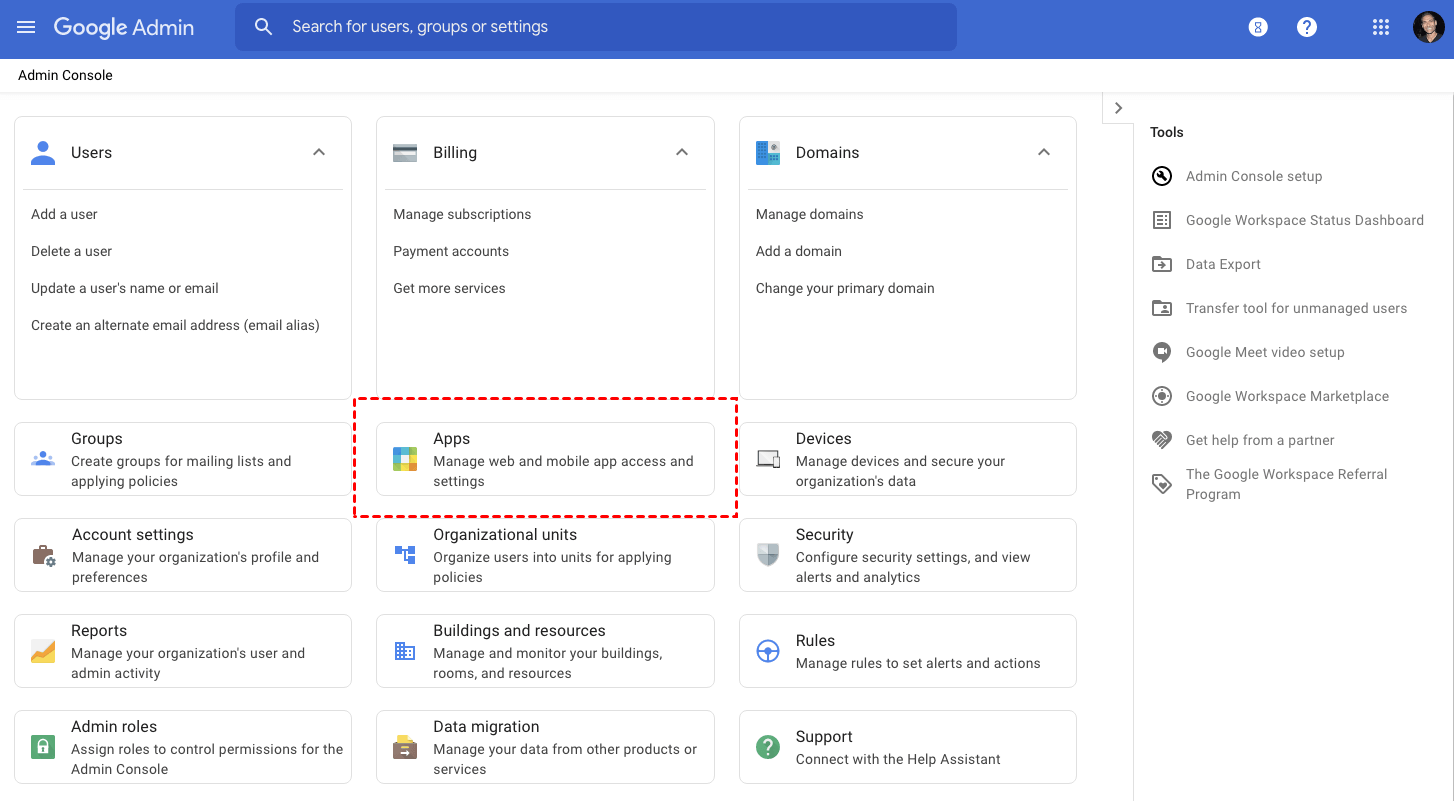
Step 1. Sign in to your Google Admin console at admin.google.com. From the Home page, navigate to Apps.
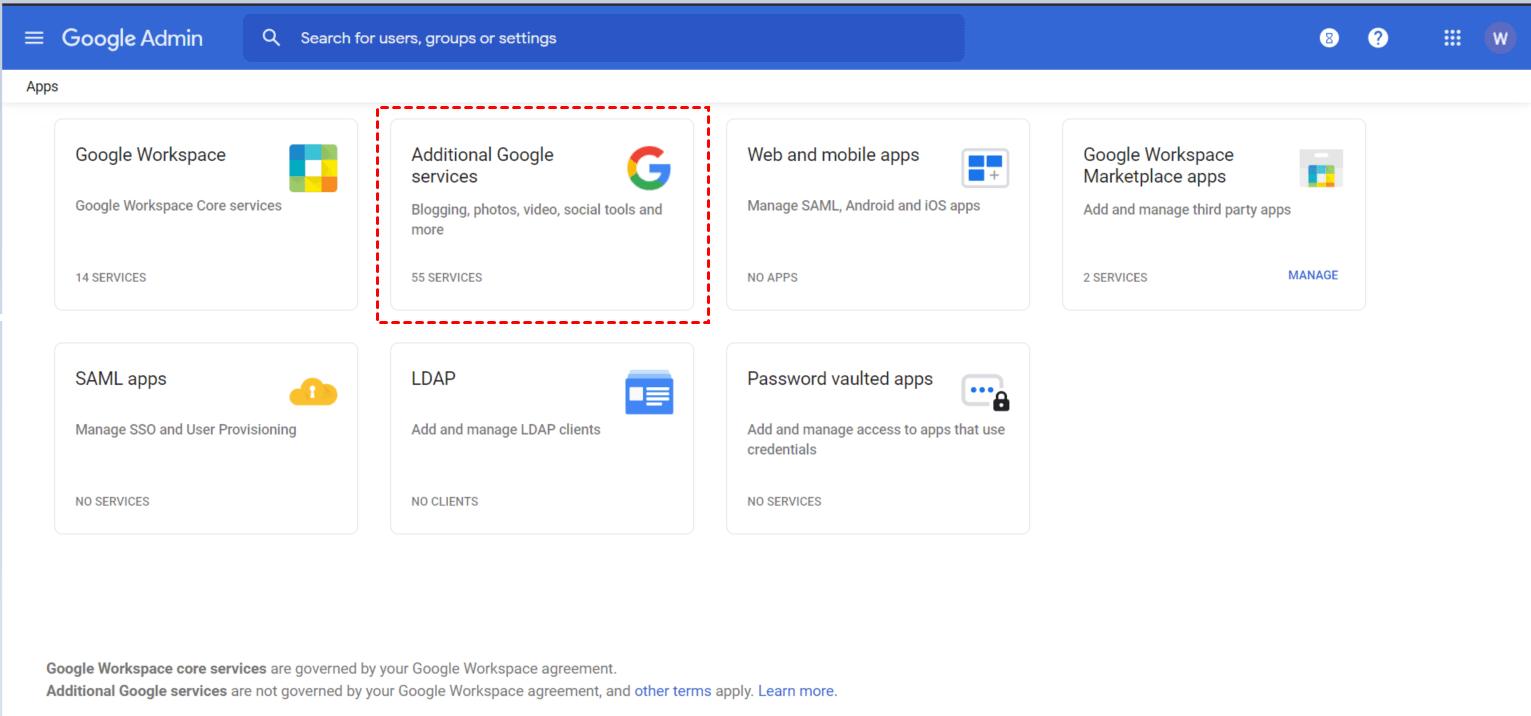
Step 2. Select Additional Google services.
Step 3. Find Chrome Web Store and open its settings. Click on Service status, choose On for everyone, and then click Save.
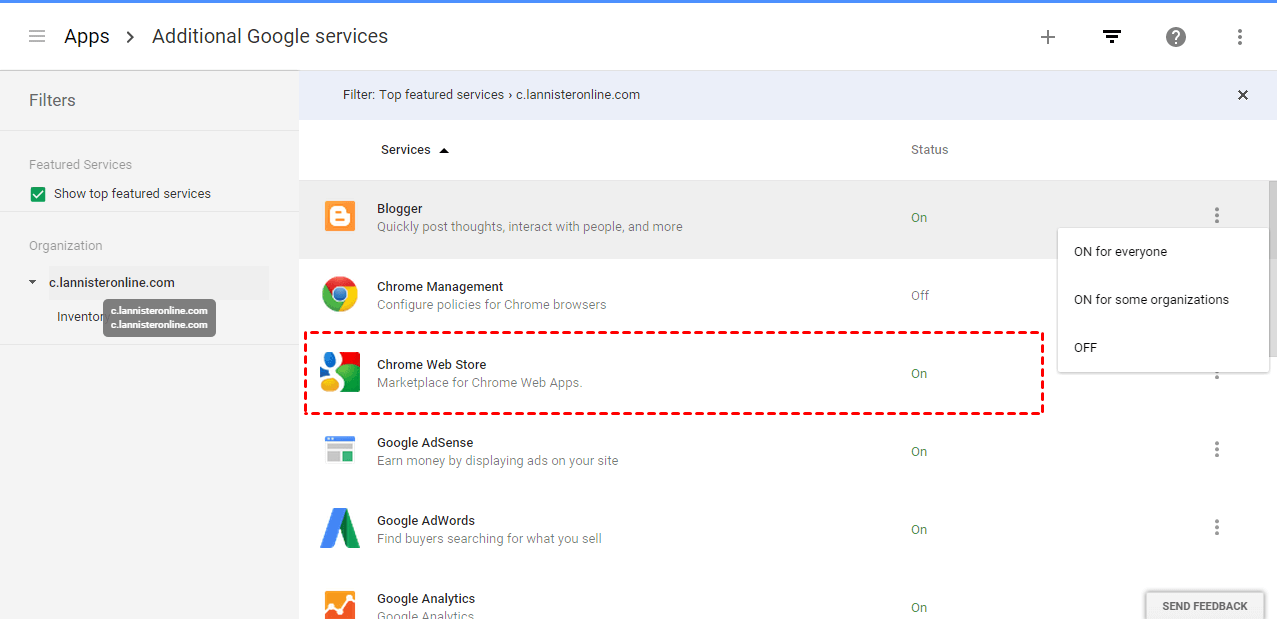
After enabling the Chrome Web Store, try using Chrome Remote Desktop again to see if the “You don’t have access to this service” message is resolved.
Fix 4. Set age-based access settings
Google now includes age-based settings for Education Edition accounts. This means you should verify two things: first, confirm whether your account belongs to a Primary or Secondary education organization, and second, check if the “All users are 18 or older” setting is applied. These steps help ensure that users do not lose access to apps or features that are restricted for those under 18.
Step 1. Sign in to your Google Admin console. Go to Account Settings.
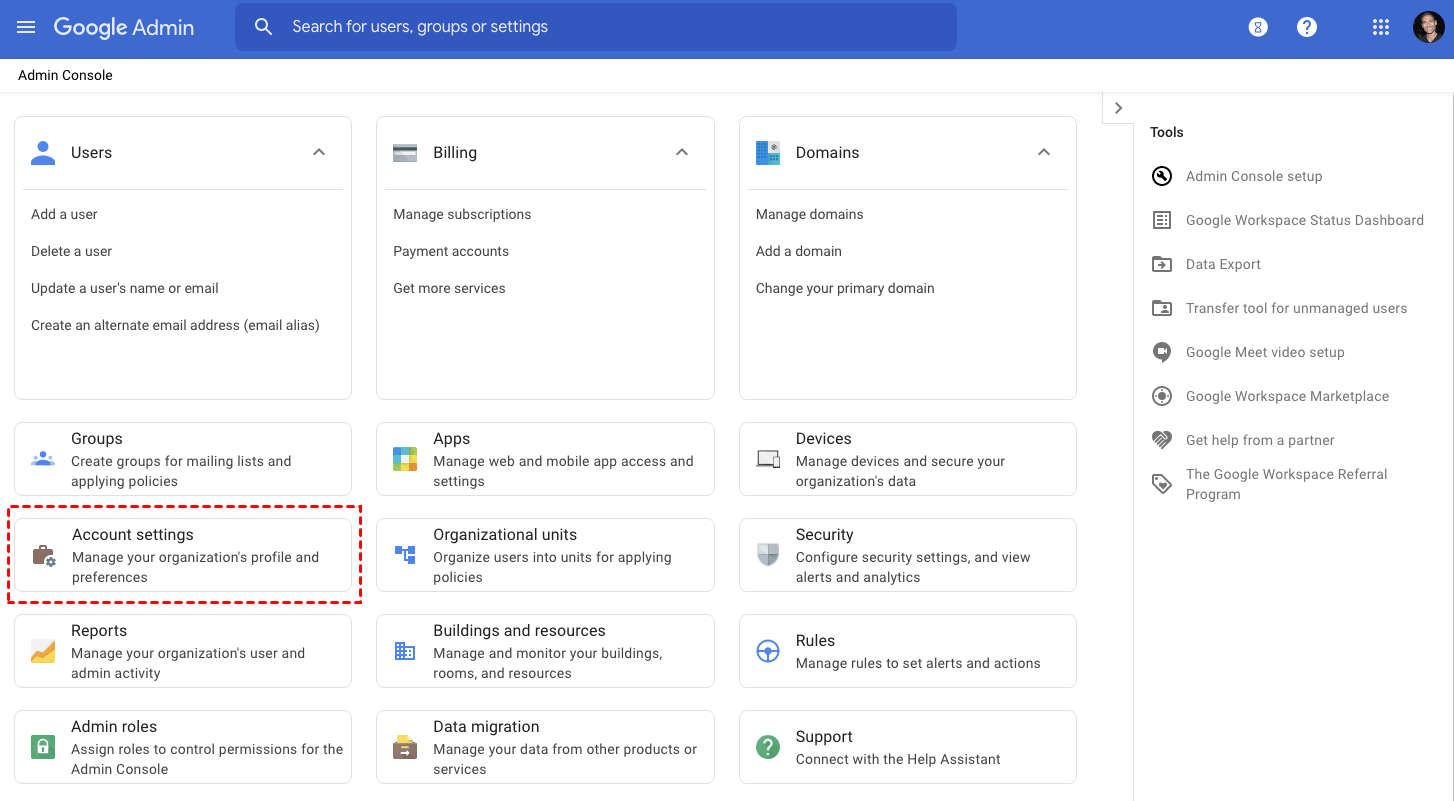
Step 2. Click Profile.
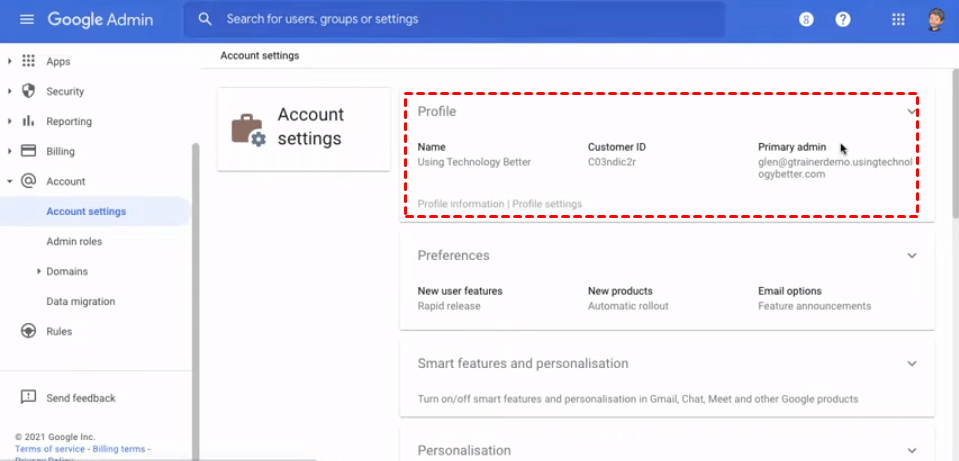
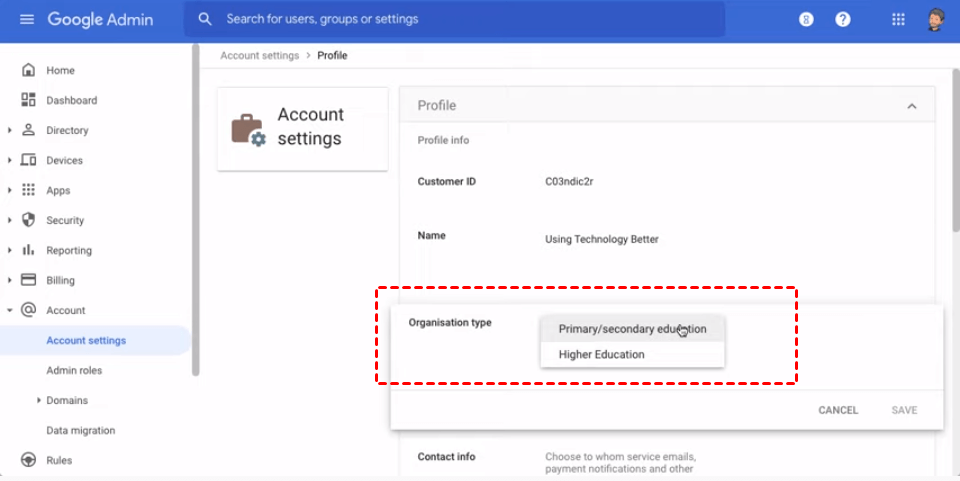
Step 3. Check whether your organization type is Primary/secondary education. If it is, continue the following steps.
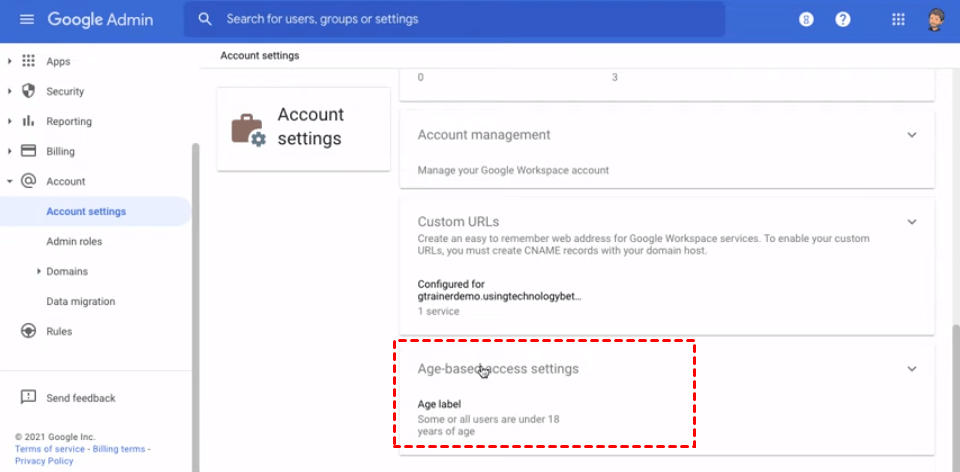
Step 4. Back to the Account settings page, find Age-based-access settings, and click it.
Step 5. Tick All users are 18 or older and then click Save.
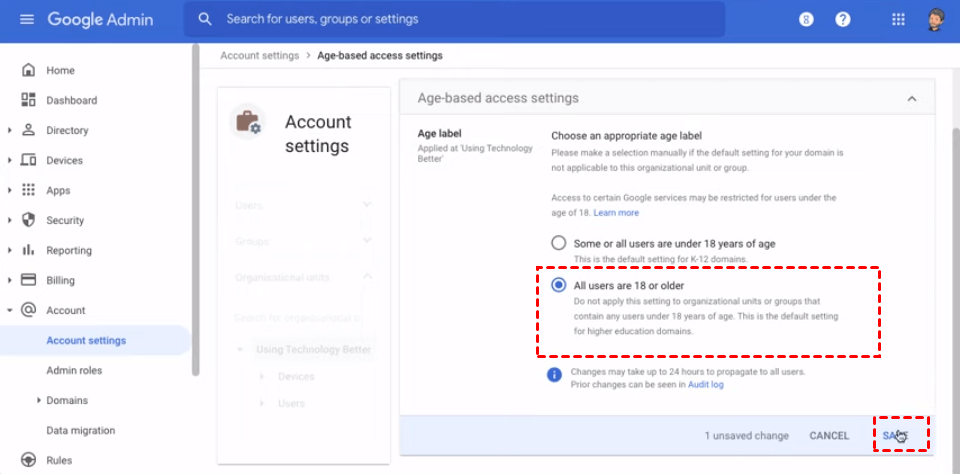
Then run Chrome Remote Desktop again, the Chrome Remote Desktop “You don’t have access to this service” error will be fixed.
Note: The above-mentioned two methods can only be used for Google Workspace accounts. Regular Gmail accounts cannot be used to sign in to admin.google.com.
Fix 5. Restart Chrome Remote Desktop service
Restarting the Chrome Remote Desktop service can often resolve connection issues caused by frozen or unresponsive background processes.
Step 1. Press Win+R, type services.msc, and click OK to open the Windows Services panel.

Step 2. Scroll down to find Chrome Remote Desktop Service, right-click it, and select Restart.
You can also restart the service using Command Prompt.
Step 1. Search for “cmd” in the Windows search box and choose Run as administrator.
Step 2. Type the following commands and press Enter after each:
net stop chromoting
net start chromoting
Restarting the service ensures that Chrome Remote Desktop can establish a fresh connection between your computer and the remote device.
Further reading: Why is Chrome Remote Desktop blocked by admin?
What is the Chrome Remote Desktop Blocked by Admin error? It means that your computer or Chrome browser is under management control. An administrator has applied rules that prevent Chrome Remote Desktop from running or being installed. This is common on work or school devices where remote access tools are restricted for security reasons.
Chrome Remote Desktop may be blocked by an administrator when it does not meet system or security rules. This usually happens on work, school, or managed computers. Administrators use these restrictions to protect data, prevent unauthorized access, and control how devices are used. As a result, users may see error messages saying the app is disabled or blocked by admin policies. Here is a table to help you better understand the casues that lead to Chrome Remote Desktop not connecting or working issues.
| Reason | Explanation |
|---|---|
| Group policy restrictions | System administrators may block Chrome Remote Desktop through group policies to prevent remote access on managed devices |
| Organization security rules | Many companies and schools disable remote desktop tools to reduce the risk of data leaks or external access |
| Managed Google account | If you sign in with a work or school Google account, certain Chrome features may be limited by admin settings |
| Firewall or network rules | Network administrators may block the ports or services required for Chrome Remote Desktop to work |
| Insufficient user permissions | Standard user accounts may not have the required rights to enable or run remote desktop services |
| Disabled Chrome extensions | Admins can remotely disable specific Chrome extensions, including Chrome Remote Desktop |
Conclusion
In conclusion, the Chrome Remote Desktop blocked by admin issue is usually caused by account restrictions, policy settings, or system related changes rather than a complete service shutdown. By understanding the possible reasons and applying the fixes in this guide, most users can resolve the problem without advanced technical skills. If the issue persists, using a reliable alternative remote desktop tool can help you stay productive while avoiding repeated access limitations.
FAQs
🗨️ How to fix “Blocked by Admin” and policy errors
Check whether your device or Chrome browser is managed by an organization. If you are the admin, review Google Admin Console settings, enable required services, and allow Chrome Remote Desktop policies. For personal devices, switch to an unmanaged Google account if possible.
🗨️ How to troubleshoot network and firewall blocks
Make sure your network allows Chrome Remote Desktop traffic. Disable VPNs or proxies temporarily, check firewall rules, and confirm that required ports and services are not blocked by your router or security software.
🗨️ How to resolve service issues on macOS and Windows
Restart the Chrome Remote Desktop service, update your operating system and Chrome browser, and reinstall the Chrome Remote Desktop app if needed. Also confirm that background services and permissions are enabled on your system.
🗨️What alternatives to use if Chrome is permanently blocked
If Chrome Remote Desktop is blocked by admin policies, AnyViewer is a reliable alternative. It works as standalone software and does not rely on Chrome or Google account restrictions.
🗨️How do I unblock my Remote Desktop?
Remove admin or group policy restrictions if you have permission, enable required services, and ensure your account has sufficient access rights. On managed devices, you may need to contact the administrator.
🗨️How to fix “this page has been blocked by Chrome err_blocked_by_client”?
Disable or remove browser extensions such as ad blockers or security tools that may block the page. Clearing browser cache and resetting Chrome settings can also help.
🗨️Why can’t I access Chrome Remote Desktop?
This usually happens due to admin restrictions, account limitations, network blocks, or service failures. Policy settings, firewalls, or disabled Chrome services are the most common causes.



 as a preferred
source on Google
as a preferred
source on Google