
Remote Desktop Access for Healthcare: A Practical Guide
Explore remote desktop access options for healthcare, key privacy and security checks, and practical clinic IT support workflows. Learn where AnyViewer may fit, what to verify before handling patient information, and how to pilot an approved setup.

By Ellie / Updated on November 3, 2026


What Does Remote Desktop Access for Healthcare Enable?
Remote desktop access for healthcare lets authorized users view and operate a computer at a clinic, hospital, or administrative office from elsewhere. It can help IT teams troubleshoot workstations and let approved staff use office-based applications. The right setup depends on the workflow, endpoint controls, and information involved, not simply whether the connection works.

For a small clinic evaluating remote support, AnyViewer offers attended connections and authorized unattended access. Start with a defined support task and a non-patient-data test environment, then determine whether the proposed deployment meets the organization's security and contractual requirements.
Remote desktop software is distinct from a patient-facing telehealth platform. Operating an office computer remotely does not automatically provide a compliant video consultation service, an EHR integration, or an approved way to operate medical equipment.
Match the Access Method to the Healthcare Task
A receptionist needing help with an application and a physician needing a managed clinical workspace have different requirements. Choose the access model before comparing feature lists.
| Task | Access approach to evaluate | Main checkpoint |
|---|---|---|
| Help a staff member troubleshoot a workstation | Attended remote support | Confirm identity and obtain session approval |
| Maintain a designated administrative computer after hours | Authorized unattended access | Define permitted users, maintenance windows, and revocation |
| Give many clinicians managed workspaces | Centrally managed virtual desktops or published apps | Validate identity, capacity, peripherals, and application licensing |
| Access an existing office application occasionally | Approved remote workstation access | Check local screen visibility and data movement |
| Service a connected medical device | Manufacturer-approved support process | Obtain clinical engineering and device-owner approval |
For clinical application access, follow your organization's existing gateway or virtual desktop service when one is provided. Riverview Health's published remote-access process, for example, requires prearranged permission and MFA. Its workflow illustrates why remote access is an organizational service rather than an individual software choice.
Evaluate Privacy, Identity, and Data Handling First
For U.S. organizations subject to HIPAA, assess the complete deployment. HHS guidance explains that a cloud provider handling electronic protected health information on a covered entity's behalf can be a business associate even when it cannot decrypt the information. Review the vendor's actual role and obtain a business associate agreement when required.
Do not treat an encryption claim, privacy feature, or signed agreement as proof that every workflow is acceptable. Screen content, clipboard data, transferred files, screenshots, and recordings can all affect the review. Keeping an application on the clinic computer also does not prevent someone from photographing its remote display.
Before a pilot, document answers to these questions:
- Who can connect, and how are individual identities authenticated and removed?
- Which managed devices are permitted, and who checks patching and endpoint protection?
- Can file transfer, clipboard use, printing, and recording be restricted as required?
- What activity records are available, who reviews them, and how long are they retained?
- Can someone standing near either endpoint see sensitive information?
- What is the approved fallback when access fails during time-sensitive work?
Use the answers as acceptance criteria. If a required control cannot be demonstrated, resolve the gap before expanding the deployment.
Where AnyViewer Fits in Clinic IT Support
AnyViewer is worth evaluating when a clinic needs a direct way to support authorized workstations across locations. Its practical value here is the ability to choose between staff-approved assistance and preauthorized access to a designated computer, rather than sending someone onsite for every desktop issue.
For example, consider a scheduling workstation with an application display problem. A technician can first ask staff to close patient records, verify the support request, and approve a connection. This is an illustrative workflow, not a reported product test or customer case.
Three capabilities are particularly relevant to this evaluation:
- Attended Remote Support: let the staff member approve a connection while the technician investigates the agreed issue.
- Unattended Remote Access: reach an authorized, prepared workstation for approved maintenance without requiring someone to accept each connection.
- Privacy Mode: black out the remote display and restrict remote-side input in supported sessions, subject to platform and plan requirements.
For an approved workstation-support pilot, explore AnyViewer's remote access options and test them against your clinic's actual operating conditions.
The official security page also describes two-factor authentication and block/allowlist controls. Verify their availability and behavior in the selected configuration. Privacy Mode addresses visibility at the remote workstation; it does not protect an unattended laptop at the technician's location.
Before using AnyViewer with patient information, ask the vendor for written clarification of relevant data flows, available activity records, retention, contractual terms, and BAA availability where required. Do not assume healthcare suitability from general remote-access features alone. If mandatory requirements cannot be met, use an alternative approved by your organization.
Pilot an Approved Support Workflow in Six Steps
Begin with a managed Windows-to-Windows test setup and dummy records. This keeps the first evaluation focused on operational behavior without exposing patient information.
- Define the task. Name the workstation owner, authorized technician, permitted actions, and success criteria. Record whether the session requires staff approval or preauthorized access.
- Prepare both computers. Confirm current platform support, install the approved AnyViewer version, and apply your organization's account and endpoint controls.
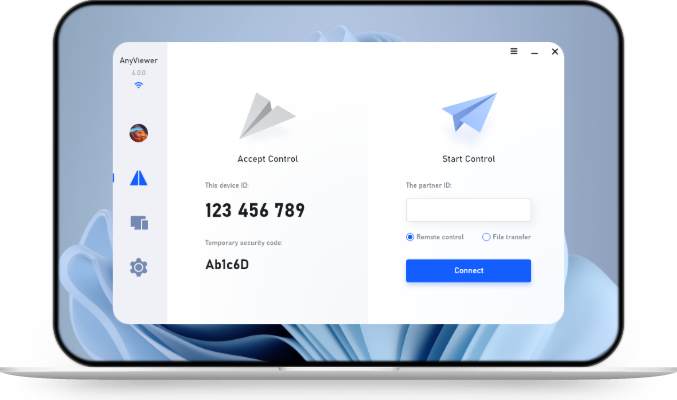
- Test attended support. Follow the official request workflow: enter the partner's device ID, send the control request, and have the intended recipient approve it. Verify the identity separately before accepting.
- Evaluate unattended access separately. Use the supported device-assignment and access process only after IT approval. Do not share a general account among staff to simplify setup.
- Exercise restrictions and failure cases. Check physical-screen visibility, permitted data movement, disconnection behavior, workstation locking, and what happens after a network interruption.
- Close and review. End the session, verify the workstation's final state, document the support outcome, and test removal of the technician's access before expanding the pilot.
Only access devices, accounts, and files that you own or are explicitly authorized to use.
Choose AnyViewer Plans Around Operational Requirements
Count the people providing support, devices requiring access, and overlapping sessions before choosing a subscription. Then confirm that the selected plan and platforms support the controls established during the pilot. A low entry cost is useful only if the resulting workflow meets your requirements.
For a clinic adding locations or sharing support responsibilities, compare AnyViewer plans against that inventory. This gives the purchase decision a concrete basis without assuming that an upgrade solves every security or governance gap.
Include rollout effort, training, monitoring, and offboarding in the decision. A clinic with occasional attended support may need a different arrangement from a hospital delivering virtual workspaces to hundreds of users.
Conclusion
Remote desktop access for healthcare works best when the access method matches the task and the organization can verify how identities, devices, and information are protected. Evaluate AnyViewer for clearly defined workstation-support needs, validate the required controls with dummy data, and obtain the necessary approvals before using patient information. Start with one measurable workflow, then expand based on evidence from the pilot.



 as a preferred
source on Google