

Fix Login Restrictions per IP Address: Share Accounts Safely
Websites often restrict an account by IP address to stop password sharing. Instead of trying to figure out how to remove IP restriction blocks, teams can use AnyViewer to access a single, dedicated computer remotely. This keeps the IP address stable and prevents account bans.

By Ellie / Updated on May 25, 2026


Sharing premium software accounts among team members is a common practice to save costs. However, many subscription services enforce strict login restrictions per IP address to prevent password sharing. If your team constantly logs in and out from different locations, the system flags this behavior as suspicious, often resulting in temporary locks or permanent account bans.
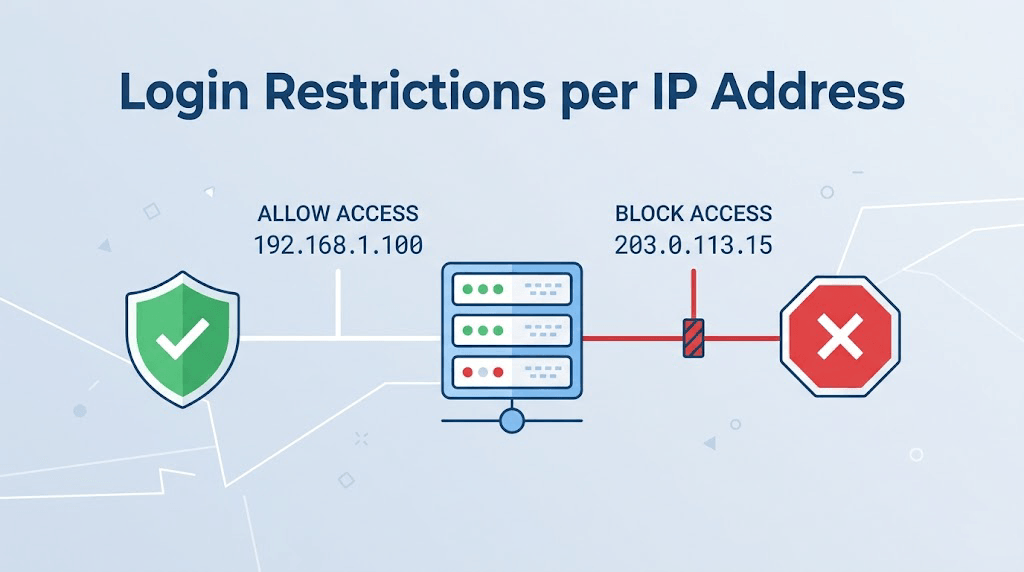
This guide explains how these restrictions work, the risks of triggering them, and a brilliant, cost-effective workaround using remote desktop software like AnyViewer to share accounts safely.
What are Login Restrictions per IP Address and Why Do They Exist?
When a platform enforces login restrictions per IP address, it monitors the locations from which your account is accessed. If the system detects logins from two distant locations within a short window, like New York and London within the same hour, it triggers an automatic security alert.
Websites restrict an account by IP address for two primary reasons:
- Security: To block unauthorized hackers from accessing your data from unknown locations.
- Revenue Protection: To stop multiple users from sharing a single paid subscription, forcing teams to purchase extra licenses.
The Hidden Cost of IP Restrictions for Teams
For small businesses, startups, and freelancers, buying individual licenses for expensive SEO tools, design software, or data analytics platforms can drain the budget.
To save money, teams often share a single premium account. However, constantly switching between different users and locations leads to major headaches:
- Frequent Captchas and Verifications: The platform constantly forces you to verify your identity via email or SMS.
- Account Suspension: Repeated violations will trigger automatic fraud detection algorithms, leading to your expensive account being permanently banned.
- Interrupted Workflows: If one teammate gets locked out, the entire team's productivity grinds to a halt.
The Benefits of Overcoming Login Restrictions
Finding a secure way to manage your IP footprint when accessing shared accounts offers massive advantages for your business operations:
- Massive Cost Savings: You can maximize the utility of a single high-tier subscription instead of purchasing five or ten separate licenses.
- Interruption-Free Work: Your team can access the tools they need without facing constant security blocks or verification loops.
- Data Consistency: Everyone works within the same workspace, making it easier to share projects, history, and templates.
How to Bypass Account Bans: The Ultimate Remote Desktop Workaround
Most people assume the only way to solve this is to learn how to remove IPrestriction policies by contacting support or using a VPN. However, websites can easily detect and block standard VPN IP addresses, and you cannot force a third-party platform to change its security rules.
The smartest, safest, and most practical solution is to change how your team accesses the software. Instead of logging into the account from multiple devices, you should log in to the account on one dedicated computer and let your team access it remotely.
This is where AnyViewer becomes an indispensable tool for your business.
Step-by-Step Guide: Using AnyViewer to Safely Share Paid Accounts
AnyViewer is a secure, fast, and reliable remote desktop software. By setting up a dedicated "Host" computer in your office or home, team members can connect to it from their own devices. Since the premium account is only ever opened on the Host computer, the website only sees one stable IP address, completely bypassing any risk of an account ban.
Here is how to set it up in minutes:
Step 1: Set Up the Host Computer
- Choose a reliable computer that can stay powered on and connected to the internet.
- Download and install AnyViewer on this computer.
- Launch AnyViewer, create an account, and log in. This computer is now assigned to your account.
- Open your premium software or website on this computer and log in. Leave it logged in.
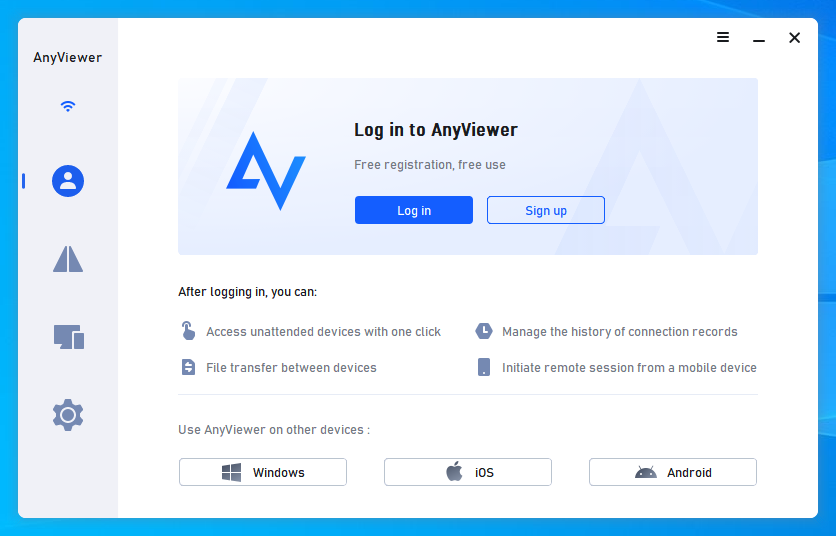
Step 2: Set Up Client Devices for Your Team
- Have your team members download and install AnyViewer on their own laptops or desktops (Windows, macOS, iOS, or Android).
- Log in to the same AnyViewer account on their devices.
Step 3: Start Accessing the Account Remotely
- When a teammate needs to use the paid tool, they open AnyViewer on their device.
- Go to the Device tab, select the Host computer, and click One-click control.
- They can now control the Host computer in real-time, use the paid software, export data, and close the session when done.
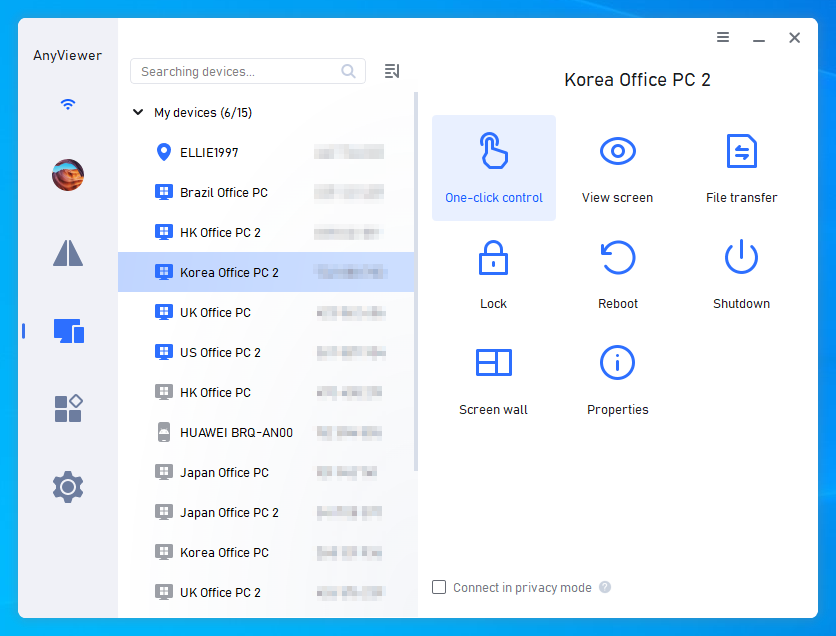
To the premium website's servers, the user never changed. The traffic is originating from the same browser, device, and IP address every single time.
Why AnyViewer is the Perfect Solution for Budget-Conscious Teams
While there are several remote desktop tools available, AnyViewer stands out as the ideal choice for teams trying to optimize their software budgets:
- High-Speed & Low Latency: Built on an advanced connection algorithm, AnyViewer ensures smooth operation, meaning using the software remotely feels like using it locally.
- Strong Security Protocols: All remote sessions are secured by End-to-End Elliptic Curve Cryptography (ECC) encryption, keeping your company data safe from leaks.
- Unattended Access: Team members can connect to the host computer even if no one is sitting in front of it to accept the connection request.
- Cost-Effective: AnyViewer offers highly competitive pricing and a robust free version, making it significantly cheaper than buying multiple premium SaaS licenses.
Conclusion
SaaS platforms use login restrictions per IP address to stop account sharing, but buying extra licenses is expensive. Instead of risking a ban by constantly switching locations or using a VPN, the best workaround is to centralize your access. By using AnyViewer to remotely access a single dedicated PC, your team can safely share premium tools under one stable IP, saving your budget and eliminating annoying security blocks.



 as a preferred
source on Google
as a preferred
source on Google