

How to Prevent Multiple Users on One Account Bans
Sharing accounts across different devices leads to bans. This guide shows how to use AnyViewer to safely share access via a single computer, saving money and keeping accounts secure.

By Ellie / Updated on May 22, 2026


Sharing premium software accounts with your team seems like a smart way to cut costs. However, major platforms are cracking down. If you are trying to figure out how to prevent multiple users on one account from triggering security alerts, you have likely already faced a frustrating reality: constant logouts, suspicious activity flags, or worse, getting your expensive subscription permanently banned.
When multiple team members try to access a single paid account from different locations and devices, software algorithms flag it as credential sharing.
Fortunately, there is a clever, 100% compliant workaround. Instead of sharing the login details across various devices, you can host the account on a single, dedicated machine and use remote desktop software to access it.
Understanding Account Sharing Restrictions and Banning Policies
Many software-as-a-service (SaaS) companies, data providers, and premium digital tools enforce strict single-user licensing agreements. But what exactly happens behind the scenes when you share an account, and why does it pose such a high risk?
What Does "Prevent Multiple Users on One Account" Mean in Practice?
To protect their revenue, platforms implement strict session management protocols to stop multiple users using one account simultaneously. When the system detects a login attempt from a new IP address or device while a session is already active, it usually does one of two things:
- It automatically terminates the older session, causing a frustrating "loop" of logging in and bumping each other off.
- It flags the account for suspicious concurrent usage, triggering security checkpoints.
Why Do Websites Ban Shared Accounts?
Platform security systems look at specific telemetry data to identify account sharing:
- IP Geolocation Discrepancies: A login from New York followed by a login from London ten minutes later triggers an immediate "impossible travel" alert.
- Device Fingerprinting: Every browser and computer has a unique footprint. If five different device signatures use the same account within an hour, the system flags it.
- Concurrent Sessions: SaaS platforms track active cookies. Multiple simultaneous database queries from one cookie signature are a dead giveaway.
Repeatedly triggers these alerts, and the platform's automated systems will flag your account for a terms of service (ToS) violation, leading to an irreversible ban and loss of your paid data.
The Dilemma: Traditional Workarounds vs. The Risk of Getting Banned
When businesses look into how to prevent multiple user logins for the same account from triggering security blocks, they usually try a few traditional methods. Unfortunately, most of these workarounds fail miserably today.
The Failure of Password Managers and VPNs
Some teams use shared password managers so everyone can log in whenever they need to. This actually accelerates the banning process by creating a chaotic pattern of alternating IP addresses and device fingerprints.
Other teams try using a shared VPN to mimic a single location. However, modern SaaS platforms easily detect commercial VPN IP ranges and will block or flag the account even faster for using an anonymizer.
The Real Solution: Dedicated Hardware and Remote Access
To truly bypass this issue safely, you need to satisfy the platform's security algorithms completely. The tool must see one single device and one single IP address that stays logged in 24/7.
Instead of moving the account to the users, you move the users to the account. By keeping the premium software logged in on one specific computer at your office or home, team members can use AnyViewer to safely remote into that specific computer whenever they need to use the tool. This shifts the connection layer entirely away from the website's detection systems, providing a secure bridge for your team while maintaining a flawless account history.
Why Use AnyViewer for Account Sharing?
While any remote desktop tool can technically open a connection, AnyViewer is uniquely positioned to streamline how your team shares digital resources. By centralizing your premium tools on one machine and routing your team's access through AnyViewer, you unlock critical financial, security, and workflow benefits designed around your daily business needs:
- Dramatically Lower Software Costs: Top-tier SEO tools, design suites, and data analytics platforms often charge staggering monthly fees per user. With AnyViewer, your business can scale tool access to your entire team using just a single subscription hosted on one machine, slashing your overhead without sacrificing tool availability.
- Complete Protection from Account Bans: You no longer have to worry about losing access to critical data or getting blocked by strict platform policies. Because your team works entirely through one stationary profile, the platform never sees conflicting locations or hardware. Your expensive subscriptions remain 100% safe, stable, and active.
- An Organized, Friction-Free Workflow: Traditional account sharing creates constant workplace disruptions, with team members accidentally bumping each other offline mid-task. AnyViewer creates an orderly environment where users can see when the line is free and access the software systematically. This means no more disruptive Slack messages asking, "Who is logged in right now? Can you log out?"
- Uninterrupted Projects and Saved Progress: Constantly logging in and out from different places often wipes your search history, active projects, or personalized dashboards. By keeping a single session continuously active, your team can always pick up exactly where the last person left off, keeping all settings and historical data perfectly intact.
- Peace of Mind for Sensitive Corporate Data: Sharing high-value corporate accounts shouldn't mean compromising your security. AnyViewer ensures that your saved credit cards, corporate login details, and proprietary business research remain fully protected and hidden from outside threats during every single connection.
- A Smooth, Local Software Experience: No one wants to deal with a frustrating, laggy connection when running complex data queries or graphics-heavy software. AnyViewer delivers a responsive and seamless experience, ensuring that using the remote tool feels just as smooth as if the software were running directly on your team member's own desktop.
Step-by-Step Guide: Using AnyViewer to Safely Share a Paid Account
To execute this strategy seamlessly, you need a fast, secure, and reliable remote desktop tool. AnyViewer is the perfect solution for this workflow. It allows your team to access the designated host computer with high-speed performance, low latency, and absolute security.
Here is exactly how to set up AnyViewer to share your premium accounts without any risk of being banned.
Step 1: Set Up the Dedicated Host Computer
- Choose a reliable desktop PC or a laptop that can remain turned on and connected to the internet continuously.
- Open your preferred web browser on this host computer and log in to your premium paid account.
Crucial: Save the login credentials and keep the session active. This computer will now act as the permanent, single home for that account.
Step 2: Install AnyViewer on Your Devices
- Download and install AnyViewer on the dedicated host computer.
- Download and install AnyViewer on all team members' personal laptops or computers (the client devices).

Step 3: Configure One-Click Unattended Access
To make collaboration smooth, team members need to unattendedly access the host machine without someone needing to manually click "accept" on the other end.
- Sign up for an AnyViewer account and log in to it on the host computer.
- Log in to the same AnyViewer account on all the team members' client computers.
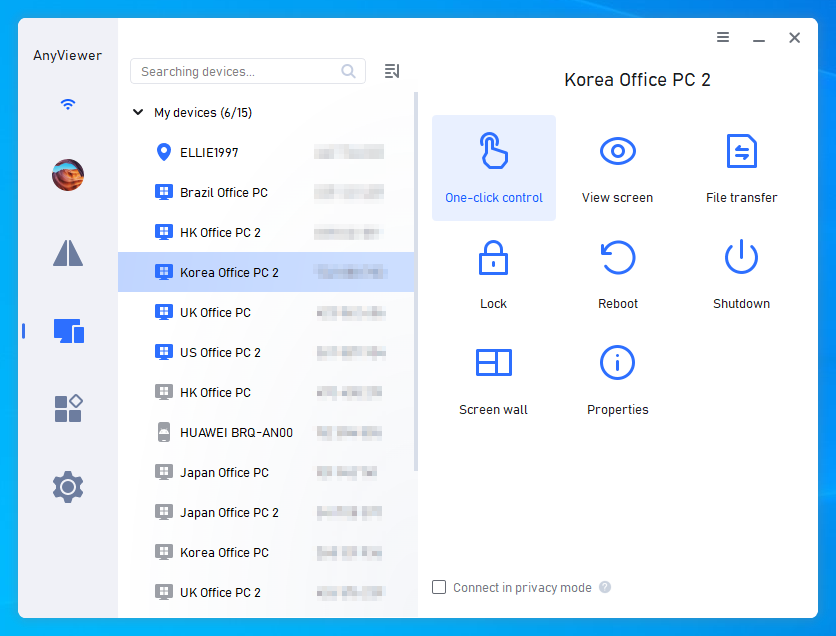
- Once logged in, the host computer will automatically be assigned to your account's device list.
- Go to Device, click on the host computer, and select One-click control.
Now, your team can instantly view and control the host computer to use the premium tool, while the target website only ever sees one consistent device and location.
Conclusion
Maximizing your operational budget does not require risking your valuable software access. Traditional workarounds like VPNs and password managers will eventually fail and get your subscriptions blacklisted. By shifting to a centralized remote desktop framework powered by AnyViewer, you give your team seamless access to the premium tools they need while maintaining a flawless, single-device footprint. It is the smartest, safest way to drastically scale your workflow without multiplying your software expenses.



 as a preferred
source on Google
as a preferred
source on Google