

How to Unblock Account from Multiple User Conflict
This article explains how to unlock a blocked account caused by multiple users logging in simultaneously. It provides stepwise recovery methods to unblock user from restricted users status and introduces AnyViewer as a permanent workaround to share accounts safely.

By Ellie / Updated on May 19, 2026


Sharing a single software or platform account among multiple team members is a common practice to save costs. However, when multiple team members constantly log in and out from different locations and IP addresses, security systems trigger an automatic red flag.
If your team is currently locked out, you need to know how to unblock account from multiple user conflict situations and prevent them from happening again. This comprehensive guide will walk you through why this happens, how to recover your access, and the smartest workaround using AnyViewer to eliminate login conflicts forever.
What is an "Unblock Account from Multiple User Conflict" Issue?
An account conflict occurs when a security system detects concurrent sessions or rapid, geographically impossible logins for a single set of credentials.
To protect user data from potential hackers, modern platforms employ automated fraud detection algorithms. When these algorithms see User A logging in from New York and User B logging in from London five minutes later on the same account, they assume the account has been compromised. The system immediately locks the account to prevent unauthorized access.
The Endless Cycle of Multi-User Logins
For businesses, this creates a frustrating cycle:
- Team members constantly kick each other out of the active session.
- The platform flags the behavior as suspicious.
- The account is suspended, halting your daily operations.
- You spend hours searching for how to unlock a blocked account.
Why You Must Resolve Multi-User Account Conflicts Permanently
Consistently triggering security flags does more than just annoy your team; it poses serious risks to your business continuity.
The Key Benefits of Resolving This Issue:
- Zero Downtime: Eliminating login conflicts means your team never loses access to critical tools mid-project.
- Preserved Account Reputation: Repeatedly flagging an account can lead to permanent blacklisting by the software provider.
- Enhanced Security: You no longer have to text passwords back and forth, reducing the risk of credential leaks.
- Improved Team Productivity: No more waiting for verification codes (2FA) to be forwarded from one teammate to another.
Step-by-Step Guide: How to Unlock a Blocked Account
If you are currently facing a locked screen, follow these standard steps to regain access.
Step 1: Terminate All Active Sessions
Before attempting a reset, ensure everyone on your team has closed their browsers and apps associated with the account. If one person is still trying to force a login, the unlock process may fail.
Step 2: Initiate the Security Account Recovery
Navigate to the login screen and look for the recovery options.
- Click on "Forgot Password" or "Unlock Account".
- Enter the primary registered email address.
Step 3: Clear Browser Cache and Change Your IP
Sometimes, the platform cookies keep sending the flagged session data to the server. Clear your browser cache and cookies, or try using an Incognito window. If possible, switch to a different network or use a stable VPN to get a clean IP address.
Step 4: Complete the Two-Factor Authentication (2FA)
The system will likely send a verification code to the account owner's email or phone. Coordinate with the account owner to enter this code immediately, as these tokens usually expire within 2–5 minutes.
Step 5: Contact Support to Unblock User from Restricted Users Status
If the automated system refuses to unlock the account, you will need to submit a support ticket.
When writing to support, do not openly admit that ten people are sharing a single-user account if it violates their Terms of Service. Instead, state that your team travels frequently or uses dynamic IPs, causing the security system to trigger a false positive. Request them to unblock user from restricted users status manually.
The Permanent Workaround: Use AnyViewer to Prevent Future Conflicts
Unlocking your account is only a temporary fix. If your team continues to log in from multiple devices, the account will inevitably get blocked again.
To bypass this restriction without buying expensive individual licenses for every team member, you need a smarter approach: centralized remote access via AnyViewer.
How the AnyViewer Solution Works
Instead of everyone logging into the target account from their own individual machines, you log into the account just once on a single, dedicated computer (e.g., a spare office PC or a cloud-based desktop).
When a team member needs to use the account, they use AnyViewer, a secure remote desktop software, to connect to that specific computer.
Why This Stops Account Blocks Completely
- One Stable IP Address: To the platform's security system, the account appears to be used by only one person on one computer. There are no shifting IPs or geolocation anomalies.
- No Simultaneous Login Clashes: Team members can take turns controlling the remote PC via AnyViewer, meaning no one is accidentally kicking anyone else out of a live session.
- No More 2FA Hassles: Since the account stays logged in on the host computer permanently, your team won't have to constantly input verification codes.
How to Set Up AnyViewer for Your Team
Step 1. Download and Install: Download AnyViewer on the dedicated host computer and on all team members' laptops.
Step 2. Assign the Host Device: Create an AnyViewer account and log in on the host computer to assign it to your account for unattended remote access.
Step 3. Share Secure Access: Log in to the same account on your team members' devices. Upgrading your account is recommended to support unlimited simultaneous device logins.
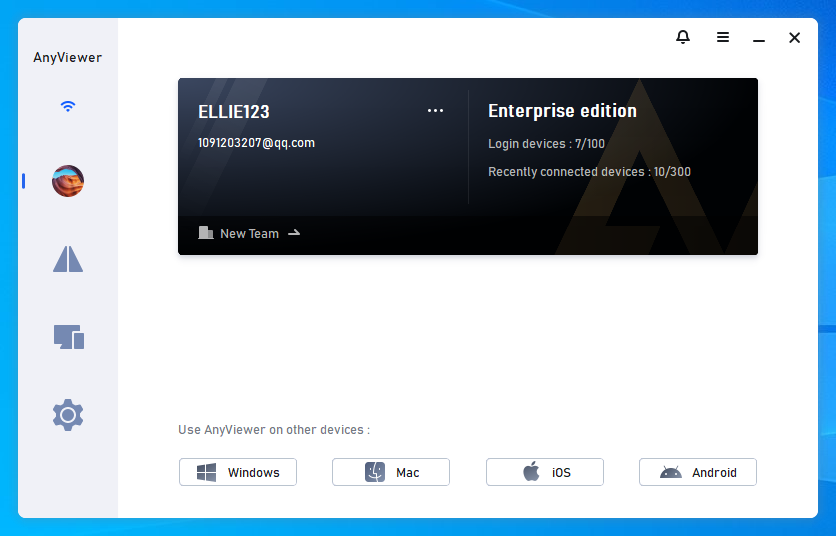
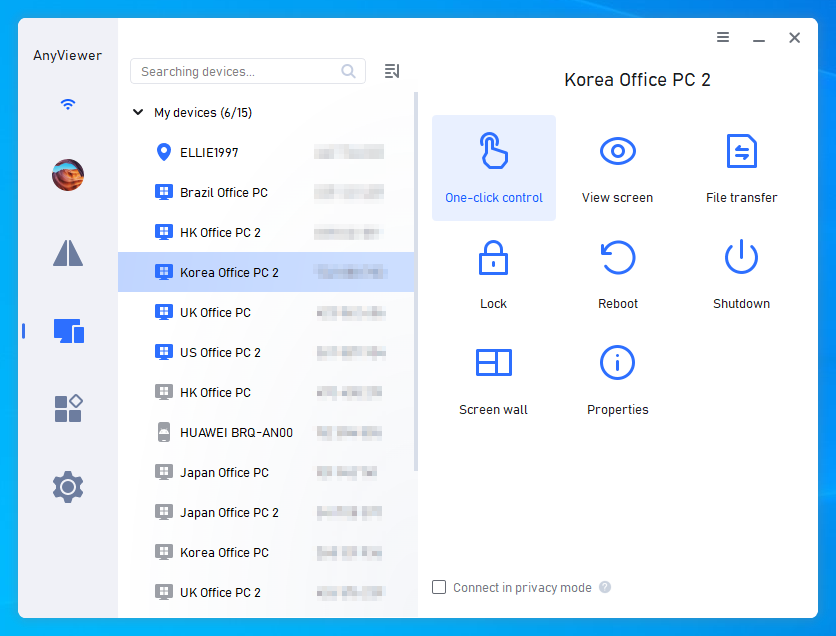
Step 4. Connect Remotely: From anywhere in the world, team members can launch AnyViewer, select the host PC, and click "One-click control" to connect instantly and run the account smoothly, with no lockout risk.
Conclusion
Dealing with a constant unblock account from multiple user conflict loop is a massive drain on business productivity. While knowing how to unlock a blocked account helps you in the short term, changing your operational habits is the only long-term fix.
By routing your team's access through a single, dedicated computer using AnyViewer, you completely satisfy the security requirements of modern platforms while maintaining flexible, remote collaboration for your entire team. Stop fighting security algorithms and switch to a centralized remote desktop solution today.



 as a preferred
source on Google
as a preferred
source on Google