

iPhone Unattended Access | Easily Remote Control iPhone Guide
iPhone unattended access lets you control your device without someone physically using it. This guide explains setup steps, common issues, and how to remote access an iPhone or connect it to a PC.

By Irene / Updated on September 26, 2025


What is iPhone unattended access?
iPhone unattended access means you can connect to and control your iPhone remotely without needing someone to accept the request on the device. It is often used for remote support, file access, or device management. With this feature, you can solve issues, guide someone, or manage data even when the iPhone is not physically in your hands.
However, sometimes you may encounter iPhone unattended access not working. This usually happens because of strict Apple security settings, unstable internet connections, or app compatibility issues. These factors will block the connection or limit what you can do remotely.
How to remote access an iPhone?
Option 1. Use AnyViewer
AnyViewer is a simple and secure tool that lets you remote access an iPhone or iPad from anywhere. It’s useful for both personal and business needs, such as fixing problems, sharing the screen, or guiding someone step by step. With strong encryption and multiple security layers, your data stays safe during every session.
Key Features of AnyViewer:
-
Real-time iPhone screen mirroring with low delay
-
Secure connections with advanced encryption
-
Cross-platform support (iOS, Windows, Android, including iOS 18), you can even control Android from an iPhone.
-
Easy setup and user-friendly design
Pros and Cons of AnyViewer
| Pros | Cons |
|---|---|
| Fast, stable connections with simple setup | Requires app installation on devices |
| Free version with clear, flexible pricing | File transfer between PC and iPhone may be unreliable |
Step 1. Download and install AnyViewer for iOS on your iPhone, then launch the app.
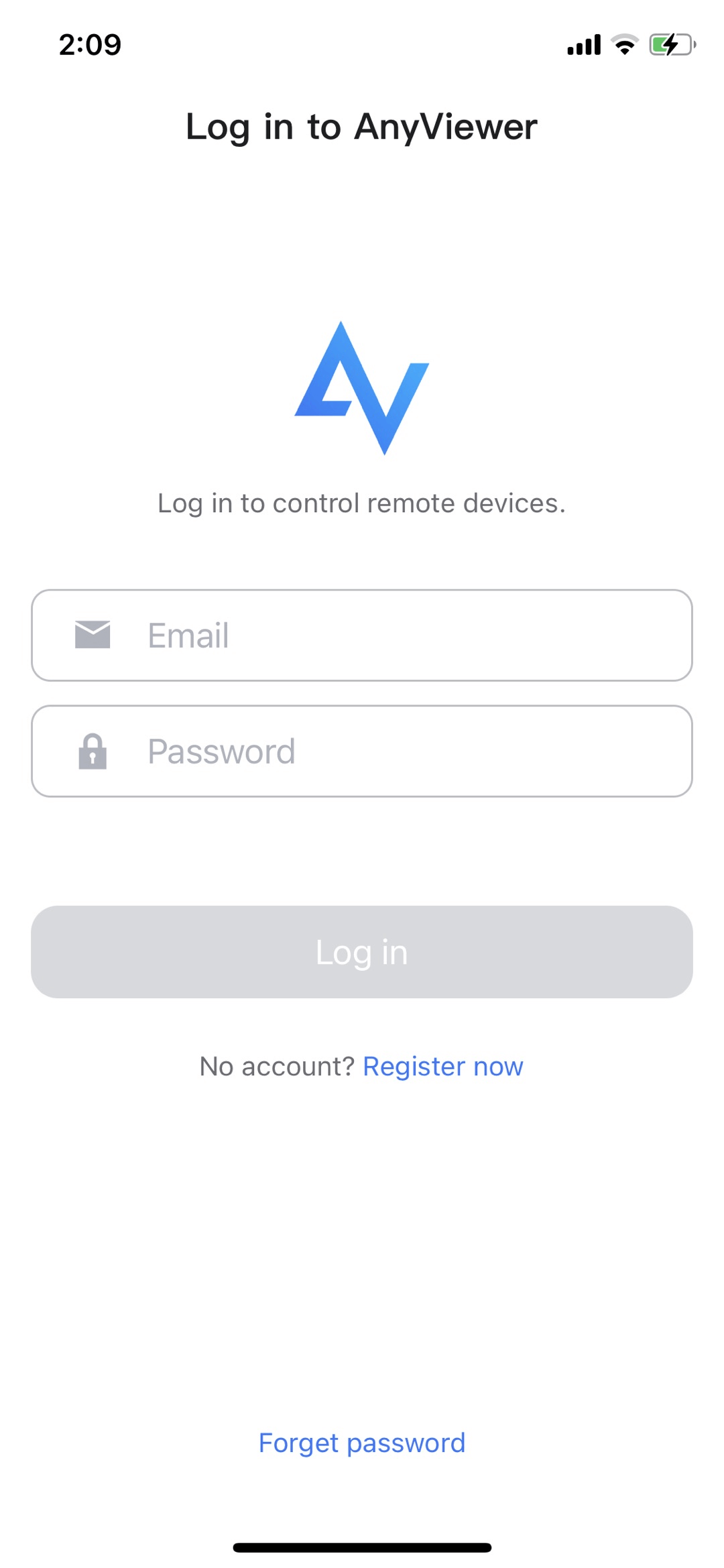
Step 2. Log in using the same account credentials used on the Windows computer.
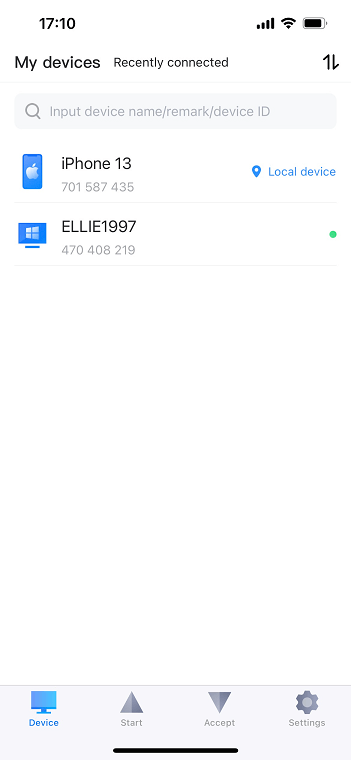
Step 3. All devices associated with the same account will be displayed. Select the specific Windows computer if you need to remote access PC from iPhone.
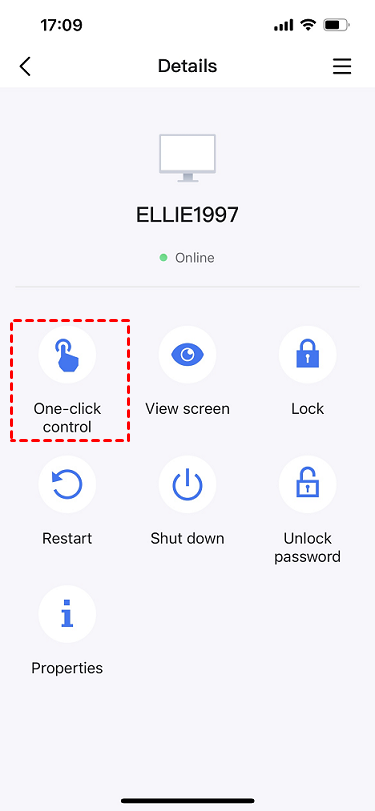
Step 4. Click One-click control to establish unattended remote access to the chosen computer.
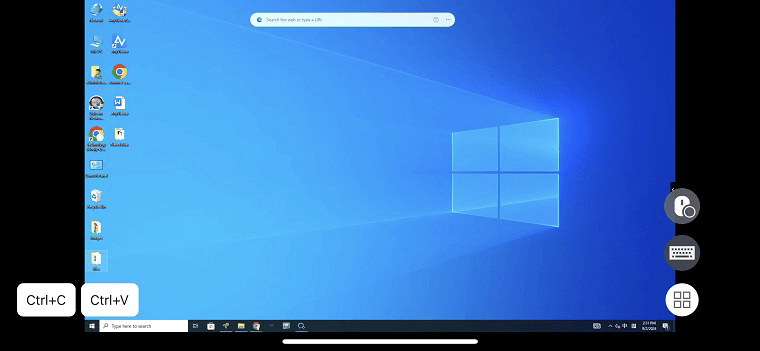
Step 4. Congratulations! You have now successfully connected your iPhone to the Windows computer. The interface supports both vertical and horizontal screens, allowing you to switch effortlessly between orientations for a seamless experience.
Option 2. Use the IOS built-in feature
With iOS 16 and later, Apple added a built-in feature that lets you control an iPad directly from your iPhone. This makes it easy to manage nearby devices without third-party apps. Using your iPhone, you can access the Control Center, App Switcher, Notification Center, and even Siri on the iPad.
You can also handle media controls such as play, pause, skip tracks, and adjust the volume. Below is a simple guide showing how to use Apple’s built-in option to control your iPad with an iPhone.
Step 1. First, navigate to Settings on your iPhone, and proceed to the Accessibility option.
Step 2. Next, go to Control Nearby Devices to continue.
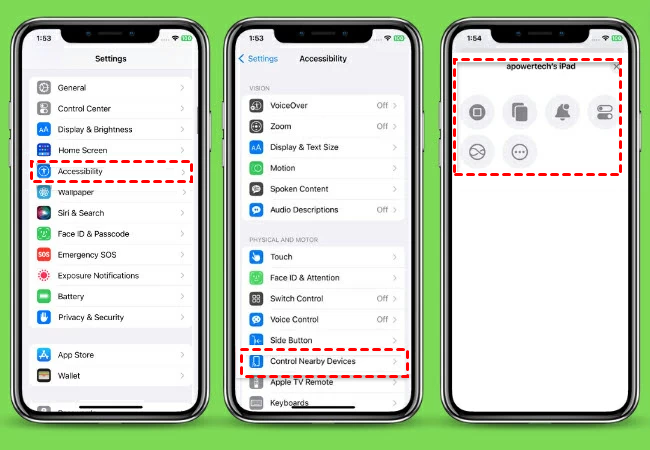
Step 3. From here, tap Control Nearby Devices again to select your iPad’s name.
Step 4. Afterward, you can start controlling your iPad using your iPhone.
Conclusion
iPhone unattended access makes it possible to control and manage your device remotely. It helps you fix problems, access files, or guide others more easily. Although Apple’s security settings may create some limits, you can still rely on tools like AnyViewer or Apple’s built-in feature. Choose the option that matches your needs, whether you want full remote support or simple control of nearby devices.



 as a preferred
source on Google
as a preferred
source on Google