

AOMEI Backupper vs Macrium Reflect, Which One Suits Better?
This post help you to know more details about AOMEI Backupper vs Macrium Reflect, no matter the free editions and advanced editions.

By Ivy Updated on April 1, 2024


Comparison | Macrium Reflect vs AOMEI Backupper
AOMEI Backupper Standard is a free backup software for users to backup and clone entire hard disk, OS, partition(s), file/folders and sync data in Windows PC systems, such as Windows 11, 10, 8.1, 7, Vista, XP (all versions of 32-bit and 64-bit).
Compare the Paid Editions
|
Product |
AOMEI Backupper Professional |
Macrium Reflect Home |
|
Specifications |
||
|
License |
1 PC / License |
1 PC / License |
|
Price |
from $39.95 |
$69.95 |
Chart 2: AOMEI Backupper Professional vs Macrium Reflect Home
Tutorial | Steps to Back up Hard Drive Using Free AOMEI Backupper
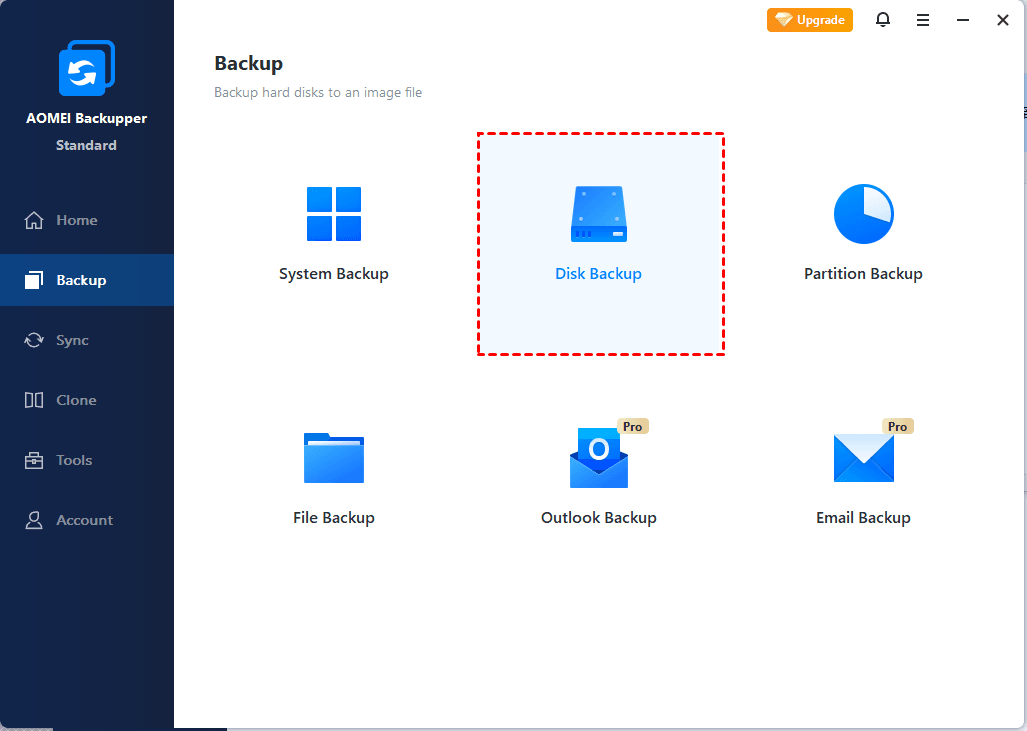
Assuming create a disk backup to external hard disk in Windows 10, here is the steps:
Step 1. Please download, install and execute AOMEI Backupper Standard, choose Backup > Disk Backup subsequently.
Tutorial | Steps to Create Disk Backup with Free Macrium Reflect
Download Macrium Reflect Free and open the software to create disk backup in Windows 10 as the following:
Conclusion
That's all for the comparison of AOMEI Backupper and Macrium Reflect. Both of them are popular backup and cloning software for Windows users indeed and have earned many loyar users these years.
Simply put, make sure whether you want to reinstall or troubleshoot Windows 10 before picking recovery tool, and check which device you have that can be used as recovery media. Thus you should have a conclusion.
-
To create a Windows 10 or Windows 11 recovery tool in USB, you need a USB drive that is at least 16 gigabytes.
-
The data stored on USB drive will be erased in the process, so it’s better to use an empty USB. Otherwise you can backup the USB drive first.
-
The data stored on USB drive will be erased in the process, so it’s better to use an empty USB. Otherwise you can backup the USB drive first.
The system repair disc must be the same architecture (32-bit or 64-bit) as the installed OS. To check the architecture of your system, go to “Control Panel” > “System” > “System type”. To check the architecture of your system, go to “Control Panel” > “System” > “System type”.
BEnd-to-end ECC encryption; easy and quick to download and install; ultra-simple setup; flexible connection ways.
“I have a completely new computer, running Win10. My C drive is almost full, as the system defaulted to installing everything there. And I want to move all documentation, videos etc ( NOT Program Files! ) to the D drive. How do I do this? Incidentally...opening file-viewer in tree & highlighting folder which I want to move & right-clicking properties doesn't work as the location tab is not visible at all...”
– answers.microsoft.com

