

How to Right Click on Remote Desktop [Mobile, Mac, & Windows]
If you are struggling with navigation, this article provides a step-by-step walkthrough on how to right click on remote desktop regardless of your device. The guide also highlights AnyViewer as a powerful alternative that offers built-in virtual mouse controls.

By Ellie / Updated on February 26, 2026


Navigating a Remote Desktop Protocol (RDP) session should feel seamless, but sometimes the most basic actions, like a simple right-click, can feel like a puzzle. Whether you are using a Mac, a mobile device, or a laptop with a finicky touchpad, mastering the "secondary click" is essential for productivity.
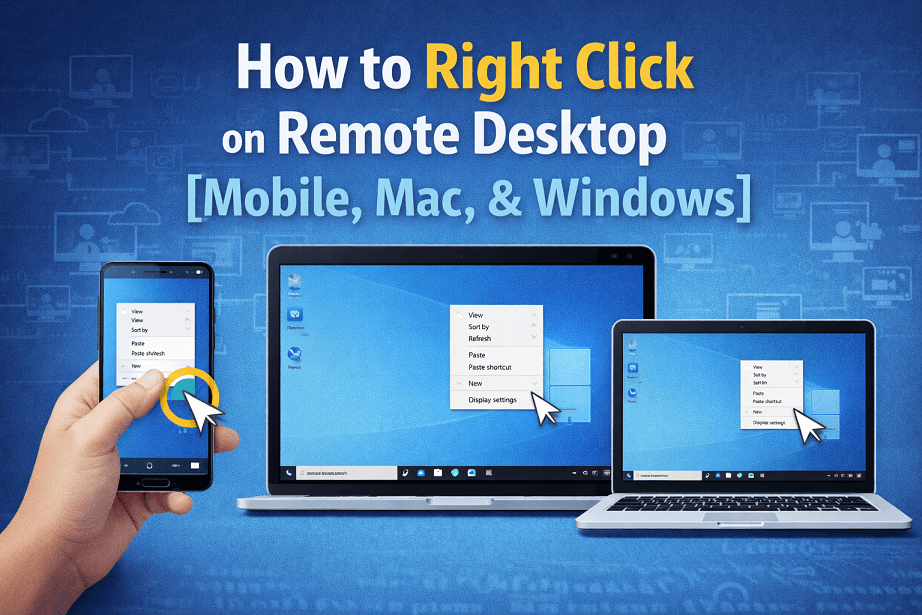
How to Right-Click on Remote Desktop (RDP)
This guide covers every method to right-click on Remote Desktop across all major platforms.
1. Right-Clicking on Mobile (iOS and Android)
Using RDP on a tablet or phone relies on touch gestures.
- Two-Finger Tap: Tap the screen with two fingers simultaneously.
- Long Press: Press and hold your finger on an icon or the desktop for a second, then release.
- Mouse Mode: Most RDP apps have a "Mouse Pointer" mode. When active, you can tap the right-click icon on the on-screen toolbar.
2. Right-Clicking on Windows to Windows RDP
If you are connecting from one Windows PC to another, the experience is usually native.
- The Mouse: Simply click the physical right mouse button.
- The Trackpad: Most modern Windows laptops support a two-finger tap or a press in the bottom-right corner of the trackpad.
- The Keyboard Shortcut: If your mouse fails, highlight the item and press Shift + F10. This is the universal Windows shortcut to open a context menu.
3. How to Right-Click on RDP from a Mac
macOS handles inputs differently from Windows. When it comes to Microsoft Remote Desktop keyboard mapping, many Mac users get confused about how macOS input commands translate into a Windows environment. This is the most common hurdle for users, but you have three easy fixes:
Method A: The Two-Finger Tap
By default, the Microsoft Remote Desktop app for Mac recognizes a two-finger tap on the trackpad as a right-click.
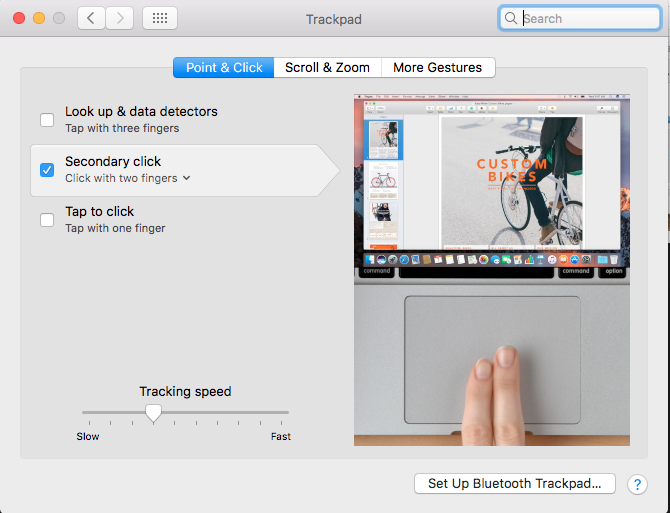
Method B: The Command Key
If the two-finger tap isn't working, hold the Command (⌘) key while clicking. Note: In some RDP configurations, you may need to use Control + Click, though Command is the standard for the Microsoft app.
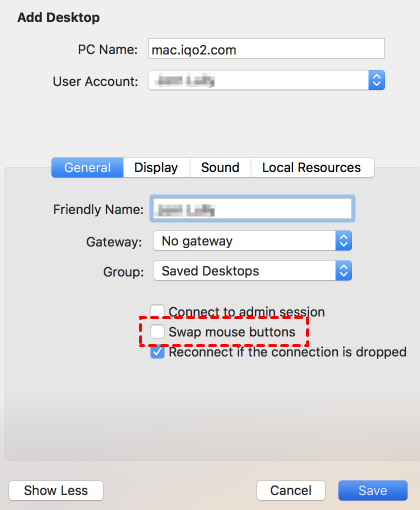
Method C: Configure Mouse Settings
You can change how the app perceives your mouse in the RDP preferences:
Step 1. Open Microsoft Remote Desktop.
Step 2. Go to Preferences > General.
Step 3. Ensure "Swap mouse buttons" is unchecked unless you are left-handed.
A Smoother Alternative: Using AnyViewer for Easy Navigation

If you find yourself constantly struggling with RDP gestures, keyboard mappings, or driver issues, it might be time to switch to a more user-friendly solution like AnyViewer.
AnyViewer is a powerful, free remote desktop software designed for Windows that eliminates the "input lag" and gesture confusion often found in standard RDP sessions.
Why AnyViewer makes Right-Clicking easier:
- Native Gesture Support: AnyViewer is optimized for mobile and cross-platform remote desktop use, meaning a long-press or two-finger tap works instantly without hidden setting tweaks.
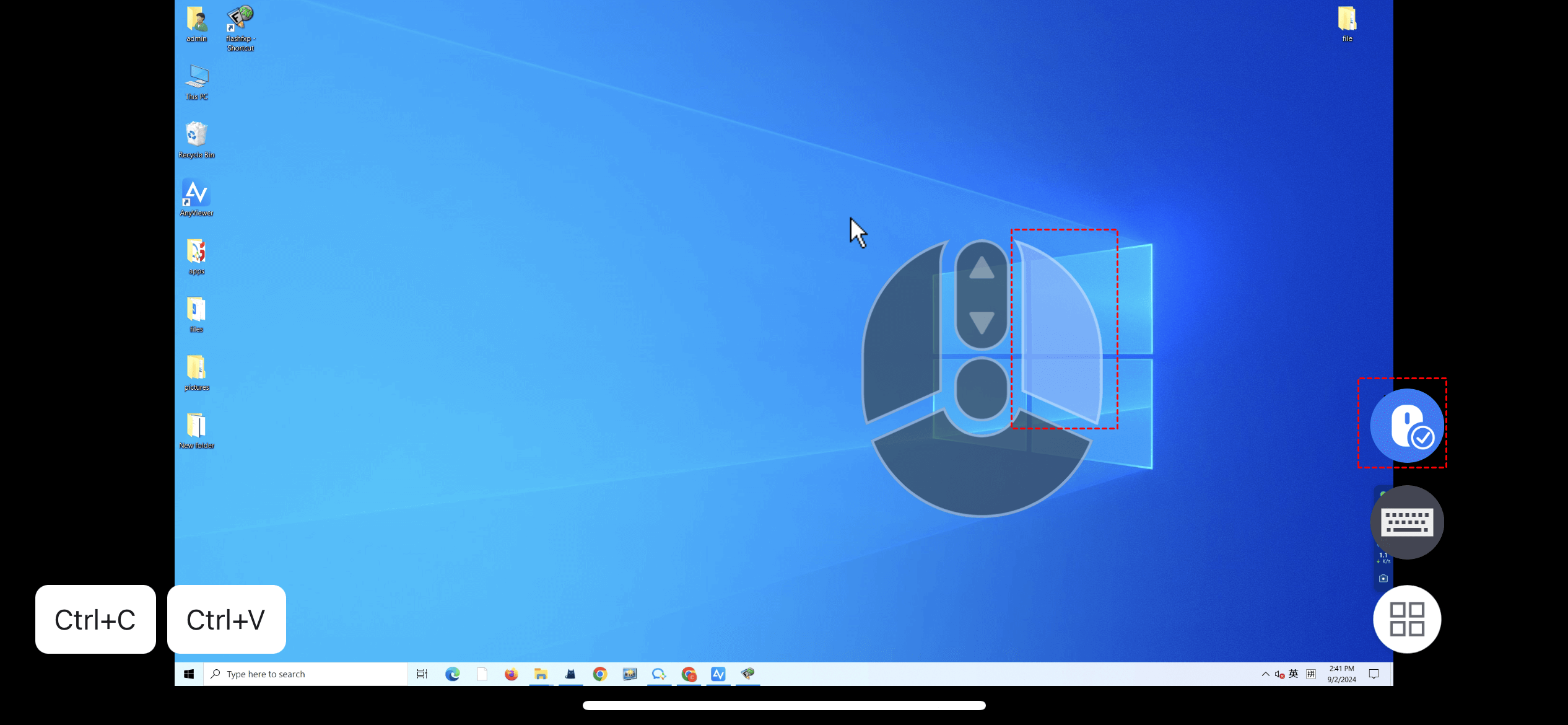
- Virtual Mouse Control: On mobile devices, AnyViewer provides a highly intuitive virtual mouse that includes dedicated buttons for right-clicking and dragging.
- No Complex Setup: Unlike RDP, which requires Port Forwarding and specific Windows versions (Pro/Enterprise), AnyViewer works across all versions of Windows with a simple "one-click" connect.
How to Right-Click in AnyViewer on Mobile:
Step 1. Download and install AnyViewer on both your computer and your mobile device.
Step 2. Log in with the same account on both devices. From your mobile device, locate your PC in the device list and select One-click Control to establish the connection instantly.
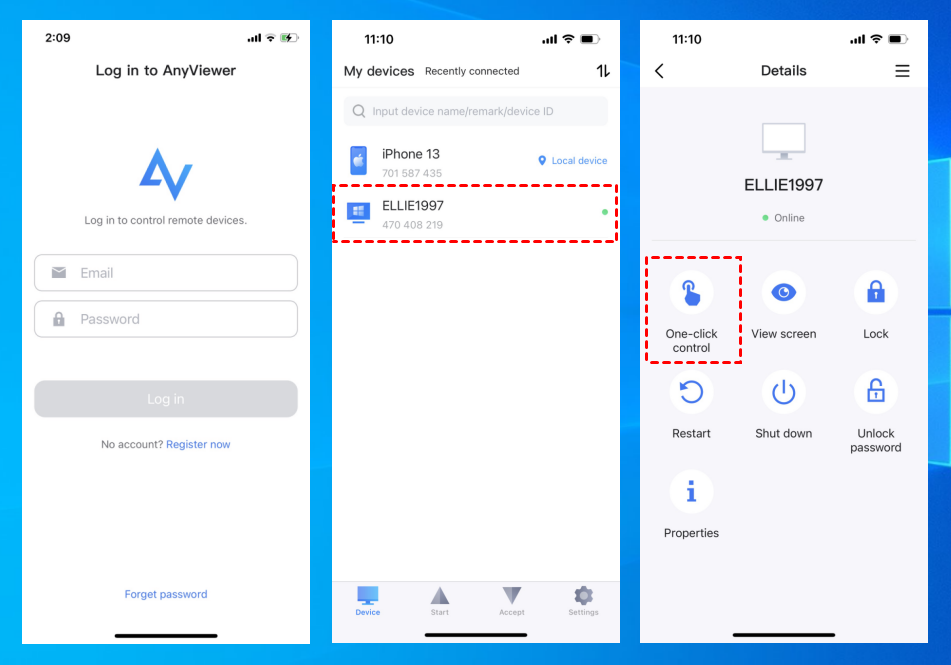
Step 3. Once connected, tap the Mouse icon in the bottom toolbar. Switch from Touch Mode to Mouse Mode. In Mouse Mode, a dedicated right-click button appears on your screen, allowing you to perform right-click actions with ease.
Conclusion
Learning how to right click on remote desktop is a small but vital step in mastering your remote workflow. Whether you choose to use the Shift + F10 shortcut on Windows, the Command-click method on Mac, or touch gestures on your smartphone, you no longer have to feel restricted by your hardware.
If you want to skip the configuration headaches, AnyViewer provides the most intuitive experience. By offering a dedicated virtual mouse and native mobile support, AnyViewer ensures that knowing how to right click on remote desktop is never a hurdle again, allowing you to focus on your work instead of your settings.
FAQs
How to right click on a Mac using Remote Desktop?
How to use shortcut keys in Remote Desktop?
How to enter Ctrl+Alt+Del in remote desktop from Mac?
How to Ctrl+Alt+Delete on a remote desktop?
How to right click on remote desktop phone?
- Two-Finger Tap: Tap the screen with two fingers at once.
- Long Press: Press and hold your finger on an item for one second.



 as a preferred
source on Google
as a preferred
source on Google