

How to Link Two Android Phones Together for File Sharing & Remote Control
If you want to know how to link two Android phones together, the process is simple and only takes a few steps. This summary explains the best practical methods to pair your devices for quick data transfers, screen mirroring, or unattended remote access.

By Irene / Updated on March 23, 2026


🔶Answer Box: How to Link Two Android Phones Together?
If you want to know how to link two Android phones together, the most reliable method depends on your specific needs:
-
For Remote Control & Screen Sharing: Use a professional app like AnyViewer. It allows you to connect two Android phones remotely to control the device, provide technical support, or manage files from any distance.
-
For Quick File Transfers: Bluetooth is the best built-in option for short-range sharing of photos, contacts, or small documents without installing extra software.
-
For Managing Multiple Devices: Linking phones via a shared account (like Google or AnyViewer) allows for seamless data synchronization and real-time access.
Whether you need full remote access or a simple wireless connection, linking your Android devices can significantly improve your productivity and daily convenience.
Can you link two Android phones?
Can you link two Android phones? The answer is yes, and it can actually make your life a lot easier. Linking two Android phones together lets you handle many simple tasks without stress. For example, you might want to help a friend fix a phone issue, move files quickly without a computer, or share your screen during work or study. With the right app, one phone can even control another, which makes remote support, teamwork, and even mobile gaming much more convenient.
There are also clear benefits. You can access one phone from anywhere, give remote help to friends or family, sync apps and data in real time, and even check or protect your device when you are not holding it. Once you learn how to connect two Android phones remotely, it becomes a very handy tool in daily life.
Now let’s look at the simple steps you can use to link two Android phones in the most reliable way.
How to link two Android phones together?
Option 1. Use AnyViewer to connect two Android phones
How to link two Android phones together? The best way is to use AnyViewer. This app is one of the simplest and most secure tools for remote access. With just a few steps, you can connect one Android phone to another and control it smoothly. AnyViewer is not only free to use but also offers fast connections and strong data protection. It even works across platforms, so you can connect Android with Windows, macOS, or iOS devices when needed.
Why Choose AnyViewer?
- High speed: Provides low latency for smooth and responsive control
- Secure connection: Uses end to end encryption to protect your data
- Easy to use: Clean interface suitable for beginners
- Multi-functional: Supports remote control, screen sharing, and file transfer
- Cross platform: Works with Android, Windows, macOS, and iOS
Steps to Connect Two Android Phones
➤ Install AnyViewer and Create an Account
Step 1. Download AnyViewer on both your Android phones.
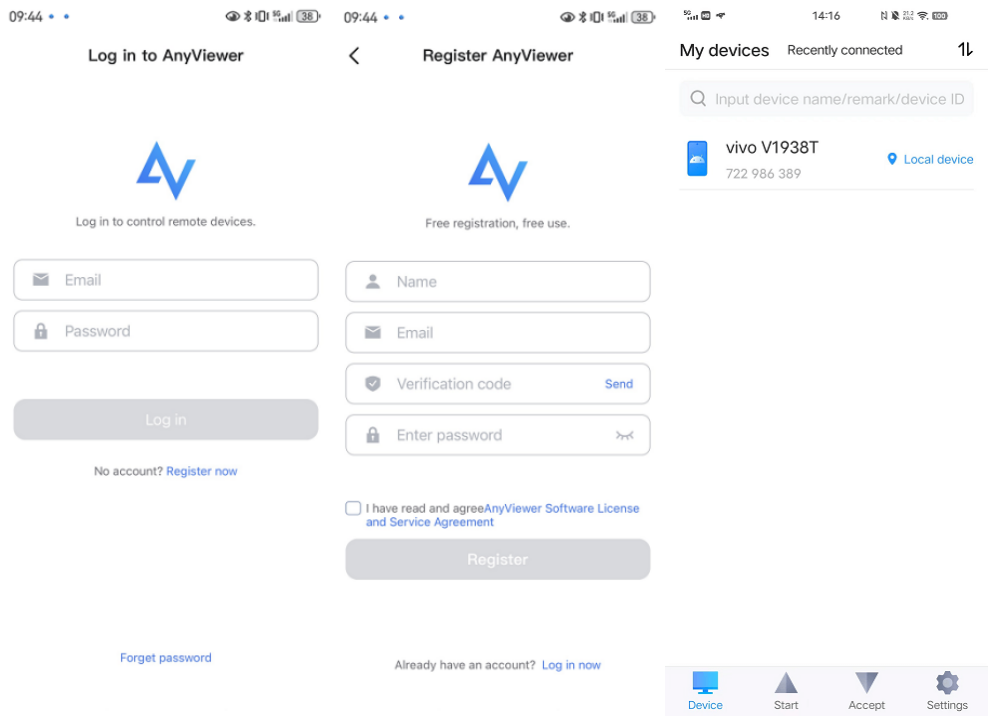
Step 2. On one phone, open AnyViewer, tap Register now to create an account, and log in with it.
Step 3. On another Android phone, open AnyViewer and log in using the same account.
➤ How to Connect Two Android Phones Remotely
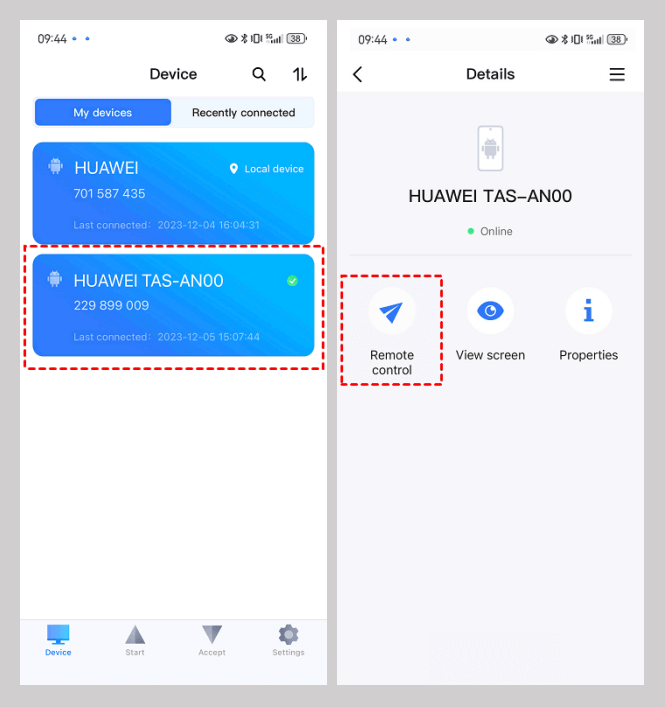
Step 1. After logging in with the same account on both Android phones, you will see the other device listed under My devices.
Step 2. On the controlling phone, select the Android phone you want to control.
Step 3. You can select Remote control or View screen according to your needs.
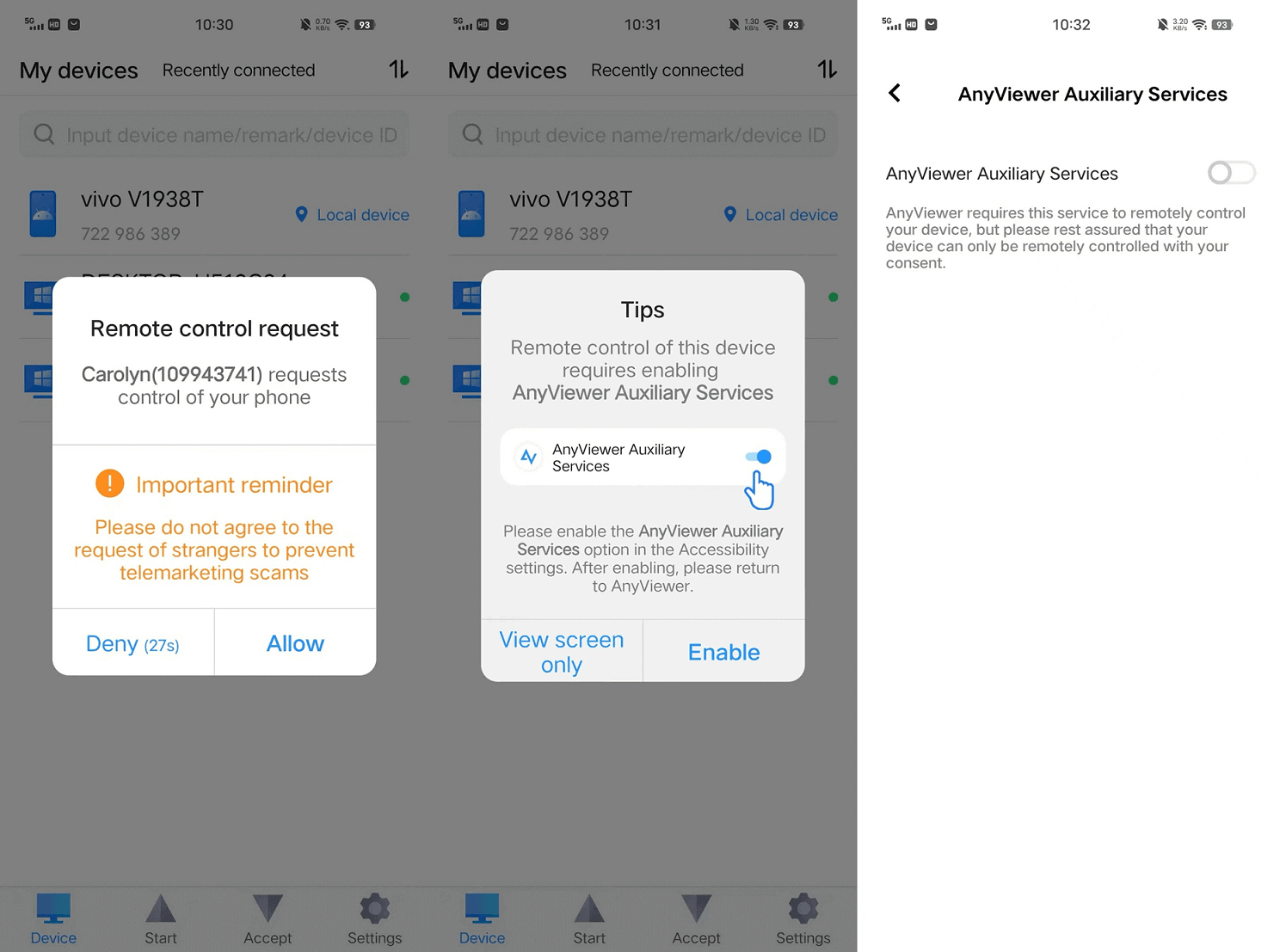
Step 4. The other phone will receive a remote access request. Tap Allow to grant permission.
Step 5. A tips window will pop up. Follow the on-screen instructions to enable AnyViewer Auxiliary Service.
Now, you can effortlessly control one Android phone from another Android phone using AnyViewer.
Option 2. Connect two android phones for wireless file transfer
If your goal of connecting two Andriod phones remotely is simply to share files between two nearby devices, Bluetooth is a straightforward and built in option. It works best for short range transfers such as photos, contacts, or small documents. While it does not support remote control, it is convenient for quick sharing without installing extra apps.
Step 1. Turn on Bluetooth
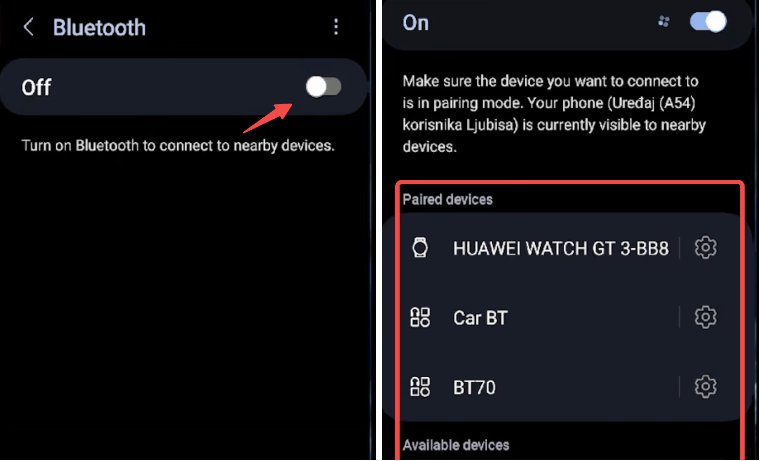
Open the “Settings” app on both Android phones and enable Bluetooth on each device.
Step 2. Pair the devices
On one phone, tap “Pair new device” and select the other phone from the list of available devices.
Step 3. Confirm the pairing
Accept the pairing request on both phones to establish the connection.
Step 4. Share files
Select the files you want to send, tap “Share,” and choose Bluetooth as the sharing method.
Step 5. Accept incoming files
On the receiving phone, confirm and accept the incoming file transfer.
Bluetooth is suitable for small and nearby transfers, but it can be slow when transferring large files. If you need faster speeds or want to transfer data across long distances, AnyViewer also supports efficient file transfer along with remote control, making it a more versatile choice.
Why should you link two Android phones?
Linking two Android phones is no longer just a technical trick but a practical solution for everyday needs. Whether you want faster file transfers, seamless device management, or remote access, connecting two phones can greatly improve efficiency. With the growing reliance on mobile devices for both work and personal tasks, knowing how to link two Android phones together helps you stay organized, productive, and connected. From sharing large files instantly to controlling another device remotely, the benefits are both convenient and powerful.
🌟 Key Reasons to Link Two Android Phones
1. Fast and Convenient File Sharing
One of the most common reasons is to transfer files quickly without relying on cables or cloud uploads. By linking devices, you can send photos, videos, documents, and apps in seconds, even without an internet connection.
2. Remote Access and Control
If you need to connect two Android phones remotely, linking them allows you to control one device from another. This is especially useful for troubleshooting, accessing files on a secondary phone, or assisting family members with technical issues.
3. Easy Device Management
Connecting another phone to your phone makes it easier to manage multiple devices. You can monitor activity, sync data, or even manage apps across both phones without switching back and forth manually.
4. Backup and Data Synchronization
Linking two phones provides a simple way to back up important data. You can sync contacts, messages, and media files between devices, reducing the risk of losing valuable information.
5. Screen Sharing and Collaboration
For presentations, tutorials, or teamwork, linking two Android phones enables screen mirroring. This makes it easier to demonstrate actions, share content visually, or collaborate in real time.
6. Improved Productivity
When devices are connected, you can streamline workflows. For example, you can use one phone for communication while controlling tasks or accessing files on another, saving time and effort.
Linking two Android phones is also helpful in everyday scenarios. Parents can monitor their children’s devices, professionals can manage work and personal phones more efficiently, and travelers can keep a backup device accessible at all times. It also plays a role in situations where one phone is left at home but still needs to be accessed remotely.
Overall, understanding how to link two Android phones together opens up more flexible ways to use your devices. Whether your goal is convenience, security, or productivity, connecting your phones offers a simple yet powerful solution.
Conclusion
So, can you link two Android phones? Yes, and it is easier than you might think. Whether you want to control another phone with AnyViewer or share files through Bluetooth, both methods can help you connect Android to Android smoothly. AnyViewer is the best choice for full remote access, screen sharing, and secure control, while Bluetooth is a quick option for short-range file transfers. By learning how to link two Android phones together, you can enjoy more convenience, better support, and easier file sharing in everyday life.
FAQs
1. Is it safe to link two Android phones remotely?
Yes, it is safe as long as you use a trusted and secure app. Professional tools like AnyViewer use end-to-end ECC (Elliptic Curve Cryptography) encryption to ensure that your connection and data are protected from unauthorized access. Always avoid sharing your login credentials and only grant remote access to people you trust.
2. Can I control an Android phone from another phone for free?
Absolutely. You can link two Android phones together for free using the AnyViewer mobile app. It provides a stable "Remote Control" and "View Screen" feature at no cost, which is perfect for personal use like helping a friend with phone settings or accessing your own device from a distance.
3. How to link two Android phones together without an internet connection?
If you don't have internet, you can use Bluetooth or Wi-Fi Direct for short-range linking. This is ideal for transferring files or sharing contacts. However, for full remote control or screen sharing from a different location, a stable internet connection (Wi-Fi or Data) is required to establish a secure bridge between the devices.
4. Can I link an Android phone to a Windows PC or iPhone?
Yes. Modern remote access solutions are cross-platform. For example, AnyViewer supports linking Android phones not only to other Androids but also to Windows PCs, iPhones, and iPads. This makes it a versatile tool for managing all your technology from a single device.
5. Does linking two phones drain the battery quickly?
While active remote control or large file transfers do consume more power than standby mode, modern apps are optimized for efficiency. To save battery, it’s best to close the connection once you’ve finished your task and ensure that background sync is only active when necessary.



 as a preferred
source on Google
as a preferred
source on Google