

How to Deploy MSI via GPO Step by Step
This practical guide shows Windows administrators how to distribute an MSI package to domain-joined computers with Group Policy. It covers preparation, share and NTFS permissions, GPO scope, computer assignment, validation, common failure modes, and a sensible remote-support workflow for handling exceptions after the rollout.

By Ellie / Updated on August 31, 2026


The Quick Answer: How MSI Deployment Through GPO Works
To deploy an MSI through Group Policy, place the package in a network share that target computer accounts can read, create and link a Group Policy Object (GPO) to the correct organizational unit, add the package under Computer Configuration > Policies > Software Settings > Software Installation, and select Assigned. The application normally installs during computer startup, before sign-in.
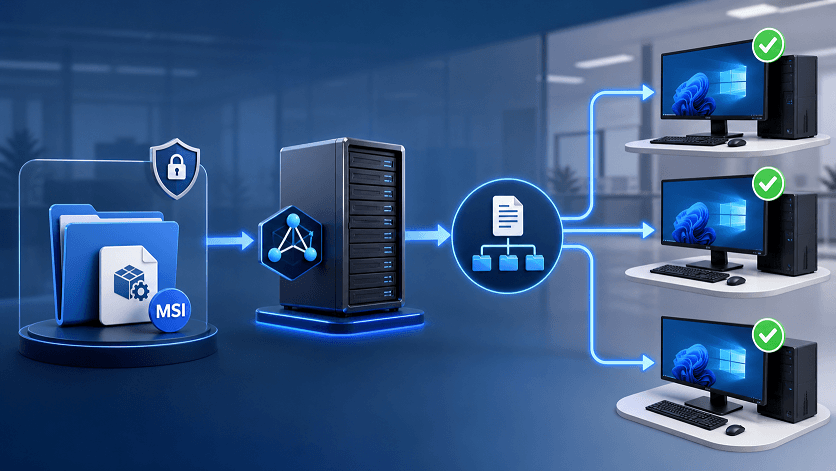
The process is simple on paper, but production rollouts fail when administrators test only with their own user credentials. A computer-assigned package runs in the machine context. That makes the UNC path, share permissions, NTFS permissions, GPO scope, and startup network availability more important than whether an administrator can double-click the MSI manually.
Only deploy software approved by your organization. Only access devices, accounts, and files that you own or are explicitly authorized to use.
Before You Deploy an MSI via GPO
Use this method when you manage domain-joined Windows computers in Active Directory, and the vendor provides a proper Windows Installer package. Group Policy Software Installation is a good fit for a controlled set of relatively stable MSI applications. It is less suitable for internet-only devices, frequently changing applications, complex dependency chains, or installers available only as EXE files.
|
Requirement |
What to verify |
Why it matters |
|
MSI package |
Confirm architecture, silent-install behavior, version, and any required transform (MST). |
GPO Software Installation expects an MSI; vendor-specific requirements can still block installation. |
|
Active Directory scope |
Put pilot computers in a test OU or create a dedicated security group. |
A narrow pilot limits the impact of a bad package or incorrect uninstall setting. |
|
Distribution share |
Use a stable UNC path such as \\fileserver\software$\app\app.msi. |
Mapped drives and local paths are unavailable to the computer at startup. |
|
Permissions |
Grant target computer accounts or Domain Computers read access at both share and NTFS levels. |
The machine, not your admin account, retrieves a computer-assigned package. |
|
Rollback plan |
Record the MSI product version and decide whether removal should uninstall the app. |
You need a predictable response if the pilot affects startup or application compatibility. |
How to Deploy MSI via GPO Step by Step
- Validate the MSI on a test computer. Install and remove the exact package manually in a lab, and check whether it requires a reboot, license file, prerequisite, command-line property, or MST transform. Do not begin with an untested production-wide link.
- Create the distribution point. On a reliable file server, create a versioned folder such as \\fileserver\software$\Vendor\App\1.2.3. Copy the MSI and any required transform files into that folder. Keep the path stable after creating the policy.
- Configure share and NTFS permissions. Give the targeted computer accounts Read permission on the share and Read & execute permission on the underlying folder. A common choice is Domain Computers, narrowed when the environment requires tighter control. Do not grant unnecessary write access.
- Create and link a pilot GPO. Open Group Policy Management, right-click the OU containing your pilot computer accounts, and choose Create a GPO in this domain, then Link it here. Give it a clear name such as Software - AppName - 1.2.3 - Computer.
- Confirm scope and filtering. In the Scope tab, verify the link, Security Filtering, and any WMI filter. The target computer must have both Read and Apply Group Policy permissions. Avoid removing Authenticated Users read permission without replacing it appropriately, because the computer must still read the GPO.
- Add the software package. Edit the GPO, then go to Computer Configuration > Policies > Software Settings > Software Installation. Right-click Software Installation, select New > Package, enter the full UNC path, select the MSI, and choose Assigned. Do not select the package through a local drive letter.
- Configure advanced options only when needed. Open package properties to add an MST on the Modifications tab or review deployment options. Add transforms before clients process the package; changing the package later can produce inconsistent results.
- Restart a pilot client. Computer-assigned software installs during foreground startup policy processing. A background gpupdate can refresh the policy but does not reproduce every startup installation condition, so restart the computer and allow extra time before sign-in.
- Verify the result. Confirm the application is installed, then run gpresult /h C:\Temp\gp-report.html or use Resultant Set of Policy to check whether the GPO applied. Review Event Viewer under Applications and Services Logs > Microsoft > Windows > GroupPolicy and the Application log for Windows Installer events.
- Expand in stages. Move from a few test devices to one department or site, monitor startup time and installation success, then broaden the link or filtering. Keep the old package source available until upgrade and rollback behavior are proven.
Assigned vs. Published: Choose the Right Deployment Type
For most company-wide MSI rollouts, computer assignment is the clearest choice: it installs the application for the machine during startup and makes it available to users who sign in. User assignment or publishing serves a different purpose and depends on user policy processing. Publishing makes the application optional rather than enforcing installation.
- Use Computer Configuration + Assigned for required software on managed computers.
- Use User Configuration only when the application and business requirement are genuinely user-scoped.
- Use Published when eligible users should choose whether to install the application.
- Use Intune, Configuration Manager, or another deployment platform when you need internet delivery, richer reporting, dependencies, detection rules, or complex update control.
Why an MSI GPO Does Not Install - and How to Fix It
The most useful troubleshooting question is: can the target computer, running as its computer account, read and install the package during startup? Work through the layers in order instead of repeatedly forcing gpupdate.
|
Symptom |
Likely cause |
Practical check |
|
Package is not listed, or policy is absent |
Wrong OU, disabled link, filtering, inheritance, or replication delay |
Use gpresult to confirm the computer received the GPO; inspect link order and permissions. |
|
Error 1619 or package cannot be opened |
Bad UNC path or machine account cannot read the share |
Test the exact UNC path and verify both share and NTFS permissions for the computer scope. |
|
Policy applies, but app never installs |
Startup processing did not wait for the network, or MSI conditions failed |
Restart while connected to the domain network; review Group Policy and MSIInstaller events. |
|
Some devices install, and others do not |
Architecture, OS, network, replication, or local MSI state differs |
Compare a successful and failed device, including event logs, GPO results, OS architecture, and installed product codes. |
|
Upgrade or removal is stuck |
Source was moved, product code changed, or upgrade relationship is wrong |
Restore the source temporarily and test a clean upgrade/removal path in the pilot OU. |
Use AnyViewer for Post-Deployment Remote Support
GPO handles centralized installation inside an Active Directory environment, but it does not give a technician an interactive view of a failed endpoint. When a small number of authorized computers remain outside the successful rollout, AnyViewer can complement the deployment workflow by providing remote access for diagnosis and user assistance.
For example, an IT technician can use AnyViewer remote desktop software to connect to an approved endpoint, inspect gpresult output and event logs with the user, and confirm whether the MSI is installed. Unattended access can also support maintenance on assigned devices when organizational policy allows it.
- Remote Control helps technicians inspect policy results and installation errors on an authorized PC.
- Remote File Transfer can move approved logs or support files between connected devices when that workflow is permitted.
- Text chat can keep the user informed during attended support, while supported privacy controls can reduce on-site exposure during sensitive maintenance.
AnyViewer is not a replacement for GPO, Active Directory scoping, software inventory, or enterprise deployment reporting. It is most useful for hands-on diagnosis, remote assistance, and exception handling. Before rollout, verify current platform, plan, mass-deployment, and security requirements on the official site, and follow your organization’s access and recording policies.
Pilot the MSI GPO on two or three representative computers. If an endpoint fails after the policy and share checks pass, use an approved remote-support session to collect the exact evidence instead of changing the production GPO blindly.
MSI Deployment Security and Maintenance Checklist
- Use a trusted, vendor-provided MSI and verify its version or signature according to company policy.
- Keep the distribution share read-only for target computers and writable only by deployment administrators.
- Use separate versioned folders and never overwrite an in-use MSI with a different package.
- Pilot installation, upgrade, redeployment, and removal behavior before broad rollout.
- Document the GPO owner, target OU, security filtering, source path, rollback choice, and change approval.
- Retain relevant event logs and deployment evidence without collecting unrelated personal data.
Conclusion
A reliable GPO rollout depends on four things: a validated MSI, a stable UNC source, computer-readable permissions, and carefully controlled scope. Start with a pilot OU, assign the package under Computer Configuration, restart clients for foreground processing, and verify results with gpresult and event logs. When exceptions remain, collect evidence on the affected endpoint and use an authorized remote-support workflow rather than widening permissions or repeatedly redeploying the package without a diagnosis.



 as a preferred
source on Google
as a preferred
source on Google