

How to Chat with Someone During Remote Support in 5 Easy Steps
Learning how to chat with someone during remote support helps you explain changes, confirm results, and avoid interrupting the person at the other end. Open the remote support app's chat panel, send a short test message, and confirm that both people can reply before troubleshooting. This guide covers a practical AnyViewer workflow for two supported Windows PCs, clear message examples, and fallback options when the remote session disconnects or the chat panel is hidden.

By Ellie / Updated on October 27, 2026


What Is Chat During Remote Support?
Quick answer: Remote support chat is a text conversation between a helper and the person receiving assistance while a remote session is active. It lets both people exchange instructions and questions alongside screen sharing or remote control.
To start, establish an authorized connection, open the app's Chat panel, and exchange a test message. Confirm receipt before changing settings. AnyViewer provides in-session text chat for communicating between linked computers, as explained in its official chat guide.
Chat is separate from typing into the remote desktop. Clicking a document or browser field sends your keystrokes to that application; it does not send a support message. Always check where the cursor is before typing.
Benefits of Chatting During Remote Support
Text is useful when someone cannot take a call, works in a noisy room, or needs exact wording for an error message. It also gives the recipient a way to ask the helper to pause.
- Explain actions: Tell the user what will change before doing it.
- Reduce mistakes: Send one specific instruction at a time.
- Coordinate input: Agree who should use the mouse and keyboard.
- Confirm results: Ask whether the original problem is resolved.
Written messages can help people follow a sequence at their own pace. However, do not assume the chat supports screen readers, translation, persistent history, or transcript export. Check those requirements in the selected product and version.
|
Communication method |
Useful for |
Limitation to plan around |
|
In-session text chat |
Short instructions beside remote work |
May be unavailable after disconnection |
|
Phone or voice call |
Urgent clarification and complex explanations |
Spoken details may need written confirmation |
|
Approved ticket or messaging system |
Follow-up and documented summaries |
Requires a separate channel and retention policy |
How to Chat with Someone During Remote Support Step by Step
Step 1. Verify the Helper and Choose a Backup Channel
Confirm the support person's identity through your organization's help desk or another known contact method. Avoid granting access in response to an unexpected message alone.
Before connecting, agree how to communicate if the session closes. A known phone number or approved ticket thread works better than depending entirely on the affected computer.
Only access devices, accounts, and files that you own or are explicitly authorized to use. Close unrelated private documents before sharing the screen.
Step 2. Establish an Approved Remote Session
For an attended AnyViewer workflow, install and open the application on both supported Windows PCs. The recipient shares their device ID privately. The helper enters it, sends a remote control request, and waits for approval.
Detailed Steps:
- Download & Launch: Both users install and open AnyViewer on their PCs.
- Share ID: Recipient shares their 9-digit Device ID with the helper privately.
- Send Request: Helper inputs the ID into Partner ID, selects Remote Control, and clicks Connect > Send a control request.
- Approve: Recipient clicks Allow on the pop-up notification.
- Verify: Confirm the session is active. The recipient can click Disconnect on their toolbar at any time to end access.
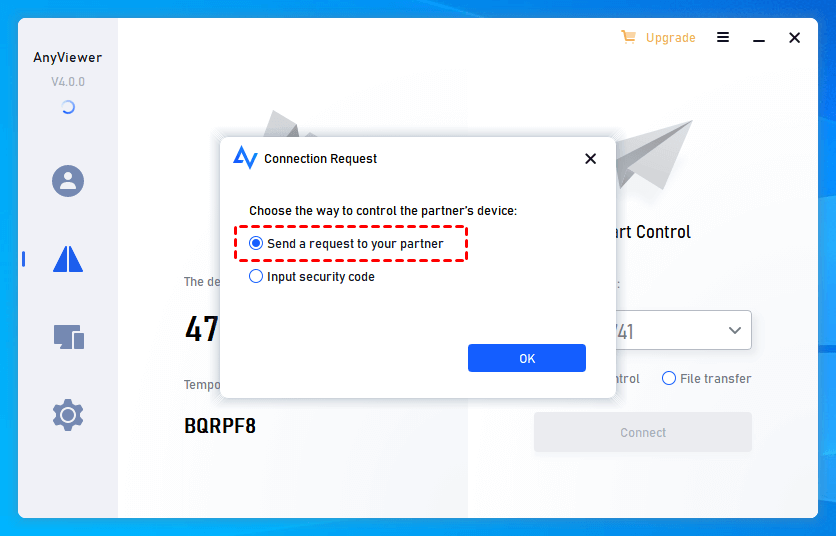
Use the AnyViewer remote control guide to confirm the connection process for your version. The recipient should understand what access they are granting and how to stop the session. Avoid sharing account passwords to start a support request.
Step 3. Open Chat and Send a Test Message
On the helper's computer, choose Chat on the controller toolbar. Type a brief message and press Enter. On the recipient's computer, expand the recipient toolbar using its triangle button if the controls are hidden.
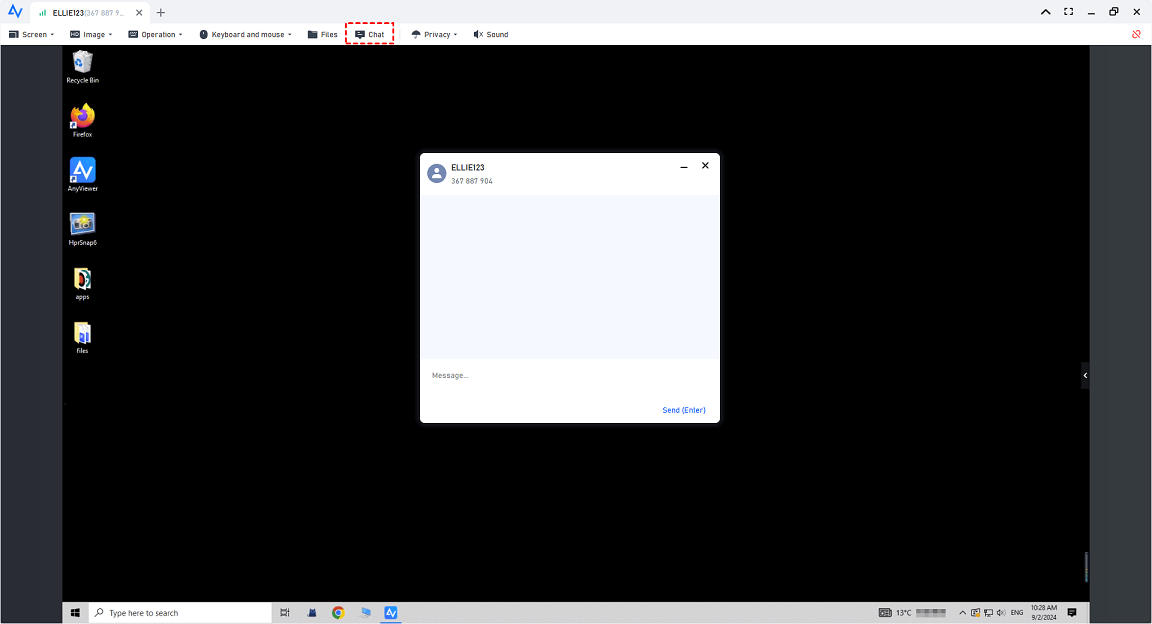
These controls are documented for linked computers; placement can change by version. Send “Can you see this message?” and wait for a reply. Do not interpret a silent recipient as permission to proceed.
Step 4. Exchange Short Instructions and Confirm Each Result
Use an action, a reason, and a question when a change needs approval. For example: “I would like to restart the print service to clear the queue. Is now a good time?”
Good remote assistance communication also makes input ownership explicit:
- “Please leave the mouse and keyboard idle while I check the setting.”
- “Your turn: open the file that caused the error.”
- “Please type the error text, leaving out any personal information.”
- “I have finished that check. Does the printer work now?”
When the recipient needs to type, pause your own input. Do not keep clicking while they enter information. Send instructions separately so the user can acknowledge each step.
Step 5. Confirm the Fix and Close the Session
Ask the recipient to repeat the task that originally failed. Summarize what changed, what they should try next, and whether follow-up is needed.
Then end the remote session. Put necessary support notes in the approved ticket system rather than assuming the chat will remain available. Before restarting the computer, agree on reconnection and ask the user to save their work.
Why Use AnyViewer for Remote Support Chat?
Switching between a remote desktop and a separate messenger can make short instructions easy to miss. For helping a colleague or family member on supported computers, AnyViewer remote support combines remote assistance with in-session communication.
Relevant capabilities include:
- Text chat to ask questions during an active connection.
- Attended Remote Support so the recipient can approve the request.
- Recipient controls for ending the connection or adjusting supported permissions.
- Remote File Transfer when an authorized troubleshooting file is needed.
Start with a test connection between two authorized computers and confirm that both sides can send and receive messages. Verify platform support and current plan requirements before deployment; the Windows workflow here should not be assumed identical on mobile devices or macOS.
If your team requires searchable transcripts, ticket integration, or specific retention controls, assess those requirements separately. In-session messaging alone does not establish that a tool provides them.
What to Do When Remote Support Chat Is Not Working
Before reinstalling anything, narrow down the problem:
- No chat panel: Expand collapsed toolbars and check the session controls.
- Typing appears in the wrong place: Click the chat message field before typing again.
- No reply: Ask through the backup channel whether the message is visible.
- Frozen screen and chat: Check connectivity on both sides; the session may have dropped.
- Chat unavailable on one platform: Check the current feature documentation and use an approved alternative channel.
If your organization already uses Windows Quick Assist, Microsoft's Quick Assist instructions also describe chat during an approved session. Follow your team's tool policy rather than installing another product without checking.
Never send passwords, recovery codes, or payment information in chat. Let the user enter credentials privately using an approved process. If sensitive information becomes visible, follow your organization's handling procedure.
For recurring support on compatible computers, review AnyViewer's support workflow and verify two-way chat before the next troubleshooting session.



 as a preferred
source on Google
as a preferred
source on Google