

Remote Support Session Recording Best Practices
Remote session recordings can improve troubleshooting, training, quality reviews, and accountability, but they can also capture passwords, personal messages, customer records, and other sensitive material. This guide helps IT support teams decide when to record, obtain meaningful consent, minimize exposure, protect stored files, set retention rules, and review recordings responsibly. It also explains where a built-in recording workflow such as AnyViewer can fit.

By Ellie / Updated on August 25, 2026


What Remote Support Session Recording Best Practices Actually Require
Remote support session recording best practices begin with a simple rule: record only for a defined business purpose, tell the people affected, capture no more than necessary, and protect the file for its entire life cycle. A recording can help document a difficult repair, coach technicians, settle a disputed action, or support an audit. It should never become a default surveillance archive that nobody owns or reviews.
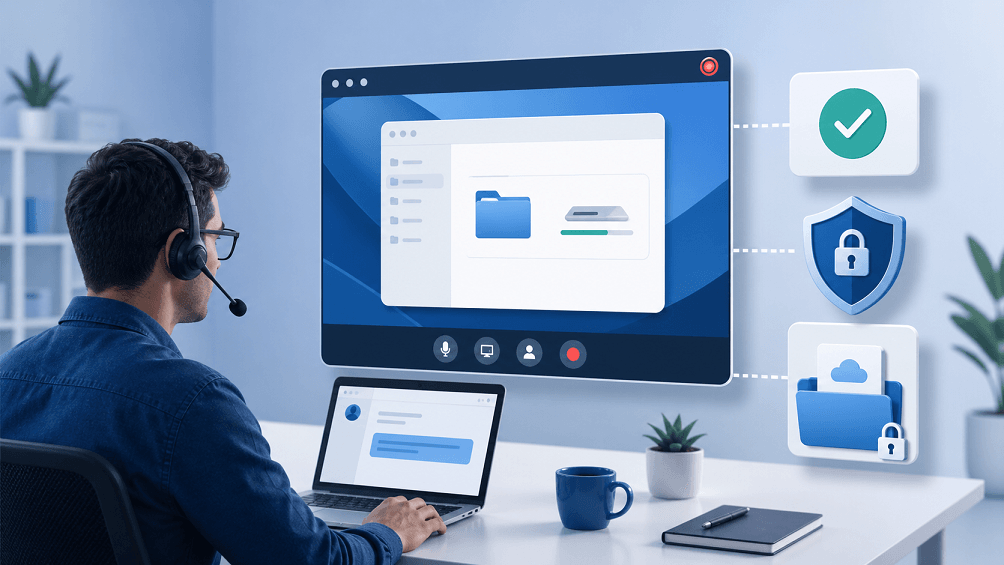
The biggest risk is not the recording button itself. It is the ordinary information visible during support: email previews, customer records, credentials, payment details, private chats, browser tabs, and notifications. A useful program therefore combines user consent, technician discipline, access controls, retention, deletion, and a repeatable review process.
|
Decision point |
Good practice |
Common failure |
|
Purpose |
Tie recording to a ticket, training need, investigation, or approved audit requirement. |
Record every session indefinitely because storage is available. |
|
Scope |
Capture the relevant support window and stop when the task ends. |
Capture unrelated monitors, notifications, or personal applications. |
|
Access |
Limit replay and export rights to named roles. |
Place videos in a shared folder with broad team access. |
|
Retention |
Set a documented period and delete on schedule. |
Keep recordings without an owner, review date, or disposal rule. |
Use a Purpose-and-Risk Test Before You Record
Not every remote support call needs video. If a normal ticket note, command log, or screenshot can document the outcome, full-session recording may create more privacy exposure than value. Use video when sequence and visual context matter—for example, reproducing an intermittent error, documenting a complex configuration, or reviewing how a technician handled a high-impact incident.
A practical decision test asks four questions before the session starts:
- What exact question will the recording answer?
- Which screens, applications, audio, chat, or file actions could it capture?
- Who needs to review it, and for how long?
- Would a less intrusive record meet the same need?
If the team cannot answer those questions, pause recording. For privileged or regulated work, involve the appropriate security, privacy, legal, or compliance owner rather than asking a technician to interpret policy alone.
Obtain Clear Consent and Make Recording Visible
Consent and notice rules vary by location, contract, industry, and whether audio is captured. Treat the strictest applicable requirement as a design constraint, not a line buried in terms of service. Before recording, explain the purpose, what will be captured, who can access the file, how long it will be kept, and how the user can ask questions or decline when that option applies.
The strongest workflow records the notice and the response with a timestamp or session identifier. Keep a visible recording indicator throughout the session and announce restarts after a pause. For attended support, do not treat acceptance of remote control as automatic permission to record. For unattended maintenance, rely on an approved organizational policy and change or ticket authorization, then ensure the device owner and stakeholders have been properly informed.
Only access devices, accounts, and files that you own or are explicitly authorized to use.
Minimize Sensitive Data During the Session
The cleanest recording is the one that never captures sensitive information. Before connecting, ask the user to close personal windows, mute message previews, and enable Do Not Disturb. Technicians should open only the applications required for the ticket and avoid narrating passwords, security answers, private health information, or payment data.
Use this pre-recording checklist:
- Confirm the ticket, purpose, authorized device, and expected duration.
- Close unrelated tabs and applications on both local and remote computers.
- Disable pop-up notifications and hide desktop files that are out of scope.
- Pause recording before credentials, payment details, or unrelated personal data appear.
- Stop immediately when the support task is complete.
Redaction after the fact is a fallback, not a substitute for good capture discipline. If a recording must be shared for training, create a separate approved copy, remove customer identifiers and secrets, verify that redaction is irreversible, and keep the original under tighter access controls.
How AnyViewer Can Support a Controlled Recording Workflow
For teams that need remote control and recording in one workflow, AnyViewer remote access software can record supported remote desktop sessions for troubleshooting review, training, demonstrations, and issue documentation. Its official workflow lets an authorized user connect to a device, start recording from the remote-session toolbar, stop when finished, and save the video to local storage.
That built-in path reduces the handoff between a remote support tool and a separate screen recorder. It can also make the start and stop points easier for a technician to control. The practical benefits are:
- Record the troubleshooting sequence in the same remote desktop window.
- Start and stop manually so the capture can match the approved task.
- Save the resulting video locally for an organization-controlled storage workflow.
- Reuse an approved, sanitized clip for a tutorial or internal coaching.
If you need to document an authorized support task, review the official AnyViewer Screen Recording guide before the session and confirm current platform and plan requirements. AnyViewer is not a substitute for consent, retention rules, centralized access control, or sector-specific review. Teams that require tamper-evident evidence, automatic enterprise retention, legal hold, or detailed event indexing should verify those requirements separately.
Protect, Retain, and Delete Recordings Deliberately
Treat each recording as sensitive support data. Store it only in an approved location, encrypt storage where organizational policy requires it, and separate permission to conduct a session from permission to replay, download, or share its recording. Named accounts and role-based access make reviews attributable; shared credentials do not.
Retention should follow purpose. A training clip may need a short review window before sanitization; an incident record may follow the related case; an audit record may have a defined schedule. Avoid copying a generic retention period from another company. Document the rule, automate deletion when possible, and preserve a file longer only through an approved exception or legal-hold process.
- Use predictable metadata: ticket ID, technician, target device, start/end time, and purpose.
- Log playback, export, deletion, and failed access when the storage platform supports it.
- Test that authorized reviewers can retrieve a sample recording before an audit or incident.
- Delete expired originals, exports, training copies, and backups according to policy.
Review Recordings Without Turning QA Into Surveillance
A recording has little value if nobody reviews it, but indiscriminate monitoring damages trust. Define a narrow review model: incident-triggered review, a small random quality sample, or coaching tied to an agreed rubric. Review the technician’s authorization, communication, diagnostic sequence, data handling, and closure—not personality or irrelevant screen activity.
When a review finds a problem, document the lesson in the ticket or quality system. Do not circulate raw videos casually. Extract only the minimum sanitized segment needed for training, restrict downstream sharing, and set a new deletion date for the derivative clip.
A Repeatable Remote Support Recording Workflow
- Define the purpose. Link the planned recording to a ticket, case, training objective, or approved control.
- Confirm authority and notice. Verify the device, user, technician, consent or policy basis, and any local requirements.
- Prepare the screen. Close unrelated content, suppress notifications, and identify moments when recording must pause.
- Record only the task. Keep the indicator visible, narrate actions clearly, and stop when the approved work ends.
- Classify and store. Apply the correct sensitivity label, destination, access group, metadata, and retention date.
- Review and dispose. Use the recording for its stated purpose, document findings, sanitize derivatives, and delete on schedule.
To put this workflow into practice for authorized computer support, open AnyViewer, establish the approved remote connection, and use Screen Recording only for the documented portion of the task. Confirm where the local file will be moved, who may review it, and when it will be deleted before you press Record.



 as a preferred
source on Google
as a preferred
source on Google