
How Much Data Does Remote Desktop Use? Usage Explained
Learn what affects remote-session traffic, how to turn a measured average into a data budget, and how to compare settings under repeatable conditions.

By Ellie / Updated on November 26, 2026


Remote desktop has no fixed hourly data allowance. Reading a document, scrolling through websites, and playing video create different workloads, even on the same connection. To estimate your usage, measure a representative session or convert its average transfer rate into gigabytes. A sustained 1 Mbps equals approximately 450 MB per hour, using decimal units. That is a calculation example, not an AnyViewer benchmark.
If you are working through a phone hotspot, check both your carrier's hotspot allowance and your actual consumption before committing to a full workday. The following method helps you build a budget without treating someone else's experience as a promise.
What determines remote desktop data usage?
Office work versus video and animation
A remote session carries the information needed to present and control a remote computer. Its traffic changes with the application, protocol, configuration, and activity. A mostly static worksheet is a different workload from a moving presentation or video. Background animation also matters, even when you are not typing.
Microsoft's remote graphics guidance illustrates how application activity changes bandwidth requirements in Azure Virtual Desktop. Those figures apply to the stated configuration; they are not measurements of AnyViewer or every RDP connection. Use vendor documentation to understand the variables, then measure your own setup.
| Workload | What to include in your test |
| Reading and light editing | Time spent reading, typing, and switching documents |
| Browsing and dashboards | Scrolling, animated elements, and refresh frequency |
| Video or graphics | Playback resolution, motion, and session display settings |
| File transfer | Transfer direction and whether the file reaches your local device |
Display settings and additional traffic
Record resolution, the number of active screens, image quality, and any available frame-rate setting. Audio and file transfers may add traffic beyond the remote display. A fast internet plan describes available capacity; it does not tell you how many gigabytes a session will consume.
Separate software when comparing results. Citrix, Microsoft RDP, and third-party remote-control tools do not share one universal data-use profile. For a wider discussion of constrained connections, see the guide to low-bandwidth remote desktop connections.
How to estimate data use per hour
Convert an average rate into a data budget
Mbps means megabits per second, while a decimal GB contains one billion bytes. There are eight bits in a byte. If your average rate is known, use this conversion:
Data in GB = average Mbps × 0.45 × hours
For example, an assumed average of 0.8 Mbps produces approximately 0.36 GB in one hour and 2.88 GB over eight hours. These are arithmetic examples, not typical usage claims. They exclude anything omitted from the input rate, such as traffic measured in only one direction.
Do not use the maximum value briefly shown in Task Manager as the average for an entire shift. Remote traffic can arrive in bursts. Cumulative bytes measured over a representative interval usually provide a more useful starting point than a momentary speed reading.
Estimate a workday or hotspot allowance
Suppose a hypothetical 15-minute test transfers 60 MB in total. Repeating exactly that workload for an hour would transfer about 240 MB. An eight-hour projection would be approximately 1.92 GB. A day containing video calls, downloads, or different screen activity may produce a substantially different result.
Keep some allowance for background synchronization, operating-system activity, and other devices using the hotspot. Check whether your carrier counts uploaded and downloaded traffic and whether hotspot data has a separate limit. A Windows counter helps with estimation; the carrier's records determine the billed allowance.
Measure your own remote session
Use the device that consumes the metered connection as your observation point. If your laptop connects through your phone, measure that laptop or the phone's hotspot traffic. Measuring only the office PC can include traffic that never crosses your cellular connection.
- Record the client and host systems, remote-access application, display resolution, image-quality mode, and whether audio or file transfer is enabled. Choose a task you actually perform, such as editing a document.
- Pause optional downloads and cloud synchronization. Record the network adapter's cumulative sent and received byte counters before the test, or use a monitoring tool that records per-application traffic over time. Keep the same adapter and measurement method throughout.
- Run the task for 10–15 minutes. Read, type, and switch windows at your usual pace. Record the elapsed time and ending counters, then calculate the differences for both directions.
- Repeat with a second task or display setting. Also observe a comparable period without the remote session to identify background traffic. Treat subtraction of that baseline as an estimate, because background activity can fluctuate.
For hourly projection, multiply the measured total by 60 divided by the test's duration in minutes. Save the conditions beside the result. This makes a later comparison meaningful when the software version, workload, or connection changes.
If a counter resets, the adapter changes, or a large unrelated update starts, discard that sample and repeat. Do not combine partial readings from different interfaces. When investigating a capped plan, compare your measurement with the carrier's usage record after its reporting delay.
Reduce data use without making text unreadable
Start with changes that do not prevent you from doing your job. Stop unnecessary video playback, avoid streaming several screens when one is enough, and disable audio or file transfers you do not need. Recheck text clarity before lowering resolution further. For additional configuration ideas, see ways to save remote desktop bandwidth.
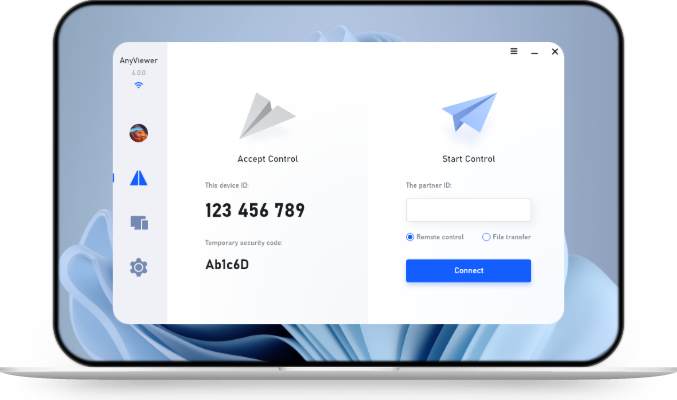
AnyViewer is an option when you need remote control with adjustable display quality. Its feature overview describes its remote-access capabilities. Use the available controls to choose a workable experience, rather than assuming that the highest visual setting is necessary for every task.
- Establish an authorized remote-control session with AnyViewer running on both devices.
- Open the session's Image menu and review the available quality settings. Follow the current image-quality instructions if your interface differs.
- Choose a mode appropriate to the task and connection. The help guide describes Balanced and High Speed options and identifies High Quality as a paid feature. Availability can vary with the installed version and account.
- Repeat the same timed workload and compare transferred bytes as well as readability. Keep the setting only if the result meets your needs.

The Image menu provides display-quality controls; selecting a mode is not a measured data-saving guarantee.
High Speed is described as a mode for poor network conditions. Its name does not establish a particular MB-per-hour rate or a fixed reduction in consumption. Measure the effect on your connection before using it to plan a cellular budget.
Frequently asked questions
Does an idle remote desktop still use data?
It can. Connection maintenance, notifications, background animation, and other enabled channels may continue. A still screen may reduce display updates, but it is not a guarantee of zero traffic. Include realistic idle periods in your sample if they are part of your workday.
Does downloading a file on the remote PC use my local data?
A download saved only on the remote computer generally uses that computer's internet connection. You still receive remote-session traffic while viewing it. Copying the file to your local laptop creates additional traffic across the connection carrying that transfer.
Can I work through a mobile hotspot?
Potentially, if the connection is stable, remote access is permitted, and your allowance is sufficient. Test a short session first. Do not use remaining gigabytes alone to predict usability: latency, interruptions, and carrier restrictions can also affect the experience.


 as a preferred
source on Google