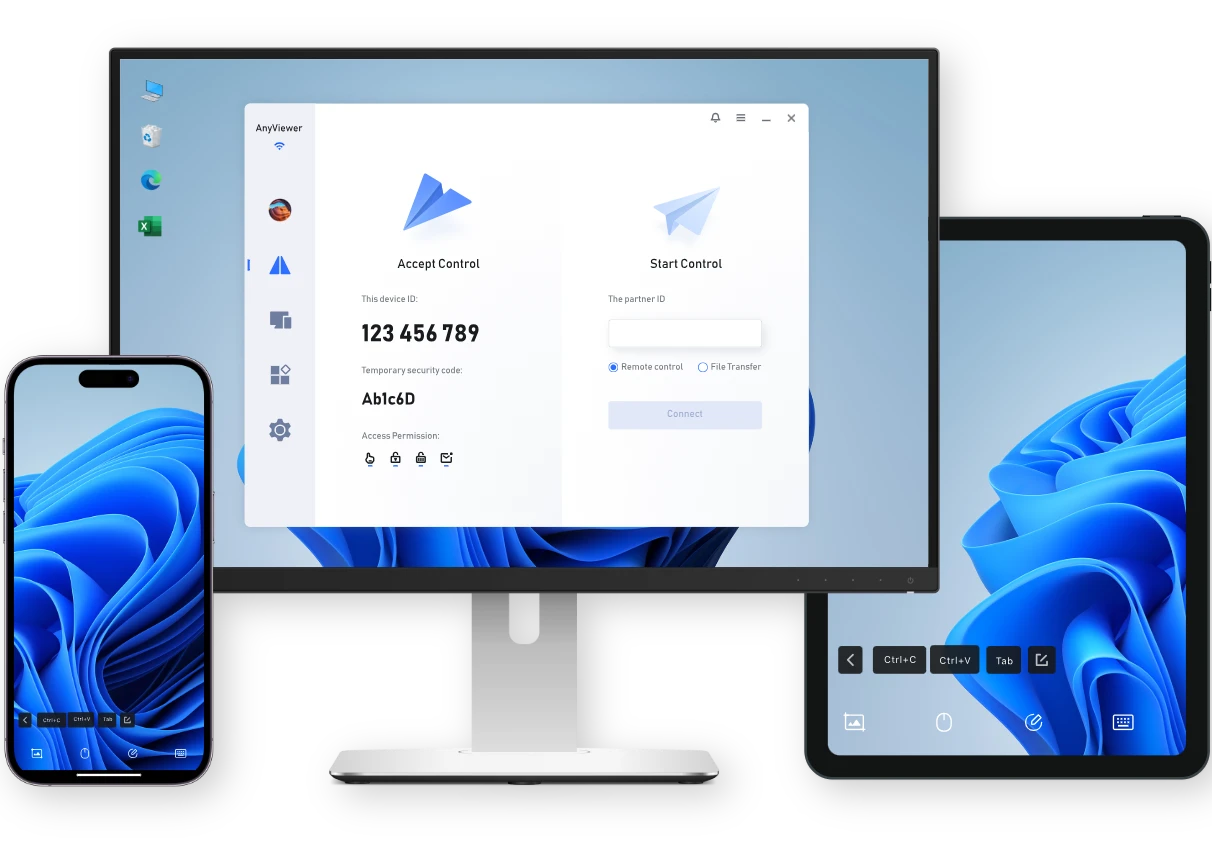
What is AnyViewer?

Explore all AnyViewer features designed to deliver secure, smooth, and easy remote access. From fast remote desktop viewing and device management to secure remote file transfer and real-time collaboration tools, AnyViewer helps individuals and businesses work remotely with confidence.

Remote Access

Enjoy smooth, stable remote access to your devices anytime, anywhere with AnyViewer's fast and easy-to-use connection features.

Unattended Remote Access

Unattended Remote Access

Securely access and control another PC anytime without requiring someone at the remote device. Learn more >>

Mobile Device Support

Mobile Device Support

Connect to and control computers from your mobile devices for flexible remote access anywhere.

Multi-Monitor Support

Multi-Monitor Support

View and switch between multiple remote monitors seamlessly during a remote session.

Smart Frame Rate

Smart Frame Rate

Automatically adjust frame rate based on network conditions to maintain smooth remote connections.

Remote Shutdown

Remote Shutdown

Remotely shut down or restart connected computers directly from the AnyViewer interface.

Remote Boot

Remote Boot

Wake and start remote computers remotely using supported Wake-on-LAN technology.

Remote Sound

Remote Sound

Hear audio from the remote computer in real time during remote sessions.

Shortcut Keys

Shortcut Keys

Use convenient keyboard shortcuts to quickly perform common actions during remote sessions.

Keyboard Mapping

Keyboard Mapping

Map keyboard keys between local and remote devices for a more natural typing experience.

Mouse Lock

Mouse Lock

Lock the remote mouse cursor to prevent interference during remote control.

3D Game Mouse

3D Game Mouse

Enable precise mouse control optimized for 3D applications and games during remote sessions.

True Color Mode

True Color Mode

Display the remote screen in full color depth for clearer and more accurate visuals.

Display in Separate Window

Display in Separate Window

Open each remote monitor in an independent window for easier multitasking.

Virtual Screen

Virtual Screen

Create additional virtual monitors on the remote device to enable a true multi-screen remote control experience.

Administration

Easily manage remote devices, users, and permissions with powerful remote device management tools designed for both individuals and businesses.

Screen Wall

Screen Wall

Monitor multiple remote device screens at the same time in a single dashboard view. Learn more >>

Mass Deployment

Mass Deployment

Install and configure AnyViewer on many devices simultaneously for efficient IT deployment.

Deploy Team Devices

Deploy Team Devices

Quickly add and organize multiple team devices for centralized management.

Create Groups for Computers

Create Groups for Computers

Organize devices into groups for easier device management and access control.

Role Permission Management

Role Permission Management

Assign different permissions to users based on their roles for secure team management. Learn more >>

User Account

User Account

Manage users and devices centrally through a secure AnyViewer account system.

Security and Privacy

Keep every remote desktop connection secure with advanced encryption, privacy protection, and trusted security technologies built into AnyViewer.

Access in Privacy Mode

Access in Privacy Mode

Black out the remote screen and disable input on the remote device to protect sensitive operations. Learn more >>

Blacklist and Whitelist

Blacklist and Whitelist

Control which devices are allowed or blocked from accessing your devices.

Lock Interface

Lock Interface

Restrict access to the AnyViewer interface to prevent unauthorized configuration changes.

Two-Factor Authentication

Two-Factor Authentication

Add an extra layer of account security with two-factor authentication verification.

Third-Party Login

Third-Party Login

Sign in quickly using supported third-party accounts for convenient access.

Proxy Support

Proxy Support

Connect through proxy servers to adapt to restricted networks or enterprise environments.

Collaboration

Boost productivity with remote collaboration tools, including screen sharing, file transfer, real-time chat, and whiteboard during remote sessions.

Screen Mirroring

Screen Mirroring

Mirror one device's screen to another device for presentations or demonstrations. Learn more >>

Remote File Transfer Manager

Remote File Transfer Manager

Transfer files between local and remote devices quickly with an easy-to-manage file transfer interface. Learn more >>

Clipboard

Clipboard

Copy and paste text or files between local and remote computers instantly.

File Drag and Drop

File Drag and Drop

Move files between computers simply by dragging and dropping during a remote session.

Text Chat in Session

Text Chat in Session

Communicate instantly with remote users through built-in text chat during sessions.

Whiteboard

Whiteboard

Draw, annotate, and highlight directly on the remote desktop viewing for clearer communication.

Screen Recording

Screen Recording

Record remote sessions to review activities or keep operation records.

Screenshot

Screenshot

Capture screenshots of the remote desktop instantly during a session.

Powerful Remote Access Made Simple

AnyViewer is designed to make remote access easier, faster, and more affordable for both individuals and businesses.

FAQs

  • Can I access my computer from a mobile device?

    Yes. AnyViewer supports remote access from mobile devices like iPhone, iPad, or Android phone, allowing you to control your computer from your smartphone or tablet anytime and anywhere.

  • Does AnyViewer support multiple monitors?

    Yes. AnyViewer supports multi-monitor remote desktop viewing, allowing users to view and switch between multiple screens or display them in separate windows for better productivity.

  • Does AnyViewer support remote collaboration?

    Yes. AnyViewer includes collaboration features such as screen sharing, whiteboard tools, and in-session chat to help teams communicate and work together more efficiently.

  • Can I manage multiple remote devices with AnyViewer?

    Yes. AnyViewer allows users and IT teams to organize and manage multiple remote devices through device lists, groups, and centralized management tools.

  • Is AnyViewer suitable for businesses?

    Yes. AnyViewer is designed for both individuals and businesses, offering scalable features such as 3D game mouse, true color mode, device management, permission control, and team deployment tools.

Trusted by Professionals and Teams Worldwide

Organizations, IT professionals, and remote workers rely on AnyViewer for secure and reliable remote access. With smooth performance, powerful features, and an easy-to-use interface, AnyViewer helps users stay connected and productive from anywhere.

Alex

I’ve tried several remote desktop tools, and AnyViewer stands out for its stability and speed. It works great even when connecting across long distances.

Michael

I was able to connect all my work devices in just a few minutes. The interface is clean and easy to understand, even for first-time users.

Emma

Whenever I need files or applications from my home computer, I just connect through AnyViewer. It’s fast, convenient, and dependable.

Lucas

Even though the software has many advanced features, everything is easy to find and use. It’s a great balance between power and simplicity.

Start Remote Access with AnyViewer Today

Download Now