

[Complete Guide] How to Use AnyDesk Session Recording
AnyDesk session recording lets you save and review remote sessions for safety, rules, or training. This guide shows how to record sessions, find saved files, play them, and suggests AnyViewer as an easy screen recording option.

By Ellie / Updated on September 17, 2025


What makes AnyDesk session recording essential?
In today's remote-first work environment, session recording has become an essential feature for IT teams, educators, and support staff. Whether you're documenting customer support sessions or reviewing technical troubleshooting, AnyDesk session recording provides a reliable way to keep track of remote interactions.
If you've ever wondered how to record AnyDesk session for documentation, compliance, or training purposes, this guide covers it all. You'll learn exactly how to record session in AnyDesk, what file format it uses, where the recordings are stored, and how to play them back. And for those seeking a simpler, more flexible experience, we'll also introduce AnyViewer, a powerful alternative to AnyDesk's built-in recording tool.
Everything you need to know about AnyDesk session recording
AnyDesk session recording is a built-in feature that allows users to record remote desktop sessions, whether they are incoming or outgoing. This means that both parties in a remote connection can document the session for future reference.
Unlike third-party screen recorders, AnyDesk records sessions natively within the app and stores them in a proprietary ".anydesk" format. These recordings can only be played back using the AnyDesk software.
Key features of AnyDesk session recording
Here are some important features that make session recording in AnyDesk stand out:
- Two-Way Recording: Supports both incoming and outgoing session recordings.
- Local Storage: All recordings are saved locally on your device.
- No Performance Impact: Enabling recording doesn't reduce session quality.
- Separate Files for Each Session: Multiple sessions result in multiple recordings.
- System-Level Access: If AnyDesk is installed, recordings show the SYSTEM username.
- Playback via AnyDesk Client: Sessions can only be played using the AnyDesk Session Player.
How to record AnyDesk sessions
If you're not sure how to record AnyDesk session, here's a breakdown of both manual and automatic methods.
Manual Recording:
Click the "Record" button during an active remote session to start capturing.
Automatic Recording:
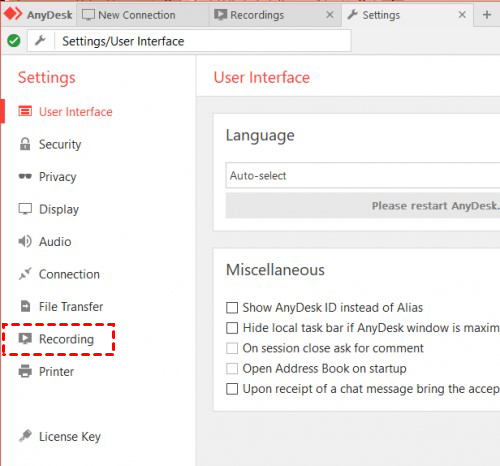
Step 1. Open AnyDesk.
Step 2. Go to Settings from the main menu.
Step 3. Navigate to the Recording tab.
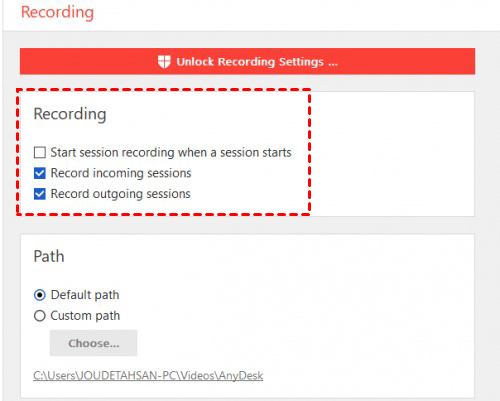
Step 4. Choose one of the following options or both:
- Record incoming sessions
- Record outgoing sessions
Important Setup for macOS Users
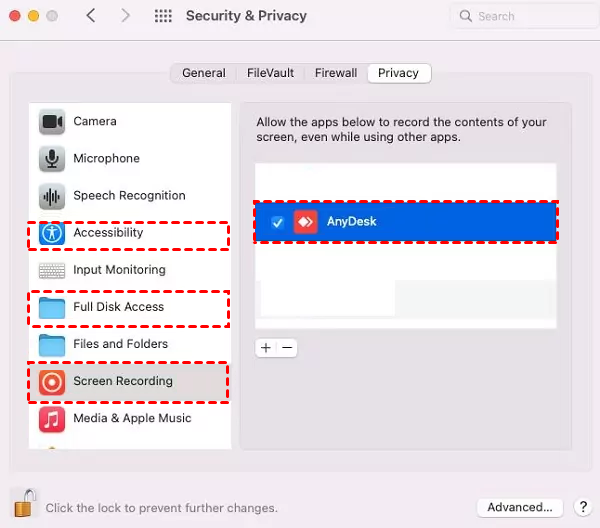
To use AnyDesk session recording features on macOS, make sure the app has proper permissions:
Step 1. Click Configure in AnyDesk to open macOS settings.
Step 2. Go to System Preferences > Security & Privacy.
Step 3. Unlock settings and head to the Privacy tab.
Step 4. Grant permissions for Accessibility, Full Disk Access, and Screen Recording.
Where are AnyDesk recordings saved?
The recordings are saved in different locations depending on your operating system:
- Windows: "%homepath%\Videos\AnyDesk"
- macOS: "~/.anydesk/AnyDesk"
- Linux: "~/Videos/AnyDesk"
You can also choose a custom path depending on your storage preference.
Understanding the AnyDesk recording filename format
Each AnyDesk session recording file is automatically named using this format:
incoming/outgoing name_other_client (ID_other_client)-name_your_client (ID_your_client).anydesk
Example:
"incoming JohnDoe (123456789)-SYSTEM (987654321).anydesk"
This makes it easy to identify which session is which, helpful when organizing multiple recordings.
How to playback AnyDesk session recordings
AnyDesk recordings can only be played back using the built-in Session Player. Here's how to play a session:
- Double-click the ".anydesk"file in your file manager.
- Or open AnyDesk, click Screen Recording in the main menu, and select the file.
The session player supports:
- Start from beginning
- Pause and resume
- Fast Forward
- Super Fast Forward
- Jump to specific timestamps
Note: You cannot convert ".anydesk" files to other formats (like MP4 or AVI), nor can you add watermarks or annotations to the playback.
AnyViewer: Best AnyDesk screen recording alternative
While AnyDesk session recording is a powerful native tool, it comes with certain limitations, especially if you're seeking flexible formats, editing capabilities, or cloud backup. This is where AnyViewer shines as a user-friendly and powerful alternative.

AnyViewer is an all-in-one remote desktop and screen recording solution designed for ease of use, performance, and flexibility. Whether you're supporting clients, collaborating remotely, or teaching online, AnyViewer allows you to record remote desktop sessions seamlessly, without restrictive formats or playback limitations.
Here's why AnyViewer is the better choice:
- No setup needed – Built-in recording with automatic or manual mode
- 100% free – No charges, no limitations
- Cross-platform – Works on Windows and macOS
- Secure and lightweight – Designed for speed and privacy
- Ideal for all users – Perfect for personal, business, or IT support use
How to Record Sessions in AnyViewer:
If you're wondering how to record remote desktop sessions using AnyViewer, here's how simple it is:
Step 1. Launch AnyViewer and start a remote session.
Step 2. Click the Screen recording button on the session toolbar.
Step 3. Your screen recording will begin instantly and be saved in your preferred format.
Step 4. After the session, you can:
- Play the video using any media player (e.g., VLC, Windows Media Player).
- Edit it using video editing software
- Upload it to the cloud or share it via email
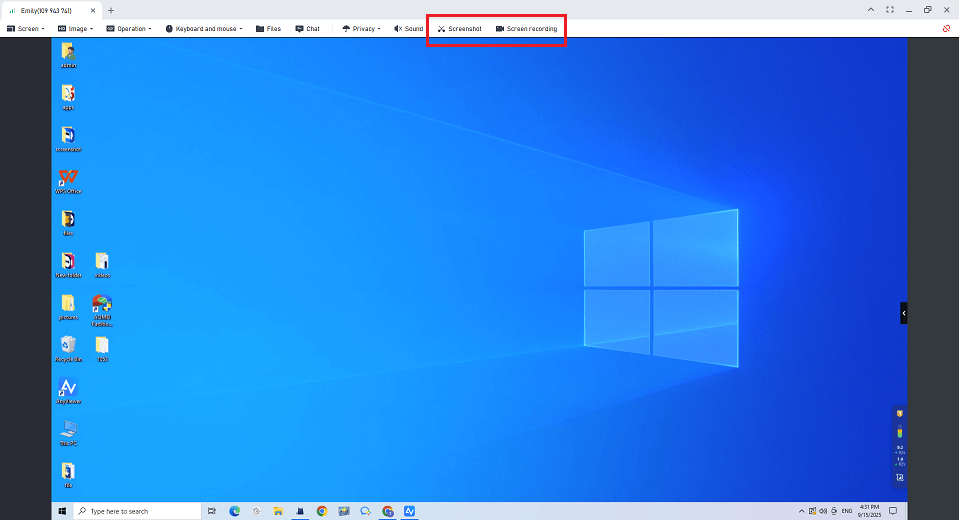
You don't need to configure multiple settings or deal with restricted file formats. This makes AnyViewer ideal for users who want a hassle-free way to record sessions without the need for technical expertise.
Conclusion
Recording remote sessions is essential for transparency, compliance, and training. AnyDesk session recording offers a secure and reliable way to capture remote activities from both incoming and outgoing connections. However, its limitations, such as its proprietary file format and lack of editing, might make it less ideal for users who need flexibility.
That's where AnyViewer comes in. It delivers a simple, efficient, and professional way to record and manage remote sessions without all the extra setup. Whether you're an IT technician, remote worker, or support agent, having the right tool can make all the difference.



 as a preferred
source on Google
as a preferred
source on Google