

4 Ways to Use Windows Remote Desktop Without VPN
Learn how to set up Windows Remote Desktop without a VPN using 4 simple methods. This guide highlights AnyViewer for easy, high-speed access, plus professional alternatives like Zero Trust for secure, lag-free remote work.

By Ellie / Updated on April 15, 2026


Accessing your office workstation or home PC from a different location is no longer a luxury; it is a necessity. For years, the gold standard for secure access was the Virtual Private Network (VPN). However, in 2026, many users and IT professionals are looking for ways to achieve Windows Remote Desktop without VPN due to the high latency, complex setup, and "all-or-nothing" network access that traditional VPNs provide.
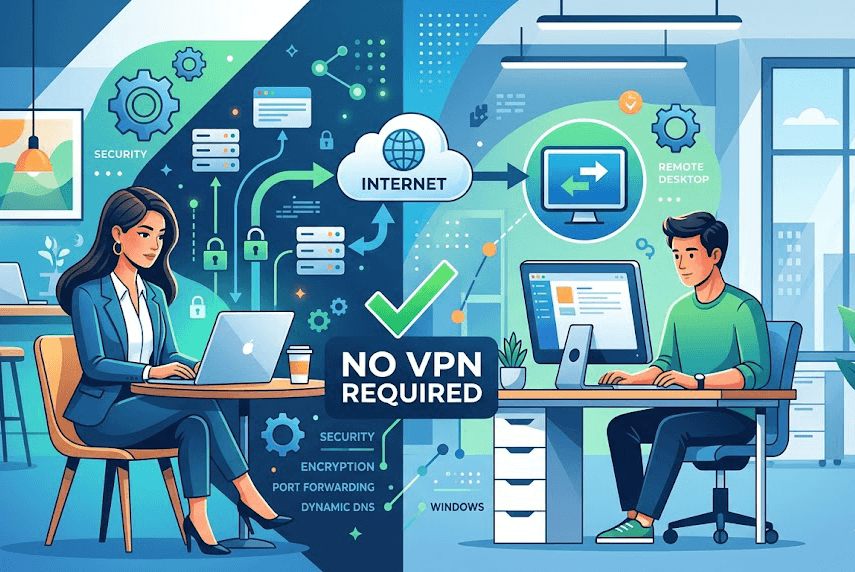
Whether you are a freelancer wanting to access your powerful home rig from a cafe or an IT manager seeking modern "Zero Trust" alternatives, this guide covers every method to set up remote access safely and efficiently.
Why Move Beyond the Traditional VPN?
Before diving into the "how," let’s address the "why." While VPNs are secure, they come with several drawbacks:
- Latency (Lag): VPNs wrap your data in extra layers of encryption and often route it through a central server, which can make a remote session feel sluggish.
- Complexity: Managing VPN clients on various devices (iOS, Android, Windows) can be a headache for non-technical users.
- Security Risks: Once a user is "inside" a VPN, they often have broad access to the entire network. If one device is compromised, the whole network is at risk.
How to Use Windows Remote Desktop Without VPN [4 Ways]
Explore these four proven methods to establish a secure and high-speed remote connection without the complexity of a VPN.
Way 1: Third-Party Remote Access Software (The Easiest Way)
In 2026, you don't need a clunky VPN to access your office or home computer. AnyViewer provides a secure, high-speed connection that bypasses complex router settings entirely. It is the perfect "plug-and-play" solution for anyone who needs to perform a Windows RDP without VPN setup quickly.
Why AnyViewer is the Top Choice
AnyViewer stands out by offering professional performance with zero learning curve.
- 144FPS Game Mode: Experience ultra-smooth remote access. Perfect for designers, video editors, and gamers who can’t afford lag.
- Powerful Free Version: Unlike competitors, AnyViewer’s free plan includes essential tools like file transfer, remote printing, and multi-monitor support.
- Bank-Level Security: Your connection is protected by 256-Bit ECC encryption, keeping your data safe even on public Wi-Fi.
- Use Any Device: Control your Windows PC from a MacBook, iPhone, Android, or another Windows device with ease.
Best For: Individuals and small businesses who want a fast, secure, and hassle-free remote desktop experience.
Set up in 3 Simple Steps
You can be up and running in under 5 minutes:
Step 1. Download: Install AnyViewer on the PC you want to control and the device you are taking with you.
Step 2. Log In: Sign in with the same account on both devices to link them securely.
Step 3. One-Click Control: On your mobile device or laptop, select your PC and click "One-Click Control."
Pro Tip: By using the same account, you enable Unattended Access. This lets you access your PC even if no one is there to click "Accept" on the other end.
Way 2: Remote Desktop Gateway (The Professional Approach)
If you want to use the native Microsoft Remote Desktop without VPN but find a VPN too cumbersome, a Remote Desktop Gateway (RD Gateway) is the official Microsoft solution.
How RD Gateway Works
Instead of exposing the RDP port (3389) to the internet (which is extremely dangerous), the RD Gateway acts as a "bouncer." It tunnels RDP traffic through HTTPS (Port 443).
Step 1. The user connects to the Gateway via HTTPS.
Step 2. The Gateway authenticates the user (ideally with Multi-Factor Authentication).
Step 3. The Gateway then passes the RDP traffic to the internal PC.
Why choose this? It provides the "native" Windows experience with better security than a simple port forward.
Way 3: Port Forwarding (The "Proceed with Caution" Method)
You can technically enable Windows RDP without VPN by telling your router to send all traffic from a specific port to your PC’s local IP address. However, we strongly advise against using the default port 3389.
If you must use Port Forwarding, follow these steps:
Step 1. Assign a Static IP: Ensure your host PC always has the same internal address (e.g., `192.168.1.50`).
Step 2. Change the Default Port: Change the RDP listening port in the Windows Registry from 3389 to a random number (e.g., 49210).
Step 3. Enable NLA: Ensure Network Level Authentication is turned on in your Remote Desktop settings. This requires users to authenticate before a session is even established.
Step 4. Use Strong Passwords: An open RDP port will be hit by thousands of "brute-force" bot attacks within minutes. Use a 16+ character password.
Way 4: Zero Trust Network Access (ZTNA)
In 2026, the tech world has largely moved toward Zero Trust. For those seeking Microsoft Remote Desktop without VPN, Zero Trust solutions like Tailscale or ZeroTier are game-changers.
Solutions like Tailscale and ZeroTier
These tools create a "Mesh VPN" or a virtual "Software-Defined Perimeter."
- Tailscale: Built on the WireGuard protocol, Tailscale allows you to create a private network where your devices can see each other as if they were on the same Wi-Fi, regardless of where they are in the world.
- The Benefit: You don’t have to open any ports on your router. It "just works" behind firewalls and CGNAT.
Essential Security Checklist for Remote Desktop
Regardless of the method you choose for your Windows Remote Desktop without VPN setup, never skip these security steps:
- Multi-Factor Authentication (MFA): In 2026, a password is not enough. Use tools like Duo Security or Microsoft Authenticator to add a second layer of verification to your RDP logins.
- Keep Windows Updated: Vulnerabilities like "BlueKeep" specifically targeted RDP. Ensure your system is patched to prevent "wormable" exploits that can take over your PC without you even clicking a link.
- Limit Login Attempts: Configure your Account Lockout Policy in Windows. If someone tries to guess your password five times, lock the account for 30 minutes. This effectively stops brute-force bots.
Conclusion
In 2026, the dream of a seamless, Windows Remote Desktop without VPN is a reality. For most users, AnyVieweror Tailscale offers the perfect blend of security and speed without the headache of configuring complex network hardware.
By moving away from traditional VPNs and toward Zero Trust or high-performance relay tools, you can stay productive from anywhere in the world, securely and efficiently.
Ready to get started? Choose the tool that fits your technical comfort level and enjoy the freedom of a truly mobile office.



 as a preferred
source on Google
as a preferred
source on Google