

How to Remote Desktop Without VPN: 7 Proven Methods
This article shows easy ways to connect to remote desktop without VPN. Discover VPN-free solutions like AnyViewer, TeamViewer, and Chrome Remote Desktop for secure and fast access from anywhere.

By Ellie / Updated on October 27, 2025


Can you use a remote desktop without VPN?
Remote work has become the norm for millions worldwide. Many businesses and individuals rely on remote desktop access to stay productive, but not everyone wants the hassle of configuring a VPN. Fortunately, there are multiple ways to remote desktop without VPN, ensuring you can securely access your computer from anywhere, whether you're abroad or working from a local café.

VPN-free remote desktop solutions offer:
- Quick setup and easy access
- Secure connections through proprietary encryption
- Cross-platform compatibility for Windows, Mac, Android, and iOS
- Cost-effective alternatives to enterprise VPN subscriptions
By understanding how to remote desktop without VPN, you can enjoy seamless access to files, applications, and servers without technical hurdles. In this comprehensive guide, we’ll explore seven proven methods to connect to remote desktop without VPN, the security implications of each, and best practices to optimize your connection.
7 methods to remote desktop without VPN
Whether you're a business professional, IT admin, or remote worker, these seven VPN-free solutions make accessing your computers from anywhere simple, secure, and efficient.
Method 1. Using Windows Remote Desktop (RDP) over port forwarding
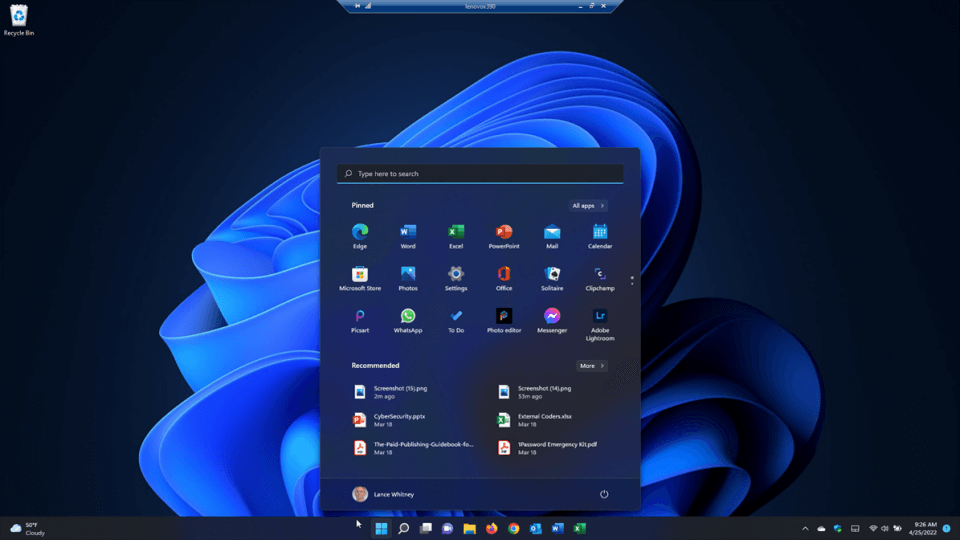
Windows Remote Desktop (RDP) is a built-in feature on Windows Professional and Enterprise editions, allowing users to remotely access their PCs from another device. While traditionally used within a local network or over VPN, you can also configure it for VPN-free remote access using port forwarding on your router. This method allows you to connect to remote desktop without VPN from anywhere in the world, including abroad, but it requires careful configuration to ensure security.
Steps to Set Up RDP Over Port Forwarding
Step 1: Enable Remote Desktop on Your PC
- Open Settings >System >Remote Desktop.
- Toggle Enable Remote Desktop to On.
- Note your PC’s local IP address, which is needed for port forwarding.
Step 2: Configure Your Router for Port Forwarding
- Access your router’s admin panel (usually at 192.168.0.1 or 192.168.1.1).
- Navigate to Port Forwarding / Virtual Server settings.
- Forward TCP port 3389 to your PC’s local IP address.
- Save changes and reboot the router if necessary.
Step 3: Find Your Public IP Address
- Visit a site like WhatIsMyIP to identify your external IP address.
- This is the address you will use to connect remotely.
Step 4: Connect Using the Remote Desktop Client
- Open the Remote Desktop Connection application on the device you want to connect from (Windows, Mac, or mobile app).
- Enter your public IP address and the username of your target PC.
- Click Connect and enter your password when prompted.
Security Tips
- Use Strong Passwords: Ensure your Windows account password is complex to prevent brute-force attacks.
- Restrict IP Access: If your router supports it, allow connections only from specific IP addresses.
- Enable Network Level Authentication (NLA): This adds an extra layer of security by requiring authentication before establishing a remote session.
- Consider Changing the Default RDP Port: While not foolproof, changing from port 3389 can reduce exposure to automated attacks.
- Use a Firewall: Enable Windows Firewall or your router firewall to monitor and block suspicious connections.
Pros
- Free on Windows Pro/Enterprise editions
- No extra software required
- Direct access without third-party software
- Works across different devices
Cons
- Exposing port 3389 to the internet can be risky if not secured
- Port forwarding setup can be complex for beginners
- Limited by ISP restrictions and dynamic IP addresses
- May experience latency depending on internet speed
Using RDP with port forwarding lets users remote desktop without a VPN. It works well for tech-savvy users who want full control, but it needs careful setup and strong security. For less technical users, third-party software like AnyViewer is a safer and easier option.
Method 2. AnyViewer for secure remote access

AnyViewer is a user-friendly, VPN-free remote desktop software designed to provide secure, high-speed access to computers from anywhere in the world. It is particularly valuable for businesses with remote teams, freelancers working abroad, or individuals who need consistent access to their home or office PCs without the complexity of VPNs or port forwarding. AnyViewer combines robust security, ease of use, and advanced features to deliver a reliable remote desktop experience without the need for a VPN.
Steps to Set Up AnyViewer
Step 1: Download and Install AnyViewer
- Visit the official AnyViewer website and download the software for your PC or mobile device.
- Follow the installation instructions and create a free AnyViewer account.
Step 2: Configure Your Devices
- Log in to the same AnyViewer account on all devices you wish to connect.
Step 3: Establish a Remote Connection
- On your client device, open AnyViewer and locate your target PC under My Devices.
- Click One-click Control to instantly connect without needing any port forwarding or complex network configuration.
- Once connected, you can control the PC, transfer files, or start a collaborative session.
Step 4: Explore Advanced Features (Optional)
- File Transfer: Move files securely between connected devices.
- Screen Sharing: Share your screen with team members in real time.
- Session Recording: Record remote sessions for auditing or training purposes.
- Multi-Device Support: Manage several remote PCs simultaneously, ideal for IT teams.
Security Tips
- Use Strong Account Passwords: Protect your AnyViewer account to prevent unauthorized access.
- Enable Two-Factor Authentication (2FA): Adds an extra layer of account security.
- Use Role-Based Access Control (RBAC): Limit permissions based on user roles.
- Keep AnyViewer Updated: Always use the latest version to benefit from security patches.
- Limit Device Access: Only authorize trusted devices to your account.
AnyViewer is an ideal VPN-free remote desktop solution for users who want secure, fast, and effortless remote access. Its combination of one-click connectivity, cross-device compatibility, and robust encryption makes it particularly effective for remote teams, freelancers, and IT support staff working abroad. With AnyViewer, you can focus on productivity and collaboration without the technical overhead of traditional RDP or VPN setups.
Method 3. TeamViewer as a VPN-free alternative
TeamViewer is one of the most popular remote desktop solutions worldwide, offering VPN-free connectivity for both personal and professional use. Its cross-platform support, strong encryption, and rich feature set make it a reliable choice for users who need to access computers remotely without dealing with complicated network setups or VPN configurations. TeamViewer is particularly useful for IT support, remote collaboration, and accessing workstations abroad.
Steps to Connect Using TeamViewer
Step 1: Install TeamViewer on Both Devices
- Download TeamViewer from the official website and install it on the PC or device you want to access remotely and the device you will use to connect.
- Follow the installation prompts and allow necessary permissions for remote access.
Step 2: Create or Log in to Your TeamViewer Account
- Open TeamViewer and either log in to an existing account or create a new one.
- Ensure both devices are signed in with the same TeamViewer account to enable easy device management.
Step 3: Connect to the Remote Device
- On the client device, enter the remote device’s TeamViewer ID and temporary password (or set a permanent password for unattended access).
- Click Connect and wait for the session to establish.
- Once connected, you can control the remote PC, transfer files, chat, or perform administrative tasks.
Security Tips
- Enable Two-Factor Authentication (2FA): Adds a second layer of protection for your account.
- Use Strong Passwords: Avoid default passwords for unattended access.
- Update Regularly: Keep TeamViewer updated to the latest version to patch vulnerabilities.
- Limit Access Permissions: Only allow trusted devices and users for remote sessions.
Advantages
- Cross-platform support (Windows, macOS, Linux, iOS, Android)
- Secure end-to-end encryption (AES-256)
- Easy file transfer and remote support
- Remote printing and session recording
- Unattended access feature for long-term remote management
Limitations
- Requires stable internet connection for optimal performance
- Free version limited for commercial use
- Slight latency for graphics-heavy tasks
- Dependent on TeamViewer servers for connectivity
- Premium features require paid subscription
TeamViewer offers a robust, VPN-free remote desktop solution suitable for both casual users and professional teams. Its intuitive interface, advanced features, and high security make it ideal for troubleshooting, remote collaboration, and accessing devices abroad. While the free version has some limitations, TeamViewer’s premium plans provide comprehensive tools for businesses and IT professionals who need reliable, secure, and globally accessible remote connections.
Method 4. Chrome Remote Desktop

Chrome Remote Desktop is a free, VPN-free remote access solution provided by Google. It allows users to connect to their computers securely from any device with a Chrome browser, making it ideal for personal users, students, and small teams who need simple and reliable remote access. Its ease of use and cross-platform compatibility make it a convenient alternative to more complex remote desktop software.
Steps to Set Up Chrome Remote Desktop
Step 1: Install Chrome and the Chrome Remote Desktop Extension
- Ensure Google Chrome is installed on both your host (the PC you want to access) and client device.
- Go to the Chrome Remote Desktop website and add the extension to your browser.
Step 2: Configure Your Computer for Remote Access
- Open Chrome Remote Desktop on the host PC.
- Click Set Up Remote Access, and choose a name for your computer.
- Set a strong PIN (at least 6 digits) to secure the connection.
Step 3: Connect from Another Device
- On your client device, open Chrome Remote Desktop.
- Sign in with the same Google account used on the host PC.
- Select the computer you want to access and enter the PIN to start the remote session.
Step 4: Optional Advanced Features
- File Sharing: Drag-and-drop files between local and remote computers.
- Cross-Platform Access: Connect from Windows, macOS, Linux, Android, or iOS.
- Instant Access: Quickly connect to multiple computers registered under the same Google account.
Security Tips
- Use Strong Google Account Passwords: Prevent unauthorized access by using a complex password.
- Enable Two-Factor Authentication (2FA): Adds an extra layer of security to your Google account.
- Monitor Active Sessions: Check your account for any unfamiliar connections.
- Keep Chrome Updated: Ensures you benefit from the latest security patches.
Benefits
- Completely free and easy to use
- Works across all major platforms
- No port forwarding or network configuration needed
- Quick setup, ideal for beginners
- Secure PIN and encrypted connection
Drawbacks
- Limited advanced features compared to TeamViewer or AnyViewer
- Requires stable internet connection
- Dependent on Google services for connectivity
- May not handle graphics-intensive tasks smoothly
- Limited file transfer capabilities for large files
Chrome Remote Desktop is an efficient and straightforward VPN-free solution for users who need simple remote access without complex setup. While it lacks some advanced features, its free access, ease of use, and cross-platform support make it ideal for casual users, students, or remote teams requiring basic connectivity. By enabling strong passwords and 2FA, users can maintain secure remote sessions without worrying about VPN configurations.
Method 5. Splashtop Personal for remote desktop access
Splashtop Personal is a high-performance, VPN-free remote desktop solution suitable for both personal users and small businesses. Known for its smooth performance and reliable connectivity, Splashtop allows users to remotely access their computers from anywhere in the world, including abroad, with minimal setup. Its focus on high-definition video and audio streaming makes it ideal for tasks that require real-time interaction, such as presentations, media editing, or remote troubleshooting.
Steps to Set Up Splashtop Personal
Step 1: Download and Install Splashtop
- Visit the official Splashtop website and download the software for your PC.
- Install the application on both the host (PC you want to access) and the client device (computer, tablet, or smartphone).
Step 2: Create a Splashtop Account
- Sign up for a free Splashtop account or log in if you already have one.
- Link your devices to the same account for easy access.
Step 3: Enable Remote Access
- On your host PC, open Splashtop and enable remote access.
- Set a secure password to protect the session.
Step 4: Connect from Another Device
- On the client device, open Splashtop and log in with the same account.
- Select your host PC from the device list and connect instantly.
Step 5: Optional Advanced Features
- Remote Printing: Print documents directly from the remote PC to your local printer.
- Multi-Monitor Support: Seamlessly switch between multiple monitors for complex workflows.
- HD Video and Audio Streaming: Ideal for media-intensive applications, such as video editing or presentations.
- File Transfer: Move files securely between devices without needing additional software.
Security Tips
- Use Strong Passwords: Protect your Splashtop account and remote sessions.
- Enable Two-Factor Authentication (2FA): Adds a second layer of security.
- Keep Software Updated: Ensures you have the latest security patches and performance improvements.
- Limit Device Access: Only authorize trusted devices to connect to your account.
Pros
- Smooth performance with low latency
- High-definition video and audio streaming
- Remote printing and multi-monitor support
- Easy setup without VPN or port forwarding
- Cross-platform support (Windows, macOS, iOS, Android)
Cons
- Free version is limited; full features require a premium subscription
- Requires a stable internet connection for optimal performance
- Advanced features like file transfer and session recording may require paid plan
- Dependent on Splashtop servers for connection
- Premium subscription may be costly for some users
Splashtop Personal offers a fast, high-quality VPN-free remote desktop experience for users who value performance and reliability. Its capabilities in HD streaming, multi-monitor support, and remote printing make it ideal for both personal use and small business tasks. While the free version has limitations, the premium subscription unlocks full features, providing a professional-grade solution without the need for complex VPN configurations.
Method 6. RemotePC for secure remote connection
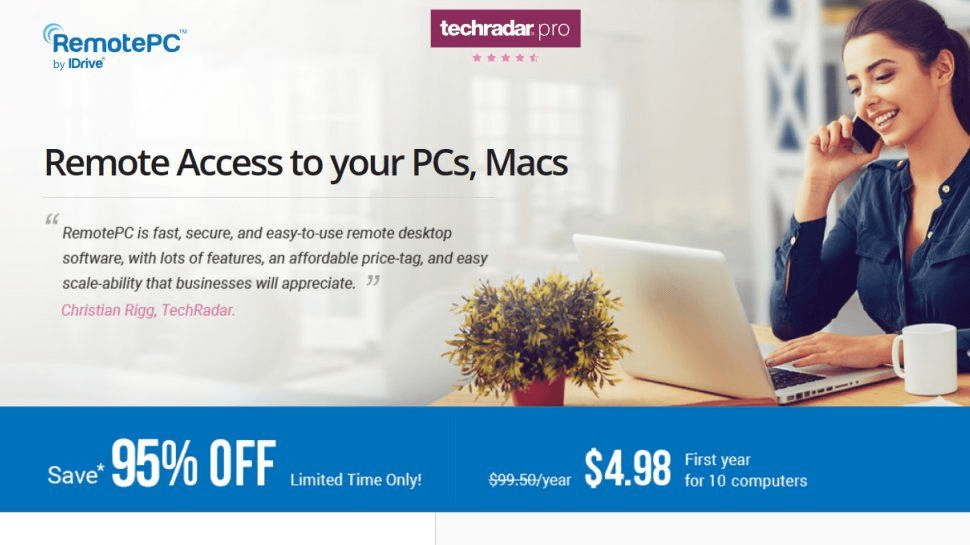
RemotePC is a VPN-free remote desktop solution designed for both businesses and individual users who need secure, reliable access to their computers from anywhere. With features such as file transfer, chat, and end-to-end encryption, RemotePC allows seamless remote operations without the need for complex network configurations or VPNs. Its cloud-based architecture ensures users can access devices globally while maintaining strong security protocols.
Steps to Set Up RemotePC
Step 1: Download and Install RemotePC
- Visit the RemotePC official website and download the application for your host and client devices.
- Install the software following the on-screen instructions.
Step 2: Create or Log In to Your Account
- Sign up for a RemotePC account or log in if you already have one.
- Link the devices you want to access remotely to your account.
Step 3: Enable Remote Access
- On the host PC, open RemotePC and enable remote access.
- Set a secure password or use the automatically generated access key for unattended access.
Step 4: Connect from Another Device
- On your client device, open RemotePC and log in with the same account credentials.
- Select the host computer and click Connect to start a remote session.
Step 5: Optional Advanced Features
- File Transfer: Move documents, images, and other files securely between local and remote computers.
- Chat Functionality: Communicate with other users during remote sessions for collaboration or troubleshooting.
- Multi-User Access: Grant access to multiple users simultaneously, useful for teams and IT support.
- Cloud Sync: Sync files across devices to maintain up-to-date information remotely.
Security Tips
- Strong Account Passwords: Always use complex passwords for your RemotePC account.
- Enable Two-Factor Authentication (2FA): Adds extra security to your login process.
- Keep Software Updated: Regular updates ensure the latest security patches and improvements.
- Limit Access: Only grant remote access to trusted users and devices.
Pros
- Access files and data from anywhere without manual configuration
- Protects sensitive information from unauthorized access
- Ideal for collaboration and team-based remote support
- Facilitates seamless workflow and communication
- Connect from Windows, macOS, Linux, iOS, or Android devices
Cons
- Dependent on the internet speed for smooth performance
- The free version is limited; full features require a subscription
- Advanced features may require a premium plan
- Occasional lag during large file transfers
- Dependent on RemotePC servers for connectivity
RemotePC is a robust and secure VPN-free remote desktop solution suitable for both personal and business use. Its combination of cloud sync, end-to-end encryption, and multi-user support makes it ideal for teams, freelancers, and IT professionals working globally. With simple setup and strong security measures, RemotePC provides reliable access to your computers without the need for VPNs or complex network configurations.
Method 7. Using cloud-based Virtual Desktops
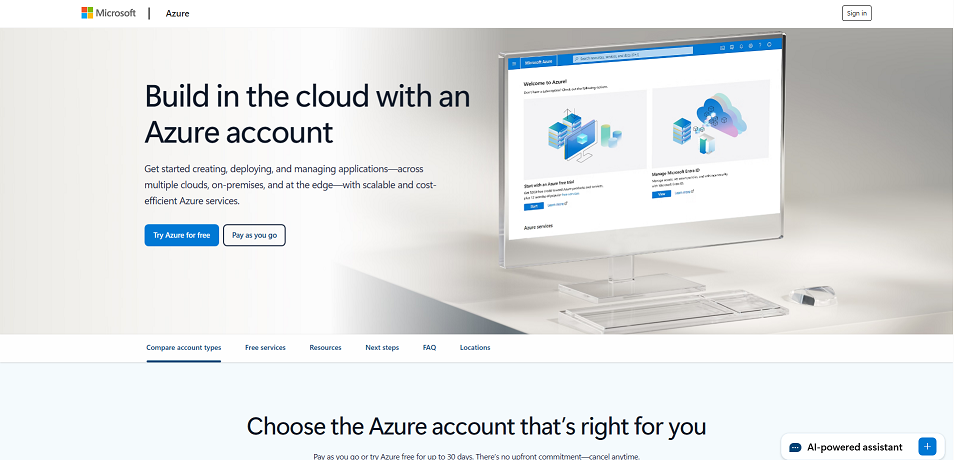
Cloud-based virtual desktops (VDs) like Azure Virtual Desktop, AWS Workspaces, and Google Cloud Virtual Desktops offer a scalable, VPN-free remote desktop solution for businesses and advanced users. These platforms host your desktop environment on the cloud, allowing you to access a fully functional Windows or Linux desktop from any device with an internet connection. Cloud VDs are ideal for enterprises, remote teams, and IT professionals who need secure, high-performance computing without relying on local hardware.
Steps to Set Up Cloud-Based Virtual Desktops
Step 1: Choose a Cloud Provider
- Select a provider based on your requirements, such as Azure for Microsoft integration, AWS for flexibility, or Google Cloud for scalable infrastructure.
Step 2: Configure Your Virtual Desktop Environment
- Create a virtual desktop instance and select the operating system and hardware specifications (CPU, RAM, storage).
- Configure security settings, including firewalls, user permissions, and encryption protocols.
Step 3: Set Up Remote Access
- Assign users to the virtual desktops with unique credentials.
- Provide access through client applications or web portals.
- Enable multi-factor authentication (MFA) for enhanced security.
Step 4: Connect from Any Device
- Install the cloud provider’s remote desktop client on your device (Windows, Mac, Android, iOS).
- Enter your credentials and connect to the cloud-hosted desktop.
- Begin using applications and accessing files as if you were on a local machine.
Security Tips
- Enable Multi-Factor Authentication (MFA): Protect accounts from unauthorized access.
- Use Role-Based Access Control (RBAC): Limit permissions based on user roles.
- Regularly Update and Patch Systems: Ensure security and performance updates are applied.
- Monitor Usage and Audit Logs: Track access and activity for compliance and security purposes.
Advantages
- Enterprise-level security with encrypted connections
- Access anywhere, anytime, from any device
- Easy scalability to accommodate growing teams
- Supports multi-user collaboration
- Integration with cloud storage and applications
Limitations
- Monthly subscription costs can be high for premium configurations
- Requires stable, high-speed internet for optimal performance
- Learning curve for setup and administration
- Ongoing maintenance and monitoring may be needed
- Dependent on provider infrastructure, downtime may occur
Cloud-based virtual desktops provide a powerful, VPN-free remote desktop solution for businesses and individuals needing secure, scalable, and globally accessible computing. While they require some setup knowledge and ongoing costs, they offer enterprise-level security, flexibility, and performance that traditional VPNs or local remote desktop solutions may not match. Ideal for teams, IT departments, and users working abroad, cloud VDs simplify remote work while maintaining control and security.
Conclusion
Remote desktop without VPN is no longer a complicated or risky task. Tools like AnyViewer, TeamViewer, and Chrome Remote Desktop provide secure, fast, and global access to your computers, making remote work seamless. By understanding how to remote desktop without VPN and using these VPN-free solutions, you can connect to remote desktop without VPN easily, enjoy productivity, flexibility, and peace of mind, and access devices anywhere, whether for personal use or managing a business team abroad.



 as a preferred
source on Google
as a preferred
source on Google