

How to Use Windows Remote Desktop on Chromebook in 2026
Explore the shift from classic RDP to the unified Windows App and the simplicity of Chrome Remote Desktop. This guide provides step-by-step setup instructions for Windows Remote Desktop for Chromebook and performance tips to help you choose the best tool for your workflow.

By Ellie / Updated on March 24, 2026


Chromebooks have evolved from simple "browser machines" into versatile productivity hubs. However, certain legacy Windows applications, like the full Adobe Creative Suite, specialized CAD software, or proprietary enterprise tools, still require a Windows environment.
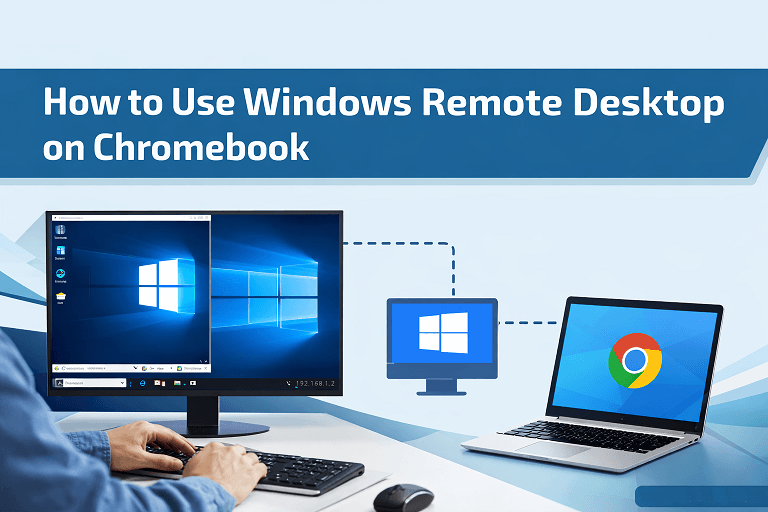
Using Windows Remote Desktop for Chromebook allows you to "stream" a high-powered Windows PC directly onto your Chromebook screen. In 2026, improvements in web codecs and the roll-outof the unified Windows App by Microsoft have made this experience smoother than ever.
The Modern Choice: The New "Windows App"
As of late 2025 and early 2026, the older Remote Desktop app for Windows available through the Microsoft Store will be discontinued and removed from download. To maintain uninterrupted access to services such as Windows 365, Azure Virtual Desktop, and Microsoft Dev Box, users will need to switch to the official Windows Remote Desktop app for Chromebook ecosystem—now known simply as the Windows App.
What is the Windows App?
The Windows App is a modern replacement for the traditional Remote Desktop app, designed to deliver a more seamless and flexible remote access experience. It acts as a comprehensive Windows Remote Desktop client for Chromebook, bringing multiple Microsoft services together in one intuitive platform. This allows users to access Cloud PCs and virtual desktops from a single, unified interface.
Compared to its predecessor, the Windows App offers a more personalized setup with customizable home screens, support for multiple monitors, and adaptive display resolutions. It also enhances remote work efficiency through advanced features like device redirection, optimized performance for Microsoft Teams, and effortless account switching.
It’s important to note that connections to Windows 365, Azure Virtual Desktop, and Microsoft Dev Box through the Microsoft Store version of the Remote Desktop app will be blocked after May 27, 2025. Beyond that date, the Remote Desktop app will no longer receive support, making the transition to the Windows App essential for all users.
How to Set It Up on Chromebook
Step 1. Enable Play Store: Ensure your Chromebook supports Android apps and has the Google Play Store enabled.
Step 2. Install: Search for and download the Windows App from the Play Store.
Step 3. Configure the Host: On your Windows PC, go to Settings > System > Remote Desktop and toggle "Enable Remote Desktop" to On.
Step 4. Connect: Open the Windows App on your Chromebook, click the + icon, select Add PC, and enter your PC's IP address or hostname.
The Simplest Method: Chrome Remote Desktop
If you want a setup that takes less than two minutes and doesn't require messing with IP addresses or firewalls, Google’s native solution is king.
Pros and Cons
| Feature | Chrome Remote Desktop | Microsoft Windows App (RDP) |
| Setup Ease | Extremely Easy (Google Login) | Moderate (Requires IP/Network config) |
| Performance | Optimized for Web Browsers | High (Native Protocol) |
| Multi-Monitor | Basic Support | Robust Support |
| Cost | Completely Free | Free for basic; Paid for Cloud PCs |
Setup Guide
Step 1. On the Windows PC: Visit "remotedesktop.google.com/access", install the host service, and set a 6-digit PIN.
Step 2. On the Chromebook: Open the Chrome browser, go to the same URL, and select your Windows PC from the list.
Step 3. Authentication: Enter your PIN, and your Windows desktop will appear in a browser tab.
Pro Tip: Bridging the Gap Between Windows and Mac with AnyViewer
While mastering Windows Remote Desktop for Chromebook is essential for ChromeOS users, many professionals operate in "mixed" environments. One major limitation of Microsoft’s official Windows App is that it primarily supports accessing Windows from other devices—it does not allow you to control a Mac from a Windows PC.
If your workflow requires full bi-directional control between Windows and macOS, AnyViewer is the ideal "Worry-free" alternative.
Why AnyViewer is the Best Cross-Platform Alternative:
- Reverse Remote Access: Unlike the Windows App, AnyViewer allows you to effortlessly remote control a Mac from a Windows computer, filling a critical gap in Microsoft’s ecosystem.
- Simplified Setup: Skip the complex port forwarding or VPN configurations. AnyViewer is designed for ease of use—just log in and connect.
- Richer Free Plan: Perfect for personal and small business use, offering high-speed file transfers and multi-monitor support without the strict "commercial use" blocks found in other apps.
- 16+ Years of Security Expertise: Built with ECC 256-bit encryption, ensuring your cross-platform sessions between Windows and Mac remain secure and private.
When to Choose AnyViewer?
If you need to manage a fleet of Windows and Mac computers alongside your Chromebook, AnyViewer provides the most flexible, cost-effective, and user-friendly experience for your entire remote work infrastructure.
Conclusion
Accessing a Windows Remote Desktop for Chromebook environment has never been more seamless. For most casual users, Chrome Remote Desktop offers the perfect balance of ease and speed. For power users and enterprise employees, the new Microsoft Windows App provides a robust, native-feeling experience that turns a $300 Chromebook into a $2000 workstation.



 as a preferred
source on Google
as a preferred
source on Google