

How to Use Multiple Monitors for Remote Desktop
Here is an overview of virtual multi-monitor remote control solutions. You will learn how to use multiple monitors for remote desktop tasks through a reliable virtual remote app.

By Irene / Updated on March 4, 2026


What is virtual multi-monitor remote control?
Virtual Multi Monitor Remote Control is an advanced remote access technology that allows users to control a computer from another location while keeping a true multi screen experience. Instead of compressing all content into one window like traditional remote desktop tools, it mirrors each monitor separately across the network, so the setup feels almost the same as sitting in front of the original machine.
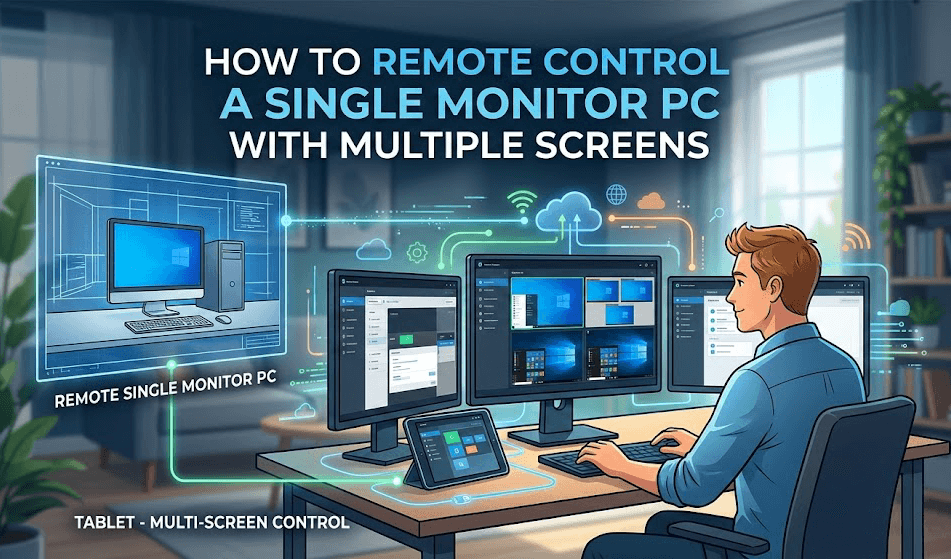
At its core, this system makes the host computer believe that multiple physical monitors are connected. It does this through virtual display drivers or EDID emulators, which instruct the operating system to create additional desktop space even when no real screens are attached. The remote control software then captures each virtual display as an individual video stream and transmits them to the client device. On the user side, the software organizes these streams to match the local monitor layout. For example, if a user has three monitors at home, each remote screen can be assigned to a corresponding local screen. This preserves spatial awareness and allows smooth window movement between displays.
This setup is especially valuable in data intensive professions. Developers can place code on one screen and documentation on another. Designers and video editors can manage timelines, preview windows, and asset panels more efficiently. Financial professionals can monitor several live charts at once without constantly switching tabs. However, because multiple high definition streams are transmitted simultaneously, strong performance is essential. A stable and fast internet connection helps reduce latency, and a capable GPU on the remote machine ensures that rendering multiple desktops does not slow down system performance.
How to perform virtual multi-monitor remote control?
In common remote control scenarios, the controlling device is usually equipped with multiple physical monitors, while the clientdevice has only one physical display. In traditional remote control mode, even when the controlling device uses a multi-monitor setup, the remote session is still limited to a single screen. As a result, users must frequently switch between windows on the same remote screen when performing multiple tasks, which reduces operational efficiency. This limitation becomes more apparent during long-term remote work, where users often need to handle both work-related tasks and personal matters simultaneously, and a single screen is no longer sufficient.
After enabling the AnyViewer Virtual Screen feature, users can expand multiple virtual screens within a remote session, significantly improving remote multitasking efficiency without adding any extra hardware.
For example, three virtual screens can be used at the same time:
👍 Screen 2: File processing or information reference
👍 Screen 3: Instant communication or personal tasks
Each virtual screen operates independently without interfering with others, greatly enhancing multitasking efficiency.
Step 1. Install AnyViewer on both the local and remote PCs. Sign up and log in if you have already registered on the official website.

Step 2. Choose One-click control to initiate the connection.

Step 3. From the top toolbar of the remote session, click Screen, select Virtual Screen, and then choose how many virtual displays you want to add to the remote computer. Add the number of virtual screens you need. AnyViewer supports up to four virtual screens, similar to adding four extra monitors.
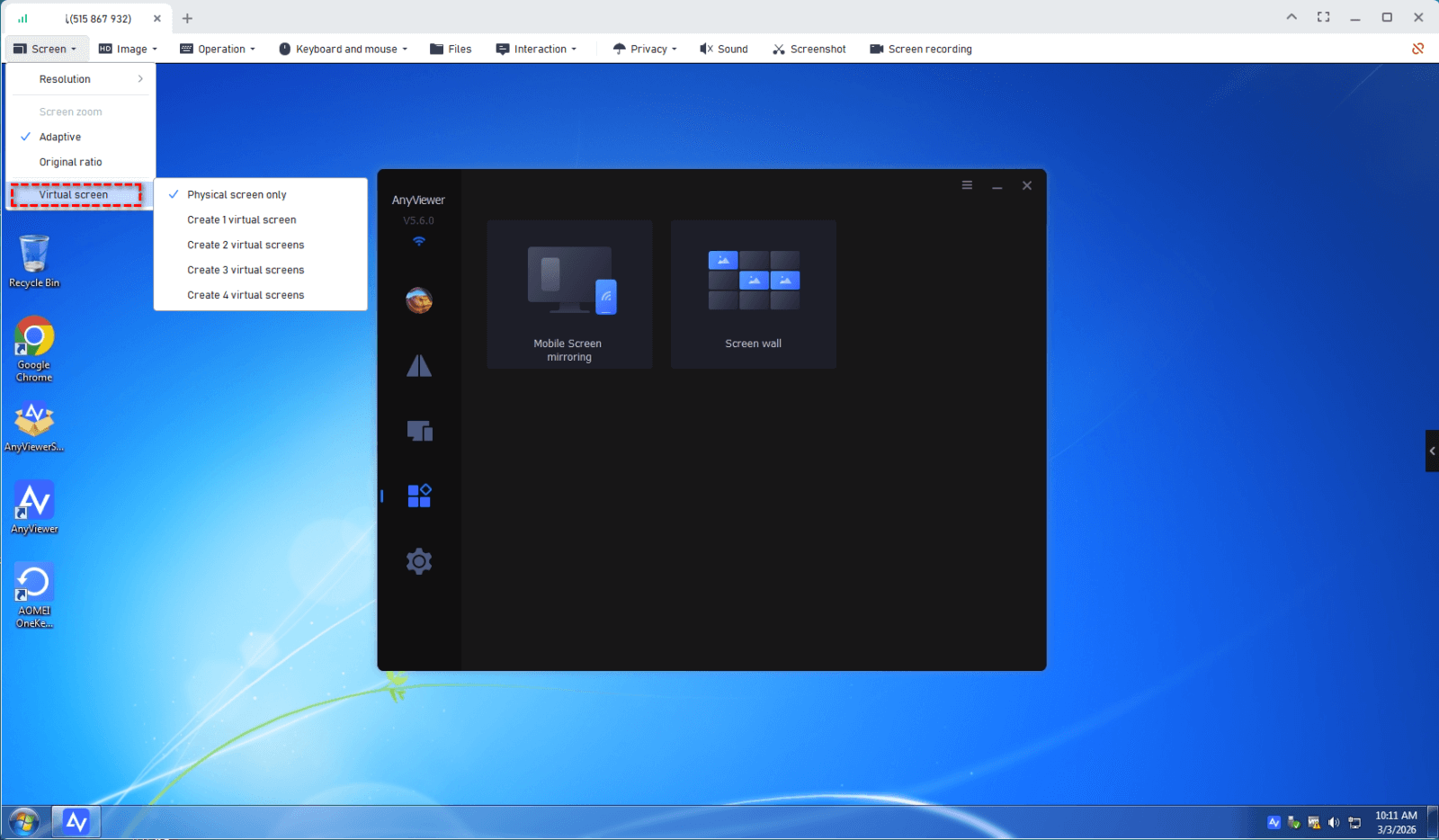
Step 4. Switch between the physical and virtual screens freely. Each screen runs independently, and you can drag windows from Screen 1 to the right to move them to a virtual screen.

- Notes: The Virtual Screens only supported on the Professional or Enterprise plan. You can only enjoy these features with these editions:
- Faster File Transfers – Free accounts have a transfer speed of 500 KB/s, while paid plans offer speeds of up to 10 MB/s for quicker file sharing.
- Transfer More Files at Once – Increase the number of files you can send in a single transfer session.
- Larger File Size Support – Paid plans allow you to transfer large files without losing data.
- More Assigned Devices – Assign more devices to your account for seamless unattended remote access.
- Check Connection History – View more currently connected devices for better session tracking.
- Privacy Mode for Secure Access – Connect discreetly by blacking out the remote screen and disabling input for privacy protection.
- More Concurrent Connections – Initiate multiple remote connections to a single computer for better multitasking and collaboration.
- Advanced Management Features – Get powerful tools like group management, mass deployment, screen walls, and role permission management for better control over your remote access environment.
Why virtual multi-monitor support is essential for remote desktop users
In real working environments, one screen is often not enough. Many professionals rely on multiple monitors in their daily tasks. When they switch to remote desktop, they expect the same flexibility and workspace. Virtual multi monitor support makes this possible. It recreates a multi screen setup remotely, so users can work as if they were sitting in front of their physical workstation.
✔️ For IT administrators, multiple monitors are critical. They often need one screen for system monitoring, another for troubleshooting tools, and a third for documentation or ticket systems. When managing servers or handling urgent incidents, switching between tabs on a single screen slows down response time. Virtual multi monitor support keeps all key tools visible at once, which improves accuracy and speeds up problem resolution.
✔️ For remote workers, productivity depends on smooth workflow. Many employees use one screen for communication apps such as email or team chat, and another for reports, spreadsheets, or presentations. A virtual multi-monitor setup reduces constant window switching. This helps maintain focus and reduces mental fatigue during long work sessions.
✔️ For designers and video editors, screen space directly affects creative efficiency. One monitor may display editing software, while another shows real time previews or asset libraries. Virtual multi monitor access ensures that layout, color adjustments, and visual details can be reviewed without interruption. This leads to faster revisions and better results.
✔️ For developers, multiple screens support structured coding. One screen may show the code editor, another runs the application, and a third displays documentation or debugging tools. With virtual multi monitor support, testing and debugging become more efficient because everything stays organized and visible.
✔️ In server management and headless environments, virtual monitors are especially valuable. Some servers do not have physical displays attached. Creating virtual screens allows administrators to manage configurations, monitor performance, and run applications without needing on site hardware.
Overall, virtual multi monitor support is not just a convenience feature. It directly improves productivity, reduces workflow friction, and helps professionals maintain the same level of efficiency remotely as they do locally. For users who depend on multi screen setups in their daily work, this capability is essential for a seamless and professional remote desktop experience.
Conclusion
Virtual multi monitor remote control brings a true multi screen experience to remote work. It recreates the flexibility of a physical multi monitor setup, so users can manage tasks more naturally and efficiently from any location. With tools like AnyViewer, users can easily create virtual screens without extra hardware and organize their workspace based on real needs.
For IT teams, developers, designers, and remote workers, this feature improves productivity, reduces constant window switching, and supports smoother multitasking. As remote work continues to grow, virtual multi-monitor support is becoming an essential solution for maintaining professional level performance outside the office.
FAQs
Can you remote desktop with multiple monitors?
Yes. Many remote desktop tools support multiple monitors. For example, Microsoft Remote Desktop allows you to use all local monitors for one remote session, and AnyViewer supports creating virtual screens to simulate extra monitors. This lets you view and manage different remote displays separately instead of squeezing everything into one window.
Can I control my monitor with a remote?
You cannot control a physical monitor itself through remote desktop, but you can control the computer connected to it. Once connected through remote control software, you can manage applications, windows, and display settings on that computer as if you were sitting in front of it.
Can you remote desktop to a virtual machine?
Yes. You can remotely connect to a virtual machine as long as it has network access and remote desktop enabled. For example, virtual machines created in VMware Workstation or Oracle VM VirtualBox can be accessed through Remote Desktop or third-party remote access tools.
How to have multiple monitors on a virtual desktop?
There are two common methods. First, use a remote desktop tool that supports multi monitor display and enable the option before connecting. Second, use software that provides virtual screen features, such as AnyViewer, to create additional virtual monitors on the remote machine. This expands desktop space without adding physical screens.
How to access PC by 2 users at the same time through remote desktop?
AnyViewer allows multiple users to connect to the same PC simultaneously, depending on the plan. This makes it easier for IT teams to collaborate, provide joint support, or conduct remote training without interrupting each other.



 as a preferred
source on Google
as a preferred
source on Google