

How to Add a TeamViewer Virtual Monitor for Multiple Screens
This overview explains how users add a TeamViewer virtual monitor to manage multiple monitors. It also highlights AnyViewer as an effective virtual screen software alternative for expanding remote display capabilities.

By Irene / Updated on March 4, 2026


🌟Quick Summary:
TeamViewer Virtual Monitor is a feature that expands screen space during remote sessions, especially when working with headless computers or devices with limited displays. It allows users to create a digital monitor that the remote system recognizes as a real screen, making it easier to move windows, organize applications, and improve multitasking without extra hardware.
The feature is available for Windows to Windows connections. It helps IT administrators, designers, analysts, and remote employees work more efficiently by separating tasks across screens.
However, TeamViewer supports only one extra virtual monitor. For users who need multiple virtual screens in a single session, alternatives such as AnyViewer provide broader flexibility by supporting up to four virtual screens. Choosing the right solution depends on how much workspace and multitasking capability your remote work requires.
About TeamViewer Virtual Monitor
When working remotely or managing computers in another location, limited screen space can slow down your tasks. This problem is more obvious when connecting to a headless computer that has no physical monitor attached. In such cases, the system may not display a full desktop, or you may not have enough space to open multiple windows. To solve this issue, TeamViewer provides a practical feature called Virtual Monitor.
TeamViewer Virtual Monitor allows you to create a digital display on the remote computer. Instead of relying only on the monitors physically connected to the device, you can add an extra screen through software. The remote system recognizes this virtual screen as a real monitor. This means you can move windows to it, arrange applications across screens, and manage tasks more efficiently.
With this feature, remote sessions feel closer to working on a multi monitor setup in person. You can separate applications, compare documents side by side, or monitor different systems at the same time. It is especially helpful for IT administrators who maintain servers without displays, as well as professionals who need more space for design, analysis, or development work.
In simple terms, the Virtual Monitor expands your remote workspace without requiring additional hardware. It improves flexibility, supports better multitasking, and enhances productivity during remote access sessions. By enabling a virtual display when needed, users can create a more organized and comfortable working environment, even when the remote device has no physical screen connected.
How to add TeamViewer Virtual Monitor for multiple screens?
Adding a virtual monitor in TeamViewer allows you to simulate extra screens on the remote computer, even if it only has one physical display. This feature is useful for multitasking, testing multi-screen layouts, or separating work content during a session. Before starting, make sure the remote computer runs Windows 10 version 2004 or later, has the full client or Host installed, is managed in your account, and has Easy Access enabled. Connections must be from Windows to Windows. If you just want to share screen on TeamViewer, you can read this article.
Step 1. Start a remote session to the Windows computer using TeamViewer and wait until the connection is fully established.
Step 2. In the remote session window, go to the toolbar at the top and click View.
Step 3. Select Manage virtual monitors, then click Add virtual monitor. The system will create an additional virtual screen automatically.
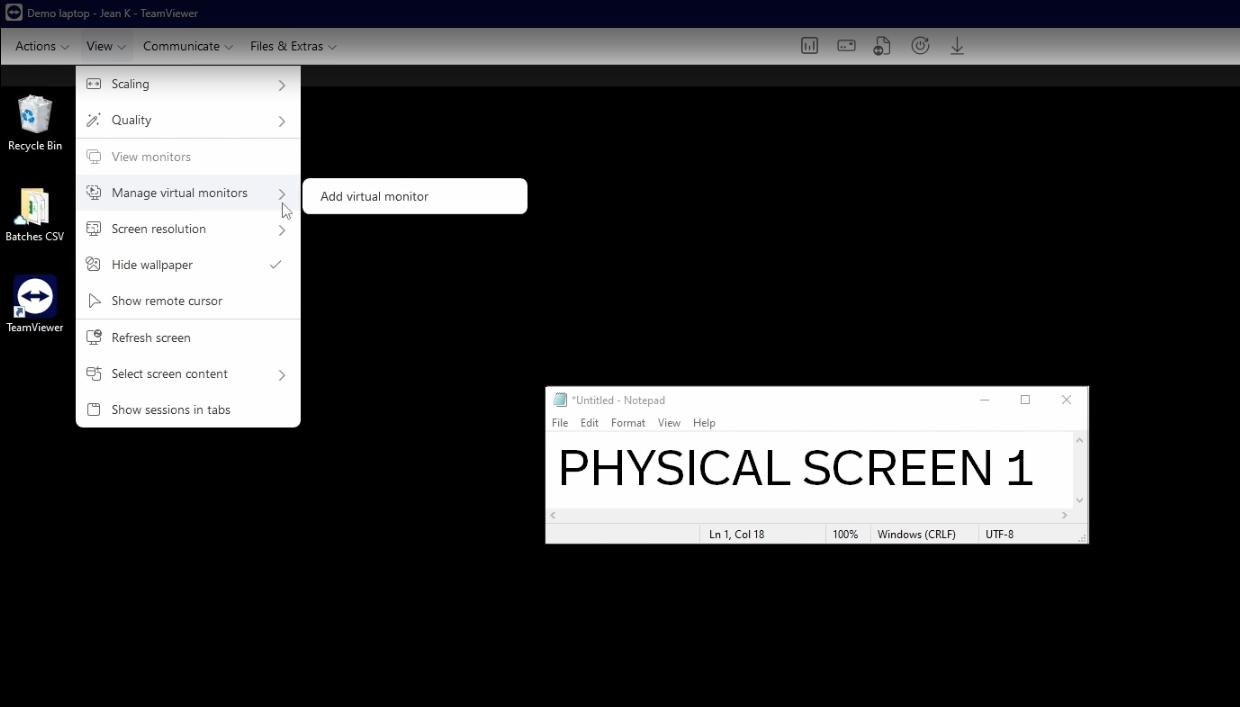
Step 4. Use the monitor switch button in the toolbar to change between the remote screens.
Step 5. If you prefer to display all remote monitors on a single local screen, go back to View, choose View monitors, and select Show all monitors on one screen.
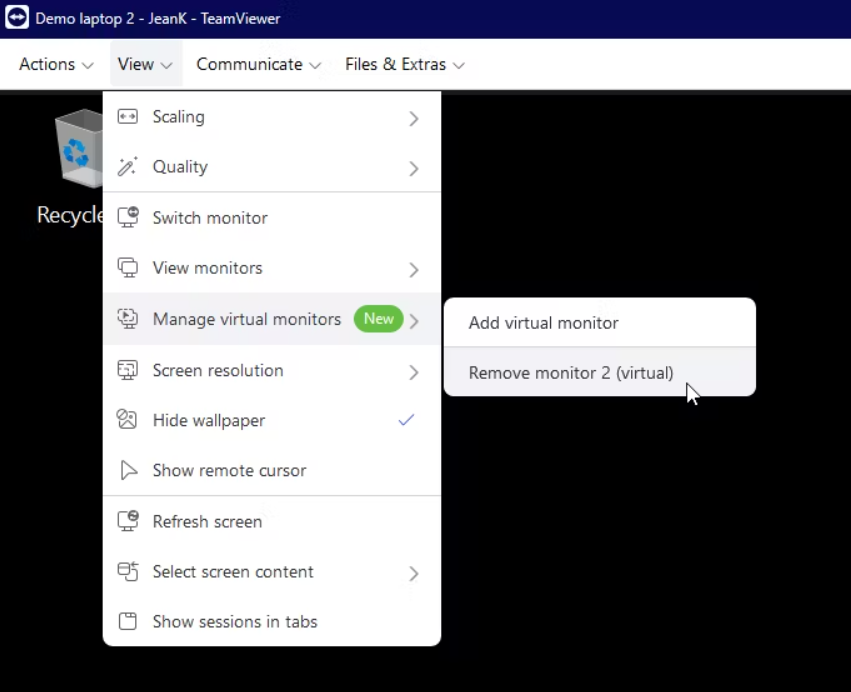
You have now successfully added a virtual monitor and can work with multiple remote screens during the session. If needed, you can return to Manage virtual monitors and remove the virtual monitor at any time.
Need more virtual screens? Try AnyViewer!
In real remote work situations, one extra virtual screen is often not enough. Many users need multiple independent desktops to match their local multi-monitor setup. Below are common cases where adding more than one virtual screen becomes necessary:
🔶 Designers and video editors: One screen for editing software, one for preview, and one for reference materials or communication.
🔶 Financial or data analysts: One screen for dashboards, one for spreadsheets, and another for reports or research.
🔶 Remote employees handling work and communication simultaneously: One screen for business systems, one for meetings, and one for messaging apps.
🔶 Technical support staff assisting multiple users: Separate screens for remote control, knowledge base search, and internal collaboration tools.
In these scenarios, constantly switching between windows on a single remote screen can slow down work and reduce efficiency. When using TeamViewer, users can add a virtual monitor, but it is limited to only one additional screen. For professionals who rely on multi-tasking, this restriction may not fully meet daily work demands, especially in complex or long-term remote sessions.
Compared to that, AnyViewer supports creating multiple virtual screens within a single remote session. Users can expand several independent desktops without connecting extra physical monitors. Each virtual screen works separately, allowing applications to run independently and tasks to stay organized.
This makes it easier to recreate a true multi-monitor environment remotely. For users who need more flexibility and higher multitasking efficiency, having the ability to add more than one virtual screen can significantly improve workflow clarity and overall productivity.
Step 1. Install AnyViewer on both the local and remote PCs. Sign up and log in if you have already registered on the official website. Then select the target device, and establish a remote connection.

Step 2. In the remote session window, click Screen and choose Virtual Screen. Add the number of virtual screens you need. AnyViewer supports up to four virtual screens, similar to adding four extra monitors.
Step 3. Switch between the physical and virtual screens freely. Each screen runs independently, and you can drag windows from Screen 1 to the right to move them to a virtual screen.
Confirm that the controlling account has permission to use the Virtual Screen feature.
Conclusion
TeamViewer Virtual Monitor offers a practical way to expand screen space during remote sessions, especially when working with headless computers or limited displays. It helps users organize applications better and improves multitasking without adding physical hardware.
For users who need more than one additional screen, solutions like AnyViewer provide greater flexibility by supporting multiple virtual screens in a single session. Choosing the right tool depends on your workload and how much virtual workspace you require for efficient remote work.
FAQs
🗨️ How do I add a virtual monitor in TeamViewer?
In TeamViewer, start a remote session to a Windows computer. Click View in the top toolbar, choose Manage virtual monitors, and then select Add virtual monitor. The system will create one additional virtual screen automatically.
🗨️ Can TeamViewer use multiple monitors?
Yes. TeamViewer can detect multiple physical monitors connected to the remote device. You can switch between screens or choose to display all monitors in one window. However, it supports only one extra virtual monitor.
🗨️ Can you remote desktop with multiple monitors?
Yes. Tools like Microsoft Remote Desktop, TeamViewer, and AnyViewer support multi monitor remote sessions. Some allow switching between monitors, while others also support creating multiple virtual screens for expanded workspace.
🗨️ Is TeamViewer based on VNC?
No. TeamViewer is not based on Virtual Network Computing. It uses its own proprietary protocol to establish secure remote connections.
🗨️ Why can't I see my 2nd monitor?
This may happen if the second monitor is disconnected, disabled in display settings, or not properly detected by the remote software. In headless setups, adding a virtual monitor in TeamViewer or using multi virtual screen support in AnyViewer can help.
🗨️ How to view 3 monitors at once?
If the remote computer has three physical monitors, you can select Show all monitors in TeamViewer to display them in one window. If you need to create extra screens beyond the physical setup, AnyViewer supports up to four virtual screens within a single session.



 as a preferred
source on Google
as a preferred
source on Google