
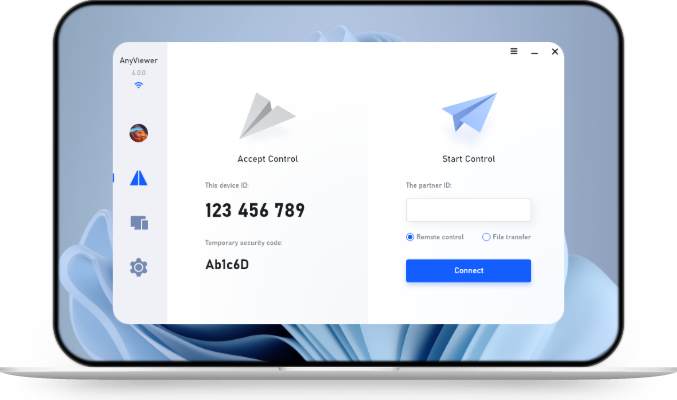
How To Transfer Microsoft Office To New Computer
Need to transfer Microsoft Office to new computer? This guide separates installation, licensing, and file migration so you can choose the right process, protect your documents, and avoid activation mistakes.

By Ellie / Updated on November 4, 2026


Can You Transfer Microsoft Office To New Computer?
Yes, in many cases you can transfer Microsoft Office to new computer by installing it again and activating it with the appropriate account or license. Copying the Office folder from your old PC does not complete a working installation. Your documents also need a separate migration plan.
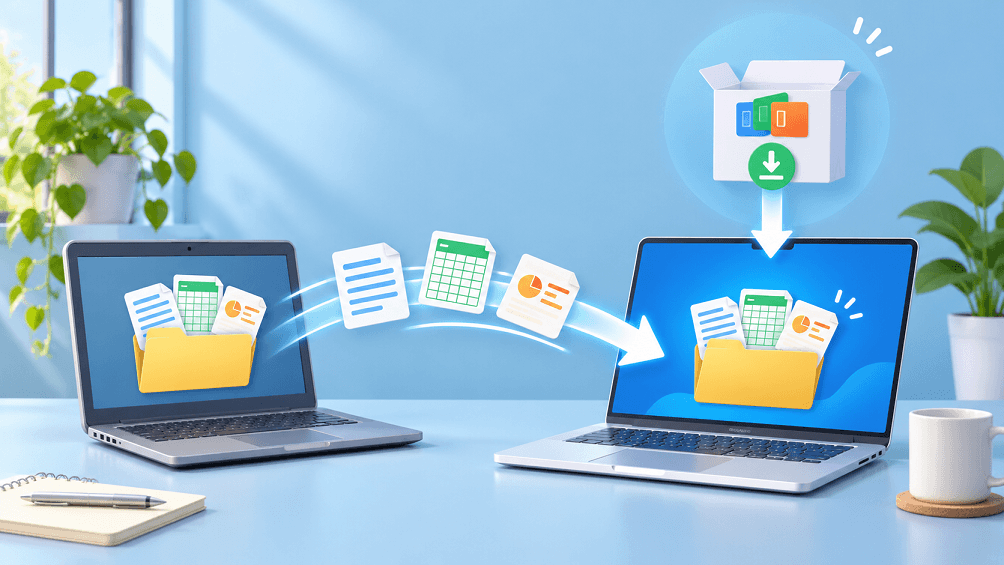
Start by identifying what you own: a Microsoft 365 subscription, a one-time Office purchase, or a license supplied with your computer or workplace. AnyViewer can help retrieve documents from an accessible old computer, but it does not transfer Office activation rights.
| License Situation | Recommended Route | What To Check |
| Microsoft 365 | Install using the licensed account | Subscription status and device sign-in allowance |
| One-time retail purchase | Check transfer eligibility, then reinstall | Edition, purchase channel, and transfer terms |
| Office supplied with a PC | Review original license terms | Whether the entitlement is tied to the device |
| Work or school license | Ask your administrator | Assigned license and organization policies |
Before You Move Office To Another PC
On the old Windows computer, open Word or Excel and look under File > Account. Record the product name and the account associated with it. Menu names may differ by version and platform. Keep your purchase confirmation available, especially if you have several Microsoft accounts.
- Confirm that you can sign in to the account used for the purchase or subscription.
- Back up local documents before uninstalling anything or resetting the old computer.
- Check that your new operating system supports the Office version you intend to install.
- List any templates, macros, add-ins, and local Outlook archives that you still need.
Treat installation, activation, and personal data as three separate jobs. A successful Word launch does not prove that every spreadsheet, mailbox archive, or custom template has arrived. Keep the old device and backup available until you finish checking the replacement.
How To Reinstall Microsoft 365 On Your New Computer
For a personal subscription, follow Microsoft’s installation instructions using the account that holds the subscription. For a shared family subscription, use the invited member’s own account. A work or school subscription uses the account and installation process approved by the organization.
- On the new computer, sign in to your Microsoft account and open its Services and subscriptions area. For organizational accounts, use the approved Microsoft 365 portal.
- Find your licensed product and follow the installation option. If no install option appears, check the account and whether your plan includes desktop applications.
- Run the downloaded installer and allow installation to complete.
- Open Word and sign in with the licensed account. Resolve any account or activation prompt before moving on.
- If a device or sign-in limit appears, manage existing installations or sign-outs through the relevant account controls.
How To Move A One-Time Office Purchase
A one-time purchase has different rules from a subscription. Under Microsoft’s Office license transfer guidance, eligible Office 2024 and Office 2021 installations may move to another computer you own, generally no more than once every 90 days, with an exception for hardware failure. The previous installation must be removed.
- Confirm the exact edition and purchase channel. Do not assume every preinstalled copy follows retail transfer rules.
- Locate the product in the Microsoft account associated with the purchase, or follow the installation route supplied with your legitimate purchase.
- Back up your files and remove the previous installation as required by the applicable terms.
- Install the matching Office edition on the replacement computer and complete activation.
- If activation rejects an eligible transfer, contact Microsoft support with the purchase details and error message.
Do not buy another copy simply because the first sign-in fails. An account mismatch or an incorrect installed edition can resemble a missing license. Conversely, an installed application or an old product key alone does not establish that a license is transferable.
Move Your Documents And Office Settings Separately
Choose a file-transfer method based on where your documents actually live. Cloud-stored files need account access and synchronization. Local files need a backup or transfer. A desktop shortcut may point to a cloud location rather than contain the document itself.
- Check Documents, Desktop, Downloads, and any custom project folders for Word, Excel, and PowerPoint files.
- For OneDrive files, sign in on the new computer and confirm synchronization before relying on them offline.
- Copy local files through an external drive or another authorized transfer method.
- Review Outlook archives, templates, macros, and add-ins individually; reinstall compatible add-ins rather than copying their program folders.
- Open representative files, edit a test copy, and save it to confirm the new workflow works.
For example, a home user might have invoices in Documents, a budget on the Desktop, and a template in a custom folder. Moving only Documents would miss two parts of that workflow. This is an illustrative checklist, not a claim that every setup stores data in those locations.
Use AnyViewer To Retrieve Files From The Old Computer
If your old PC is in another location and still works, you can use AnyViewer file transfer to retrieve documents you missed. This is useful when a family member is helping you or when you discover a missing workbook after setting up the replacement PC.
Its file manager lets you choose source files and destination folders. Remote control can also help you inspect the old desktop and identify where a missing document was saved. These capabilities support the data-migration part of the job; Office still requires its own installation and activation.
- Install and run AnyViewer on both supported computers. Keep the old computer online and awake. Sign in to the same AnyViewer account on both computers.
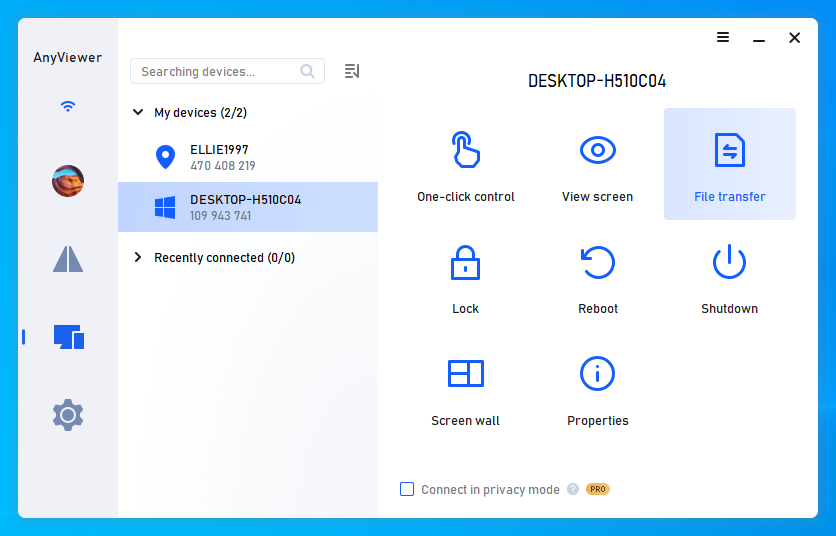
- On the new computer, go to Device, select the old computer from the list, and click File Transfer to start the transfer directly without needing a partner request confirmation.

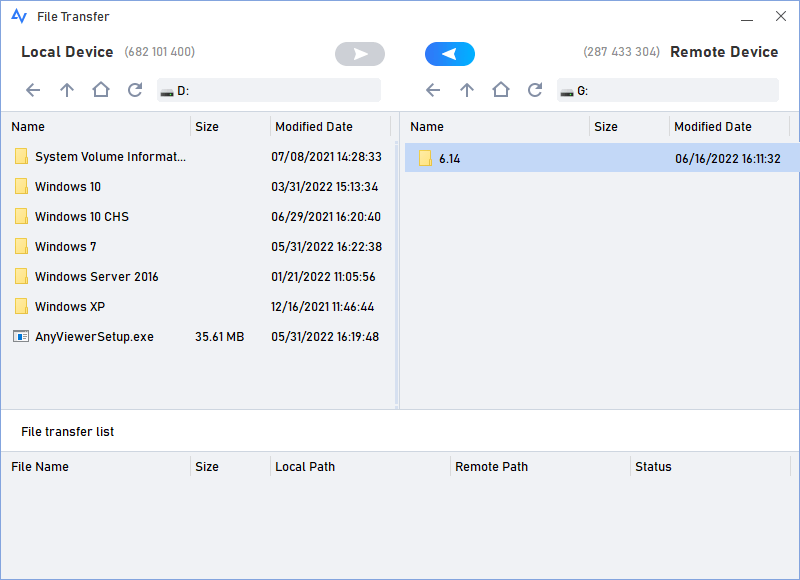
- In the File Transfer window, select the source documents on the old computer, choose the destination folder on the new computer, and confirm the transfer direction.
- Check the completed files on the new computer, then end the session.
Only access devices, accounts, and files that you own or are explicitly authorized to use. Enter account passwords yourself when receiving remote help, and follow workplace rules for business documents. Check current platform and plan limits before moving large archives. Remote software cannot retrieve files from a computer that cannot run or connect.
What To Do If Office Will Not Activate
- Wrong account: compare the signed-in account with your purchase confirmation or subscription record.
- Wrong edition: confirm that the installed product matches the license you own.
- Managed device: ask IT to verify the license assignment and deployment method.
- Transfer rejected: record the exact error and ask Microsoft support to review eligibility.
- Old computer failed: recover files from backups separately; explain the hardware failure when requesting activation help.
Avoid repeatedly uninstalling and reinstalling without identifying the error. Record the product name, account type, and activation message first. These details make support requests more useful and reduce the chance of replacing a valid license unnecessarily.
Conclusion
To transfer Microsoft Office to a new computer, identify your license, follow the appropriate reinstall and activation process, and move your documents separately. Verify important files before retiring the old device. If you later discover missing local documents on an accessible PC, use the authorized remote file workflow to retrieve them.



 as a preferred
source on Google