

Transfer Files Between a Mac and Android Phone [Top 4 Ways]
This guide explores four professional ways to share files between Mac and Android. It highlights AnyViewer for remote transfers, OpenMTP for USB connections, LocalSend for local Wi-Fi, and Cloud storage for syncing.

By Ellie / Updated on January 27, 2026


Why is it hard to transfer files between Mac and Android?
If you’ve tried to transfer files between a Mac and an Android phone, you’ve likely noticed a frustrating problem: macOS doesn't natively recognize Android devices in the Finder. This is because Windows includes built-in support for Android’s Media Transfer Protocol (MTP), whereas Apple’s operating system does not.
Without a dedicated "middleman" tool, these two systems essentially speak different languages. However, learning how to share files between Mac and Android phone systems for your 4K videos, high-res photos, or work documents doesn't have to be a struggle.
In this 2026 guide, we’ll show you the most efficient ways to bridge the gap, from classic USB fixes to AnyViewer, the premier high-speed solution for seamless cross-platform file management.
How to transfer files between your Mac and Android phone
Here are the four best methods to move your data seamlessly, whether you need to transfer files between MacBook and Android phone wirelessly or via a traditional cable.
Method 1: The remote powerhouse – AnyViewer (Recommended)
When you need to transfer files between a Mac and Android phone quickly, especially when you aren't physically near your devices, AnyViewer is the most robust solution. While many know AnyViewer as a top-tier remote desktop software, its integrated File Transfer engine is one of the fastest and most secure ways to move data across different operating systems.
Why Choose AnyViewer for File Transfer?
- No Distance Limits: Unlike USB cables or Bluetooth, you can transfer files between a Mac in your office and an Android phone in your pocket while you're at a coffee shop.
- High-Speed Stability: Optimized for large files, AnyViewer handles high-definition videos and large folders without the "connection lost" errors common in older MTP tools.
- Bank-Level Security: All transfers are protected by Elliptic Curve Cryptography (ECC) encryption, ensuring your private data stays private.
- All-in-One Utility: Beyond just moving files, you can remotely control your Mac from your Android phone if you forgot to save a document or need to run a specific macOS app.
How to Transfer Files Using AnyViewer
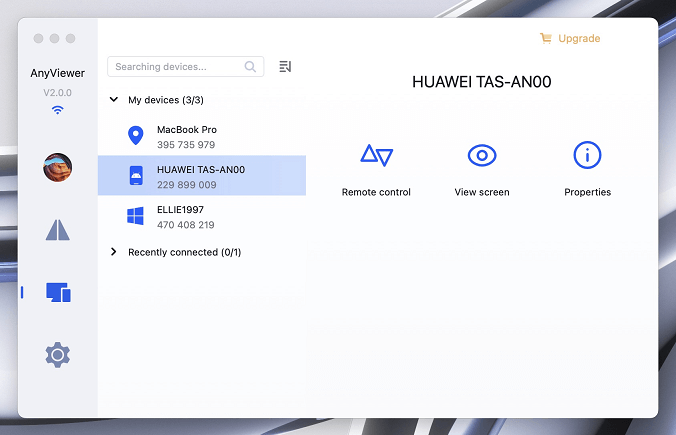
Step 1. Download and install AnyViewer for Mac and the AnyViewer App from the Google Play Store.
Step 2. Create a free account and log in on both your Mac and your Android device.
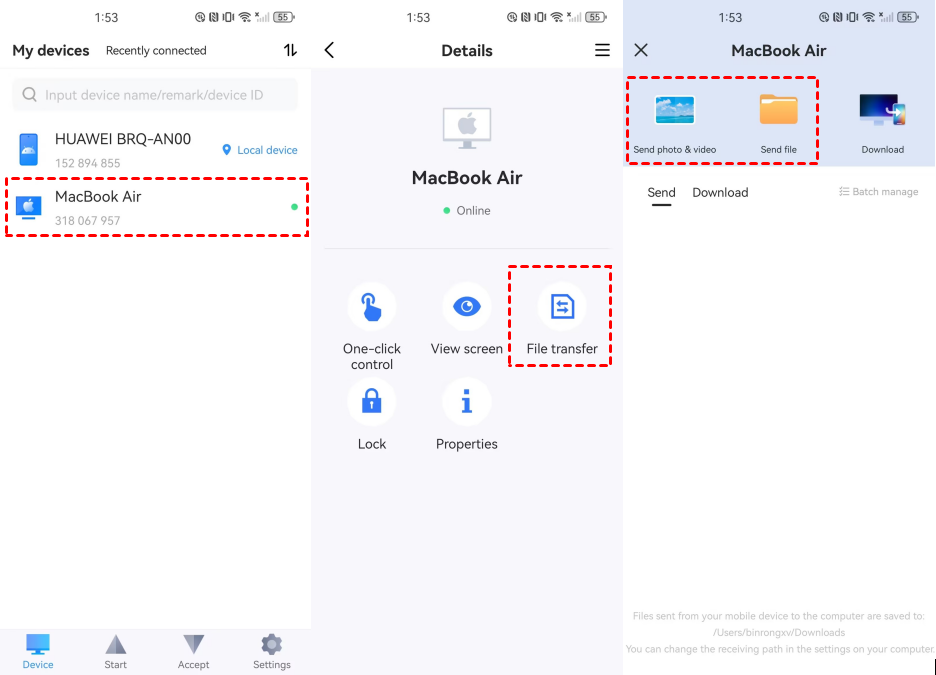
Step 3. On your Android phone, go to the Device tab, select your Mac, and choose the File Transfer option.
Step 4. To transfer files from an Android device to a Mac, tap Send photos & videos or Send files. To move files from a Mac to an Android device, tap Download. Select the files you need, and the transfer starts immediately.
Tip: If you frequently manage multiple devices, upgrading to an AnyViewer pro account allows for even higher speeds and the ability to transfer unlimited files simultaneously, a must-have for creators and IT professionals.
Method 2: The wired classic – OpenMTP
For those who prefer a physical cable for transferring files between a MacBook and an Android phone, OpenMTP is a reliable open-source alternative to the aging "Android File Transfer" app.
How to Transfer Files Using OpenMTP (Step-by-Step)
Step 1. Download the latest version of OpenMTP from its official website and drag the app into your Mac’s Applications folder.
Step 2. On your Android phone, go to Settings > About Phone and tap Build Number seven times until it says "You are now a developer."
Step 3. Navigate to Settings > System > Developer Options and toggle on USB Debugging. This allows the Mac to access the phone's file system.
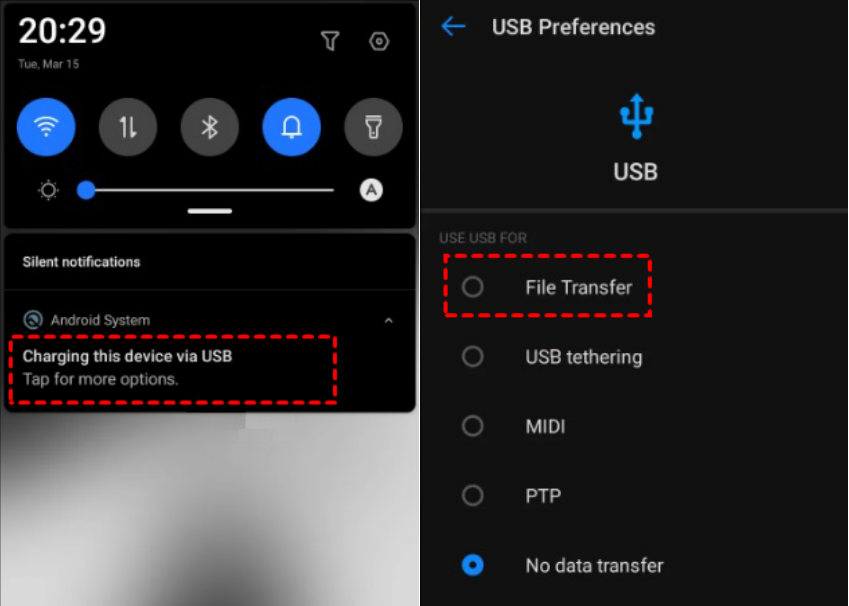
Step 4. Plug your Android phone into your Mac. On the phone's notification shade, tap the "USB Charging" notification and change the mode to File Transfer (MTP).
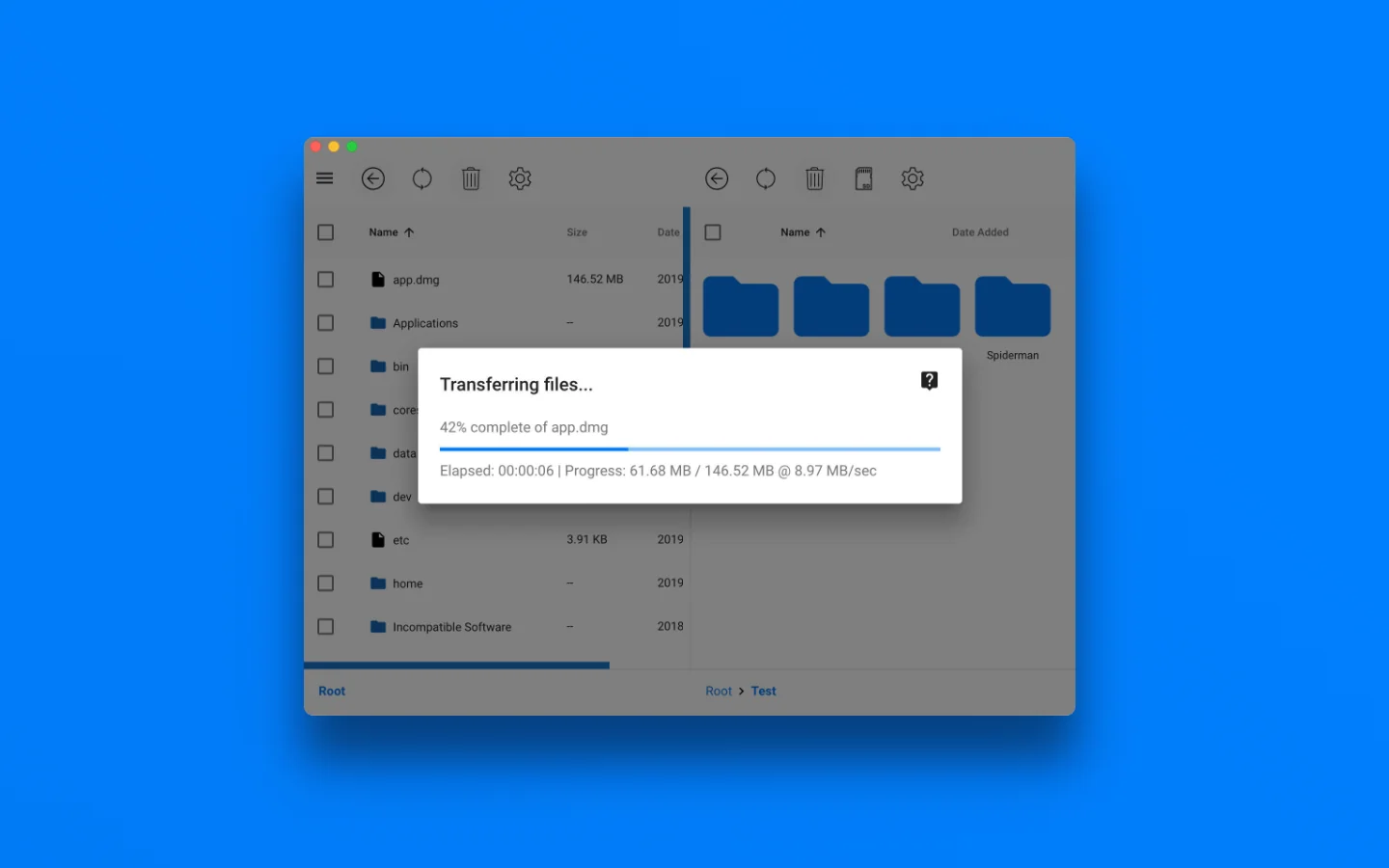
Step 5. Download and open the OpenMTP app on your Mac. Click the Refresh icon. Your phone's internal storage will appear in the right-hand pane.
Step 6. Simply select the files from your Mac (left pane) and drag them to the desired folder on your Android (right pane).
Pros:
- Completely free and open-source.
- Supports "Plug and Play" once set up.
- Dual-pane interface (Mac on the left, Android on the right).
Cons:
- Requires a high-quality USB-C cable (cheap cables often fail).
- Can be finicky with certain Samsung or Pixel security settings.
- No remote capability; you must be tethered to your desk.
Method 3: The wireless local option – LocalSend
If you want to share files between Mac and Android phone while both are on the same Wi-Fi network, LocalSend is a fantastic "AirDrop-like" alternative.
How to Transfer Files Using LocalSend
Step 1: Download and install LocalSend on both your Mac and Android phone.
Step 2: Ensure your Mac and Android phone are connected to the same Wi-Fi network. This is required for device discovery.
Step 3: Transfer Files from Mac to Android
- Open LocalSend on both devices.
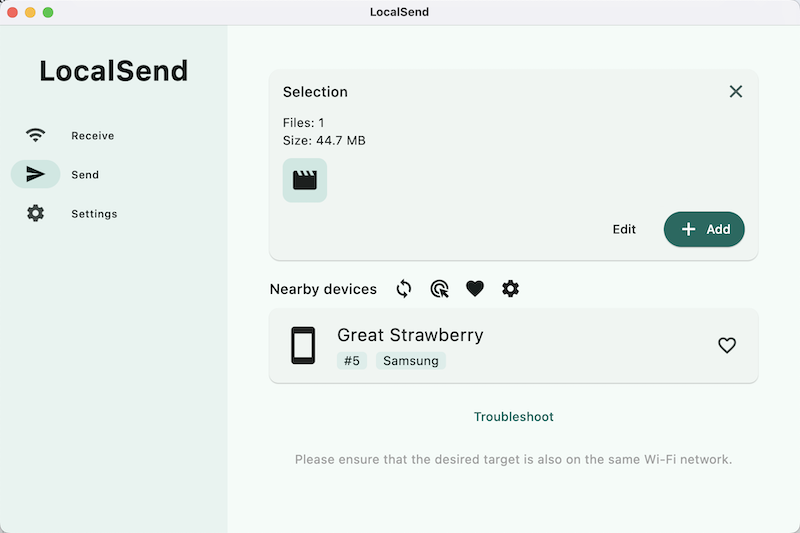
- On your Mac, click Send and select files or folders.
- Choose your Android phone from the device list.
- Tap Accept on your Android phone.
Files will be saved to the Downloads folder on Android.
Step 4: Transfer Files from Android to Mac
- Open LocalSend on both devices.
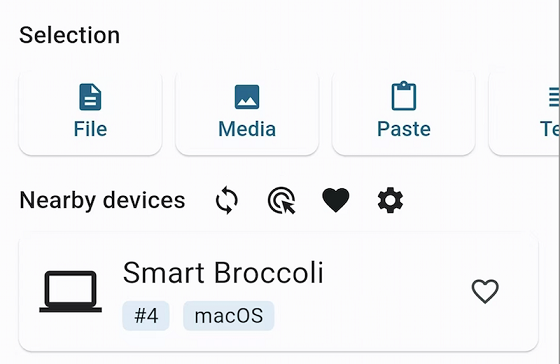
- On Android, tap Send and select files.
- Choose your Mac as the receiving device.
- Click Accept on your Mac.
Files are saved by default to: ~/Library/Containers/org.localsend.localsendApp/Data/Downloads (You can change this in Settings.)
The Downside of LocalSend:
While convenient, LocalSend can struggle with very large files (over 5GB) as it relies heavily on the stability of your local router. For large-scale backups, a dedicated tool like AnyViewer is more reliable.
Method 4: Cloud storage (Google Drive / iCloud / Dropbox)
Cloud services are the "set it and forget it" method to transfer files between a Mac and Android phone. You upload from one device and download from the other.
- Google Drive: Since every Android user has a Google account, this is the default choice. You get 15GB of free space.
- Dropbox: Excellent for syncing specific folders, but the free tier is limited to only 2GB.
How to Transfer Files Using Google Drive (Step-by-Step)
If you want to move files from your Android phone to your Mac, follow these steps:
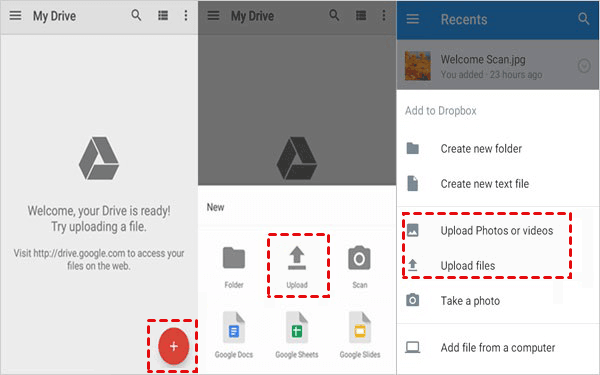
Step 1. Open the Google Drive app on your Android phone. Log in with your Google account.
Step 2. Click the + New button in the top-left corner and select File upload. Choose the files from your Android phone that you want to transfer.
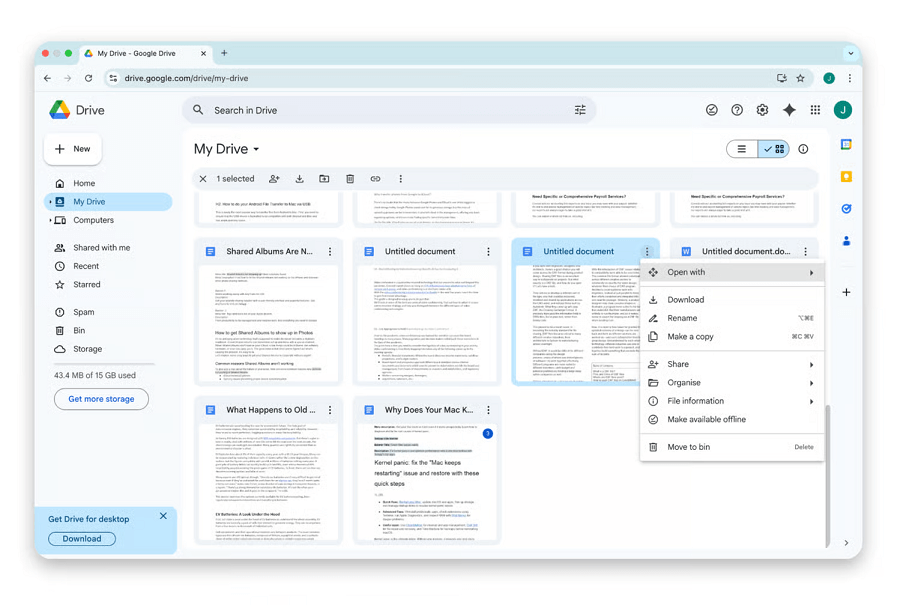
Step 3. Open your web browser and go to drive.google.com. Ensure you are logged into the same account.
Step 5. Locate the file you just uploaded, select Download to save it directly to your Mac.
The Downside of Cloud:
The biggest bottleneck is upload speed. If you are trying to move a 10GB video file, you have to wait for it to upload to the server and then wait again for it to download to your phone. This effectively doubles your wait time compared to the direct peer-to-peer connection provided by AnyViewer.
Conclusion
To transfer files between a Mac and Android phone doesn't have to be a chore. While the USB-cable method is fine for a quick photo sync, the modern professional needs something more flexible.
AnyViewer stands out as the most versatile tool in 2026. It eliminates the need for cables, ignores geographical boundaries, and provides a secure, high-speed bridge to share files between Mac and Android phone with ease. Whether you're a student or a creative professional, AnyViewer simplifies your digital life.
Ready to start? Download AnyViewer today and experience the fastest way to manage your cross-platform files!
FAQs
Q1: Can I use Bluetooth to transfer files between Mac and Android?
Technically, yes, but it is not recommended. Bluetooth speeds are extremely slow (often under 1Mbps), making it impractical for anything larger than a tiny text document or a single low-res photo.
Q2: Why does my Mac not see my Android phone when plugged in via USB?
This usually happens because the phone is in "Charging only" mode. You must swipe down the notification shade on your Android and select "File Transfer" or "MTP." Also, ensure you have a high-quality data cable, as some cables only support charging.
Q3: Is AnyViewer safe for transferring private documents?
Yes. AnyViewer uses Elliptic Curve Cryptography (ECC) encryption, which is the same security standard used by banks. Your files are encrypted during the entire transfer process.



 as a preferred
source on Google
as a preferred
source on Google