

Best 6 Free Android to Mac File Transfer Apps
This article introduces the top 6 Android to Mac file transfer apps, covering free wireless, USB, and cloud-based methods. Learn how to transfer files quickly and securely, and find the best Android to Mac file transfer app for your needs.

By Ellie / Updated on January 19, 2026


Best free Android to Mac file transfer app?
In today's interconnected digital landscape, finding a reliable Android to Mac file transfer app is essential for maintaining a seamless workflow between different ecosystems. Whether you are a creative professional or a casual user, moving data between Google's mobile platform and Apple's desktop OS should be effortless.
Below is a comprehensive guide on the six most effective ways to transfer your data, ensuring you find the perfect Android to Mac file transfer app for your specific needs.
Top 6 Android to Macfile transfer apps
Whether you prefer the speed of a wireless connection or the reliability of a cable, choosing the right Android to Mac file transfer app is the key to a seamless workflow.
Way 1. The all-in-one wireless method: AnyViewer
If you want a fast, secure, and truly cable-free Android to Mac file transfer app, AnyViewer is the top free recommendation. Designed for modern cross-platform workflows, AnyViewer delivers an AirDrop-like experience for Android and macOS users, without compatibility limitations or complex setup.
Unlike traditional file transfer tools, AnyViewer is more than just transferring files. It is a professional-grade remote access and file management solution, making it ideal for users who value speed, stability, and long-term productivity.
Why AnyViewer Stands Out from Other Android to Mac File Transfer Apps
- Free to Use with No Transfer Limits: AnyViewer offers a free Android to Mac file transfer experience with no file size limits and no bandwidth caps. Unlike many tools that restrict transfers behind paywalls, AnyViewer lets you move files freely without worrying about quotas.
- High-Speed Wireless File Transfer: AnyViewer is optimized for fast data transmission over Wi-Fi, enabling high-speed Android to Mac file transfers with minimal latency, ideal for large documents, photos, and videos.
- True Wireless Transfers: Transfer files over Wi-Fi with no USB cables, no drivers, and no device recognition issues.
- Beyond File Transfer: Supports screen mirroring, remote control, and device management, making it a future-proof solution rather than a single-purpose tool.
- Cross-Network Capability: Transfer files not only on the same Wi-Fi network, but also across different networks, which most free tools do not support.
Step-by-Step Guide:
Step 1: Download and launch the AnyViewer app on your Mac. Log in with your account credentials.
Step 2: Open the AnyViewer mobile app on your Android device and log in with the same account.
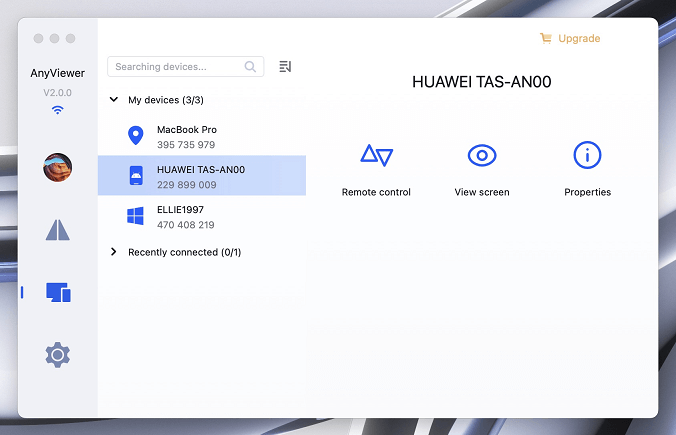
Step 3: On the device listin the mobile app, select your Mac. Choose File transfer.
Step 4: Tap the document icon, select the specific files you wish to send, and confirm the transfer.
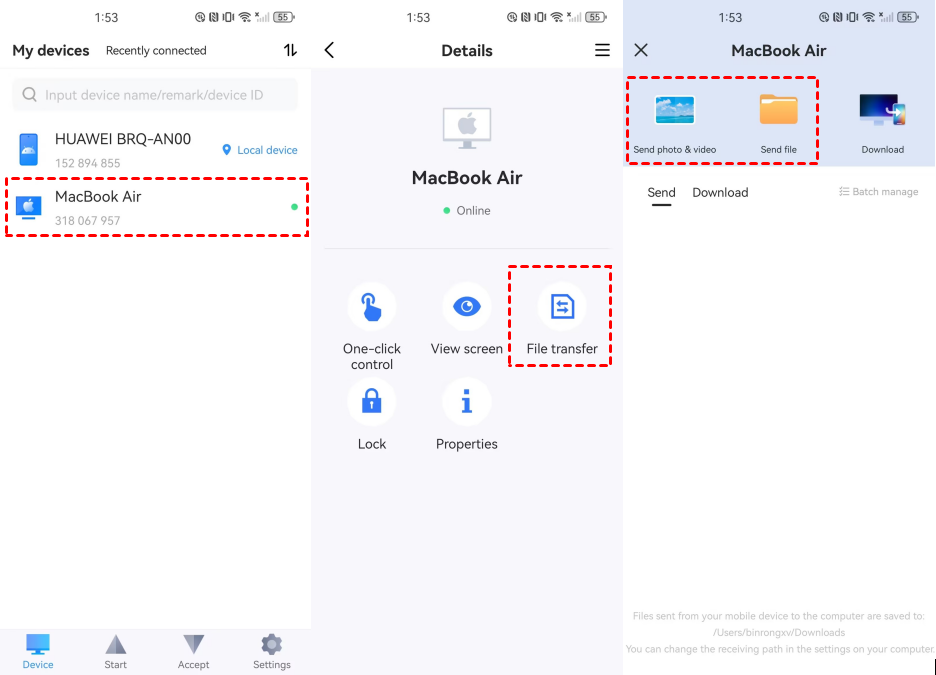
Way 2. The traditional route: Android File Transfer
The most traditional way of transferring files is through a USB cable. To facilitate this on macOS, you must use the official Android to Mac file transfer app developed by Google, as Mac computers do not natively support Android MTP (Media Transfer Protocol) connections.
Step-by-Step Guide:
Step 1: Download and open 'AndroidFileTransfer.dmg'. Drag the Android File Transfer app into your Applications folder on your Mac.
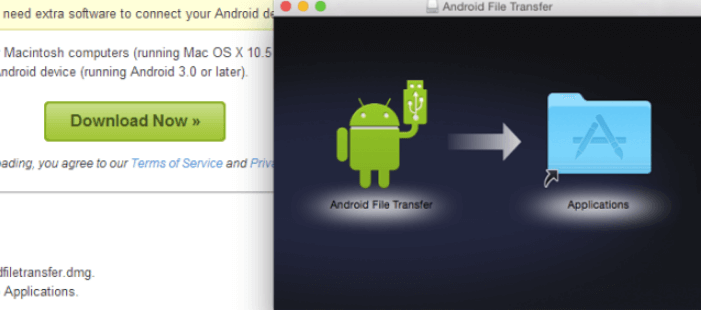
Step 2: Connect your Android device to the Mac using a high-quality USB cable.
Step 3: On the Android device, swipe down the notification shade and set the USB mode to "File Transfer" or "MTP".
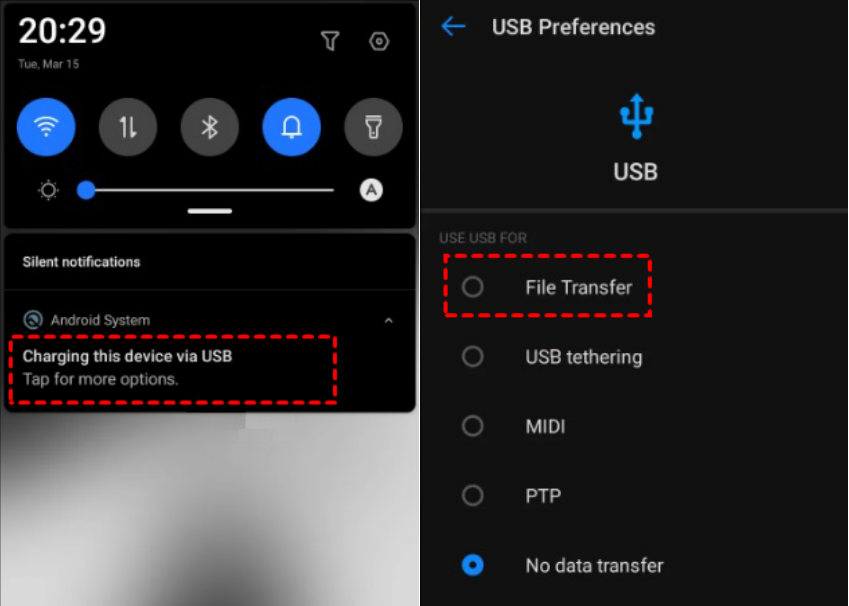
Step 4: The Android File Transfer app should open automatically. Locate your files and drag them to your Mac desktop.
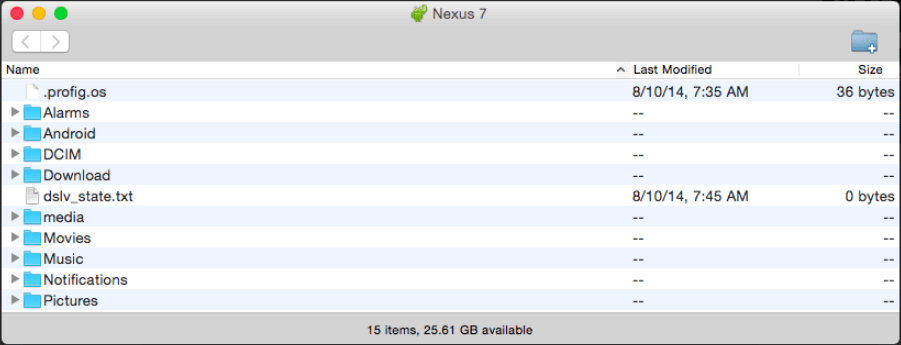
Pros & Cons:
- Pros: Works offline; no internet required; ideal for very large local backups.
- Cons: Prone to connection "bugs"; requires a physical cable; the interface has not been updated in years.
Way 3. Open-source USB transfer: OpenMTP
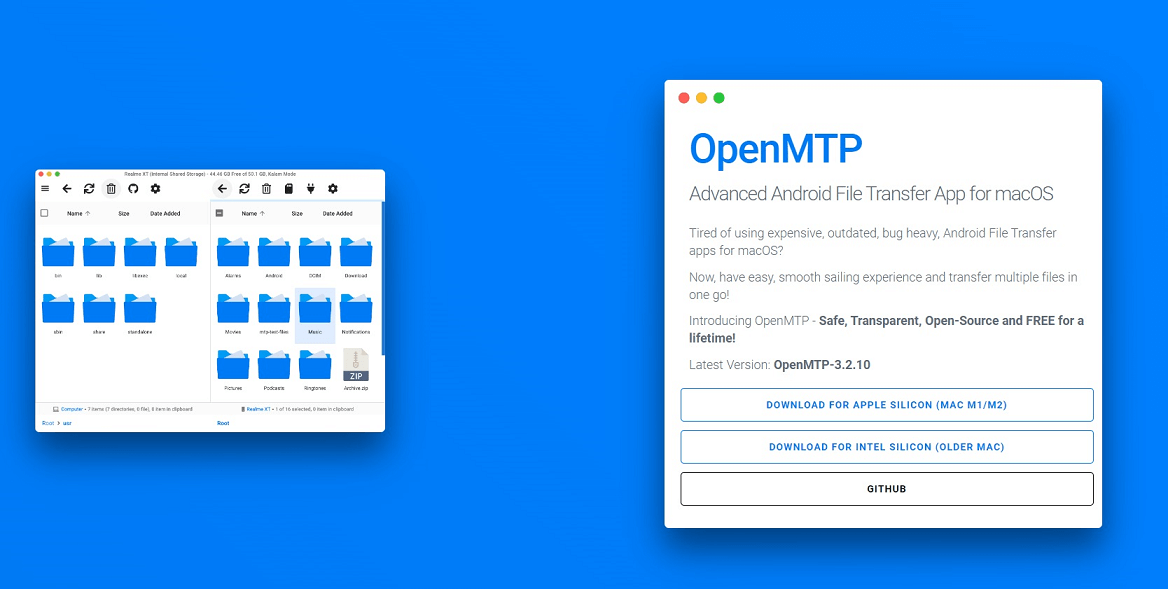
OpenMTP is a free, open-source Android to Mac file transfer app designed specifically to fix the long-standing reliability issues of Android File Transfer. It focuses on stability and simplicity, making it an excellent choice for users who prefer USB-based transfers without unnecessary features or subscriptions.
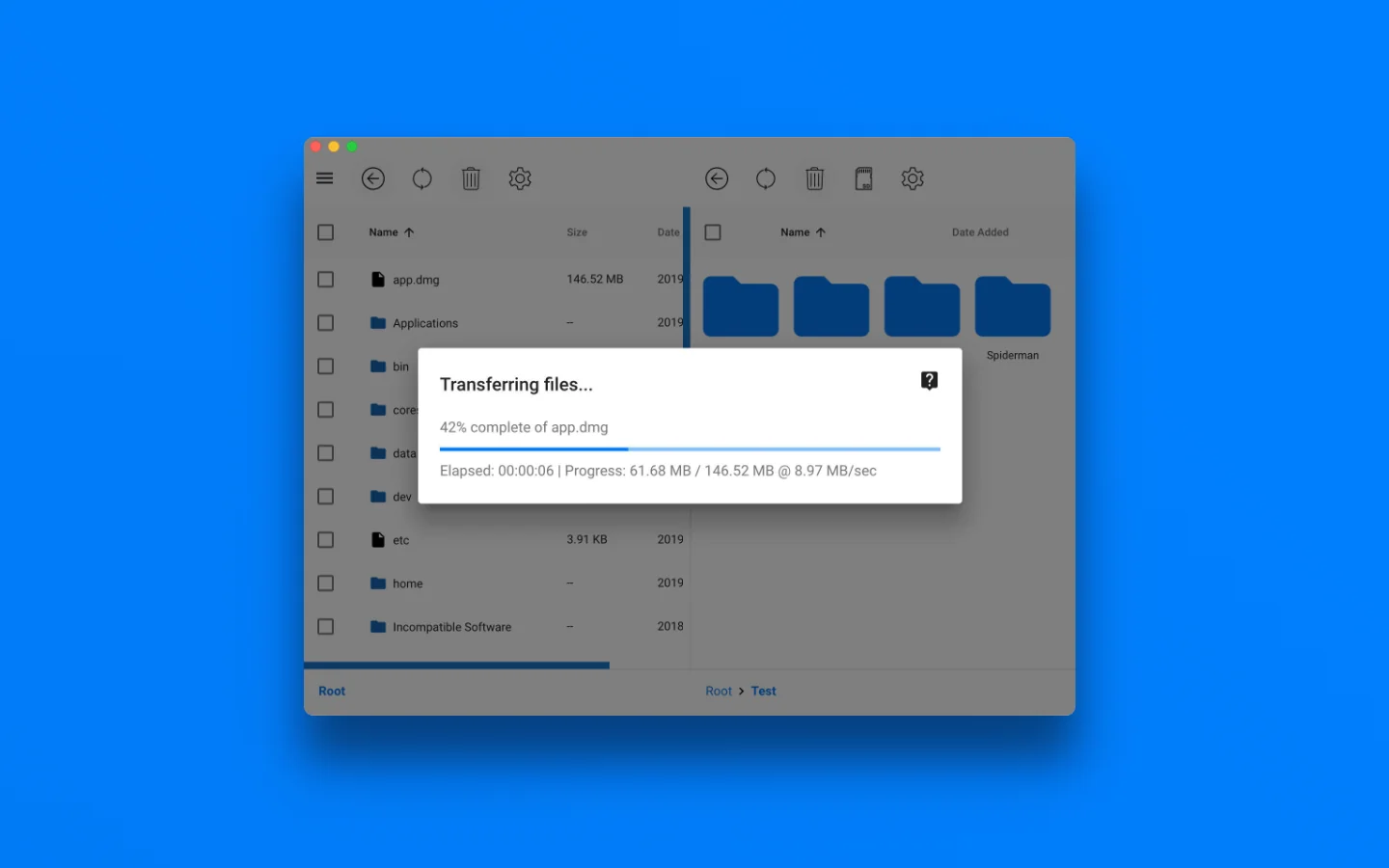
Unlike Google’s official tool, OpenMTP offers a modern dual-panel interface that lets you browse Android and Mac files side by side, greatly improving efficiency when copying large numbers of files.
Step-by-Step Guide:
Step 1: Download and install OpenMTP on your Mac.
Step 2: Connect your Android phone to the Mac using a USB cable.
Step 3: On your Android device, select File Transfer / MTP mode when prompted.
Step 4: Open OpenMTP, browse your Android storage on one side and your Mac folders on the other, then drag and drop files to transfer.
Pros & Cons:
- Pros: Completely free and open-source; more stable than Android File Transfer; dual-pane interface for faster file management; no ads, no subscriptions, no background services.
- Cons: USB-only (no Wi-Fi transfers); no remote access or advanced features; basic interface compared to all-in-one solutions.
Way 4. Finder-integrated file transfer: MacDroid
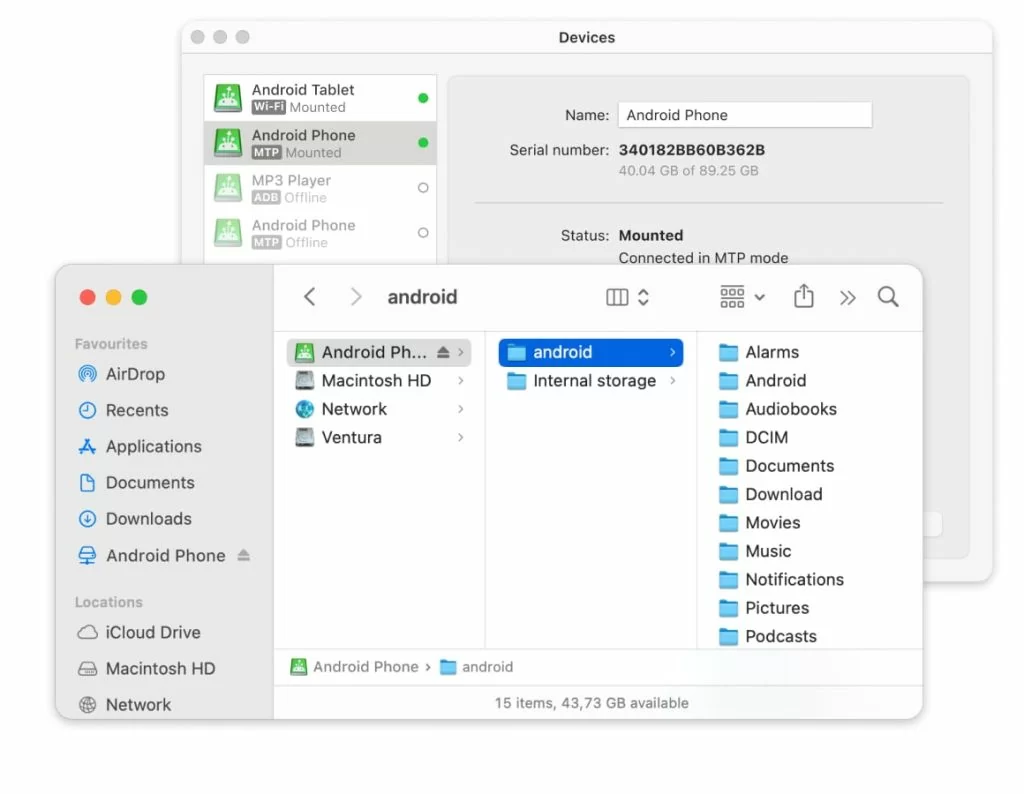
MacDroid is widely regarded as the best modern replacement for Android File Transfer. It allows your Android phone to mount as a disk directly in Finder, enabling drag-and-drop file management just like a USB flash drive.
Step-by-Step Guide:
Step 1: Download and install MacDroid on your Mac.
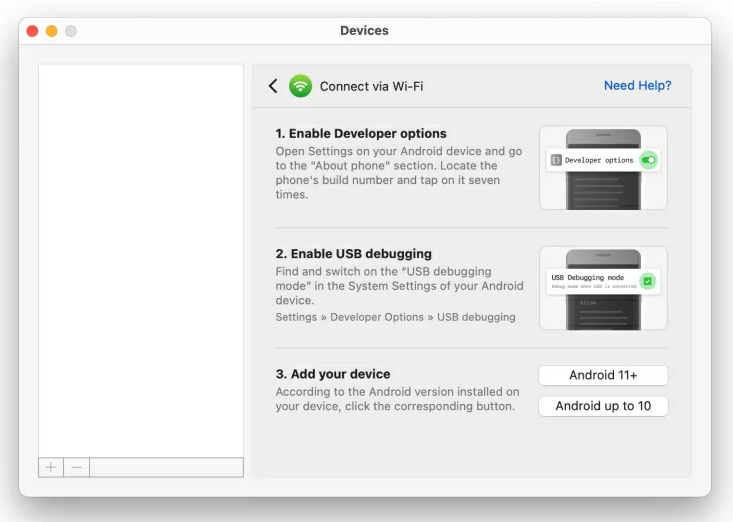
Step 2: Launch MacDroid and connect your Android phone via USB or Wi-Fi. If you choose to connect via WiFi, you'll need to enable USB Debugging. You can find this option here: Settings > Developer Options > USB Debugging.
Step 3: According to the Android version installed on your device, click the corresponding button and follow the on-screen instructions.
Step 4: Access your Android storage directly from Finder and copy files to your Mac.
Pros & Cons:
- Pros: Supports both USB and Wi-Fi transfers; Finder integration; fully compatible with Apple Silicon Macs.
- Cons: The free version only supports transfers from Android to Mac; two-way sync requires the Pro version.
Way 5. Feature-rich phone management: AirDroid Personal
If you need more than just simple file transfer, AirDroid Personal is a versatile Android-to-Mac file transfer software. It excels in multi-device management, allowing you to bridge the gap between your phone and computer wirelessly while offering tools for remote control and notification syncing.
Step-by-Step Guide:
Step 1: Launch the AirDroid desktop client on your Mac and log in to your account.
Step 2: Open the AirDroid app on your Android device and ensure you are logged in with the same credentials.
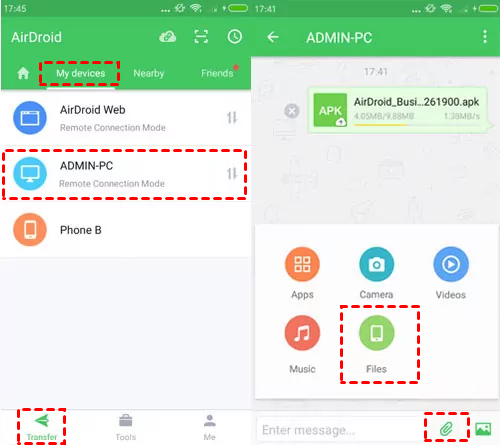
Step 3: In the mobile app, navigate to the "My devices" section and select your Mac.
Step 4: Tap the Files icon, choose the files you wish to migrate, and send them instantly to your Mac.
Pros & Cons:
- Pros: Supports remote file management and SMS notifications on Mac; no cables needed; includes screen mirroring capabilities.
- Cons: The free version has a monthly data transfer limit; some advanced features require a premium subscription.
Way 6. The modern standard: Cloud storage
Cloud services act as a virtual Android to Mac file transfer app. By using an external server, you can sync files across devices instantly as long as you have an internet connection.
Step-by-Step Guide:
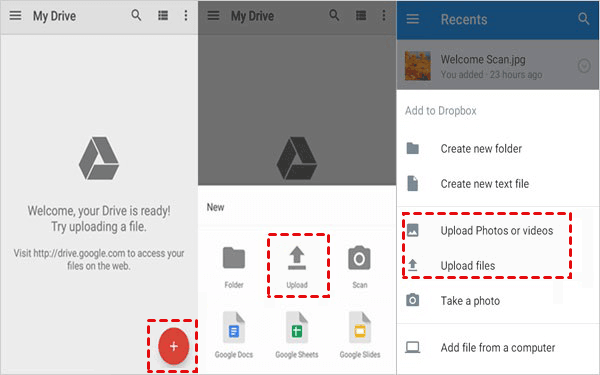
Step 1: Open Google Drive, Dropbox, or OneDrive on your Android phone.
Step 2: Tap the "+" (Upload) button and select the files you want to transfer.
Step 3: On your Mac, use a web browser to go to the cloud provider's website (e.g., drive.google.com).
Step 4: Locate the uploaded files and click Download to save them to your Mac.
Pros & Cons:
- Pros: Access files from anywhere in the world; provides an automatic backup of your data.
- Cons: Upload speed depends on your internet connection; free storage quotas fill up quickly.
Conclusion
While each method has its merits, the best Android to Mac file transfer app depends on your environment. If you have a Wi-Fi connection with speeds above 20 Mbps, we strongly recommend AnyViewer for its intuitive design. However, for those without internet, the Android File Transfer USB method remains a reliable fallback.



 as a preferred
source on Google
as a preferred
source on Google