

How to Set Up TeamViewer Unattended Access for Android (2026 Guide)
This guide provides a step-by-step walkthrough for configuring TeamViewer unattended access on Android devices using TeamViewer Host. It covers local and remote device setup, permission management, and highlights AnyViewer as a high-speed, on-demand alternative for secure remote support.

By Ellie / Updated on April 29, 2026


In today’s hyper-connected world, the ability to manage mobile hardware remotely isn’t just a luxury; it is a business necessity. Whether you are an IT administrator managing a fleet of digital signage, a developer testing apps on real hardware, or a tech-savvy user helping an elderly relative, TeamViewer unattended access for Android is the gold standard solution.
This comprehensive guide will walk you through everything from the basic technical setup to advanced security configurations, ensuring you can access any Android device anytime, anywhere, without needing a human to "Accept" the connection on the other end.
Step-by-Step Guide to Use TeamViewer Unattended Access for Android
Establishing unattended access allows you to manage Android devices, such as smartphones, tablets, and point-of-sale (POS) systems, at any time without requiring an end user to accept the connection manually. Follow this streamlined workflow to set up unattended access TeamViewer Android and configure your environment.
How to Set Up Your Devices on the Local Device
On the local device (the device connecting to the Android device), you must download and install the TeamViewer Remote Control app.
Step 1. Open the Google Play Store or Apple App Store.
Step 2. Download and install the TeamViewer Remote Control app.
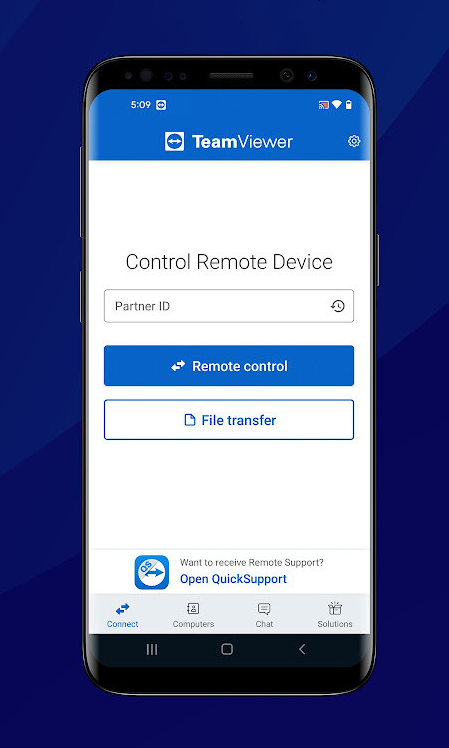
Pro-Tip: If you are connecting from a computer, ensure you have the TeamViewer remote desktop client installed.
How to Set Up Your Devices on the Remote Android Device
Setting up TeamViewer host unattended access for Android requires a specific workflow to ensure the "permanent" link is established.
Step 1: Install TeamViewer Host
On the Android device you wish to control:
- Open the Google Play Store.
- Search for and download TeamViewer Host.
- Open the app and grant all requested permissions (Overlay, Accessibility, and Battery Optimization).
Step 2: Assign the Device to Your Account
This is the most critical step for unattended access.
- Within the Host app on the Android device, look for the "Assign to account" option.
- Enter your TeamViewer credentials (Email and Password).
- Once signed in, the device will appear in your global Computers & Contacts list.
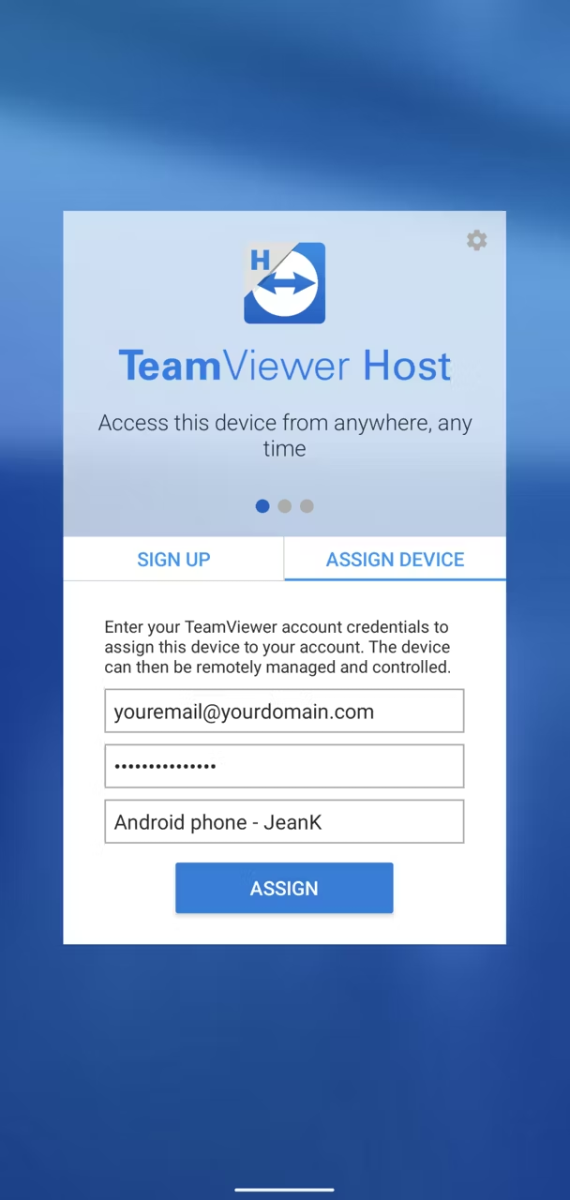
Step 3: Enable Remote Control (The "Universal Add-On")
Modern Android versions (10+) require an additional plugin for full control:
- The Host app will likely prompt you to download a "Universal Add-On" or a brand-specific plugin.
- Go to the Android Accessibility Settings and toggle the TeamViewer Add-On to "On." This allows the remote mouse to "click" the screen.
How to Connect to Your Android Device
Once the initial setup is complete, connecting takes only a few seconds.
Step 1. Open TeamViewer Remote Control on your local controller device.
Step 2. Go to the Computers menu.
Step 3. Log in to the same TeamViewer account used in the remote Android device.
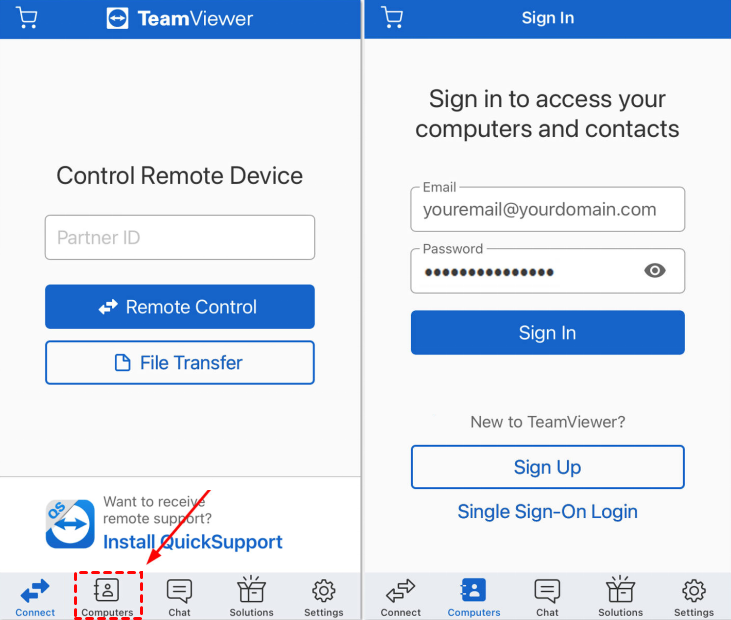
Step 4. Find the specific Android device group.
Step 5. Tap the Connect icon (represented by blue arrows).
Step 6. You now have full remote visibility and control over the Android interface.
AnyViewer: Secure, User-Authorized Remote Access for Android
While TeamViewer excels at unattended background access, some scenarios require a more straightforward, "per-session" approach. This is where AnyViewer provides a valuable alternative.
AnyViewer is a robust remote desktop solution known for its high-speed performance and ease of use. However, it is important to note a key technical difference: AnyViewer currently supports on-demand Android remote control.
When to Choose AnyViewer for Android:
- Attended Support: Ideal for "on-the-fly" troubleshooting where the Android user is present to initiate the session.
- Enhanced Privacy: Since a user must manually allow the connection, it offers peace of mind for those who prefer not to have a "permanent" back door open on their device.
- Lightweight Setup: Perfect for quick support sessions without the need for complex account assignments or background host configurations.
If your primary goal is high-speed, secure remote access where the remote user can provide a quick "one-click" authorization, AnyViewer is an excellent, cost-effective choice.
Conclusion
Mastering remote access for Android is no longer a niche skill but a vital tool for modern IT management and personal tech support. Whether you choose the robust, "always-on" capabilities of TeamViewer unattended access Android or the privacy-centric, high-speed performance of AnyViewer for on-demand tasks, you now have the roadmap to maintain connectivity across any distance.
By prioritizing correct permission settings, specifically Accessibility services and Battery Optimization, you ensure a stable and reliable connection. As mobile hardware continues to advance, leveraging these tools will keep you efficient, secure, and always in control of your digital ecosystem.



 as a preferred
source on Google
as a preferred
source on Google