

Fix Splashtop Poor Network Connection Quickly
Splashtop can lag, freeze, or disconnect if your internet is slow or unstable. Simple fixes include adjusting settings, checking firewalls or VPNs, restarting your router, closing heavy apps, or using a better network. If problems continue, apps like AnyViewer can provide smoother remote access.

By Ellie / Updated on December 17, 2025


Why Splashtop network issues are so frustrating
Seeing Splashtop poor network connection can be extremely frustrating. Your session may suddenly lag, freeze, or disconnect, interrupting your remote work at the worst possible time.
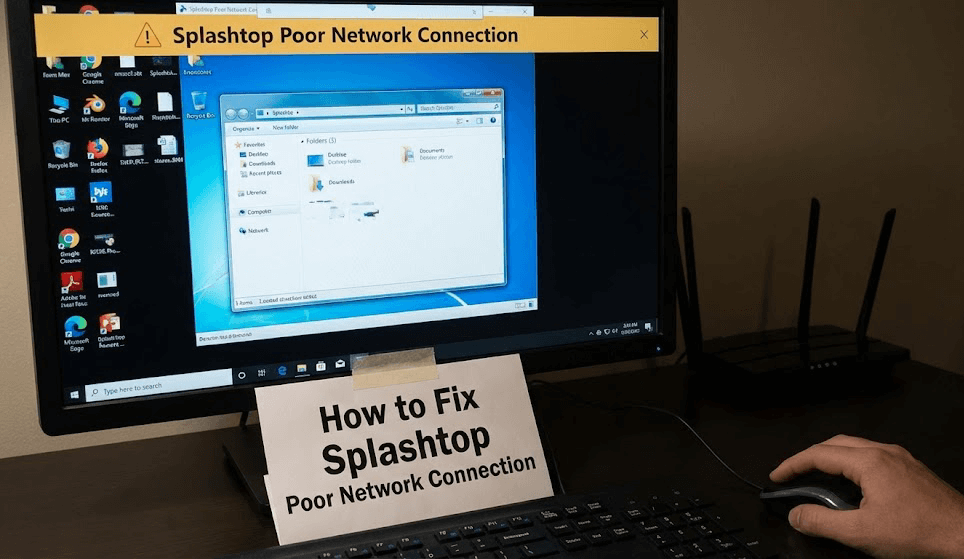
Although Splashtop is a reliable remote desktop tool, it depends heavily on a stable network. Splashtop network unstable situations, such as high latency, fluctuating Wi-Fi, or background apps using bandwidth, can quickly affect performance. In most cases, the problem isn't Splashtop itself but your network or device settings.
This guide explains why Splashtop connection issues happen and shows you simple, practical fixes to restore a smooth and stable remote connection.
Common symptoms of Splashtop poor network connection
Recognizing the symptoms can help you pinpoint the underlying problem faster instead of blindly trying random fixes.
- Lag, Freezing, and Delayed Input: Your mouse clicks or keystrokes respond slowly, and the screen may freeze briefly before updating. This usually points to high latency or unstable data transfer.
- Frequent Disconnections: Splashtop may disconnect often or fail to stay connected, even if your internet seems fine for regular browsing. Short network drops are a typical sign of Splashtop network unstable conditions.
- Low Image Quality and Frame Drops: Blurry screens, choppy motion, or sudden resolution drops indicate Splashtop is adjusting to poor network conditions. This is a clear sign of Splashtop poor network connection.
Primary causes of Splashtop poor network connection
Knowing the main causes helps you fix the issue for good instead of relying on temporary solutions.
- Unstable Internet Connection: Network fluctuations from shared connections, overloaded routers, or ISP congestion can disrupt Splashtop sessions, even when speed tests look fine.
- High Latency and Packet Loss: High delay or packet loss can seriously affect performance, especially on long-distance connections, mobile hotspots, or crowded Wi-Fi networks.
- Wi-Fi Interference and Weak Signal: Wi-Fi signals can be blocked or disrupted by walls, devices, or nearby networks, leading to inconsistent connections and general Splashtop connection issues.
- Limited Bandwidth: When multiple devices are streaming, downloading, or gaming, Splashtop may not get enough bandwidth to run smoothly.
Below is a cleaned-up version with clear, practical step-by-step actions added. The tone stays simple and “do-this-now,” which works well for troubleshooting sections.
Fixes to improve Splashtop network connection
When Splashtop shows a poor network connection warning, you need quick, effective fixes, not deep technical troubleshooting. The following solutions target the most common causes and can stabilize your session fast.
Fix 1. Optimize Splashtop app settings for poor networks
Splashtop includes built-in options designed for weak or unstable connections. High resolution and frame rates use more bandwidth. Lowering them often improves stability immediately.
Steps:
Step 1. Open Splashtop on the client device
Step 2. Start or join a remote session
Step 3. Open View Options
Step 4. Lower the screen resolution
Step 5. Reduce the frame rate
Step 6. Disable unnecessary visual effects
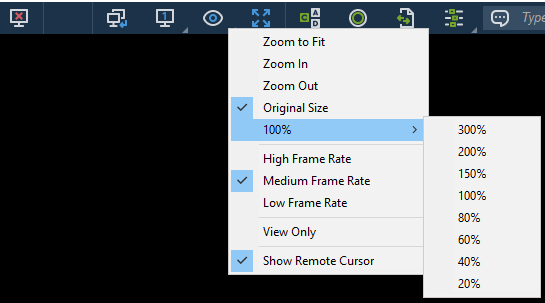
Visual quality may drop slightly, but responsiveness improves significantly.
Fix 2. Check firewall, VPN, and security software
Security tools can unintentionally slow or block Splashtop traffic.
Firewall Interference
Firewalls may inspect or block Splashtop connections.
Steps:
Step 1. Open your firewall or antivirus settings
Step 2. Find Allowed Apps or Application Rules
Step 3. Ensure Splashtop is allowed for both private and public networks
Step 4. Save changes and reconnect
VPN Latency Issues
VPNs increase latency by encrypting and rerouting traffic.
Steps:
Step 1. Disconnect from your VPN
Step 2. Reconnect to Splashtop
Step 3. Test performance
Step 4. If improved, keep VPN off during remote sessions
Whitelist Splashtop
Whitelisting prevents real-time traffic from being scanned or throttled.
Steps:
Step 1. Open your security software
Step 2. Add Splashtop to the whitelist or trusted apps
Step 3. Restart Splashtop
Fix 3. Restart network equipment
Restarting your modem and router refreshes the network path and can instantly reduce Splashtop poor network connection symptoms.
Steps:
Step 1. Power off your modem and router
Step 2. Wait at least 60 seconds
Step 3. Turn on the modem first
Step 4. After it fully reconnects, turn on the router
Step 5. Reconnect to Splashtop
This often reduces latency and packet loss instantly.
Fix 4. Close bandwidth-heavy apps
Streaming, downloads, cloud sync, and updates compete with Splashtop for bandwidth. Closing these apps gives priority to your remote session, helping fix Splashtop network unstable situations.
Steps:
Step 1. Close or pause:
- Streaming services (YouTube, Netflix)
- Cloud sync tools (Dropbox, Google Drive)
- Game launchers and update managers
Step 2. Disable large downloads or system updates
Step 3. Restart your Splashtop session
This gives Splashtop priority and reduces lag.
Fix 5. Switch to a more stable network
Public Wi-Fi and mobile hotspots are often unstable. Switching to a wired connection or private network can eliminate Splashtop connection issues almost immediately.
Steps:
Step 1. Switch to a wired Ethernet connection if possible
Step 2. Use a private home or office network
Step 3. Avoid public Wi-Fi for important remote sessions
Step 4. Reconnect to Splashtop after switching networks
A better network can eliminate connection warnings immediately.
Bonus tip: Best alternative if issues persist

If Splashtop continues to struggle even after optimization, trying an alternative remote desktop solution can be a smart move, especially in environments with unstable or high-latency networks.
AnyViewer is a solid option worth testing. It's designed to perform well on poor or fluctuating connections and uses adaptive transmission to maintain session stability. In many cases, users experience fewer disconnections and smoother input even when bandwidth is limited.
Why AnyViewer can help:
- Optimized for low-bandwidth and high-latency networks
- Adaptive image quality to prevent sudden disconnects
- Simple setup with minimal network configuration
- Supports unattended remote access for long-term use
- Works across Windows, macOS, iOS, and Android devices
For users who rely heavily on remote access, a hybrid approach can also help, using remote desktop tools like AnyViewer for control, while moving large file transfers or collaboration tasks to cloud-based platforms. This reduces real-time network pressure and improves overall reliability when working remotely.
Conclusion
Splashtop poor network connection can be frustrating, but it isusually caused by network problems or device settings, not the app itself. Lag, disconnections, and poor image quality often happen when your connection is unstable, slow, or crowded.
By adjusting Splashtop settings, checking firewalls and VPNs, restarting your router, closing bandwidth-heavy apps, or switching to a better network, you can often fix the problem quickly. If issues continue, using an alternative like AnyViewer or a hybrid setup can give a more stable remote experience. With these steps, smooth and reliable remote access is possible.



 as a preferred
source on Google
as a preferred
source on Google