

Setting Up Windows 10 Remote Desktop from Another Country
This guide explains how to set up Windows 10 Remote Desktop from another country. You'll learn step-by-step methods using port forwarding or VPN, plus find out why AnyViewer is the best and easiest alternative for secure remote access anywhere in the world.

By Ellie / Updated on October 23, 2025


Access your PC anywhere with Remote Desktop
Imagine being able to sit in a coffee shop in Paris, a hotel in Tokyo, or a coworking space in New York—and still have full access to your home or office computer back in London. That's exactly what Windows 10 Remote Desktop lets you do. With a few setup steps, you can securely connect to your PC from anywhere in the world, view your files, use your software, and even print remotely as if you were sitting right in front of it.

The demand for remote access has skyrocketed as more professionals embrace remote work and global business operations. Whether you're a freelancer managing clients across continents or a business traveler needing access to your work files, setting up Windows 10 Remote Desktop from another country gives you complete flexibility. In this comprehensive guide, you'll learn everything you need to know about setting up Windows 10 Remote Desktop from another country Windows 10 properly, securely, and efficiently.
Setting up Windows 10 Remote Desktop from another country [Step-by-step guide]
Accessing your PC remotely using a Remote Desktop client establishes a direct, peer-to-peer connection with your computer, often referred to as the “host.” To connect from outside your local network, you must configure your system to allow remote access. You have two main options for doing this: setting up port forwarding on your router or using a VPN.
Method 1. Enable port forwarding on your router
Port forwarding maps a specific port on your router's public IP address to the internal IP address of your PC. This enables remote connections from outside your local network and is a crucial step in setting up Windows 10 Remote Desktop successfully from another country.
Key Information You'll Need:
- Internal IP Address of Your PC: Navigate to Settings > Network & Internet > Status > View Your Network Properties. Locate the network marked “Operational” and note the IPv4 address.
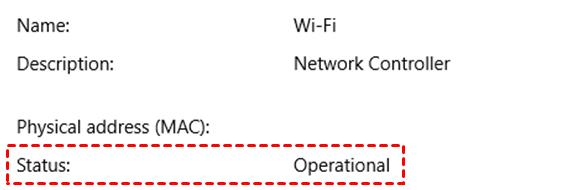
- Public IP Address: Your router's IP address can be found by searching “my IP” on any search engine or by checking your network properties.
- Port Number: By default, Remote Desktop uses port 3389.
- Router Admin Access: You'll need this to configure port forwarding.
The exact steps to enable port forwarding vary depending on your router model. Search online for your router's instructions, or consult general guides like "How to Set Up Port Forwarding on a Router".
Important Warning: Opening your PC to the internet carries security risks. Always use a strong password, and if possible, consider using a VPN instead.
Additional Tips:
- Dynamic IP Considerations: Your router's public IP can change at any time if your ISP assigns a new one. Using Dynamic DNS (DDNS) allows you to connect using an easy-to-remember domain name instead of an IP address. The router automatically updates DDNS if your IP changes.
- Source Restrictions: Many routers let you restrict which IPs or networks can use port forwarding. If you only connect from work, you can whitelist your work network to minimize exposure to the internet.
- Static IP for Your PC: Assigning a static IP prevents your PC's internal address from changing, ensuring your port forwarding always targets the correct device.
Once configured, you can connect to your PC remotely using the router's public IP or DDNS domain. This approach is effective, but for enhanced security, you may prefer setting up Windows 10 Remote Desktop from another country with VPN instead.
Method 2. Use a VPN for secure international remote access
A VPN (Virtual Private Network) provides a safer alternative by connecting your remote device to your local network without exposing your PC to the public internet. Once connected, your Remote Desktop client behaves as if it's on the same network, allowing seamless access to your host PC.
If you're concerned about privacy or cyber threats, setting up Windows 10 Remote Desktop from another country with VPN is the recommended approach. It not only improves security but also simplifies your connection process, especially for users who travel frequently or work from abroad.
How to Set Up and Configure a VPN
There are two main options:
- Use a VPN Router:
Some routers come with built-in VPN server features (e.g., Asus, Netgear). Enable the VPN server in your router settings and connect remotely through the VPN before starting Remote Desktop.
- Use a VPN Service Provider:
Alternatively, use a VPN provider like NordVPN, ExpressVPN, or ProtonVPN that supports secure remote tunneling. Install the app on both your host and client devices, then connect before launching Remote Desktop.
Once connected through a VPN, use the local IP address of your PC instead of the public IP. This is safer and avoids exposing your system to the internet directly.
AnyViewer: Best Remote Desktop alternative for accessing PC from abroad

While Windows 10 Remote Desktop works well, setting up Windows 10 Remote Desktop from another country Windows 10 with port forwarding or a VPN can be tricky, especially for beginners. That's where AnyViewer comes in as a simpler, safer, and faster remote desktop solution.
Why AnyViewer is Ideal:
- Easy Setup: Forget about complicated router settings, port forwarding, or VPNs. With AnyViewer, you can connect to your remote PC or laptop with just a single click. Once installed on both devices, your connection is established instantly.
- Cross-Platform Support: AnyViewer isn't limited to Windows. It supports macOS, Android, and iOS, allowing you to control your PC from virtually any device. Whether you're using a tablet in Tokyo or a smartphone in New York, you remain fully connected.
- Ultra-HD and Smooth Performance: AnyViewer delivers crisp visuals and minimal latency, even over long distances. It supports high-definition screen sharing, making it ideal for tasks like graphic design, video editing, or monitoring software dashboards remotely.
- Top-Notch Security: Security is a priority for remote access. AnyViewer uses end-to-end encryption and multi-factor authentication, ensuring your connection and data remain private. Unlike traditional port-forwarding RDP setups, there's no exposure to public internet threats.
- File Transfer and Collaboration: Need to move files between your home and office computer? AnyViewer allows fast, seamless file transfers in both directions. You can also collaborate in real-time, making it perfect for remote teams or freelancers.
- Free and Paid Plans: AnyViewer offers a robust free version suitable for most personal use, and premium plans with advanced features for businesses, including unlimited devices, higher transfer speeds, and priority support.
Using AnyViewer, you can connect to your PC from another country in just a few clicks, avoiding the technical hassle of traditional RDP setups. It's perfect for remote workers, frequent travelers, or anyone who wants secure, reliable access to their computer anywhere in the world.
Conclusion
Accessing your PC from another country has never been easier or more essential in today's globalized world. Whether you choose the traditional Windows 10 Remote Desktop with port forwarding or set up Windows 10 Remote Desktop from another country with VPN, you can securely connect to your home or office computer and maintain productivity across continents.
However, for those seeking simplicity, speed, and robust security, AnyViewer stands out as the ultimate solution. With its one-click setup, cross-platform support, ultra-HD performance, and end-to-end encryption, AnyViewer allows seamless remote access without the technical hurdles of RDP or VPN configuration. Whether for work, travel, or collaboration, AnyViewer ensures that your PC is always just a click away—safe, reliable, and ready to use from anywhere in the world.



 as a preferred
source on Google
as a preferred
source on Google