

Top 5 Screen Share Apps for PC
A comprehensive evaluation of the top 5 screen sharing apps for PC. This guide delivers deep technical insights, pros and cons, and exact step-by-step operational steps for AnyViewer, Zoom, Microsoft Teams, Google Meet, and TeamViewer to help you choose the ideal tool.

By Ellie / Updated on June 23, 2026


Finding a reliable screen share app for PC shouldn't feel like a guessing game. Whether you are troubleshooting a family member's computer from across the country, pitching a presentation to a remote client, or collaborating on a complex coding project with your team, lagging video and complex setups can completely ruin your workflow.
To help you choose the right tool, this guide breaks down the mechanics of desktop sharing, highlights the best screen share app for PC options available today, and provides a step-by-step framework to get you up and running without technical headaches.
Top 5 Recommendations & Step-by-Step Operations
While the market is flooded with collaboration tools, these five stand out based on their performance, security, and feature density. Here is how they work and exactly how to operate each one.
1. AnyViewer (Top Choice for Remote Support & Control)
If your primary goal is secure, ultra-fast screen sharing paired with robust remote control capabilities, AnyViewer is an exceptional remote desktop choice. It enables fully interactive remote sessions, making it perfect for IT support, file management, and long-distance teamwork. By using an optimized image reconstruction algorithm, AnyViewer dynamically adjusts bitrates to ensure text remains crisp and readable, even on low-bandwidth networks.
Furthermore, its newly released "Mirror screen" feature allows you to mirror your current screen to another device in real time. This functionality paves the way for much easier presentations, hassle-free screen sharing, seamless online collaboration, and smooth remote media viewing without any noticeable latency.
Key benefits:
- High Performance: Delivers outstanding frame rates and lag-free real-time mirroring.
- Advanced File Transfer: Features a specialized split-window interface for quick dual-way file sharing.
- Cost-Effective: Completely free for both personal use and basic commercial scenarios.
- Easy Setup: Requires zero configuration for complex corporate firewalls or NAT routers.
Step-by-Step Operation:
Step 1. Download and open AnyViewer on both devices: the source PC you want to share your screen from, and the target PC that will view the stream.
Step 2. Sign up for an account and log in with the same credentials on both computers to securely link your devices for quick access.

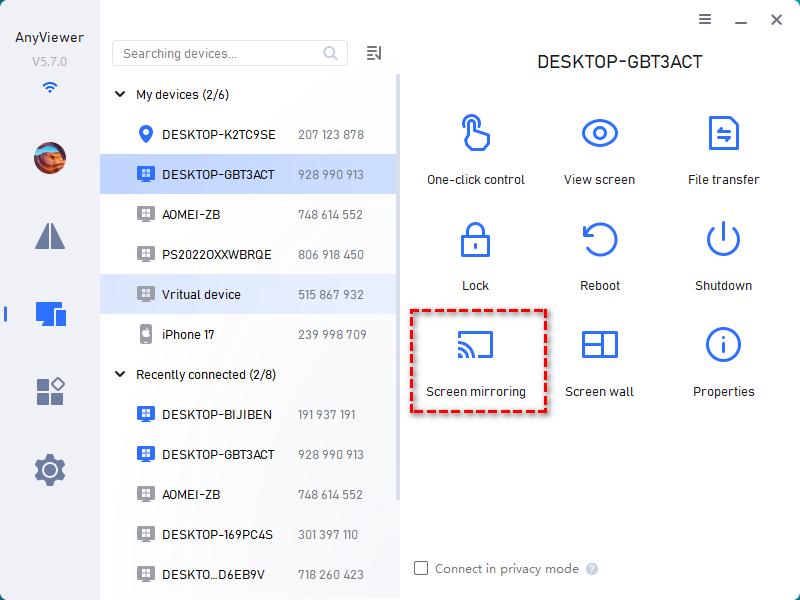
Step 3. On the source computer, navigate to the Device tab, select the target computer's name from your linked list, and click Screen Mirroring.
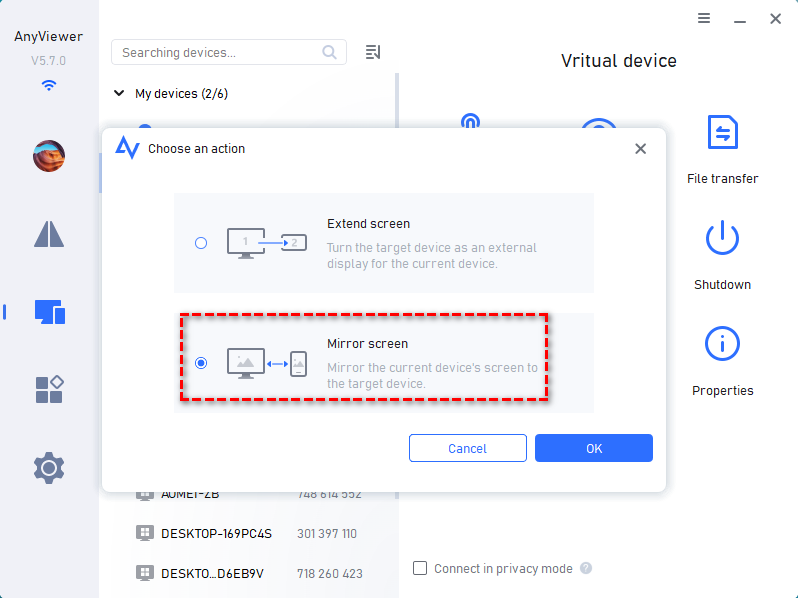
Step 4. Select the Mirror screen option from the prompt and click OK to instantly broadcast your desktop to the target device.
2. Zoom (Top Choice for Large-Scale Presentations & Webinars)
Zoom remains a household name primarily for video conferencing, but its built-in screen sharing capabilities are highly dependable for large group presentations and webinars.
Zoom treats screen sharing as a dedicated video stream channel. When you share your desktop, Zoom prioritizes frame rate for motion (like video clips) or resolution for static text, depending on your manual selection. It also includes an advanced "Portion of Screen" feature, letting you draw a green box over your desktop to share only what is inside it.
- Pros: Exceptional stability with hundreds of concurrent viewers; powerful annotation tools (arrows, spotlights, highlighters) that multiple participants can use at the same time.
- Cons: The 40-minute limit on free group meetings can abruptly cut off long collaborative sessions; the app can be resource-heavy on older PCs.
- The Verdict: Ideal for structured, one-to-many broadcasts, online classrooms, and corporate webinars.
Step-by-Step Operation:
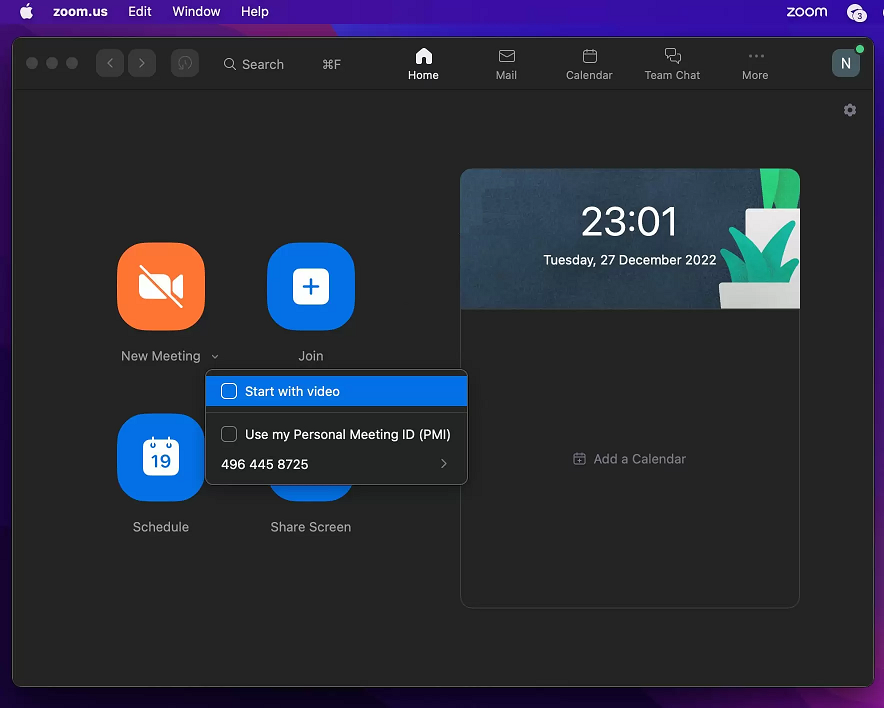
Step 1. Open the Zoom desktop client and click New Meeting, or join an ongoing call via a shared meeting link.
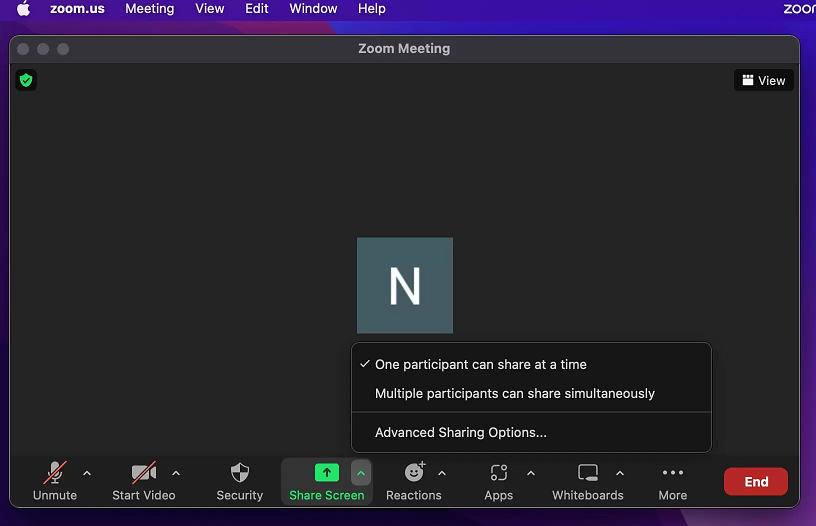
Step 2. Locate the meeting control toolbar at the bottom of the active video call window and click the green Share Screen icon.
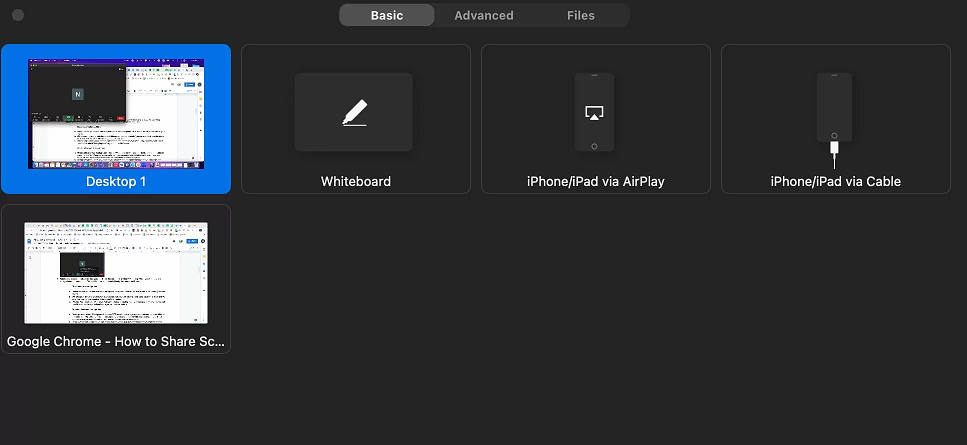
Step 3. A layout window pops up. Select Screen (shares everything), a specific application window (like Chrome), or Whiteboard. Check the Share Sound box if your presentation includes video audio, then click Share.
3. Microsoft Teams (Best for Corporate Integration & Enterprise Ecosystems)
Deeply integrated into the Microsoft 365 ecosystem, Teams is a logical fit for enterprise environments already relying on Word, Excel, PowerPoint, and Outlook.
Teams leverages the Azure cloud architecture to deliver deeply integrated sharing experiences. Its standout feature is "PowerPoint Live." Instead of streaming your video desktop, it uploads the presentation directly to the cloud meeting. Attendees can independently scroll through slides at their own pace without interrupting the presenter, drastically reducing bandwidth consumption.
- Pros: Native integration with corporate cloud storage; allows coworkers within the same organization to easily request control of your screen during a call.
- Cons: The interface can feel overly complex and cluttered; software load times are noticeably slower compared to standalone sharing utilities.
- The Verdict: The default choice for large corporations and teams embedded in the Microsoft ecosystem.
Step-by-Step Operation:
Step 1. Open Microsoft Teams, navigate to your calendar or chat room, and click Join on your scheduled corporate meeting.
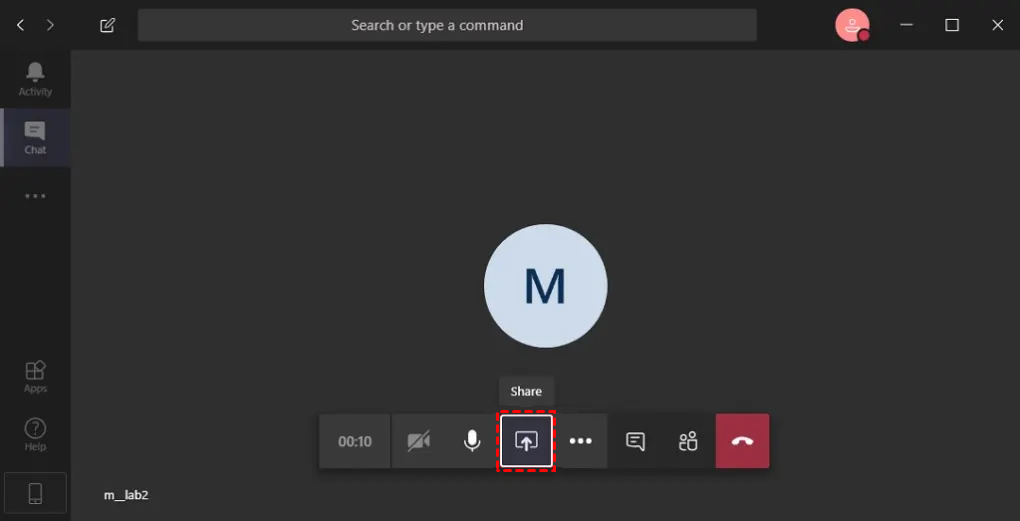
Step 2. Look at the top-right toolbar of the meeting screen and click the Share button (represented by an arrow pointing into a square icon).
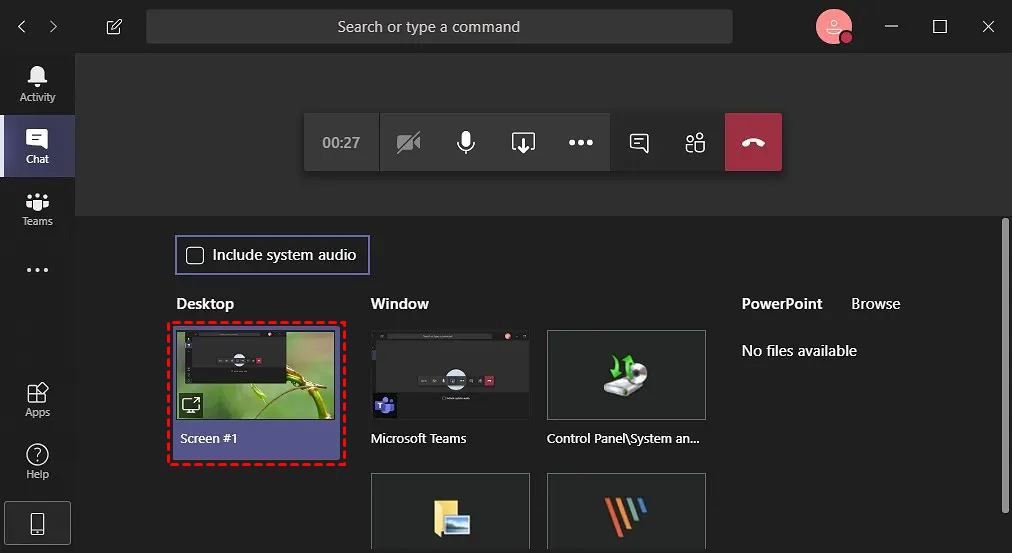
Step 3. Under the "Presenter mode" section, select how you want to appear alongside your data. Then, select your desktop, a window, or choose a file directly via PowerPoint Live to launch the stream.
4. Google Meet (Best for Cloud-First, Browser-Based Ad-Hoc Meetings)
For users who prefer a lightweight, cloud-first solution without installing heavy desktop software, Google Meet provides instant browser-based sharing.
Meet operates entirely within WebRTC standards inside your web browser (Chrome, Edge, Firefox). Because there is no desktop app to install, it relies heavily on your browser's hardware acceleration to capture and compress tabs. It allows you to share a specific browser tab, which instantly routes the tab's internal audio along with the video stream perfectly synced.
- Pros: Zero installation required for hosts or viewers; incredibly fast to launch via a simple browser link; very gentle on laptop battery life.
- Cons: Lacks advanced remote interactive control capabilities; fewer desktop annotation and layout customization options compared to dedicated tools.
- The Verdict: Best for quick, ad-hoc creative reviews, casual status updates, and users who live within Google Workspace.
Step-by-Step Operation:
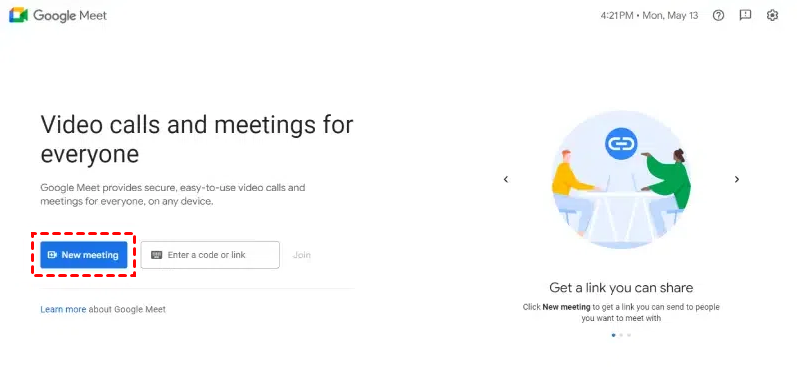
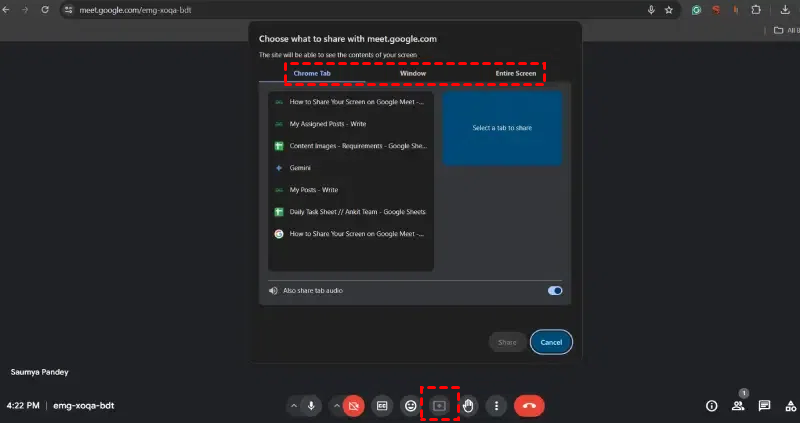
Step 1. Navigate to meet.google.com in your web browser. Click New Meeting and choose Start an instant meeting, or enter a meeting code provided by your team.
Step 2. On the bottom horizontal control bar, click the Present Now icon (represented by an arrow pointing up inside a rectangle).
Step 3. Select your entire screen, A window, or A tab from the browser dialog box. Highlight the specific window or tab you want to show, check Share tab audio if needed, and hit Share.
5. TeamViewer (Industry Veteran for Cross-Platform IT Infrastructure Deployment)
A veteran in the remote access space, TeamViewer offers heavy-duty cross-platform screen sharing with a massive emphasis on industrial infrastructure and IT deployment.
TeamViewer uses a proprietary global router network to establish secure, end-to-end encrypted connections. It utilizes advanced seat management and hardware-level identification, allowing IT admins to wake up a completely powered-down PC (Wake-on-LAN), share its screen before a user even logs in, and execute advanced command-line scripts remotely.
- Pros: True cross-platform operation across Windows, macOS, Linux, iOS, and Android; enterprise-grade reporting and security logs for compliance audits.
- Cons: The free version has highly aggressive commercial usage detection that frequently disconnects sessions; individual commercial licenses are exceptionally expensive.
- The Verdict: Tailored specifically for large IT departments managing massive fleets of corporate hardware across multiple operating systems.
Step-by-Step Operation:
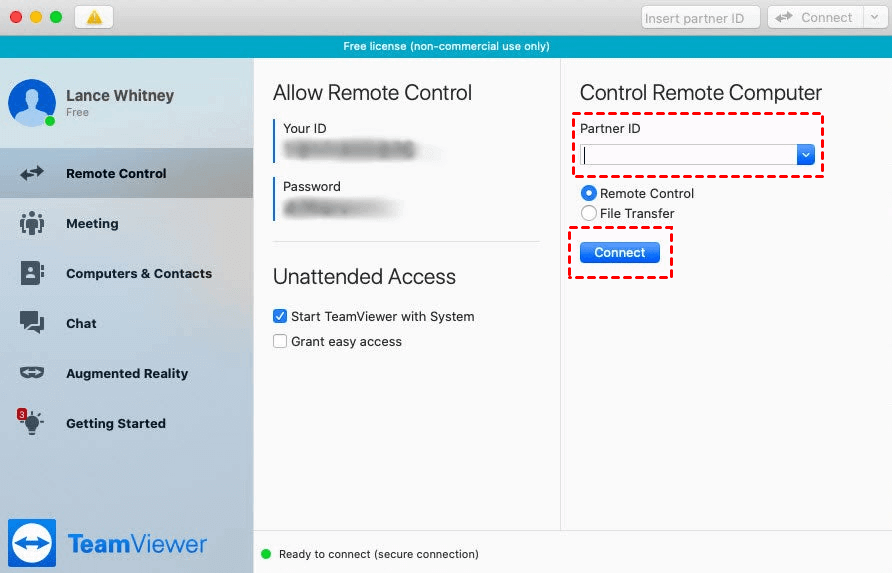
Step 1. Open the TeamViewer application on both computers. Ensure the indicator dot in the bottom left corner is green, signaling a live network connection.
Step 2. Locate your ID and Password under the "Allow Remote Control" header on the host PC. Share these credentials with the remote operator securely.
Step 3. On the controller PC, type the host's ID into the Partner ID input box, toggle the radio button to Remote Control, click Connect, and type in the corresponding password when prompted.
The Core Benefits of Using a Screen Share App for PC
Relying purely on audio calls or lengthy emails to explain visual tasks is highly inefficient. Integrating a dedicated desktop sharing tool into your routine offers several distinct advantages:
- Eliminates Communication Gaps: Instead of saying "click the blue button near the top left corner," you can simply show your team exactly where to look.
- Accelerates IT Troubleshooting: Technical support teams can instantly diagnose software bugs, configuration errors, or malware issues by viewing the client's system directly.
- Boosts Team Collaboration: Multiple team members can review design mockups, edit spreadsheets, or audit code simultaneously, making remote brainstorming feel like a physical meeting.
- Saves Significant Travel Costs: Businesses can conduct product demonstrations, software training sessions, and sales pitches globally without paying for flights or hotels.
Conclusion
Selecting the right screen share app for PC depends entirely on your specific workflow requirements. If you need standard video conferencing and one-to-many presentations, mainstream platforms like Zoom, Microsoft Teams, or Google Meet offer reliable, browser-friendly solutions. However, if your tasks demand seamless real-time desktop mirroring, high-speed file transfers, and secure remote control without latency, a specialized tool like AnyViewer delivers the performance and interactive depth required for modern remote support and online collaboration.



 as a preferred
source on Google
as a preferred
source on Google