

How to Remotely Control Android Phone From Another Phone Without Permission
This guide explains ways to remotely control Android phones, how to tell if your Android is being remotely controlled, identify spyware signs, and remove unauthorized remote access for better phone security.

By Irene / Updated on September 28, 2025


Can you remotely control Android phone from another phone without permission?
Controlling one device from another has become both possible and practical. Remote access can be very helpful in many situations. For example, you might need to open files on your phone while it’s not in your hands, or you may want to guide a friend through a problem without being there in person. The idea of controlling an Android phone from another device offers convenience and flexibility, but it is important to remember that it should only be done with clear permission.
If your goal is to manage your Android phone from a computer, there are several reliable tools designed for this purpose. These apps make it easier to mirror your screen, transfer files, or provide remote support safely. In this article, we have gathered the top ten options that allow you to control an Android device from your PC. Each tool has different features, so exploring them will help you pick the one that fits your needs best. By comparing their functions, ease of use, and security, you can find a safe and effective way to stay connected to your phone anytime you need.
How to remotely control an Android phone?
Way 1. AnyViewer [highly-recommended]
Want to remotely control an Android phone from another phone without permission? While controlling someone’s phone without consent is illegal and unsafe, you can easily manage your own devices or provide support with permission using AnyViewer. AnyViewer is a free, reliable remote desktop app that lets you access and control Android phones from another Android device, iPhone, or computer. With features like screen sharing, file transfer, and secure remote access, it makes managing your devices simple, convenient, and safe.
Step 1. First, download and install AnyViewer on both Android phones.
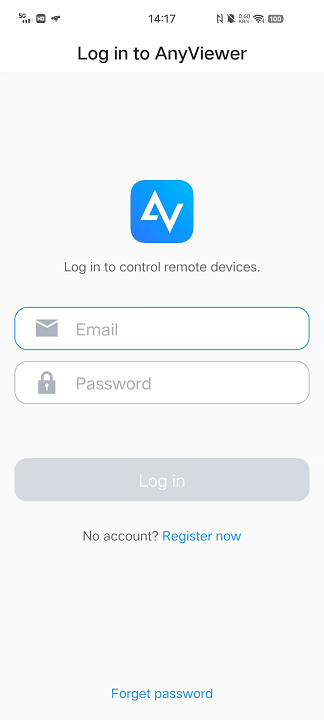
Step 2. On one phone, sign up for an AnyViewer account and log in. Do the same on the other phone.
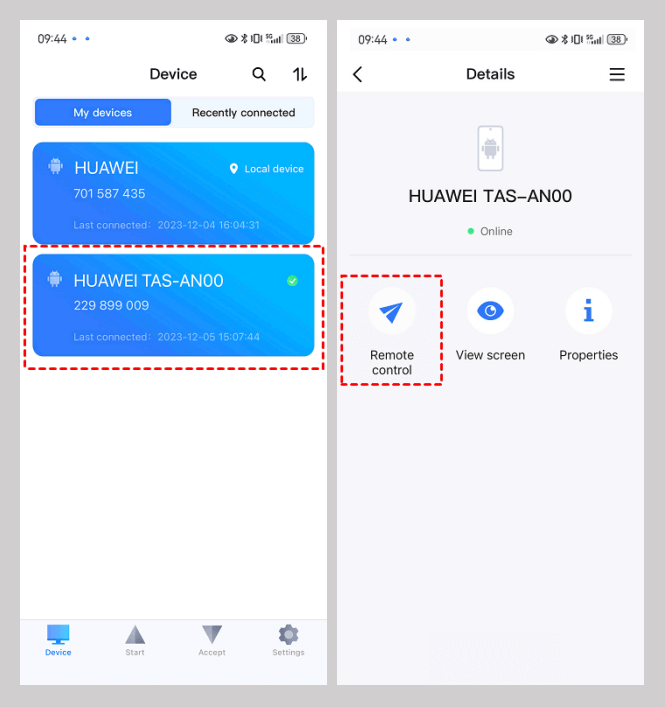
Step 3. On the controlling phone, choose the phone you want to control and tap "Remote Control."
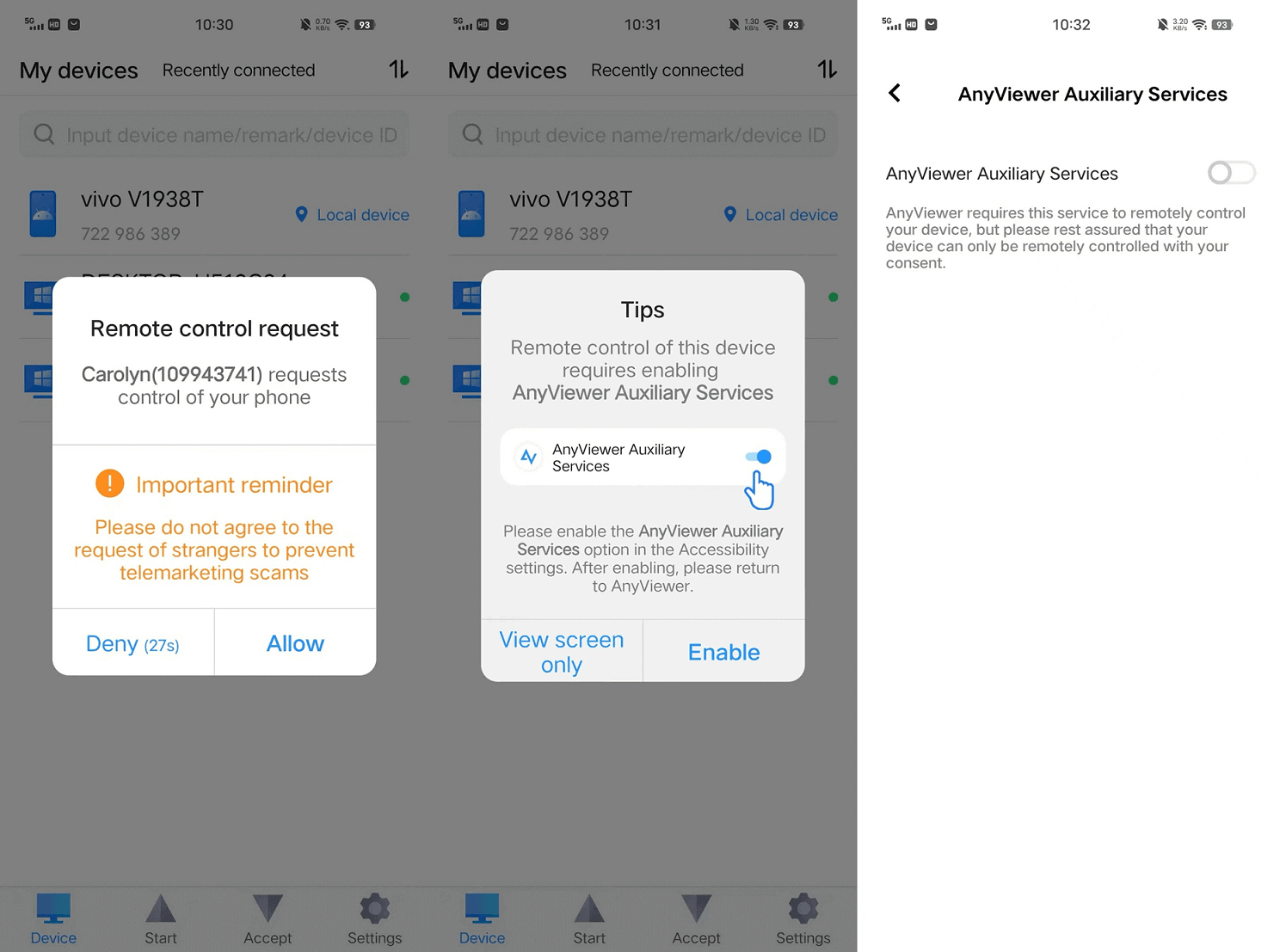
Step 4. Allow remote control permission on the phone being controlled.
Step 5. Activate AnyViewer Auxiliary Service in Accessibility settings by tapping "Enable." Find AnyViewer in Installed Services and turn on AnyViewer Auxiliary Service.
Step 6. Now, you're all set to control one Android phone from another.
Way 2. TeamViewer
TeamViewer is another reliable and widely used application for Android-to-Android remote control, providing a user-friendly interface, secure connections, and file transfer options. Its cross-platform compatibility ensures seamless remote control, making it an excellent choice for efficient and secure Android device management.
Nevertheless, it's worth noting that TeamViewer is only free for personal use. If you intend to use it for commercial purposes, a payment is required.
Step 1. Download and install TeamViewer Remote Control on the device you want to control.
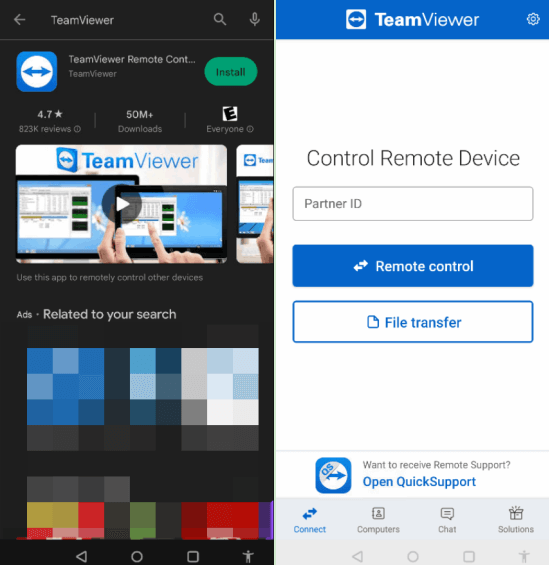
Step 2. Get TeamViewer QuickSupport on the device you're allowing for control. Share your ID to the controller.
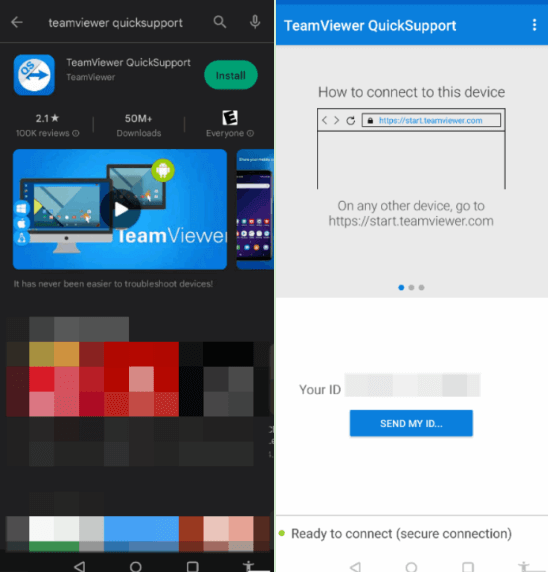
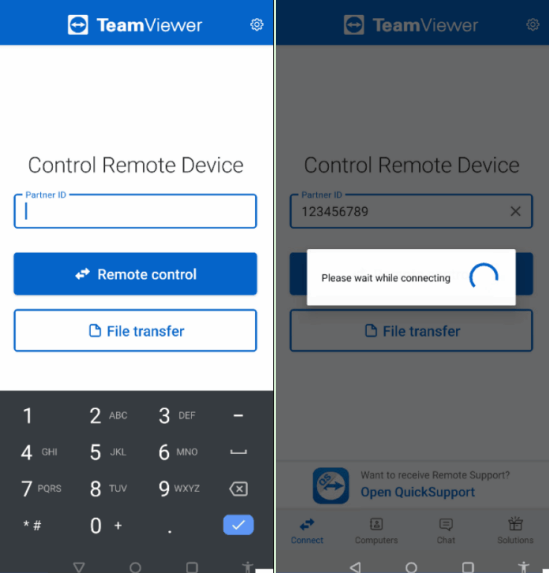
Step 3. On the controller device, input the ID, and tap Remote control.
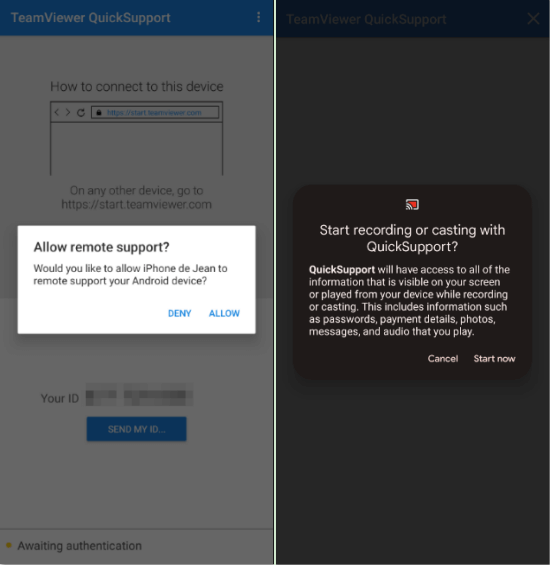
Step 4. Allow the connection on the device to be controlled and start screen recording if needed.
Step 5. Now, you're connected and ready to control the device remotely.
Way 3. AirDroid
AirDroid is considered one of the most convenient ways to control an Android device from another Android. It offers a clean interface along with useful functions such as file transfer, remote access, and notification sharing, which makes managing your phone much easier. The platform is secure, user friendly, and well suited for those who want smooth control and reliable connectivity between Android devices.
The free version, however, provides only 10 minutes of remote control per day. For those who need longer usage, a paid plan is available.
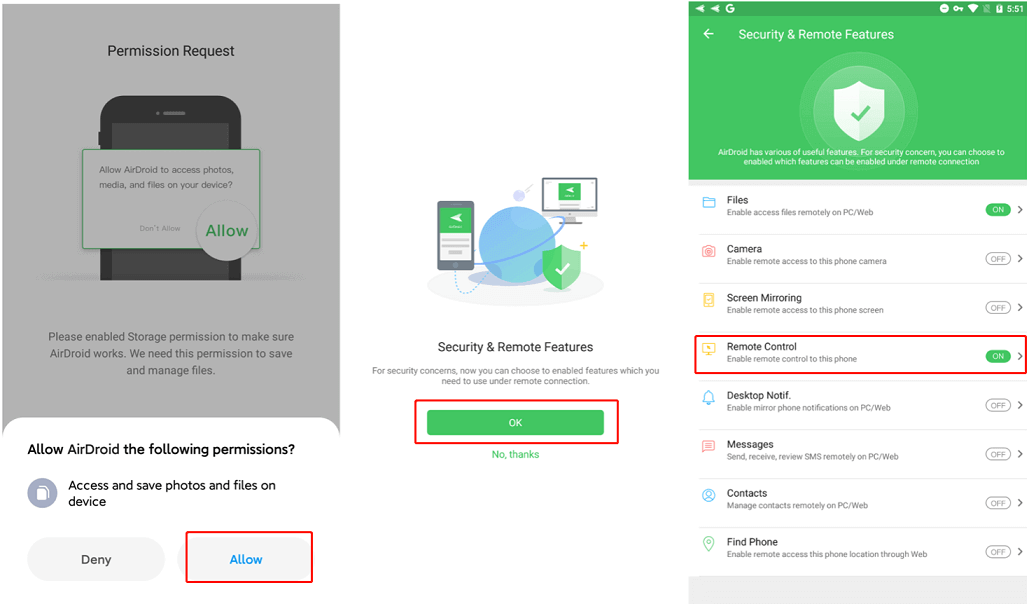
Step 1. Download and install AirDroid Mobile on the phone you want to control and AirMirror on the controlling phone. Log in with the same account.
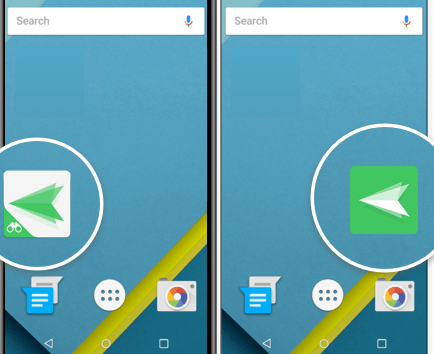
Step 2. On the phone to be controlled, go to "Me" > "Security & Remote Features," and turn on "Remote Control."
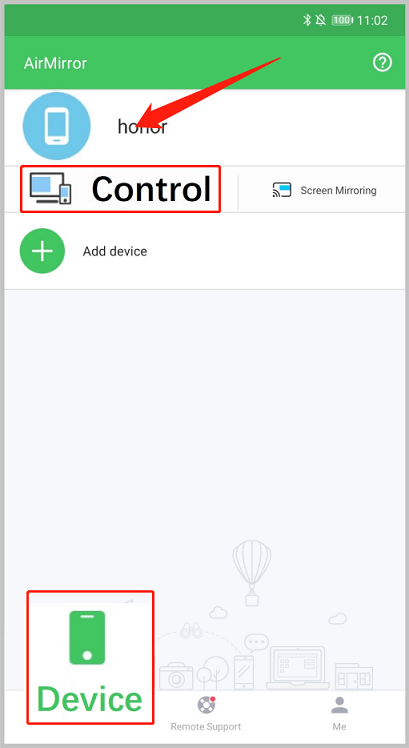
Step 3. On the controlling phone, go to "Device," tap your device, choose "Control," and you're ready to take control.
Conclusion
Remote control of Android devices has become a convenient way to access files, provide support, and manage phones from a distance. With apps like AnyViewer, TeamViewer, and AirDroid, you can choose the tool that best fits your needs. Always remember, safe and legal use requires permission from the other device. By selecting the right app and following the setup steps, you can enjoy smooth, secure, and effective remote control anytime.



 as a preferred
source on Google
as a preferred
source on Google