

Top 8 Remote Support for Mobile Devices [2026]
This post introduces the top eight tools to provide remote support for mobile devices. These apps are essential for both personal help and professional support. Read carefully to pick out the best option for you.

By Ellie / Updated on March 6, 2026


What is a remote support tool for mobile devices?
When a friend or family member encounters a problem with their mobile device, or when you're looking to offer top-notch remote IT assistance to customers, mobile remote support apps are an effective solution.
These tools offer remote support for mobile devices, allowing technicians or support staff to remotely access and control mobile devices, such as smartphones and tablets. These apps can view the device's screen, navigate its files and settings, and even manage it as if they were physically there.
Remote mobile support tools are widely used by IT support teams and customer service professionals to troubleshoot and resolve issues without needing to be on-site. Additionally, they are increasingly popular among individuals who help their loved ones with mobile device problems, making issue resolution quicker and more efficient.
Quick comparison of top 8 remote support tools for mobile devices [2026]
A reliable mobile remote control app is essential for effective remote support. In this guide, we review eight of the best apps for remotely controlling mobile devices, helping you find the right solution for your needs. Let’s start with a quick comparison of the top eight remote support tools for mobile devices.
| Tool Name | Best For | Free Version | Key Advantage | Remote Control Capability |
| AnyViewer | Personal & Business (Top Pick) | Yes (Robust Features) | Ultra-fast connection, one-way audio, and remote camera access. | Android (Full) / iOS (View) |
| TeamViewer | Large Enterprise IT | Non-commercial only | Industry-standard security and high reliability for massive teams. | Android (Full) / iOS (View) |
| AirDroid Personal | Personal File Management | Yes | Focuses on file transfer, SMS sync, and screen mirroring. | Android Only |
| AirDroid Support | Customer Service/IT | No | Includes tutorial gestures to guide customers in real-time. | Android (Full) / iOS (View) |
| BeyondTrust | Military-grade/Large Orgs | No | Top-tier compliance, auditing, and multi-session management. | Full Platform Support |
| HelpWire | Simple Tech Support | Yes | Lightweight, browser-based portal for quick troubleshooting. | Android (via USB) |
| Dameware | Corporate Network Admin | No | Integrated ticketing system for enterprise help desks. | Full Platform Support |
| AweSun | Casual/Home Users | Yes | Cross-platform compatibility with a simple, clean interface. | Android (Full) / iOS (View) |
8 tools to provide remote support for mobile devices
Let’s take a closer look at each tool and see what it offers.
Way 1. AnyViewer [Best all-in-one solution]
AnyViewer has solidified its position as the premier choice for remote mobile support. While many tools are either "too basic" for professionals or "too complex" for casual users, AnyViewer strikes a perfect balance. It is designed to handle everything from helping a non-tech-savvy family member to providing agile IT support for small-to-medium businesses.

What Makes AnyViewer Unique?
AnyViewer doesn't just mirror a screen; it provides a comprehensive "virtual presence" on the remote device. Here are the standout features that set it apart from the competition:
- Beyond the Screen (Remote Camera & One-Way Audio): Traditional remote tools limit you to what’s happening inside the OS. AnyViewer allows you to remotely access the target phone’s camera and listen via one-way audio. This is a game-changer when troubleshooting hardware issues—like checking if a router cable is plugged in or seeing the status lights on an external device.
- Zero-Root Full Control for Android: Rooting a device voids warranties and creates security risks. AnyViewer utilizes advanced Accessibility Services to provide full remote control of Android devices without requiring Root access. This makes it incredibly easy for the person receiving help; they install the app, and you do the rest.
- ECC 256-bit Security Architecture: Privacy is paramount when accessing a mobile device. AnyViewer employs Elliptic Curve Cryptography (ECC), a military-grade encryption standard. Compared to traditional RSA encryption, ECC offers higher security with less computational overhead, ensuring the remote session is unhackable without causing the phone to overheat or lag.
- Adaptive High-FPS Performance: Leveraging its advanced algorithm, AnyViewer automatically adjusts image quality based on network conditions (5G, 4G, or Wi-Fi). You get a fluid, high-frame-rate experience that feels like the device is in your hand, even over long-distance connections.
Key Features of AnyViewer
- Cross-Platform Support: Control Android or view iOS screens from another device (Windows, macOS, iOS, Android).
- Tutorial Gestures: Use visual cues on the user's screen to guide them through complex settings, helping them learn as you fix.
- Privacy Mode: Securely manage sessions with features that prevent unauthorized data interception.
- Instant File Transfer: Quickly push logs, update patches, or instructional documents between the PC and the mobile device.
- Screen Mirroring: Mirror the phone's screen on your computer for a more comprehensive view.
How to Remotely Support Mobile Devices with AnyViewer
Follow these steps to offer free remote support for mobile devices with AnyViewer:
Step 1. Download AnyViewer on your Windows PC and the AnyViewer mobile app on the target Android/iOS device.
Step 2. Create a free account and log in on both devices.
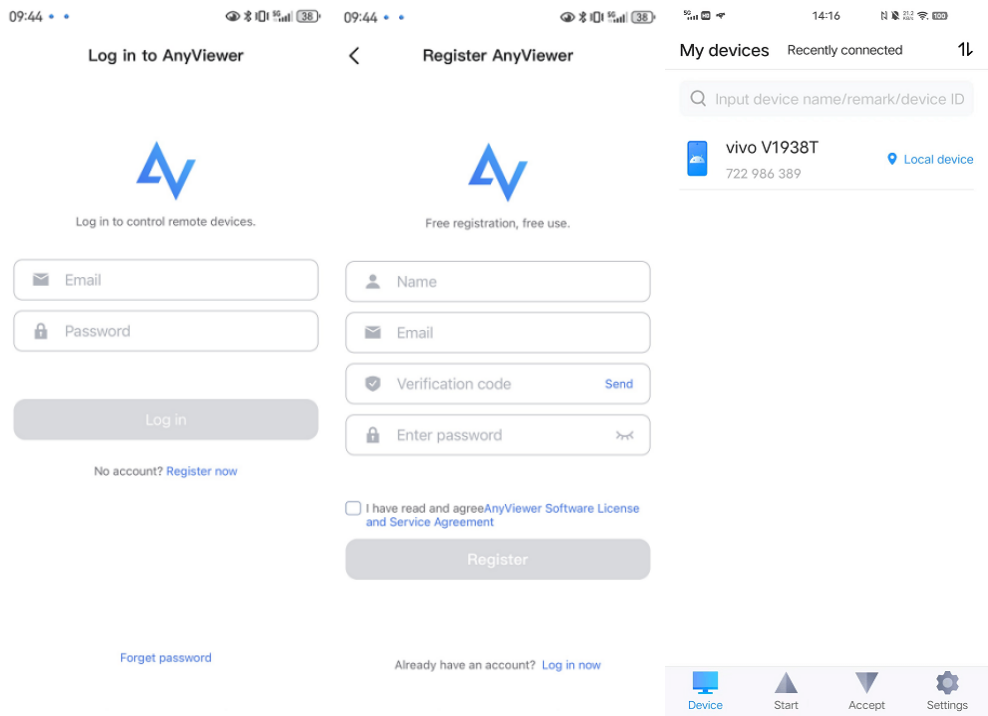
Step 3. On your PC, go to "Devices," select the target mobile device, and click "Remote Control" (for Android) or "View Screen" (for iOS).
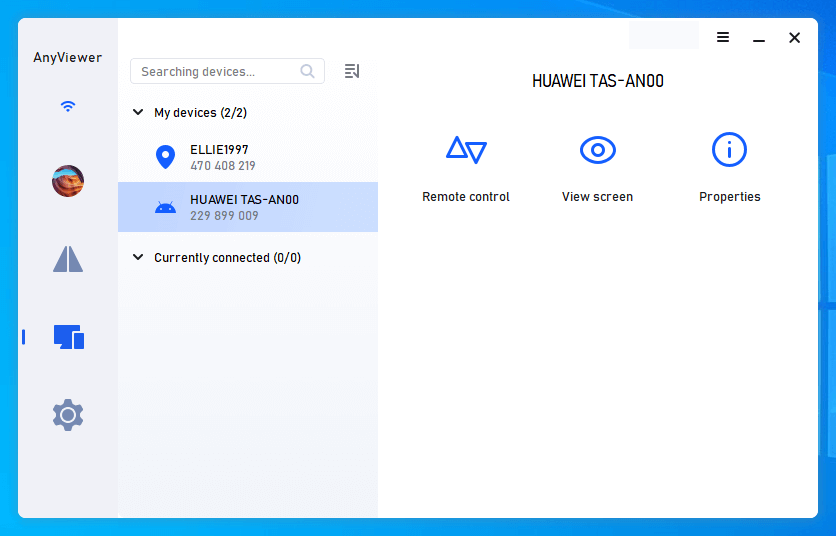
Step 4. Once the user taps "Allow," you have instant access to provide support.

While tools like TeamViewer are great for enterprises, they often feel "over-engineered" for individual users. AnyViewer strikes the perfect balance—giving you pro-level features for free, without the heavy subscription fees or complex setup.
Way 2. TeamViewer QuickSupport
TeamViewer QuickSupport is a leading app for remote mobile device support, widely adopted by mobile operators and technical support teams alike. It offers remote access, control, and viewing capabilities, providing fast and secure support as implied by its name. The app is renowned for its enterprise-level reliability and top-notch security standards.
Key Features of TeamViewer QuickSupport
- Share your mobile device screen with another mobile device.
- Remotely access your mobile device from a computer.
- Transfer files, record screens, and use instant messaging.
- Gain full access to system logs and device settings.
Pros
- Provides a highly reliable and secure connection.
- Cross-device support for certain features.
- Fast file transfer capabilities.
Cons
- Remote control is not available from one mobile device to another.
- Limited feature set.
Steps to use TeamViewer QuickSupport
As the supportee, follow these steps to grant control of your device to the support team:
Step 1. Download and install the free TeamViewer QuickSupport app on your Android or iOS device.
Step 2. Open the app to generate your unique ID number.
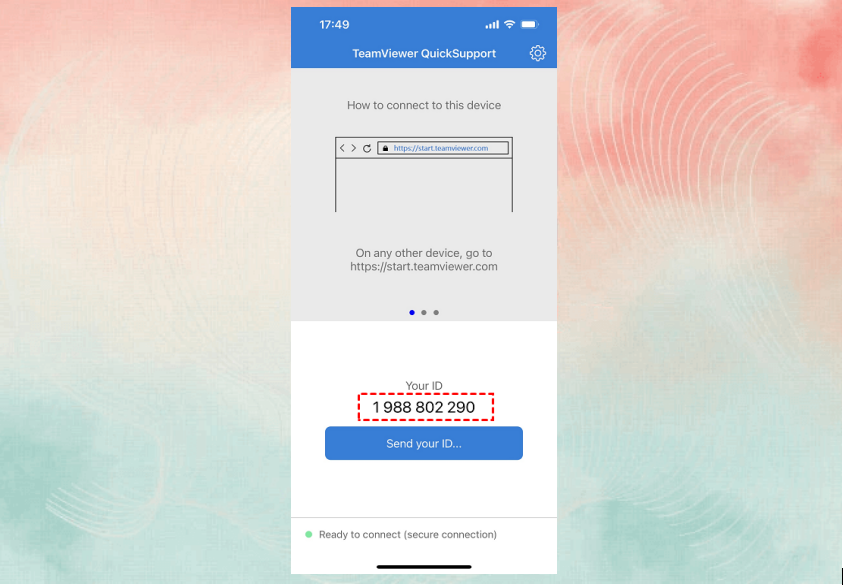
Step 3. Share this ID number with the support team, who will enter it into their TeamViewer desktop application.
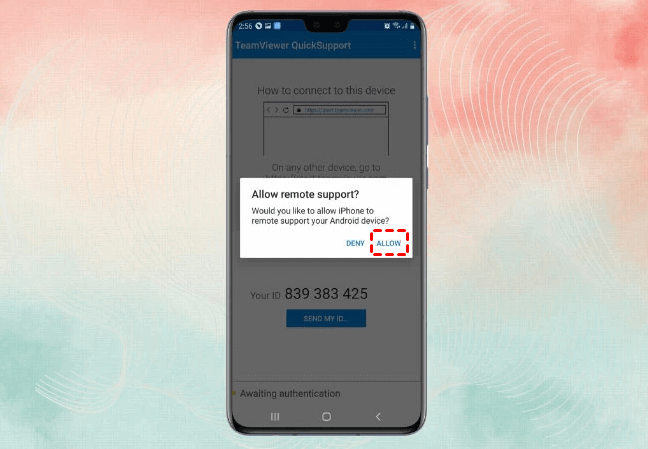
Step 4. Accept the remote connection request to grant control to the support team.
Way 3. AirDroid Personal
To resolve issues on a target phone from your computer, AirDroid Personal is an ideal app for remote access. It allows you to control the phone directly and sync notifications from the target device to your computer. Additionally, you can manage the phone remotely through your web browser.
Key Features of AirDroid Personal
- Manage an Android phone from your computer.
- View the phone's surroundings and listen through the camera.
- Transfer files between phone and computer easily.
- Sync and respond to notifications and messages from your PC.
- See and control the phone's screen on your computer for easier troubleshooting.
Pros
- Simple connection between Android phone and computer.
- Options for remote control and screen mirroring.
- Supports cross-platform file transfers.
- Access to the phone's camera and microphone remotely.
- Dedicated web platform for all activities.
- Secure encrypted connection for protection.
Cons
- Some features are exclusive to premium users.
Steps to use AirDroid Personal
Here are the steps to use the AirDroid Personal app for remote control:
Step 1. Install AirDroid Personal on both the target phone and the supporter's computer.
Step 2. Create an AirDroid account and log in on both devices using the same credentials.
Step 3. On the target phone, open the AirDroid app, go to "Me" at the bottom, and select "Security and Remote Features."
Step 4. Enable all remote support features on the target phone.
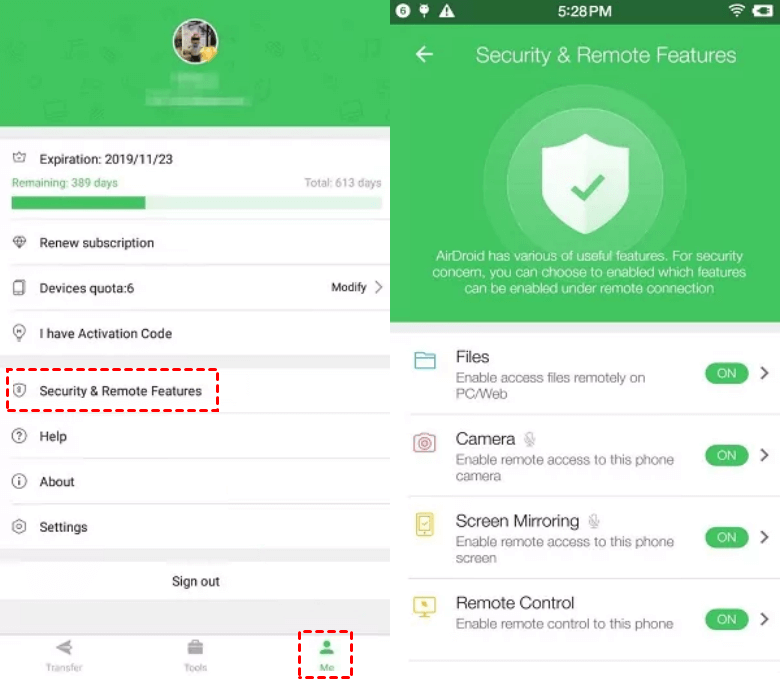
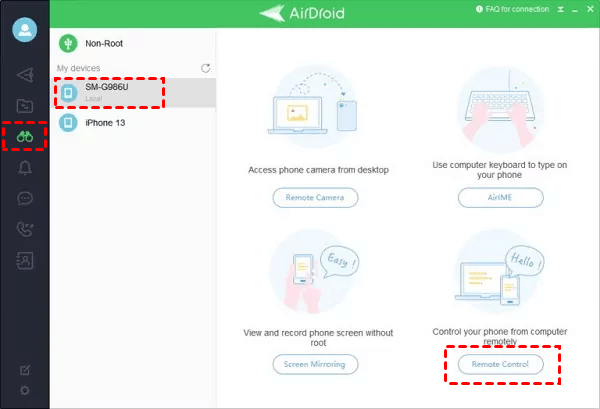
Step 5. On the computer, open AirDroid, select the target phone under "My Devices," and click "Remote Control" from the left panel to start.
Way 4. AirDroid Remote Support
AirDroid Remote Support offers a comprehensive solution for accessing and assisting with Android devices. Its standout feature is unattended remote access, enabling maintenance without requiring permission each time. The app is known for its secure and stable connection, reinforced by robust encryption. It supports two-way communication for real-time instructions and allows viewing and storing permission reports for enhanced customer support.
Key Features of AirDroid Remote Support
- Control devices without needing constant permission.
- Handle devices smoothly with no downtime.
- Protect data with access blockers, a dynamic code, and Black Screen Mode.
- View and diagnose issues live through screen sharing.
Pros
- Easy to use.
- Supports both Android and iOS.
- File sharing and screen sharing available.
Cons
- Privacy concerns.
- Possible lag or connection issues.
- Full features require a paid plan.
- Might not work with all devices.
How to use AirDroid Remote Support for remote mobile assistance
Here are the steps to use AirDroid Remote Support for remote mobile assistance:
Step 1. Download AirMirror on your Android or iOS device to provide support.
Step 2. Instruct the target person to download AirDroid Remote Support on their Android or iOS device.
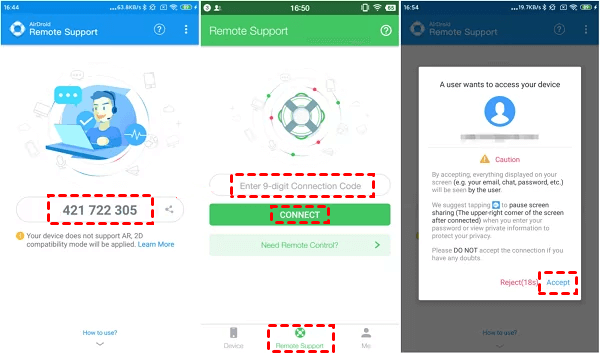
Step 3. Have them open AirDroid Remote Support and share the 9-digit connection code displayed on their screen.
Step 4. Open AirMirror on your device and enter the 9-digit code. Once they accept your access request, the connection will be established.
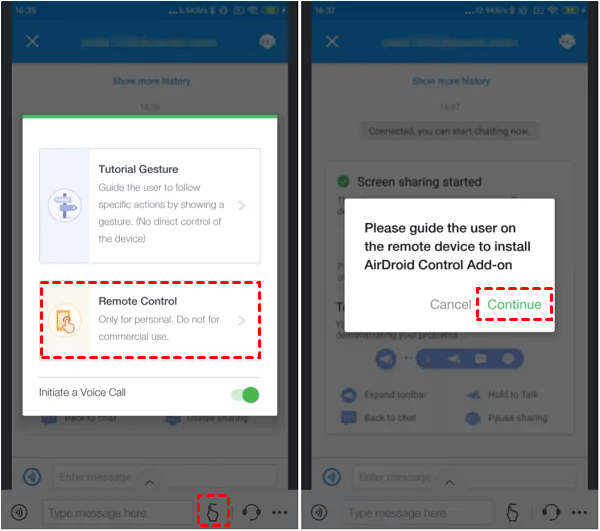
Step 5. Enable Screen Sharing and choose either Tutorial Gesture or Remote Control based on your needs.
Way 5. Bomgar (BeyondTrust)
Bomgar, now known as BeyondTrust, is a top-tier secure remote support software. BeyondTrust Remote Support allows support teams to resolve issues on mobile devices from their computers. It offers screen sharing and remote control features, providing efficient support for both Android and iOS devices.
Key Features of Bomgar
- Screen sharing and remote control for Android and iOS devices
- Resolve issues from any OS on your computer
- Live streaming via remote access to the device's camera
- Manage support team roles and permissions
- Includes auditing, branding, and integration features
Pros
- Chat with multiple users simultaneously
- Highly scalable for team use
- Military-standard security measures
Cons
- Ineffective with slow internet speeds
Steps to use BeyondTrust for remote mobile support
Follow the steps to get started with BeyondTrust:
Step 1. The supportee should install the BeyondTrust Support app from the Play Store or App Store.
Step 2. The support team should have BeyondTrust Support installed on their computers. Obtain the site name and session key from the representative and enter these details to connect.
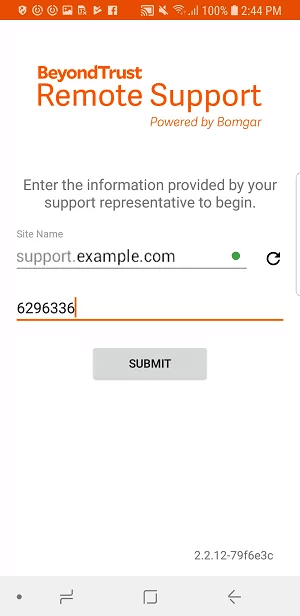
Step 3. After connecting, use options for screen sharing, InSight for live streaming, and live chatting.
Way 6. HelpWire
HelpWire is a tailored remote support software for both mobile devices and computers. The support team can address issues on the supportee's device, whether it's a mobile or computer, from their computer.
The software features a unique proprietary portal virtualization system for remote control and problem resolution. It offers a professional approach to managing multiple support requests simultaneously.
Key Features of HelpWire
- Remote access to mobile devices as if they were physically present on the support team's PC.
- Stable and steady connection once established.
- Support for all devices connected to the supportee's computer.
- Live chat with options to send photos, videos, audio, and text messages.
Pros
- Advanced port virtualization technology ensures a stable connection.
- Secure with advanced encryption.
- Multi-platform support for comprehensive remote support.
Cons
- Users report challenges with establishing connections.
Steps to use HelpWire for remote mobile support
Follow the steps to get started with HelpWire:
Step 1. The supportee should download HelpWire on their computer and connect their mobile device via a USB cable.
Step 2. Launch HelpWire, log in to the HelpWire account and wait for the support team to initiate a session.
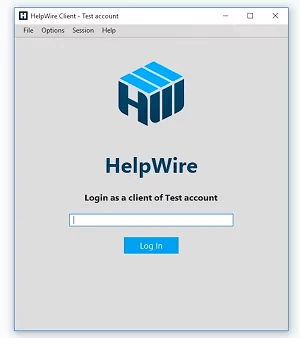
Step 3. Once the session starts, explain the issue through live chat if needed.
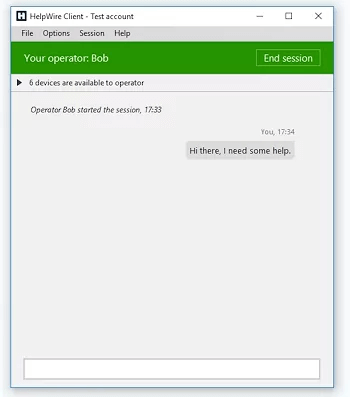
Step 4. The support team will remotely access the mobile device to resolve the issue, and then terminate the session.
Way 7. Solarwinds Dameware
Solarwinds Dameware is a well-regarded remote support suite that supports multiple platforms. It allows you to provide remote assistance from mobile devices and access the supportee's device from desktops or other mobile devices.
Key Features of Dameware
- Cross-platform support for remote access from any device.
- Advanced encryption with two-factor authentication.
- Fast connection setup and HD visibility.
- Ability to take screenshots and record sessions.
- Reporting engine for tracking support team performance.
- Live video calling and messaging options.
Pros
- Supports multiple languages for improved service.
- Provides complete device information for better diagnosis.
- Includes a ticketing system for enterprise-level support.
Cons
- User interface can be difficult to navigate.
- Reports of frequent crashes.
Steps to use Dameware for remote mobile support
Follow the steps below to get started with Dameware:
Step 1. Create a Dameware Remote Everywhere account and download the app on your device.
Step 2. Open Dameware Remote Everywhere and log in to your account.
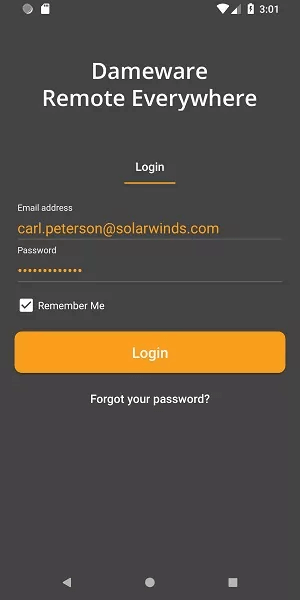
Step 3. Go to New Sessions > One-Session Applet to generate a PIN or support link. Share this with your supportee.
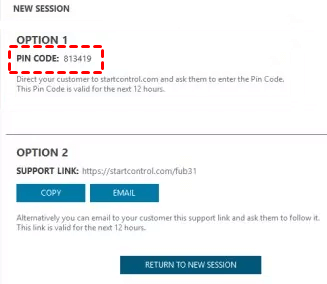
Step 4. The supportee will use the PIN or link to request a support session. Accept the request from the Technical Console or Admin Area to begin the session.
Way 8. AweSun Mobile Devices Support
AweSun Mobile Devices Support lets you screen mirror and remotely access mobile devices anytime, anywhere. It offers cross-platform compatibility, allowing you to access an Android phone from other Android or iOS devices, as well as Windows PCs. Its popularity stems from its smooth connection setup and broad platform support.
Key Features of AweSun Mobile Devices Support
- All-in-one application for remote mobile and desktop access.
- Screen sharing and remote access capabilities.
- File transfer between devices.
- Encrypted connection for secure communication.
Pros
- Free installation with cross-platform support.
- Simple connection to both your own and supportee's devices.
- Ability to uninstall apps remotely and access device information.
Cons
- Reports of slow and lagging connections.
- No remote access to the camera of the phone.
Steps to use AweSun for remote mobile support
Follow the steps to use AweSun for remotely supporting mobile devices:
Step 1. Install AweSun on the supportee's Android phone.
Step 2. Install AweSun on your device, based on your operating system.
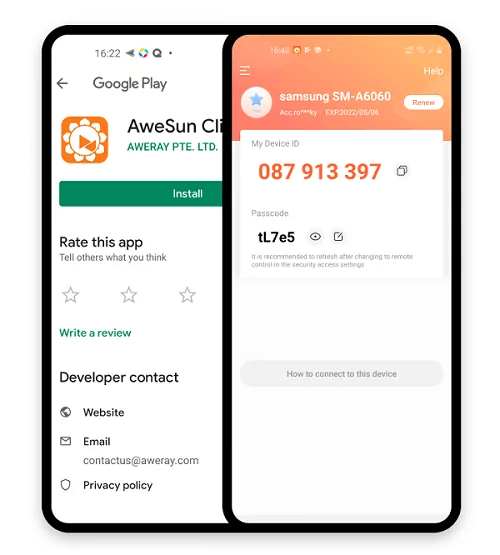
Step 3. Create an AweSun account and log in on both devices. Add the target device to your Device List for remote control.

Step 4. Alternatively, use the Device ID and passcode to grant instant access to the supportee's device.
The bottom line
In conclusion, tools offering remote support for mobile devices play a crucial role in addressing issues efficiently from afar. These apps empower support professionals and individuals alike to troubleshoot and resolve problems by providing remote access, control, and monitoring capabilities.
Among the various tools available, AnyViewer stands out for its user-friendly interface and comprehensive features, including cross-platform compatibility and robust privacy protection. By selecting the right tool based on specific needs, users can enhance their support efficiency and provide timely solutions, whether for personal assistance or customer service.



 as a preferred
source on Google
as a preferred
source on Google