
Remote Server Management Guide for IT Teams
A practical guide for small IT teams managing remote Windows and Linux servers. Learn which tools fit each task, how to prepare unattended access, and what to verify before and after maintenance.

By Ellie / Updated on November 3, 2026


What Is Remote Server Management?
Remote server management is the process of administering, monitoring, maintaining, and troubleshooting servers without being physically present. It combines an authorized access method with operational controls for updates, backups, service health, and recovery. Connecting to a desktop is one part of the job; keeping the hosted application available is the outcome.

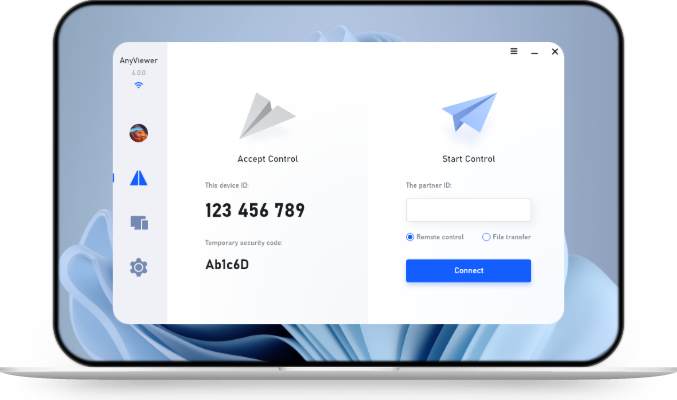
For a small IT team, the practical starting point is a trusted connection, a documented maintenance routine, and a fallback if the operating system stops responding. AnyViewer can provide the interactive access layer for supported Windows Server environments. Use dedicated monitoring, backup, and automation tools for the rest of the workflow.
Choose Remote Server Management Tools by Task
Choose the management method around the work you need to perform. A graphical session helps with an unfamiliar application, while repeatable changes across many machines are better handled through controlled automation. Keep recovery access separate from everyday administration.
| Task | Suitable approach | Important limit |
| Inspect a Windows application | Remote desktop or approved access agent | Requires a functioning OS and network |
| Manage Windows roles and services | Server Manager and PowerShell | Requires remoting configuration and permissions |
| Administer Linux services | SSH and configuration automation | Requires command-line skills and access controls |
| Track health and patch status | Monitoring or RMM platform | Alerts still need an owner and response process |
| Recover an unresponsive host | Hardware management or hypervisor console | Must be provisioned before the outage |
Microsoft documents that Server Manager can manage remote Windows servers without enabling an RDP session. This matters when you need role, event, or service information rather than an entire desktop. It also reduces the temptation to open a graphical session for every routine check.
Prepare Secure Access Before Your First Maintenance Window
Start with an inventory containing each hostname, operating system, business service, owner, maintenance window, and recovery contact. Record dependencies too: restarting a database can affect an application on a different machine. Confirm which system you are connected to before making a change.
- Use named administrator identities and grant only the permissions the task needs.
- Enable multifactor authentication wherever the chosen access system supports it.
- Use approved private access paths or gateways; avoid casually exposing management services to the public internet.
- Confirm backups and a documented restoration process before disruptive work.
- Test an independent console path and identify who can provide physical assistance.
Only access devices, accounts, and files that you own or are explicitly authorized to use. Keep credentials in an approved password manager, follow organizational logging policies, and remove access when a technician leaves the team. A remote access product alone does not establish regulatory compliance.
Use AnyViewer for Interactive Windows Server Maintenance
A branch office may have a Windows server running a business application that needs occasional graphical troubleshooting. In this situation, AnyViewer can help an authorized technician reach the desktop without asking an employee to approve every visit. Verify the exact Windows Server release and installation requirements before deployment; do not assume Server Core or Linux host support.
For branch-office maintenance, Unattended Remote Access lets an authorized technician reach an assigned server without waiting for someone onsite. Remote Control provides the graphical session needed to inspect an application problem. Remote File Transfer helps move approved diagnostic logs between supported devices. Together, these features can reduce routine trips to a branch while dedicated tools handle monitoring, patch automation, and recovery.
- Install the current supported AnyViewer application on the server and the administrator computer under your organization's deployment policy.
- Follow the official account and device-assignment process. The one-click guide describes signing in and assigning the computers to an account.
- On the administrator computer, open Device, select the assigned server, and choose One-click control. Confirm the hostname inside the session.

- Perform one approved task, verify the result, and end the session. Record what changed and confirm that future access still follows team policy.
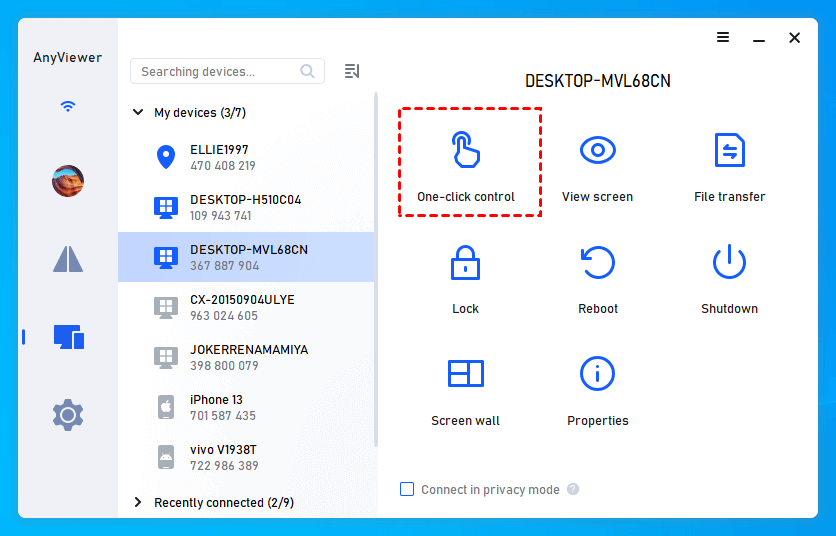
Pilot the workflow on a noncritical server first. Check reconnect behavior after a planned reboot rather than assuming the agent will always return. Before adding more branches, compare AnyViewer plans against your technician count, assigned servers, and overlapping session needs. Have your administrator review the deployment and account model rather than sharing a general sign-in.
Follow a Maintenance Routine That Checks the Application
A successful connection does not prove that a server is healthy. Build a short runbook around the service people actually use. The following example is a planning scenario, not a report of a product test: a branch file server needs an approved operating system update after business hours.
- Before the change: confirm the server identity, backup status, free disk space, active users, and expected outage window.
- During the change: apply the approved update, keep a record of the result, and restart only when the change requires it.
- After the change: reconnect, inspect relevant errors, confirm required services, and test opening an authorized file from a client computer.
- Close the change: restore paused alerts, notify the service owner through the established process, and record any follow-up work.
If you need to transfer diagnostic logs with AnyViewer, check their contents for credentials or personal data first. Store the files in an approved destination with an appropriate retention period. Copying a log successfully is not the same as resolving the incident.
Troubleshoot Lost Access Without Making the Outage Worse
If a remote server disappears after a reboot, avoid immediately issuing more restart requests. First determine whether the problem affects one access tool, the operating system, the network, or the application. Each observation should narrow the next action.
- One tool fails: check its service status and access policy through another approved management path.
- All OS access fails: inspect the hardware or hypervisor console for boot progress and errors.
- The desktop works but the application fails: inspect application dependencies and service logs.
- An entire site is unreachable: check site power, routing, and upstream connectivity before changing individual servers.
Hardware management capabilities vary. Supermicro, for example, documents remote power control and management through IPMI or Redfish for its supported systems. Provision the appropriate vendor or cloud console in advance. A desktop agent cannot operate normally when its host OS is unavailable.
Conclusion
Effective remote server management combines access, maintenance, monitoring, and a tested recovery route. Start with one server, document a repeatable change, and verify the business service afterward. For supported Windows Server desktop tasks, pilot AnyViewer remote access as the interactive component before expanding the workflow to other locations.
FAQs
Is remote server management the same as remote desktop?
No. Remote desktop provides interactive access. Server management also includes monitoring, updates, backups, permissions, and incident response.
Can I manage Windows and Linux servers with one method?
Some platforms cover both, but task requirements differ. Windows administration often uses Server Manager or PowerShell; Linux administration commonly uses SSH.
Can AnyViewer replace an RMM platform?
No, AnyViewer cannot fully replace a traditional RMM (Remote Monitoring and Management) platform. While it excels as a high-performance remote desktop and helpdesk tool, it lacks the deep background infrastructure management capabilities of a full-scale RMM suite.
What happens when a server will not boot?
Use a previously configured hardware management, hypervisor, or cloud console. If none is available, you may need authorized onsite assistance.
How should I test unattended server access?
Use a noncritical machine, validate permissions, and test reconnection after a planned restart. Confirm an independent recovery method before production deployment.
How often should I check remote servers?
Use monitoring appropriate to service criticality and review alerts through a defined response process. Schedule maintenance according to risk, vendor guidance, and business requirements.



 as a preferred
source on Google