

Best 10 Computer Lab Management Software in 2026
Discover the top-rated computer lab management software for 2026. From AnyViewer's high-speed remote access to NetSupport School's classroom control, learn how to optimize student engagement and IT efficiency.

By Ellie / Updated on March 25, 2026


In the modern educational landscape, the traditional "computer lab" has evolved. No longer just a physical room filled with rows of desktop PCs, today’s lab is a dynamic, hybrid environment where students access specialized software from home, from campus, or even across borders. Managing this complexity requires more than just a standard IT toolkit; it demands specialized computer lab management software.
Whether you are an IT administrator looking to streamline maintenance or an educator aiming to improve classroom focus, choosing the right management solution is critical. This guide explores the essential features, benefits, and top-rated tools currently leading the market.
Comparison of the Top 10 Computer Lab Management Software
| Software | Best For | Key Highlight |
| AnyViewer | Remote Access | High-speed, secure remote access for hybrid learning. |
| NetSupport School | Comprehensive Labs | Exceptional multi-platform support (Windows, Mac, Linux, Chrome). |
| LanSchool | Cloud-Based Classrooms | Best-in-class thumbnail views for student oversight. |
| Veyon | Budget-Conscious Schools | Free, open-source tool for basic monitoring and control. |
| Faronics Insight | Collaborative Learning | Strong focus on teacher-student interaction and quizzes. |
| Splashtop Classroom | Mobile Teaching | Allows teachers to share their screen to student mobile devices. |
| Impero Education Pro | Safety & Safeguarding | Advanced content filtering and student wellness monitoring. |
| LabStats | Utilization Analytics | Deep insights into how often hardware and software are used. |
| ComLab | Scheduling & Booking | Specialized in inventory and lab room booking management. |
| Vision | Simplistic Management | A user-friendly interface for non-technical teachers. |
Top 10 Computer Lab Management Software Solutions (2026 Rankings)
Based on recent performance reviews and feature sets, here are the top-rated tools for managing IT labs this year.
1. AnyViewer
Overview:
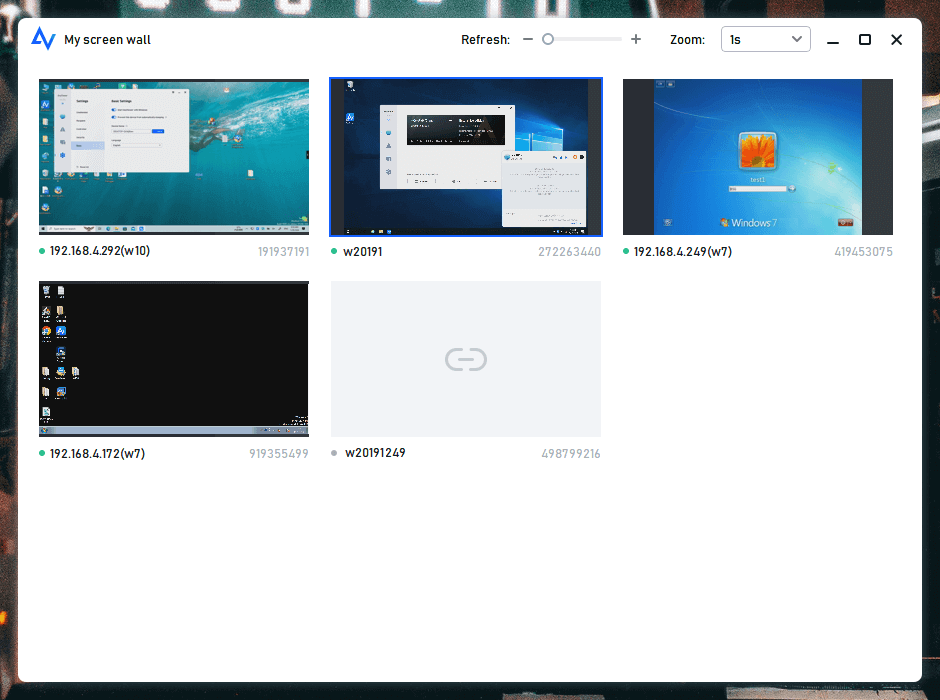
AnyViewer has evolved into a robust educational enabler, bridging the gap between physical labs and distance learning. It excels in "Anywhere Learning," allowing students to run resource-heavy engineering, CAD, or coding software from home on any basic device. For educators, it removes the logistical headache of lab management through centralized "Team" organization and high-frame-rate interaction tools.
Best For: Schools and universities seeking a high-performance hybrid solution that balances 24/7 remote lab access with real-time classroom instruction.
- Overall Score: 9.7/10 (Features: 9.8 | Ease of Use: 9.2 | Value: 9.4)
- The Edge: High-speed remote bridge that provides students 24/7 access to specialized lab software from any location without complex network overhead or VPNs.
Key Features
- Real-time Screen Wall: Monitor all student activities simultaneously from a single dashboard to track progress and provide instant troubleshooting.
- Teacher Screen Broadcasting: Mirror the teacher’s screen to all student PCs in real-time—ideal for complex demonstrations and guided coding sessions.
- Mobile Screen Mirroring & Access: View and control lab computers from iOS or Android devices, allowing teachers to move freely around the classroom.
- High-Speed File Transfer: Quickly distribute lesson materials or collect assignments with an optimized drag-and-drop transfer engine.
- Flexible Access Scheduling: Grant students permission to access lab resources after hours, enabling midnight simulations or weekend projects.
Pros & Cons
- Pros: Seamless 60 FPS performance for media-heavy tasks; intuitive "Team" management for grouping classes; excellent value for budget-conscious departments.
- Cons: Advanced automated lab scheduling is still maturing; mobile interface is best optimized for tablets rather than small phones.
Pricing
- Free version available.
- Solo, Team, and Enterprise plans offer the best value for bulk "Screen Wall" and multi-channel classroom use.
2. NetSupport School
Overview:
NetSupport School is the gold standard for IT lab management. It offers a centralized console for instructors to orchestrate lessons, distribute files, and monitor student progress in real-time. With advanced "anti-cheat" testing and internet metering, it ensures students stay on task regardless of their device type.
Best For: Large-scale educational institutions that require granular control in mixed-OS environments.
- Overall Score: 8.9/10 (Features: 8.8 | Ease of Use: 9.5 | Value: 9.2)
- The Edge: Industry-leading cross-platform compatibility with real-time thumbnail monitoring across Windows, Mac, Linux, Chromebook, iOS, and Android.
Pros & Cons
- Pros: Exceptional multi-platform support; robust security and encryption; drag-and-drop file/control interface.
- Cons: Requires agent installation on every device; premium pricing for smaller schools.
Pricing: Quote-based ($5–$15 per seat) with volume discounts.
3. LanSchool
Overview:
LanSchool focuses on removing distractions. Its cloud-native platform allows IT admins and teachers to push URLs, blank student screens, and limit application usage. It is highly effective for maintaining classroom "flow" without requiring heavy local server infrastructure.
Best For: Schools seeking a cloud-based, "set-it-and-forget-it" monitoring solution.
- Overall Score: 8.7/10 (Features: 9.2 | Ease of Use: 8.4 | Value: 8.1)
- The Edge: Insight Thumbnail View allows for simultaneous oversight of all active student screens via the cloud.
Pros & Cons
- Pros: Powerful web/app filtering; easy-to-use messaging and quiz tools.
- Cons: Performance can dip on older hardware; lacks advanced asset inventory.
Pricing: Subscription-based, approx. $30–$50 per device/year.
4. Veyon
Overview:
Veyon is the premier open-source alternative to paid suites. It provides the core essentials: screen monitoring, remote power-on/off, and file distribution. While it lacks the "polished" UI of paid competitors, its performance on Windows and Linux is rock-solid.
Best For: Budget-conscious schools or Linux-heavy environments.
- Overall Score: 8.7/10 (Features: 9.2 | Ease of Use: 7.6 | Value: 10/10)
- The Edge: 100% Free and Open-Source with no limit on the number of client computers.
Pros & Cons
- Pros: Zero licensing costs; high transparency; excellent for technical IT labs.
- Cons: Requires manual network configuration; no native mobile/cloud support.
Pricing: Free.
5. Faronics Insight
Overview:
Faronics Insight bridges the gap between IT administration and classroom instruction. It excels at "active" management—allowing teachers to share their screens with the class or take remote control of a struggling student's PC instantly to provide 1-on-1 help.
Best For: K-12 labs needing a balance between student collaboration and strict device lockdown.
- Overall Score: 8.7/10 (Features: 9.0 | Ease of Use: 8.8 | Value: 8.4)
- The Edge: A highly intuitive dashboard that simplifies complex tasks like screen sharing and remote lockdown.
Pros & Cons
- Pros: Seamless multi-OS management; strong focus on teacher-student interaction.
- Cons: Resource-intensive during high-activity sessions; analytics could be deeper.
Pricing: ~$2–$4 per device/year; perpetual licenses available.
6. Splashtop Classroom
Overview:
Leveraging Splashtop’s world-class remote desktop engine, this classroom version is perfect for labs where the teacher needs to broadcast high-res media or interact with student devices without lag. It is incredibly easy for non-technical teachers to pick up.
Best For: High-performance remote instruction and low-latency screen broadcasting.
- Overall Score: 8.4/10 (Features: 8.6 | Ease of Use: 9.1 | Value: 8.2)
- The Edge: Superior remote-access technology that allows for high-frame-rate screen sharing.
Pros & Cons
- Pros: Ultra-low latency; very intuitive interface; great for mobile-to-PC control.
- Cons: Lacks administrative features like asset tracking or lab scheduling.
Pricing: Starts at ~$3.95 per student device/year.
7. Impero Education Pro
Overview:
Impero is more than a management tool; it’s a security suite. While it handles screen monitoring and remote control well, its standout feature is the ability to flag inappropriate content or "at-risk" behavior in real-time, making it a favorite for compliance-focused admins.
Best For: Schools prioritizing student "Safeguarding" and behavioral monitoring on Windows.
- Overall Score: 8.2/10 (Features: 9.0 | Ease of Use: 8.0 | Value: 7.5)
- The Edge: Integrated content filtering focused on keyword detection and student well-being.
Pros & Cons
- Pros: Advanced behavioral monitoring; integrated messaging.
- Cons: Best on Windows only; setup can be complex for large deployments.
Pricing: Subscription-based, typically $5–$10 per device/year.
8. LabStats
Overview:
LabStats is the "BI" (Business Intelligence) tool of the IT lab world. It tracks exactly which computers are being used and which software is being launched, allowing departments to cut costs on underutilized resources while ensuring popular labs are always ready.
Best For: IT Managers who need to justify hardware budgets through data.
- Overall Score: 8.1/10 (Features: 8.5 | Ease of Use: 7.8 | Value: 8.0)
- The Edge: Wake-on-LAN Energy Management—automatically powers down idle labs to save significant utility costs.
Pros & Cons
- Pros: Unmatched resource utilization reports; effective power-saving tools.
- Cons: Limited classroom instruction tools (e.g., no quiz/chat).
Pricing: Subscription-based, starting at ~$1 per computer/month.
9. ComLab
Overview:
ComLab focuses on the logistics of a computer lab. Beyond just monitoring screens, it handles seat reservations, print quotas, and software deployment. It is an essential tool for "Open Labs" where students book time to use specialized software.
Best For: University-level multi-lab management and resource scheduling.
- Overall Score: 7.6/10 (Features: 8.1 | Ease of Use: 7.3 | Value: 7.2)
- The Edge: Built-in License Manager that tracks software usage to ensure legal compliance.
Pros & Cons
- Pros: Comprehensive scheduling system; detailed usage analytics.
- Cons: Narrow focus on Windows; interface feels slightly dated.
Pricing: Custom quotes (approx. $5–$10 per user/month).
10. Vision (by House on Fire)
Overview:
Vision is a reliable, straightforward tool for Windows-based schools. It integrates deeply with Active Directory, making it easy to manage user permissions and classroom logins. While it lacks the flash of newer cloud tools, its "Demo" mode remains highly effective for lectures.
Best For: Traditional UK-based classrooms using Windows-only setups.
- Overall Score: 7.2/10 (Features: 7.5 | Ease of Use: 7.0 | Value: 6.8)
- The Edge: "Hands-Free" Presentation Mode that instantly mirrors the teacher's screen to all students without lag.
Pros & Cons
- Pros: Solid Active Directory integration; very reliable screen broadcasting.
- Cons: Restricted to Windows; pricing is less competitive for modern budgets.
Pricing: Perpetual licenses starting at ~£200 per lab.
Why Schools and Universities Need Lab Management Tools
The challenges of managing a computer lab are multifaceted. Without dedicated software, IT departments often face high maintenance costs, while teachers struggle with student distractions.
1. Eliminating Geographic Barriers
Remote computer lab management software allows institutions to provide 24/7 access to lab resources. Students can connect to powerful lab workstations—running heavy software like AutoCAD or Adobe Creative Cloud—from their personal laptops at home. This eliminates the need for students to be physically present on campus for every assignment.
2. Enhanced Security and Content Filtering
Labs are high-risk environments for malware and "visual hacking." Modern solutions offer features like Privacy Mode (to black out a remote screen while in use) and high-level encryption (such as ECC) to ensure that student data and school networks remain secure.
3. Data-Driven Decision Making
Are students actually using the Macs in the library? Does the engineering department need 50 licenses of a specific software, or would 20 suffice? Analytics tools within lab management software provide clear reports on hardware and software utilization, helping administrators save thousands of dollars in licensing fees.
Conclusion
The goal of computer lab management software is to make technology invisible. When the software works correctly, teachers can focus on instruction, students can access resources from anywhere, and IT staff can maintain hundreds of machines from a single dashboard.
In 2026, the shift toward remote and hybrid access is undeniable. Tools like AnyViewer and NetSupport School are no longer luxuries—they are the backbone of the modern educational infrastructure. By choosing a solution that balances security, ease of use, and cross-platform flexibility, your institution can ensure its lab remains a productive hub for years to come.



 as a preferred
source on Google
as a preferred
source on Google