

11 Solutions: Steam and PlayStation Remote Play Is Not Currently Available
Many users experience moments when Steam or PlayStation Network remote play is not working. This overview highlights common reasons for connection issues and outlines supportive steps to regain access.

By Irene / Updated on March 10, 2026


🌟Quick Summary:
This article provides a comprehensive troubleshooting guide for Steam and PlayStation Remote Play connectivity issues, which typically stem from outdated software, restrictive firewalls, or network instability.
Key Fixes for Steam and PlayStation
-
Steam: Users should update the client and games, opt out of Beta programs, and toggle the "Remote Play" setting. If "Remote Play couldn't connect," disabling hardware decoding in advanced settings often resolves the conflict.
-
PlayStation: Success depends on a stable network (minimum 5 Mbps). Fixes include running connection tests, manually pairing devices via a sync code, and ensuring UDP port 8572 is open on the router to bypass NAT Type 3 restrictions.
For both platforms, the guide recommends switching from Wi-Fi to a wired Ethernet connection and pausing background downloads to reduce latency. Mobile users are advised to maintain a consistent signal and avoid switching between data types during play.
The "Quickest Fix": AnyViewer
When standard apps fail due to complex network configurations, the article suggests AnyViewer as a third-party alternative. It offers a smooth experience that bypasses port forwarding and provides low-latency streaming with specialized features like "Game Mouse" mode for a smoother remote experience.
Case 1. How to fix Steam remote play not working
PC gaming offers a lot of freedom, but that also means there are more settings that can accidentally interfere with your gaming sessions. If you are trying to use Steam Remote Play and it refuses to connect, or if player controllers are getting mixed up, your computer's internal configuration is likely the issue. Because Windows PCs have highly customizable firewalls, varied network adapters, and countless antivirus options, Steam sometimes struggles to establish a clear, uninterrupted pathway to your other devices. By systematically adjusting a few specific network and application settings, you can easily clear the path and restore your stream.
Solution 1. Update Steam client and game
There are several potential causes for the Remote Play feature to stop working, but the most common ones are using an outdated Steam client version or an outdated game. Updating the Steam client and game may fix the issue.
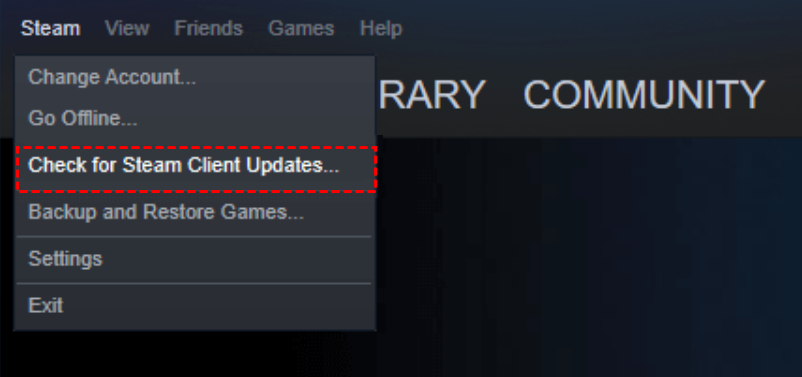
Step 1. Launch the Steam client and click Steam in the menu bar, and click Check for Steam Client Updates in the drop-down menu.
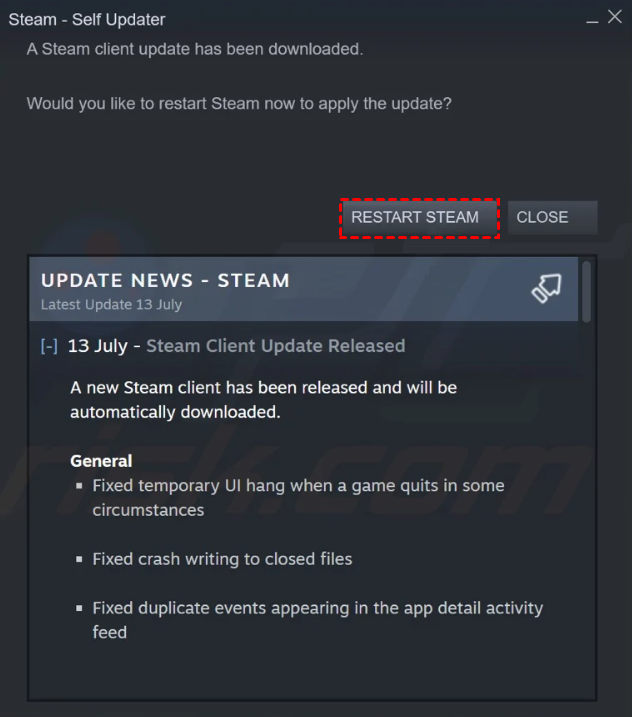
Step 2. If an update is available, Steam will download and install it automatically. Click Restart Steam when prompted.
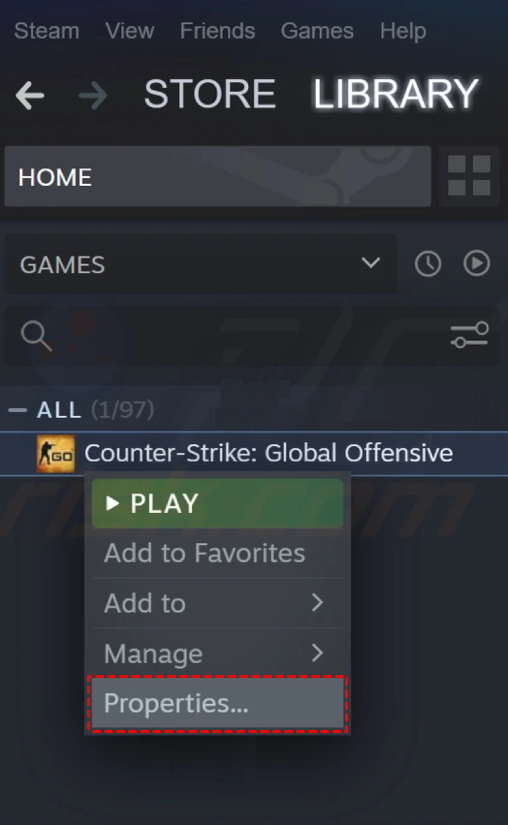
Step 3. To update a game, right-click it and click Properties.
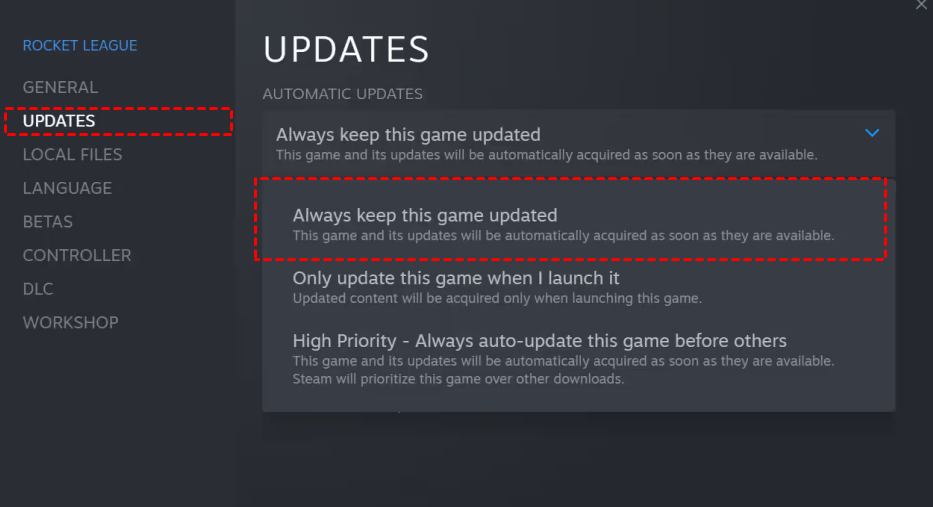
Step 4. Select Updates on the left pane, and click Always keep this game updated under AUTOMATIC UPDATES.
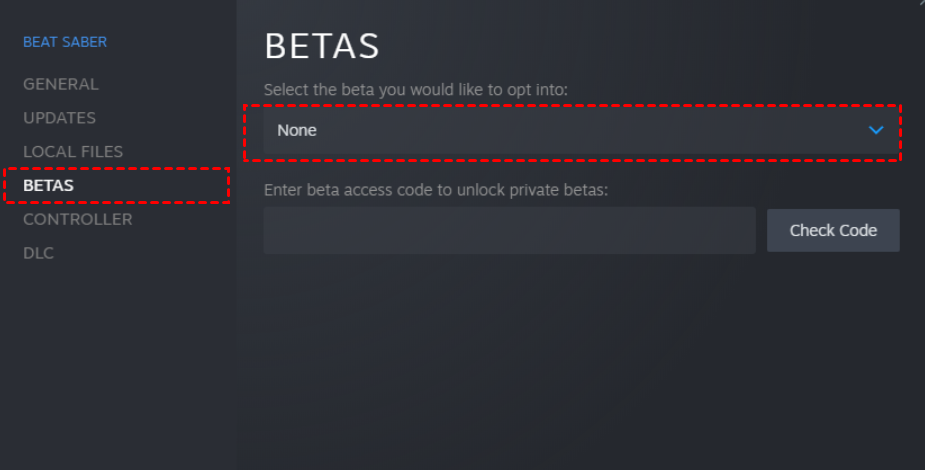
Step 5. Click Betas from the left pane and select None.
Solution 2. Stop using Steam beta client
You may encounter the Remote Play error if you are a participant in the beta program of the Steam client. Here is how to stop using Beta client.
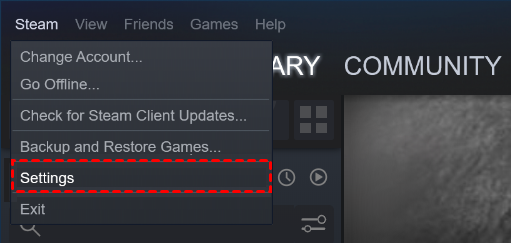
Step 1. On Steam main interface, click Steam > Settings.
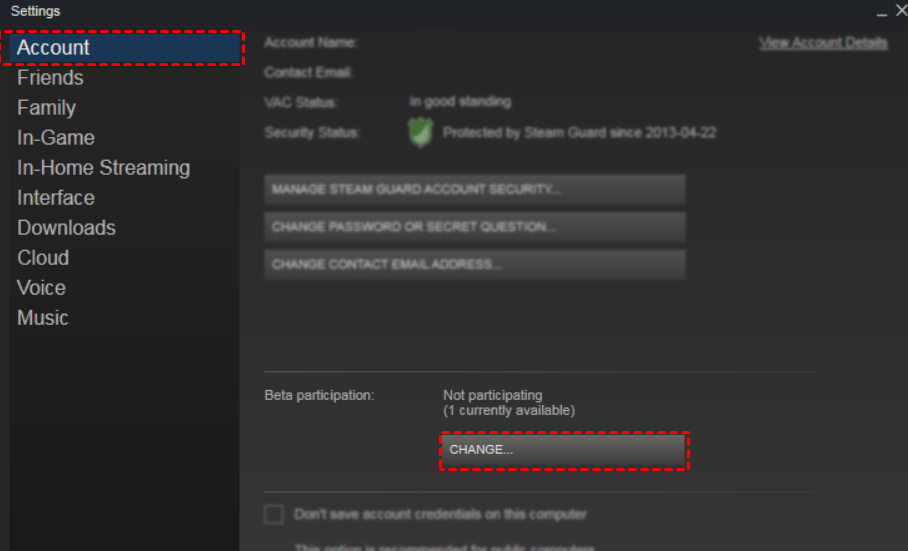
Step 2. Click Account, and click CHANGE under Beta participation.
Step 3. Select None - Opt out of all beta programs and press OK.

Step 4. Restart Steam when prompted.
Solution 3. Disable and re-enable Remote Play
The Remote Play failed to connect could be a result of a temporary glitch in Steam modules. The glitch can be cleared by disabling and then enabling the Remote Play in the settings of the Steam client.
Step 1. On the Steam main interface, click Steam > Settings.
Step 2. Click Remote Play from the left pane, and uncheck the Enable Remote Play option.
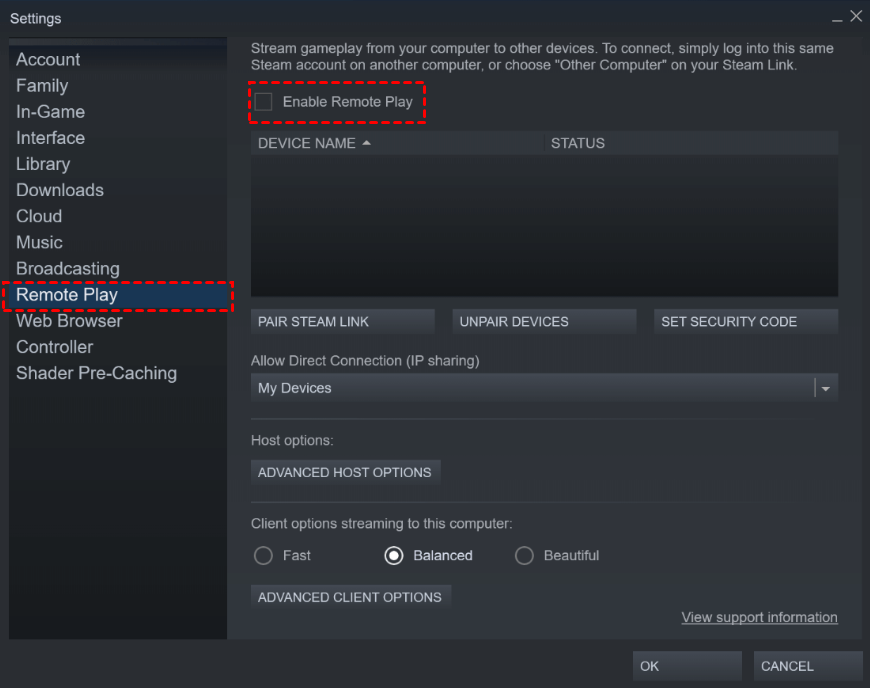
Step 3. Restart your computer, return to Settings to Enable Remote Play.
Solution 4. Disable hardware decoding in Steam
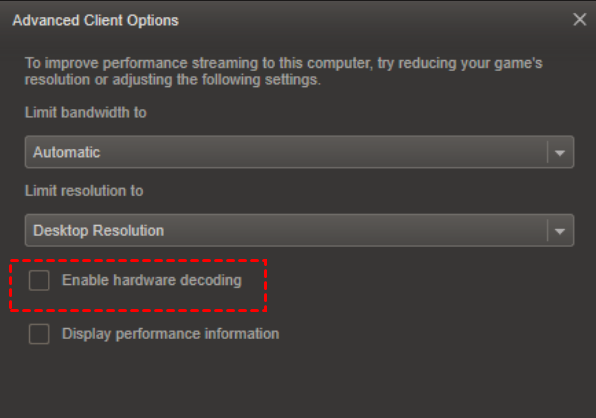
The issue Remote Play couldn’t connect to the remote computer and remote play networking is not currently available for Steam or PlayStation may arise if the hardware encoding mechanism of your host or guest system/GPU is hindering in the operation of Steam Remote Play. Follow the steps to disable hardware decoding in Steam.
Step 1. Go to Steam Settings.
Step 2. Click Remote Play, and click ADVANCED CLIENT OPTIONS.
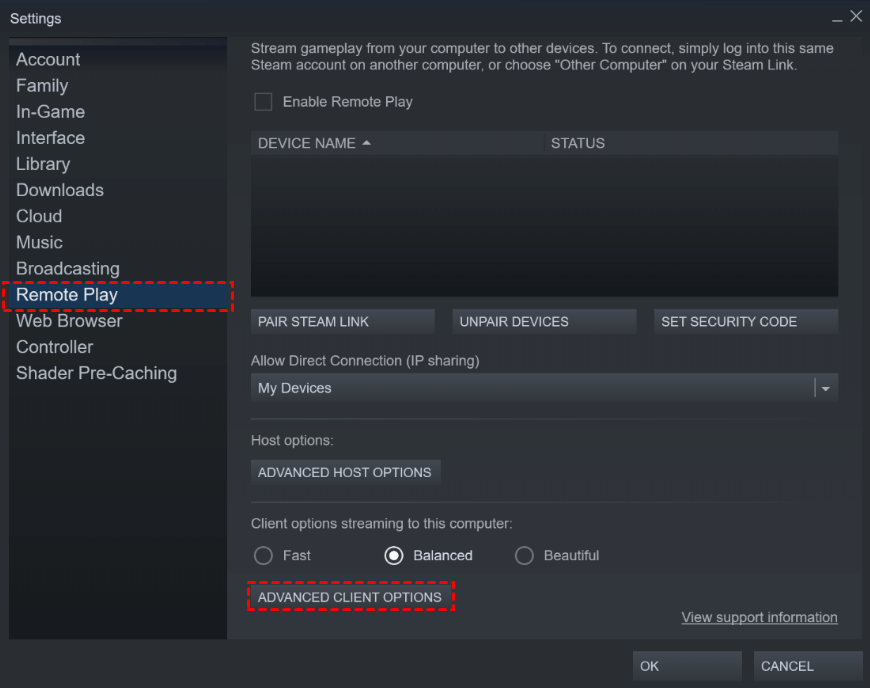
Step 3. Uncheck Enable hardware decoding option and click OK.
Case 2. How to fix Remote Play isn’t available in PlayStation
Streaming from a PlayStation console requires an incredibly stable network environment to function smoothly. If your PS Remote Play app cannot find your console, or if the video feed is constantly lagging and dropping out, the core issue is almost certainly related to your router's traffic management or your internet speeds. PlayStations rely on specific digital ports to send video data to your phone or computer. If your router blocks these ports, or if your network is simply too congested with other devices downloading large files, the stream will instantly fail and give you a networking error.
Solution 1. Check your network and system updates
Before trying more complex fixes, start by checking the basic requirements for Remote Play. Connection problems often happen when the console cannot reach the internet, the PlayStation Network sign-in fails, or the system software and Remote Play app are outdated. Ensuring everything is connected and updated helps eliminate the most common causes of Remote Play not working.
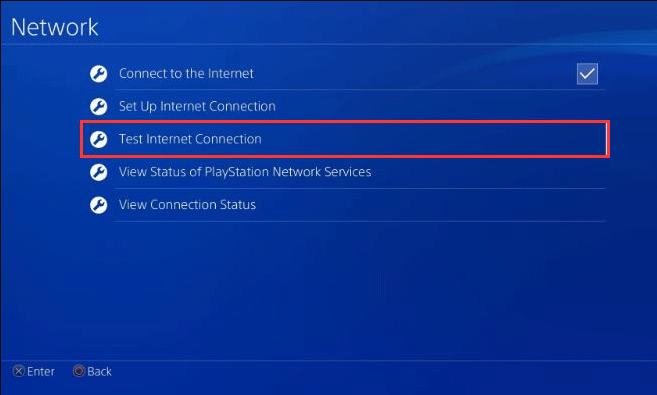
Step 1. On your PS5, open Settings > Network > Connection Status, then check Internet Connection and PlayStation Network. On a PS4, go to Settings > Network and make sure Connect to the Internet is enabled.
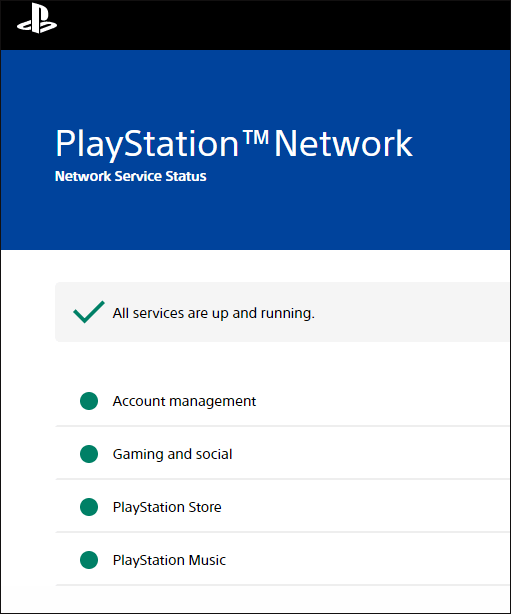
Step 2. Run Test Internet Connection on the console to confirm it can connect to the internet and sign in to PlayStation Network successfully.
Step 3. Update the console system software.
-
On PS5: go to Settings > System > System Software > System Software Update and Settings, then select Update System Software.
-
On PS4: open Settings > System Software Update.
Step 4. Open the PS Remote Play app on your PC, Mac, or mobile device and check for updates. If an update is available, follow the on-screen instructions to install it.
These checks ensure your console, account, and app are ready for Remote Play before moving to deeper troubleshooting.
Solution 2. Manually pair the Remote Play device
Sometimes the Remote Play app cannot automatically find your console on the network. In this situation, manually pairing the devices can solve the issue. This process links the client device directly with the host console using a generated code. It is especially useful when the console and the device are on the same network but the connection still fails.
Step 1. On the PS5, open Settings > System > Remote Play, then choose Pair Device to display a pairing number.
Step 2. On a PS4, open Settings > Remote Play Connection Settings, then select Add Device to generate a pairing code.
Step 3. Launch the PS Remote Play app on your computer or mobile device.
Step 4. Enter the pairing number shown on the console to link the two devices.
Step 5. Wait for the devices to connect and confirm the remote session starts normally.
Manual pairing can help the Remote Play app locate the console and establish a direct connection.
Solution 3. Check router settings and NAT type
Network configuration can also prevent Remote Play from connecting. Some routers or internet providers block the ports required for the service, or your network may use a restrictive NAT type. Adjusting these settings can allow the console to communicate properly with the Remote Play client.
Step 1. Check whether your router or network is blocking UDP port 8572, which Remote Play uses to connect.
Step 2. If the port is blocked, log in to your router settings and enable port forwarding for UDP port 8572 to your console.
Step 3. Restart the router and console after saving the configuration changes.
Step 4. Open the PS Remote Play app and check the NAT Type in the settings or information section.
Step 5. If your network shows NAT Type 3, consider adjusting router settings or contacting your internet provider to improve the NAT configuration.
Correct router and NAT settings can significantly improve the ability of Remote Play to connect successfully.
Solution 4. Improve connection stability and bandwidth
Even when Remote Play connects successfully, unstable internet speeds can cause lag, flickering video, or frequent disconnections. Optimizing your network environment helps provide a smoother streaming experience between the console and the client device.
Step 1. Use a wired Ethernet connection for the console and the computer whenever possible instead of Wi-Fi.
Step 2. Test the internet speed on your console through Settings > Network > Test Internet Connection.
Step 3. Make sure your network provides at least 5 Mbps upload and download speed for Remote Play.
Step 4. Pause large downloads or streaming activities on other devices using the same network.
Step 5. In the Remote Play app settings, lower the video resolution or frame rate to reduce bandwidth usage.
These adjustments help maintain a stable connection and reduce lag during Remote Play sessions.
Solution 5. Avoid mobile network limitations
When using Remote Play with mobile data, the connection can be affected by signal strength, carrier restrictions, or network congestion. Understanding these limitations and adjusting how you connect can help reduce interruptions and improve performance.
Step 1. Use Remote Play in a location with strong and stable mobile signal coverage.
Step 2. Avoid switching between Wi-Fi and mobile data while Remote Play is running.
Step 3. Stop moving the device frequently because changing locations can interrupt the connection.
Step 4. Check your mobile carrier plan to confirm it supports high-speed data without strict limits.
Step 5. If you receive error codes related to connection speed or congestion, wait a few minutes and try connecting again.
By ensuring a stable mobile connection and sufficient data speed, you can reduce interruptions when playing remotely.
👍The quickest fix: Use AnyViewer to play games remotely to avoid issues
Dealing with persistent network errors like "local network access denied" can completely ruin your gaming time. If standard console streaming apps are giving you a headache, the quickest fix is to bypass them entirely using a third-party remote desktop tool called AnyViewer. It grants you complete remote control over your main PC. This allows you to easily stream PC games, cloud gaming services, or emulators directly to your mobile device or laptop without dealing with restrictive network settings.
- ★Here is why using AnyViewer is a great alternative to standard game streaming apps:
- Zero Network Configuration: You do not need to mess with complicated router settings, IP addresses, or port forwarding. You simply install the app, log in, and start playing.
- Cross-Platform Freedom: You can effortlessly control your Windows PC from an iPhone, iPad, Android device, or MacBook from anywhere.
- Smooth Gaming Performance: Unlike standard office tools like Microsoft Remote Desktop or other third-party tools, AnyViewer offers low latency and high frame rates with 4:4:4 true color mode to guarantee perfect visual clarity, making your remote games feel responsive and fast.
- Unattended Access: You can securely connect to your home computer at any time, even if no one is sitting in front of it to accept the connection.
- Powerful Features: Itincludes advanced options like secure end-to-end encryption, file transfers, and in-session chat, which competitors often charge for.
To get started, all you need to do is download and install the free AnyViewer application on your host Windows computer. Once you create an account and log in, download the mobile app on your phone or tablet, log into that exact same account, and link the devices with a single tap. It is a highly stable, as a plug-and-play alternative that avoids the strict hardware requirements of tools or the heavy internet demands. By using this straightforward method, you can finally stop troubleshooting your router and get back to enjoying your games.
Step 1. Install and log in AnyViewer on your local and remote devices.

Step 2. Navigate to the "Device" section, spot your desired remote device, and establish an instant connection with a simple click, selecting "One-click control."

Step 3. You're now ready to enjoy playing PC games on the remote computer, all controlled seamlessly from your local device. You can enable Game Mouse from the toolbar.
What is remote play networking for Steam and PlayStation?
Remote Play is an amazing feature that allows you to run a video game on your main, powerful computer or console, but actually control and view the game from a completely different device, like a phone, tablet, or laptop. Both Steam and PlayStation offer this functionality, making it possible to enjoy your favorite titles anywhere in your house or even over the internet.
-
Steam Remote Play: This lets you stream PC games to other devices. You can also use it to invite your friends to join local multiplayer games online, without them needing to own or install the game.
-
PlayStation Remote Play: This connects your PS4 or PS5 console to your PC, Mac, or mobile device, allowing you to view your console's screen and play games from a distance.
Knowing exactly what this technology does makes it much easier to pinpoint exactly where the breakdown is happening. While the concept of streaming a game over your network sounds relatively simple, there are actually many moving parts behind the scenes that must communicate perfectly. When just one of these parts fails, the entire stream collapses. Let us explore exactly what causes these specific connection breakdowns to happen in the first place so you can get back to gaming.
Why is play networking not currently available?
Whenever you encounter a network failure with game streaming, it generally comes down to a communication block between your host device and your screen. It is easy to assume your internet is just broken, but the reality is often much more specific. The primary culprits usually involve outdated system software, aggressive security programs that mistake your game stream for a threat, or unstable network speeds that simply cannot handle the heavy data load of live video and controller inputs. Understanding these root causes is the first step in troubleshooting, as it stops you from guessing and helps you apply the correct technical solution immediately.
-
Outdated Software: Using an old version of the streaming app, console firmware, or Windows operating system.
-
Security Interference: Your computer's antivirus software or network firewall is actively blocking the connection ports.
-
Poor Connection: Your Wi-Fi is unstable, or your internet plan lacks the required upload and download speeds.
You can fix the issues by following our several solutions.
Conclusion
Steam Remote Play and PlayStation Remote Play make it easy to enjoy games on different devices, but connection problems can sometimes interrupt the experience. In most cases, these issues are caused by outdated software, incorrect settings, unstable networks, or router restrictions. By updating the system, adjusting Remote Play settings, checking network conditions, and improving connection stability, you can solve most Remote Play errors quickly.
If the standard solutions still do not work, using a reliable remote desktop tool such as AnyViewer can be a simple alternative. It allows you to access and play games on your main computer without complicated network configuration. You can even play Steam games on iPad without PC. With the right setup and a stable connection, you can enjoy smooth remote gaming anytime and avoid common networking issues.
FAQs
🗨️ How to fix Remote Play not connecting?
First check that your internet connection is stable and both devices are on the same network if possible. Update the Steam client, PlayStation system software, and the Remote Play app. You can also restart the devices, disable and re enable Remote Play, and make sure your firewall or router is not blocking the required ports.
🗨️ Why is it not letting me enable Remote Play?
This usually happens when the console or PC is not connected to the internet, the system software is outdated, or the account is not signed in correctly. Network restrictions, strict NAT settings, or security software can also block Remote Play from starting.
🗨️ How to play games using Remote Play?
Install the Remote Play app on your computer or mobile device and sign in with the same account used on your console or Steam client. Turn on Remote Play in the settings, connect to your device, and start streaming the game from your main system.
🗨️ How to tell if a game supports Remote Play?
On Steam, open the game page in your library and check the feature list for Remote Play options such as Remote Play Together or Remote Play on supported devices. If the feature is listed, the game can be streamed through Remote Play.



 as a preferred
source on Google
as a preferred
source on Google