

Remote Desktop Screen Capture Software [Complete Guide]
This guide covers the top remote desktop screen capture software, including free and Windows options. Learn how tools like AnyViewer, TeamViewer, and OBS Studio make remote work, training, and screen recording easier and more efficient.

By Ellie / Updated on November 26, 2025


Which Is the Best Remote Desktop Screen Capture Software?
Remote desktop screen capture software allows you to access another computer from anywhere, while also recording and saving everything displayed on that screen. It’s like having a virtual seat in front of the device, giving you full control and the ability to document every action. This functionality is invaluable for remote IT support, business oversight, online teaching, and more.
With the rise of remote work, the demand for reliable screen capture tools has skyrocketed. From training and onboarding to customer support, having a dependable solution that delivers clarity and performance is crucial.
Here, we explore six of the best remote desktop screen capture software options that enhance communication, streamline collaboration, and simplify documentation in today’s digital environment.
Key Features to Look for in Remote Desktop Capture Tools
Choosing remote desktop screen capture software can feel overwhelming, but focusing on the essential features makes the decision easier. The best tools go beyond basic recording; they offer clarity, security, automation, and ease of use.
- High-quality screen recording: Choose a tool that supports HD or 4K recording with stable frame rates (30fps+). Clear, smooth video is important for training, troubleshooting, and documentation.
- Secure connection and encrypted transfer: Strong encryption (like AES-256 or TLS 1.3) is crucial to protect sensitive screen data. Extra features such as MFA, IP whitelisting, and role-based access add stronger security.
- Multi-monitor and audio support: If you work with multiple screens, ensure the software can detect and record all displays. Audio capture is also useful for meetings, calls, and system sound.
- Automated recording: Look for tools that offer scheduled or automatic recording when a session starts. Combined with cloud storage, this ensures easy backups and effortless access.
Benefits of Using Remote Desktop Screen Capture Software
Remote desktop screen capture software offers far more than simple recording. In a remote-focused world, it has become an essential tool for businesses, IT teams, educators, creators, and everyday users. Its true value lies in boosting productivity, improving collaboration, and reducing technical hurdles.
- Improved efficiency: Screen capture eliminates confusion during support or teamwork by showing exactly what’s happening on another device. This can dramatically reduce troubleshooting time and help IT teams diagnose issues with accurate visual evidence.
- Better documentation and accountability: Recordings of training, support sessions, audits, or workflows provide clear documentation. These videos act as proof, reference materials, and compliance records, especially useful in regulated industries like finance or healthcare.
- Enhanced collaboration and learning: Teachers, mentors, and creators can record tutorials, classes, or demos. Visual guides make instructions easier to understand and can be replayed, shared, or annotated for deeper learning.
- Quality control and performance monitoring: Supervisors can review workflows to assess productivity, identify inefficiencies, and ensure sensitive tasks are handled properly. This leads to more consistent and improved performance across teams.
- Cost savings: By reducing support time, preventing mistakes, and improving training and onboarding, screen capture tools help organizations cut operational costs. They provide quick returns and long-term value.
Best Remote Desktop Screen Capture Software
Choosing the best remote desktop screen capture software can be confusing. The best tools focus on speed, reliability, and ease of use. Top options offer clear HD recording, multi-device support, live monitoring, automation, and strong security. Here’s a look at the leading software to help you decide.
1. AnyViewer (Top Overall Pick)

AnyViewer stands out as one of the most balanced and innovative remote desktop screen capture software free. Known for its fast connection speeds, clear screen capture, and strong security measures, it offers a complete package for IT management, remote training, collaboration, and troubleshooting.
AnyViewer leads the pack thanks to its perfect balance of speed, security, and usability. Its advantages include:
- High-speed, lag-free connections: AnyViewer delivers ultra-smooth remote sessions, even on low-bandwidth networks.
- Crystal-clear screen capture: Supports Ultra-HD recording, making it ideal for IT support, training, tutorials, and documentation.
- Advanced automation: Automatically record remote control sessions as soon as they begin, saving time and effort by eliminating the need to start recordings manually.
- Multi-monitor support: View multiple monitors at the same time or in separate windows, making it easier to manage complex setups.
- Multi-device and cross-platform support: Control multiple monitors, PCs, or mobile devices seamlessly.
- Enterprise-level security: Includes ECC-256 end-to-end encryption, role-based permissions, and two-factor authentication to protect sensitive data.
- User-friendly interface: Easy for beginners but powerful enough for IT teams and businesses.
In short, AnyViewer combines speed, clarity, automation, and top-notch security, making it the most versatile and reliable remote desktop screen capture software..
2. TeamViewer Remote Management
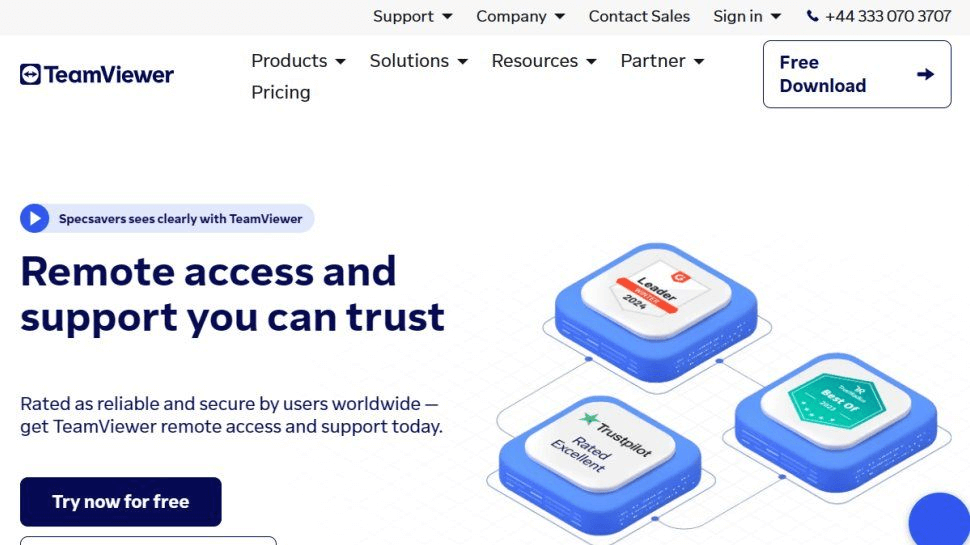
TeamViewer continues to be one of the best remote desktop screen capture software on Windows, thanks to its flawless remote connectivity, smooth streaming quality, and robust security framework., TeamViewer has enhanced its screen capture toolkit with:
- AI-based session tagging for quick searches,
- Automatic cloud backup of recordings,
- Advanced audit logs, and
- Detailed session reports designed for IT compliance.
Its strongest advantage is reliability, even on weak or unstable networks. Whether you're managing global IT infrastructure or collaborating with distributed teams, TeamViewer delivers consistent, professional-grade performance.
3. AnyDesk Professional
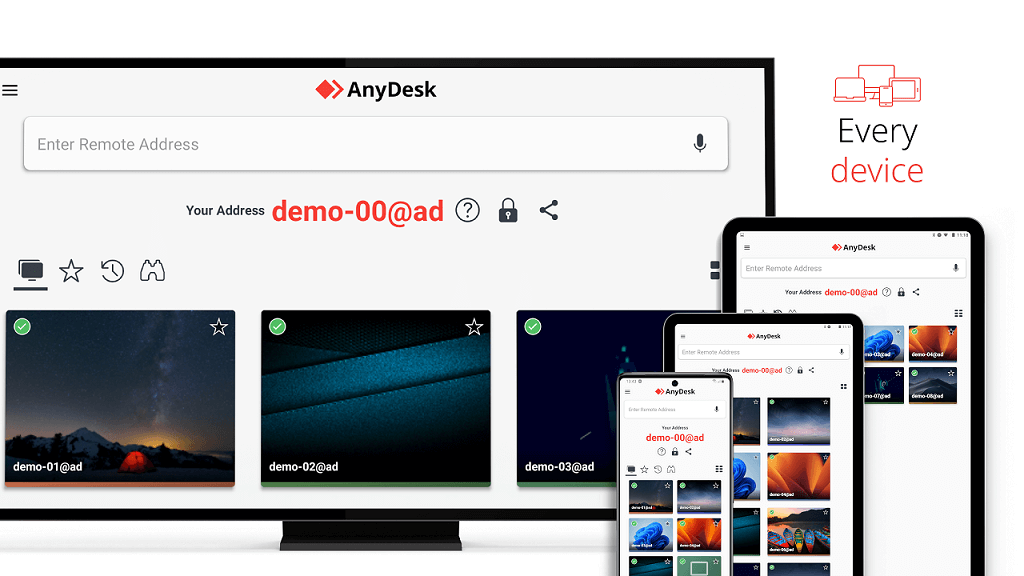
AnyDesk has earned its reputation for pure speed. Powered by its proprietary DeskRT codec, it delivers ultra-low latency and crisp video quality, making screen capture incredibly smooth and responsive.
In 2025, AnyDesk improves its capture engine to maintain clarity even in low-bandwidth environments, making it ideal for organizations with remote workers in different regions. Its simplicity and efficiency make it a favorite for IT support teams, freelancers, and small to medium-sized businesses that need fast, reliable remote access with sharp screen recording.
4. Chrome Remote Desktop + Recorder Add-ons

Chrome Remote Desktop remains one of the most popular free tools, and while it doesn’t offer built-in recording, combining it with trusted screen capture extensions turns it into a surprisingly capable solution.
This setup is quick to install, lightweight, and ideal for:
- Casual users
- Teachers
- Students
- Freelancers
- Anyone who wants remote access plus basic recording without complicated software
However, because it lacks advanced features like multi-monitor control, encryption settings, or enterprise auditing, it’s not suitable for businesses with strict compliance requirements.
5. Splashtop Enterprise
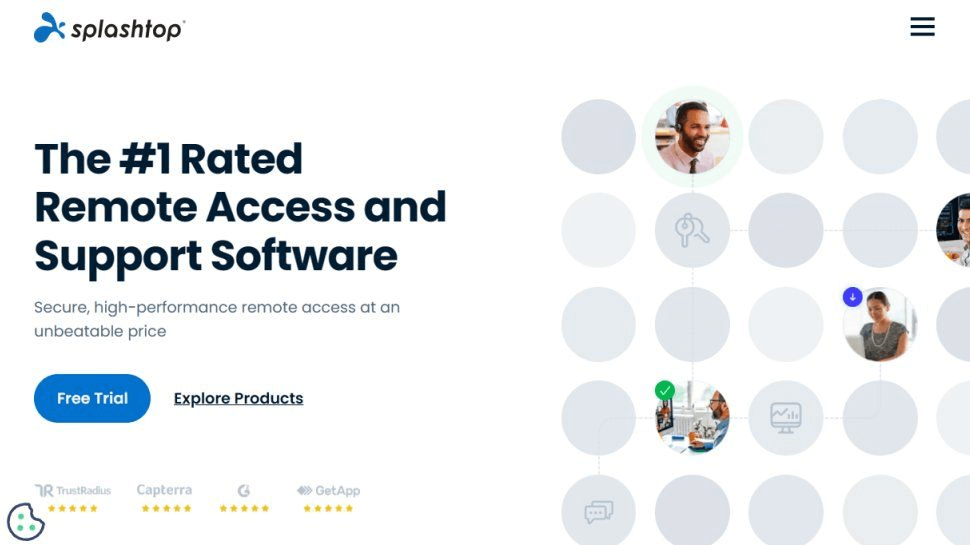
Splashtop is widely used in large organizations due to its impressive blend of speed, security, and centralized management. Its built-in screen capture and recording tools are perfect for:
- Compliance audits
- Quality assurance
- Technical support
- Performance reviews
- Documentation and training
With strong encryption, role-based permissions, and scalable deployment options, Splashtop is a top-tier choice for enterprise environments where reliability and security are non-negotiable.
6. OBS Studio with Remote Capture Plugins
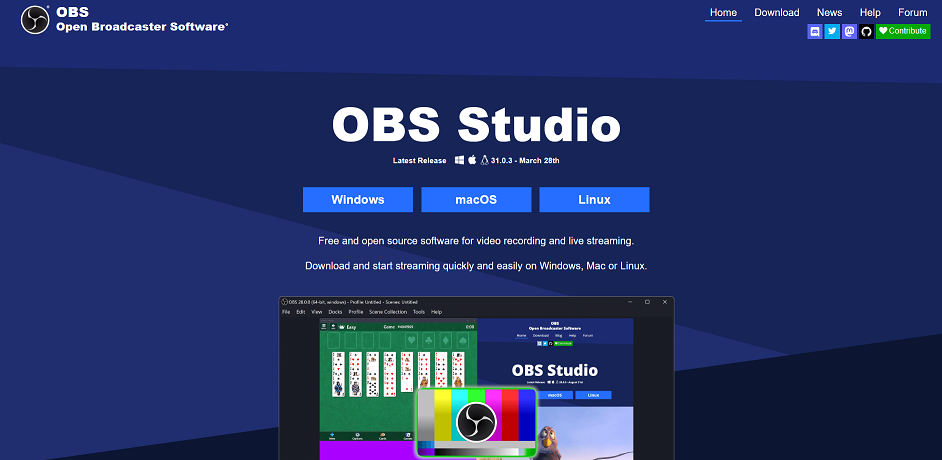
OBS Studio, traditionally known for professional live streaming, expands its capabilities thanks to new remote capture plugins. These plugins allow users to securely record remote desktops with full customization over bitrate, resolution, layout, and audio routing.
This makes OBS the ideal option for:
- Gamers
- YouTubers
- Trainers
- Digital artists
- Anyone needing ultimate control over recording settings
While OBS offers unmatched flexibility, it requires more setup and technical knowledge compared to traditional remote desktop tools.
Top Use Cases of Remote Desktop Screen Capture Tools
Remote desktop screen capture tools are used in many fields because they make digital work easier to see, understand, and review. Here are the main ways people use them today:
- IT Support and Troubleshooting: Screen capture helps IT teams see problems clearly instead of relying on unclear explanations. They can diagnose issues faster and build a library of solved cases for training and reference.
- Employee Monitoring and Compliance: Businesses in finance, healthcare, legal, and other regulated industries use screen capture to ensure tasks follow security rules. It provides proof of what happened on a computer and helps maintain accountability.
- Remote Teaching and Training: Teachers and trainers record lessons, tutorials, and demonstrations so learners can watch at their own pace. Companies also use recordings to train new employees on important systems.
- Quality Assurance and Workflow Improvement: Teams review captured sessions to find errors, test processes, and improve efficiency. This leads to more consistent work and fewer mistakes.
- Remote Collaboration and Creative Work: Designers, editors, and marketers use screen capture to show work visually, making feedback faster and clearer.
- Personal Use: Gamers record gameplay, students save online lessons, and everyday users capture screens to help others solve computer problems.
Remote desktop screen capture has become a valuable tool because it is flexible, easy to use, and helpful in many situations.
Conclusion
In conclusion, remote desktop screen capture software has become an essential tool for businesses, educators, IT teams, and everyday users alike. By combining clarity, security, and ease of use, these tools streamline collaboration, improve documentation, and boost productivity across a wide range of scenarios. From high-speed solutions like AnyViewer to versatile options like OBS Studio, there’s a tool to fit every need and skill level. Choosing the right software ensures smoother remote work, better training, and more efficient remote computer troubleshooting, making screen capture an invaluable part of the modern digital workflow.



 as a preferred
source on Google
as a preferred
source on Google