

Remote Desktop Drag and Drop File Transfer: A Practical Guide
Drag-and-drop can make remote file movement feel as natural as working at one desk, but support varies by app, platform, session type, and security policy. This guide explains what the gesture actually does, shows a safe workflow, compares practical transfer methods, and provides a troubleshooting checklist for remote workers, IT technicians, and anyone retrieving files from an authorized computer.

By Ellie / Updated on September 2, 2026


How Remote Desktop Drag and Drop File Transfer Works
Remote desktop drag and drop file transfer lets you pick up a file in one computer's file system and drop it into a destination connected through a remote session. When the software supports the gesture, it packages the file, sends it through the session's transfer channel, and writes a copy to the destination. It is usually a copy operation, not a literal move across screens, so confirm the new file before deleting the original.
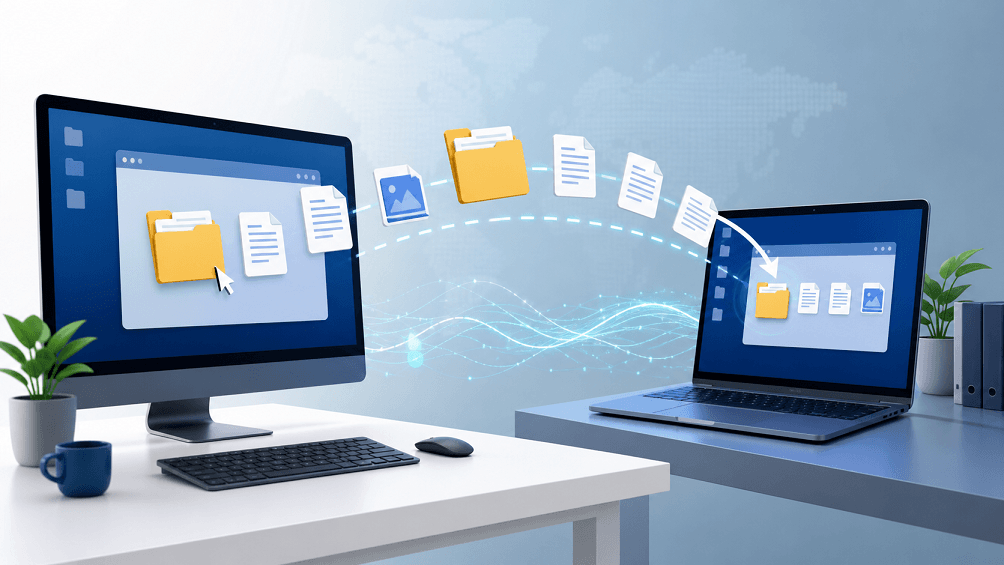
The catch is that "remote desktop" describes many different technologies. Microsoft's classic RDP client commonly relies on redirected drives or clipboard redirection rather than true window-to-window drag-and-drop. Third-party remote access tools may add a dedicated drag-and-drop channel. AnyViewer, for example, supports drag-and-drop during Windows-to-Windows remote control sessions and also offers a dual-pane file manager when a more controlled workflow is preferable.
What the Drop Location Changes
Where you release the mouse matters. Some tools send every dropped item to a fixed folder, such as the remote desktop or Downloads folder, even when the pointer appears to be over another window. Others honor the exact folder shown in File Explorer. A dedicated file manager usually makes this behavior more explicit because the destination path remains visible throughout the transfer.
Permissions follow the destination computer's rules. An administrator account does not guarantee that the transfer process can write to every system folder, external disk, or network location. Modern operating systems may restrict background remote-control processes separately from the signed-in user. If a drop fails silently, test a normal user folder before changing security settings. Broadly weakening permissions to make one transfer work can create a larger problem than the failed copy.
Direction also matters. A product may allow uploads to the remote computer but not downloads to the local device, particularly in browser sessions or managed environments. IT teams sometimes configure one-way transfer to reduce data leakage. Check the session policy before troubleshooting the endpoint; a blocked direction may be intentional rather than broken.
Choose the Right File Transfer Method
A quick gesture is convenient for a few visible files. It is not always the safest or clearest choice for a large folder, an unattended machine, or a tightly managed business endpoint. Match the method to the job instead of assuming every remote session behaves like a local desktop.
|
Method |
Best for |
Main advantage |
Watch for |
|
Drag and drop |
A few files during an active session |
Fast, familiar gesture |
Platform and direction support |
|
Dual-pane file manager |
Folders, batches, or exact destinations |
Both file systems stay visible |
Available storage and permissions |
|
Clipboard copy and paste |
Small, occasional transfers |
No separate panel |
Clipboard policy and reliability |
|
Redirected drive |
Ongoing work in Microsoft RDP |
Remote apps can browse local storage |
Must be enabled before connecting |
|
Cloud or network share |
Team handoff and versioned files |
Independent of the live session |
Upload time, access rules, data policy |
How to Drag and Drop Files Between Remote Computers
The labels differ by product, but the following workflow covers the decisions that prevent most failed transfers.
- Confirm support before connecting. Check whether the app supports drag-and-drop for both operating systems, both transfer directions, and the session type you plan to use.
- Connect only to an approved device. Sign in through the remote access tool, select the correct endpoint, and start an attended or unattended session according to your organization's policy.
- Open a simple destination first. Use a folder where the remote account has write permission, such as an approved work folder. Avoid system directories and external volumes until a basic test succeeds.
- Test with one small, non-sensitive file. Drag it across the local/remote boundary and wait for the transfer indicator or completion message. Do not repeatedly drop the same item if the session appears slow.
- Verify the result. Compare the file name and size, then open it on the destination when appropriate. For critical packages, use the checksum or validation process required by your team.
- Move the remaining batch. Keep the session connected and the destination device awake. For many files, switch to a file manager or compress the folder first if your policy permits it.
Only access devices, accounts, and files that you own or are explicitly authorized to use.
Why Use AnyViewer for Remote Drag-and-Drop Transfers?
When you regularly move files while supporting a Windows PC or working between two Windows computers, a tool with a purpose-built transfer path is easier to understand than relying on ambiguous clipboard behavior. AnyViewer is a practical option for this Windows-to-Windows scenario, especially when you also need remote control and unattended remote access across different networks without manually configuring port forwarding in typical environments.
Its Remote File Transfer workflow provides three useful paths: drag files during a supported Windows remote control session, open file transfer from within the session, or use a dual-pane file manager. The last option is valuable when you need to see the local and remote folders side by side or transfer files without treating the desktop view as the destination.
- Use drag-and-drop for quick, visible Windows-to-Windows handoffs.
- Use the file manager when destination paths and folder structure matter.
- Transfer authorized files as part of remote work, IT support, or unattended access workflows.
- Keep a separate transfer method available when a platform, plan, policy, or destination permission does not support the gesture.
If this matches your workflow, review the official AnyViewer Remote File Transfer page and verify current platform and plan requirements before deployment.
AnyViewer is not the right answer for every environment. Use an organization-approved managed transfer channel when audit logging, data-loss prevention, retention, malware scanning, or regulated-data controls take priority. Drag-and-drop also should not replace a resilient sync or backup method for large, long-running datasets.
Troubleshoot Remote Desktop Drag and Drop File Transfer
A failed drop often looks like a network problem, but the real cause may be a disabled redirection rule, an unsupported client, or a destination that the remote account cannot write to. Work through this checklist in order.
- Confirm that the product supports file drag-and-drop, not just text clipboard sharing.
- Check the operating systems and direction: local to remote, remote to local, or both.
- Reconnect after changing clipboard, drive-redirection, or file-transfer settings.
- Try the remote desktop or Documents folder before a system folder, network share, or external drive.
- Check free storage space, file locks, antivirus prompts, and endpoint security policy.
- Test a short file name and a small file to rule out path-length, character, or size issues.
- Keep both devices awake and avoid switching networks while the transfer is active.
- If the gesture still fails, use the tool's file manager, a redirected drive, or an approved cloud/network share.
For Microsoft RDP, open the connection settings before the session and check Local Resources for clipboard and drive redirection. A redirected local drive normally appears inside the remote computer's File Explorer; moving a file between that drive and a remote folder is different from dragging a file directly across the session window.
Practical Security and Reliability Tips
Treat remote file transfer as a data-handling action, not merely a convenience feature. A successful connection does not automatically authorize every file or destination. Follow company policy, obtain the device owner's consent for attended support, and avoid transferring credentials or sensitive records through an unapproved channel.
- Create a clearly named destination folder so the recipient can find and review the files.
- Do not overwrite an existing file until you have confirmed the version and backup state.
- For large archives, estimate available storage on both endpoints and keep the original until verification finishes.
- Close the remote session when the task is complete and remove temporary files according to policy.
To move files between authorized Windows computers with a dedicated transfer workflow, open AnyViewer's file transfer solution, confirm current requirements, and start with a small test file before sending a larger batch.



 as a preferred
source on Google
as a preferred
source on Google