

iPhone Remote App Not Working? 14 Proven Fixes for 2026
This guide provides 14 expert-verified fixes for the iPhone remote app "Searching" or connectivity errors, covering network optimization, device resets, and high-stability third-party remote tools for a seamless control experience.

By Ellie / Updated on April 27, 2026


In the modern smart home ecosystem, few things are as frustrating as sitting down for a movie night only to find your iPhone remote app not working. Whether you are trying to navigate your Apple TV using the Control Center widget or the legacy standalone app, connectivity issues can stem from a variety of sources, ranging from simple Wi-Fi mismatches to complex software bugs in iOS or tvOS.
If your iPhone is stuck on "Searching," your iPhone remote app not connecting to your Apple TV, or it frequently disconnects, this comprehensive guide will walk you through 14 expert-verified solutions to get your digital remote back in action.
Understanding the Core Requirements
Before diving into deep troubleshooting, it is essential to understand how the iPhone communicates with your Apple TV. Unlike the physical Siri Remote which uses Bluetooth and IR, the iPhone remote feature primarily relies on Wi-Fi and the Bonjour (mDNS) protocol.
Fix Quick Checklist:
- Power: Is your Apple TV actually turned on? (The iPhone cannot wake a completely unplugged device).
- Proximity: While Wi-Fi works through walls, being in the same room helps during the initial pairing phase.
- Software: Ensure you are using the Control Center version of the remote on modern iOS (iOS 11 and later), as the old standalone "Remote" app is largely deprecated.
Step-by-Step Troubleshooting for "iPhone Remote App Not Working"
Follow these 14 verified steps, ranging from quick system toggles to advanced solutions, to restore your connection and regain full control.
Fix 1. Verify Wi-Fi Network Consistency
The most common reason for the "Searching" loop is that your iPhone and Apple TV are on different networks.
The Trap:
Many routers create two bands (2.4GHz and 5GHz). While they may have the same name, some older routers isolate these bands.
The Fix:
Step 1. On your iPhone, go to Settings > Wi-Fi.
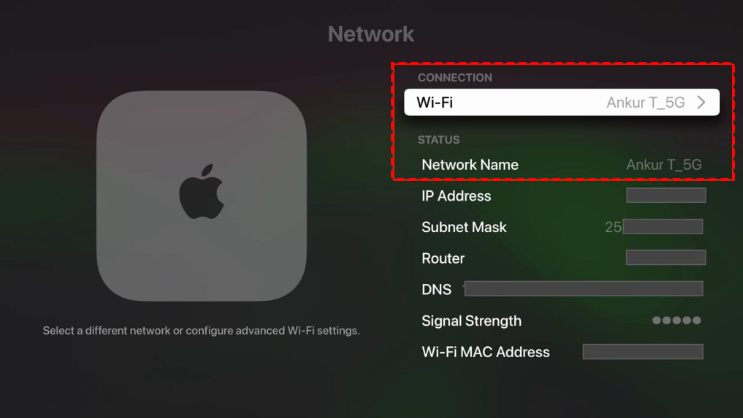
Step 2. On your Apple TV, go to Settings > Network. Ensure the SSID (network name) matches exactly.
Fix 2. Toggle Airplane Mode
Sometimes the iPhone’s network stack becomes unresponsive, leading to the iOS remote app not connecting.
Step 1. Swipe down to open the Control Center.
Step 2. Tap the Airplane Mode icon, wait 10 seconds, and turn it off.
Step 3. This forces the iPhone to re-scan the local network for available AirPlay and Remote targets.
Fix 3. Force Close and Restart the Remote App
If the remote interface is frozen or black, force-closing the process can clear temporary cache errors.
Step 1. On iPhone: Swipe up from the bottom (or double-click the Home button) to enter the App Switcher. Swipe up on the Remote card to close it.
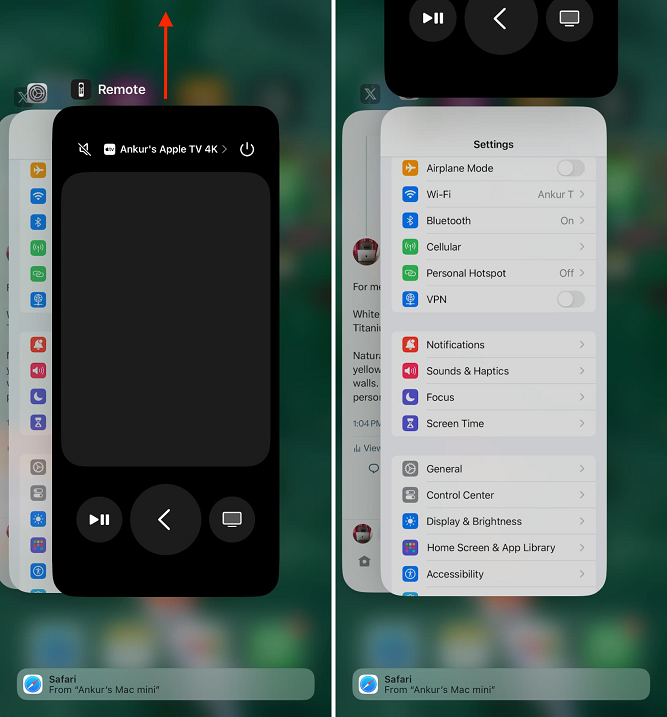
Step 2. Re-open it from the Control Center.
Fix 4. Restart Both Devices (The Power Cycle)
It sounds cliché, but a restart solves 80% of handshake issues between iOS and tvOS.
- Restart iPhone: Hold the side button and volume button, then slide to power off.
- Restart Apple TV: Go to Settings > System > Restart. If the remote isn't working at all, unplug the Apple TV from the power outlet for 10 seconds and plug it back in.
Fix 5. Check Apple ID Synchronization
For the most seamless connection, both your iPhone and Apple TV should be signed into the same iCloud account.
- On Apple TV: Settings > Users and Accounts.
- On iPhone: Settings > [Your Name].
While not strictly required for "guest" access, having matching IDs enables HomeKit features that make the remote more stable.
Fix 6. Reset the Apple TV Remote in Control Center
If the widget itself is buggy, you can remove and re-add it.
Step 1. Go to Settings > Control Center.
Step 2. Tap the red minus icon next to Apple TV Remote to remove it.
Step 3. Scroll down to "More Controls" and tap the green plus icon to add it back.
Fix 7. Re-pair the iPhone with Apple TV
If your TV appears but won't connect, you may need to break the existing bond.
Step 1. On Apple TV: Go to Settings > Remotes and Devices > Remote App and Devices.
Step 2. Select your iPhone > choose Forget This Device > choose Remove.
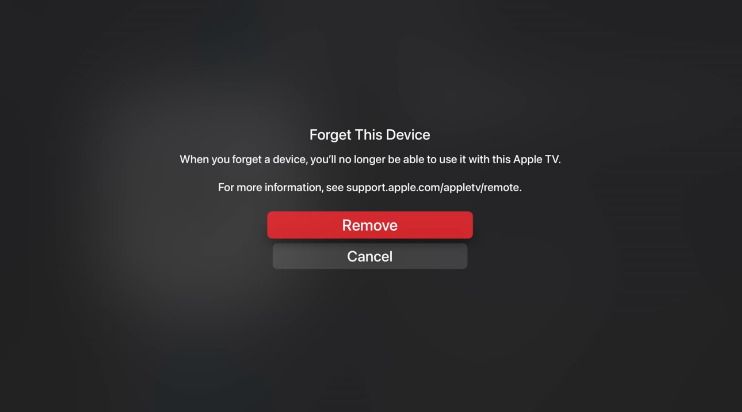
Step 3. Open the Remote on your iPhone. A 4-digit code should appear on your TV. Enter this code into your iPhone to establish a fresh, encrypted connection.
Fix 8. Update iOS and tvOS
Apple frequently releases patches for AirPlay and Remote connectivity.
- On iPhone: Settings > General > Software Update.
- On Apple TV: Settings > System > Software Updates.
Note: Using a "Beta" version of iOS often causes the remote app to fail due to unfinished code.
Fix 9. Disable "Private Wi-Fi Address"
iOS has a security feature that randomizes your MAC address. While great for privacy in public, it can confuse home routers and Apple TVs trying to identify your phone.
Step 1. Go to Settings > Wi-Fi.
Step 2. Tap the "i" icon next to your home network.
Step 3. Toggle off Private Wi-Fi Address. Re-join the network and try the remote again.
Fix 10. Check Router Settings (Advanced)
If you have a high-end router (Ubiquiti, ASUS, etc.), certain settings might block the "Bonjour" protocol that Apple uses.
- IGMP Snooping: Ensure this is enabled.
- Multicast: Ensure your router is not "Enhancing" or blocking Multicast traffic.
- Guest Network: Ensure your devices are NOT on a "Guest" network, as these usually prevent devices from talking to each other.
Fix 11. Use the 2.4GHz Band "Trick"
In some cases, the 5GHz band is too congested or has poor range.
Step 1. Try connecting both devices specifically to the 2.4GHz band.
Step 2. Users on forums have reported that once the initial pairing is successful on 2.4GHz, you can often switch back to 5GHz and it will continue to work.
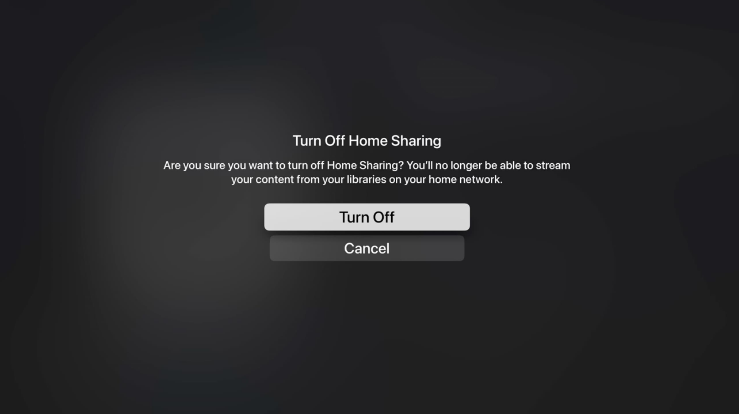
Fix 12. Refresh "Home Sharing"
If you are using an older version of the Remote app or trying to access library content:
Step 1. Go to Settings > Apps > Computers (Home Sharing) on Apple TV.
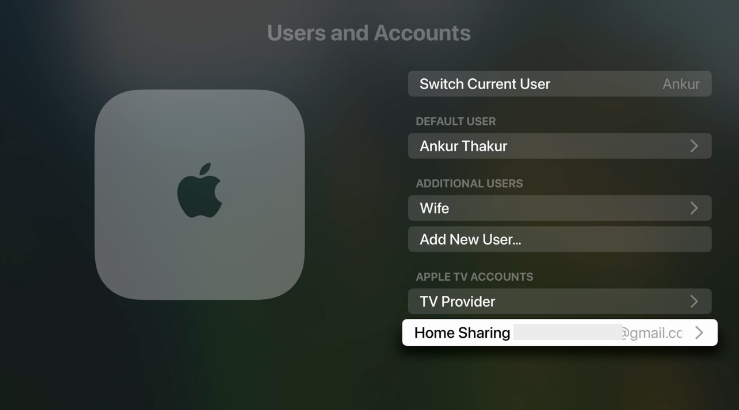
Step 2. Turn it off and then back on. Ensure the Apple ID matches your iPhone.
Fix 13. Reset Network Settings on iPhone
If your iPhone refuses to see any local devices (HomePods, Apple TVs), your network cache might be corrupted.
Step 1. Go to Settings > General > Transfer or Reset iPhone > Reset.
Step 2. Select Reset Network Settings.
Warning: This will delete all saved Wi-Fi passwords, so have them handy.
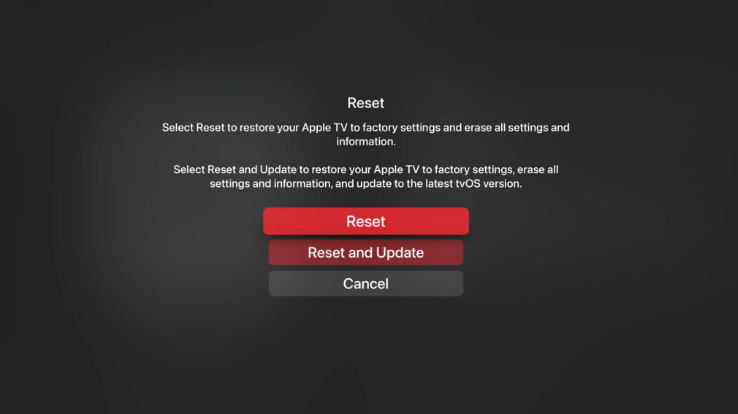
Fix 14. Factory Reset Apple TV (Last Resort)
If all else fails, the issue may lie within the tvOS system files.
Step 1. Go to Settings > System > Reset.
Step 2. Choose Reset and Update. This will return the Apple TV to out-of-the-box settings and install the latest stable OS.
Upgrade Your Experience: Control More Than Just TV with AnyViewer
If the native iOS Remote app remains temperamental, or if your needs extend beyond just controlling an Apple TV (such as controlling a PC or Mac from your iPhone), it’s time to consider a professional remote access solution like AnyViewer.
While the Apple Remote widget is limited to the Apple TV ecosystem, AnyViewer offers a more versatile approach:
- Cross-Platform Control: Effortlessly control your Windows or Game PC from your iPhone.
- High Stability: Unlike the native app, which relies heavily on Bonjour/mDNS, AnyViewer uses a dedicated account-based connection that is often more stable over complex Wi-Fi setups.
- Remote Desktop Features: It allows you to access files, run apps, and even provide remote support to family members, making it a powerful "all-in-one" remote tool for your mobile device.
If you’re tired of "Searching" for devices that won't connect, AnyViewer provides a reliable bridge between your iPhone and your digital world.
Conclusion
Having your iPhone remote app not working can disrupt your entertainment, but in most cases, the fix is a simple settings adjustment. By ensuring both devices are on a synchronized Wi-Fi network, updating your software, and occasionally refreshing your network settings, you can enjoy a seamless Siri Remote experience right from your pocket.
If none of the 14 steps above work, it may be a hardware issue with the Apple TV's Wi-Fi chip, and you should contact Apple Support for further diagnostics.



 as a preferred
source on Google
as a preferred
source on Google