

How to Improve Remote Desktop Performance
Remote Desktop can get slow, especially with HD or 4K video. This guide shows you 5 simple ways to fix lag and improve speed, like changing settings, using Ethernet, and more. Still not smooth? Try AnyViewer, a faster, easier remote desktop tool that works great out of the box.

By Ellie / Updated on July 8, 2025


How to increase performance of remote desktop?
Laggy streams, choppy playback, and buffering issues can make remote desktop sessions unbearable, especially when dealing with high-definition or 4K content. Whether you’re streaming, collaborating virtually, or just trying to work remotely, poor RDP performance can quickly derail productivity. That’s why it’s essential to know how to effectively improve remote desktop performance.
At the heart of the problem are RDP’s natural limitations, things like hardware bottlenecks and unstable network conditions. Even with Microsoft’s ongoing improvements to the protocol, smooth and seamless video playback still takes some fine-tuning. If you're aiming for the remote desktop best performance, you’ll need more than just default settings.
This guide delivers practical, performance-boosting techniques to help you get the most out of your Remote Desktop sessions. From basic tweaks to advanced configurations, you’ll learn how to eliminate lag, enhance clarity, and enjoy a more responsive remote experience, no matter what resolution you're working with.
5 proven ways to improve Remote Desktop performance
To improve RDP performance, you need the right balance of settings, hardware efficiency, and network reliability. Below are five expert-backed methods to elevate your remote video experience.
Method 1. Tweak Remote Desktop settings for optimal performance
One of the easiest ways to enhance your RDP session is to reconfigure your connection settings. Tailoring them to match your system and network capacity can drastically improve responsiveness and video quality.
Steps to follow:
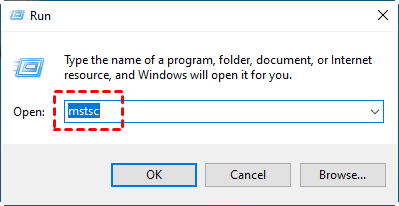
Step 1. Open Remote Desktop Connection: Press Win + R, type mstsc, and hit Enter.
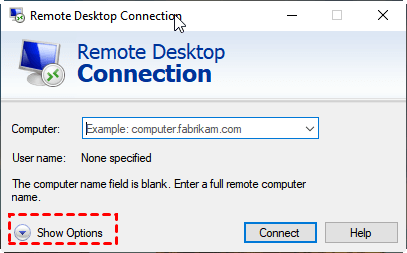
Step 2. Reveal Advanced Settings: Input the remote PC name, then click “Show Options.”
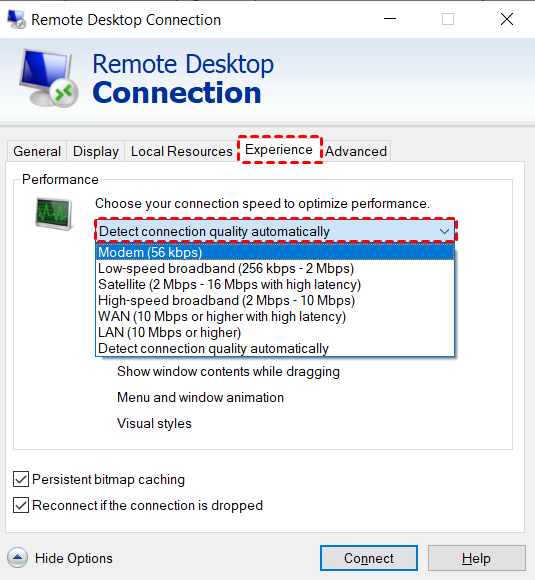
Step 3. Optimize Experience Settings:
- Navigate to the Experience tab.
- Choose a connection speed that best fits your internet bandwidth.
- Uncheck unnecessary features like font smoothing, menu/window animations, and desktop composition to conserve bandwidth.
Step 4. Save Your Profile: Preserve the settings so future connections stay optimized.
Method 2. Customize Group Policy settings for better graphics handling
Adjusting local group policies gives you deeper control over how RDP handles video rendering and compression. With the right configuration, you can reduce latency and improve clarity, even on limited connections.
Here’s how:
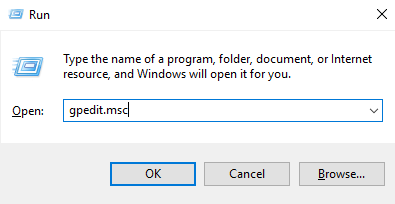
Step1. Launch Group Policy Editor: Press Win + S, type gpedit.msc, and open it.
Step2. Navigate to Remote Desktop Session Policies:
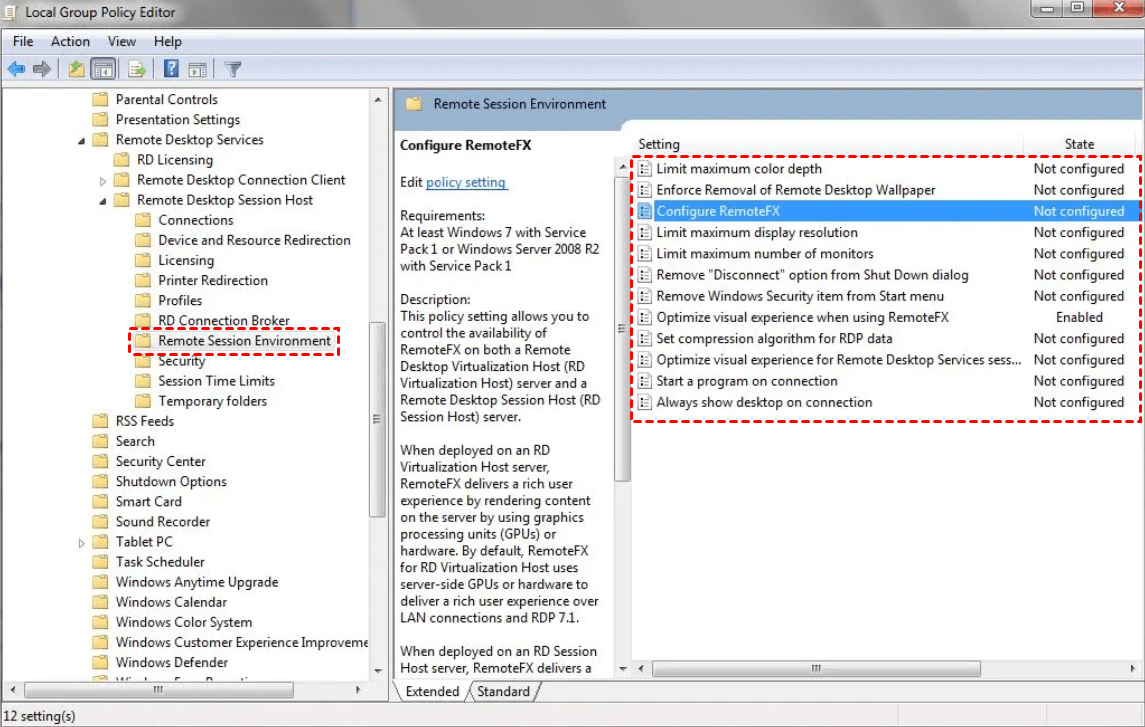
- Computer Configuration > Administrative Templates > Windows Components > Remote Desktop Services > Remote Desktop Session Host > Remote Session Environment
Step3. Adjust These Key Policies:
- Limit Maximum Color Depth: Set to 16-bit for lower bandwidth usage.
- Enable H.264/AVC Mode: Activates more efficient video encoding.
- Enable Hardware Encoding: Leverages the GPU for better processing.
- Fine-Tune RemoteFX Adaptive Graphics: Control how images are compressed for smoother transitions.
Method 3. Use a wired Ethernet connection instead of Wi-Fi
Wireless internet might be convenient, but it’s rarely reliable for heavy video traffic over RDP. A direct Ethernet connection provides the speed and consistency remote video playback demands.
Benefits of Ethernet:
- Higher Throughput: Handles HD and 4K video without hiccups.
- Lower Latency: Reduces stuttering and sync delays.
- Stable Signal: Eliminates interference and connection drops common with Wi-Fi.
Setup Guide:
Step 1. Plug an Ethernet cable from your PC to your router or modem.
Step 2. Turn off Wi-Fi to avoid automatic switching.
Step 3. Confirm active connection via network settings.
Method 4. Optimize host PC performance for RDP
System-level optimizations on the host computer can have a huge impact. Cleaning up background tasks and managing resources is crucial if you want to improve RDP performance across the board.
Optimization tips:
- Close resource-heavy background programs like indexing services.
- Turn off auto-save or sync features from cloud apps.
- Disable unwanted startup items.
- Adjust virtual memory settings (paging file) for better performance.
- Exclude non-critical folders from real-time antivirus scanning.
- Tweak Task Scheduler to avoid background tasks during sessions.
- Silence desktop notifications that interrupt workflows.
- Refine data compression and redirection settings via Group Policy Editor.
Method 5. Adjust system settings for high performance mode
Windows performance settings dictate how your system allocates processing power. For those wanting to improve remote desktop performance, enabling high-performance mode can be a game-changer.
Steps to boost system responsiveness:
Step 1. Search and Launch System Settings: Type "Advanced system settings" into the Start Menu and open it.
Step 2. Change Performance Options:
- Under the Performance section, click “Settings.”
- Either choose “Adjust for best performance” or selectively disable graphical extras.

Step 3. Apply and Restart: Confirm changes, apply, and restart your session for immediate effects.
AnyViewer: Best RDP alternative for better performance
If you’ve tried all the above tweaks and still struggle with choppy playback or lag, it might be time to consider an alternative to Remote Desktop Protocol. AnyViewer is a high-performance remote desktop solution designed to eliminate many of RDP’s built-in limitations, especially when it comes to video streaming and responsiveness.

Whether you're an IT professional, remote worker, or creative professional editing video or rendering graphics from afar, AnyViewer offers a smoother, faster experience out of the box.
Key Features That Outperform Standard RDP:
- Ultra-Low Latency Streaming: Experience seamless Ultra HD with near-zero lag, ensuring smooth visuals even in high-demand scenarios.
- High Frame Rate Compatibility: Enjoy consistently fluid motion, essential for video playback, gaming, and graphics-intensive applications.
- True Color Rendering: Maintain image integrity with vibrant, accurate color reproduction, ideal for tasks where visual detail is non-negotiable, like photo editing or design work.
- Privacy Mode: Protect confidential data by blanking out the host screen during remote sessions, ensuring only the remote viewer sees what’s happening.
- Integrated File Transfer: Effortlessly exchange files between local and remote machines without relying on external applications.
- Multi-Monitor Viewing: Access and control multiple displays on the remote system, streamlining workflows for multitaskers and professionals.
- Unattended Remote Access: Connect to devices anytime without needing manual permission, perfect for after-hours maintenance or supporting clients without disruption.
- Enterprise-Grade Encryption (256-Bit ECC): Safeguard every session with end-to-end encryption that protects sensitive information from unauthorized access.
- Support for Unlimited Concurrent Sessions: Manage numerous active connections simultaneously, ideal for IT teams, support centers, and enterprise environments requiring scalable access.
Why Choose AnyViewer Over Traditional RDP?
Unlike RDP, which can be limited by firewall rules, NAT traversal, and inconsistent compression handling, AnyViewer is built to be plug-and-play. No need for port forwarding or VPNs, just install the app, sign in, and connect instantly. Plus, the intuitive interface and cross-platform compatibility make it ideal for both beginners and power users.
While Remote Desktop Protocol is a staple tool for Windows remote access, its performance can fall short in high-bandwidth or multimedia-heavy scenarios. With the techniques outlined above, you can squeeze more power from your RDP sessions, but if you're looking for an effortless and high-performance alternative, AnyViewer is your best bet.
Conclusion
Improving remote desktop performance doesn’t have to be complicated. With the right combination of system tweaks, network enhancements, and software upgrades, you can transform laggy, frustrating RDP sessions into smooth, high-quality remote experiences, even when streaming HD or 4K content. While the five methods covered in this guide can significantly improve traditional RDP performance, sometimes the best solution is switching to a more capable tool. If you want ultra-responsive, visually accurate, and secure remote access without the hassle, AnyViewer stands out as the top-performing alternative.



 as a preferred
source on Google
as a preferred
source on Google