

How to Transfer a File Between Phone and PC [5 Best Ways]
This guide provides a comprehensive look at how to transfer a file between phone and PC, comparing physical cables, cloud storage, and remote access software to help you move data quickly and securely.

By Ellie / Updated on February 4, 2026


Can I Transfer a File Between Phone and PC?
Knowing how to transfer a file between phone and PC is a daily necessity. Whether you’re moving high-res videos for editing or grabbing a work document on the go, the "best" method depends on your speed and distance.
This guide explores the top 5 ways to move data, from classic USB cables to advanced remote solutions like AnyViewer, for those wondering how to transfer files from pc to mobile wirelessly from anywhere in the world.
How to Transfer a File Between Phone and PC [5 Ways]
Moving your data shouldn't be a struggle. Depending on your speed needs and location, here are the 5 best ways to get the job done efficiently.To help you choose the right method at a glance, refer to the comparison table below:
Comparison Table: At-a-Glance Guide
| Method | Speed | Remote Capability | Best For | Security |
| AnyViewer | High (Direct) | Yes (Global) | Remote work & Large files | ECC 256-bit Encryption |
| USB Cable | Ultra High | No (Physical only) | Full backups & 8K Videos | High (Physical) |
| Cloud Storage | Varies (ISP) | Yes (Global) | Documents & Small syncs | Account Dependent |
| Quick Share | Medium-High | No (Nearby only) | Quick wireless sharing | Secure Pairing |
| Phone Link | Low-Medium | No (Nearby only) | Recent photos & Texting | Standard Windows |
Way 1. The Powerhouse Choice: AnyViewer for Professional File Transfer
If you are looking for a method that combines speed, security, and the ability to move files even when you are miles away from your computer, AnyViewer is the industry-leading choice. If you need to know how to transfer files from PC to mobile wirelessly over long distances, AnyViewer is a robust remote desktop solution that treats file transfer as a core, high-performance feature.
Why AnyViewer Stands Out
AnyViewer isn't just a "copy-paste" tool; it is a bridge between your Windows PC and your mobile device (iOS or Android).
- Lightning-Fast Speeds: Experience transfer speeds of up to 10MB/s, ensuring that even massive datasets move in seconds.
- Unattended Access: Forgot a file on your home office PC while at a coffee shop? As long as AnyViewer is running, you can connect to your PC from your phone and "pull" the file remotely.
- Bank-Grade Security: All transfers are protected by 256-bit Elliptic Curve Cryptography (ECC), keeping your private data safe from prying eyes.
- Cross-Platform Versatility: Effortlessly move files between Windows, macOS, iOS, and Android without worrying about format incompatibilities.
How to Transfer Files Using AnyViewer
Step 1. Download and install AnyViewer on your Windows PC and the mobile app on your phone.
Step 2. Create a free account and log in on both devices.
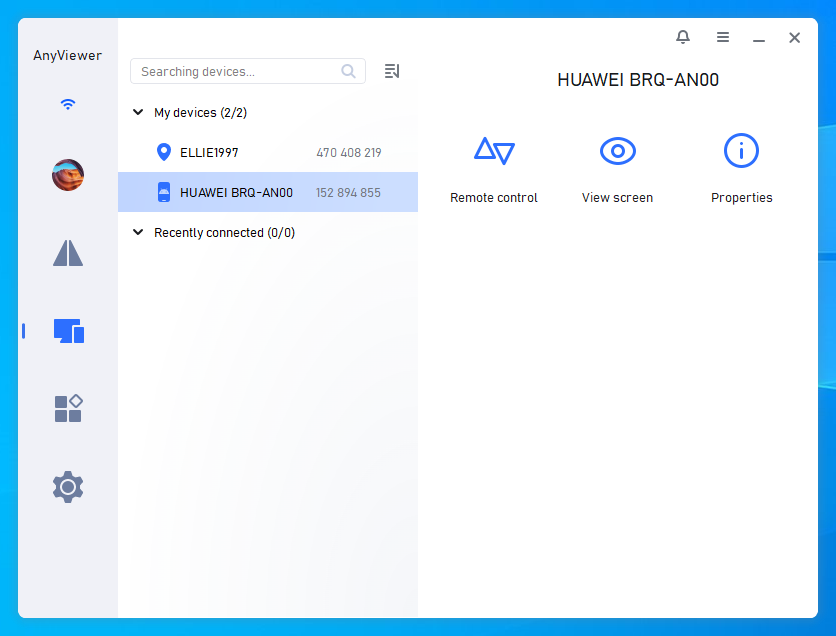
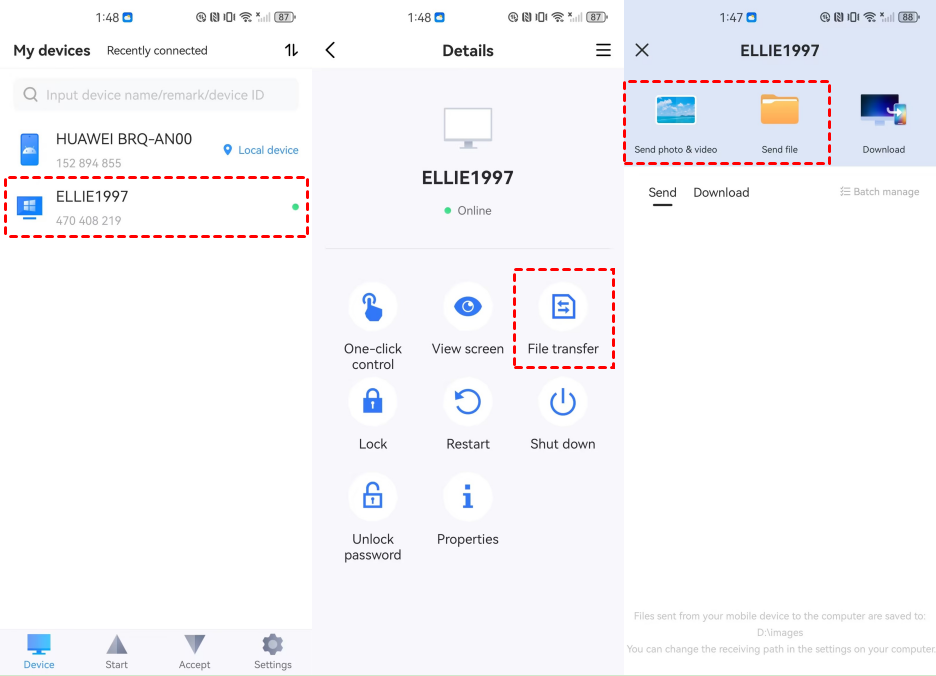
Step 3. On your phone, find your PC under the "Devices" list.
Step 4. Select the "File Transfer" option. You can now browse your phone's storage and send files directly to your PC’s hard drive, or vice versa.
Way 2. The Physical Link: High-Speed USB Transfer
For many, the first thought when asked how to transfer a file between phone and PC is the trusty USB cable. In 2026, with the prevalence of USB 3.2 and USB4, this remains the most stable method for multi-gigabyte transfers.
When to Use It:
- Moving 4K/8K video libraries.
- Backing up an entire phone's worth of photos.
- When you don't have access to a reliable Wi-Fi network.
Steps for Windows Users:
Step 1. Connect your phone to your PC via a high-quality USB-C cable.
Step 2. On your phone, swipe down the notification shade and change the USB mode to "File Transfer" (MTP).

Step 3. On your PC, open File Explorer and locate your phone under "This PC."
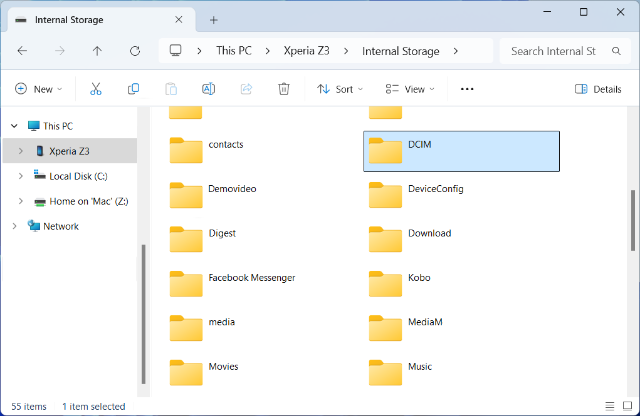
Step 4. Drag and drop your files.
Pro Tip: Always use the original cable that came with your phone. Third-party "charging cables" often lack the internal data wiring required for high-speed transfers.
Way 3. Wireless Convenience: Cloud Storage (Google Drive, OneDrive, iCloud)
Cloud storage and file sharing services have fundamentally changed the answer to "how to transfer a file between phone and PC." In 2026, we no longer think about moving a file from point A to point B; instead, we place it in a persistent, synchronized environment that is accessible from any device with an internet connection.
The Major Players in 2026:
- Google Drive: The most seamless option for Android users. It offers deep integration with Google Workspace and allows for easy sharing via links.
- Microsoft OneDrive: The default choice for Windows 10/11 users. It lives natively inside your File Explorer, making the PC side of the transfer feel like moving files between local folders.
- iCloud Drive: Essential for iPhone users. While Apple-centric, the "iCloud for Windows" app has improved significantly, allowing PC users to access their mobile backups and "Files" app content.
How to Transfer Files via Cloud Sync:
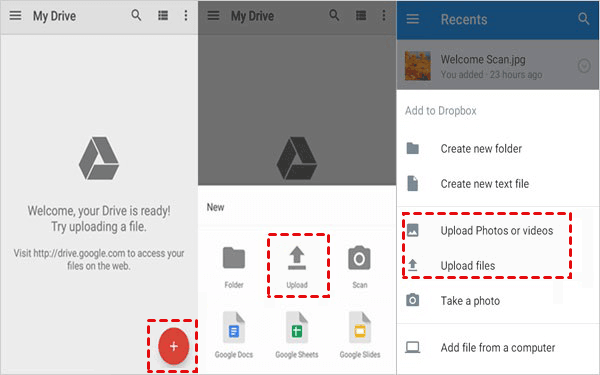
Step 1. Open your cloud app (e.g., Google Drive), tap the "+" (Add) icon, and select Upload. Choose your files and wait for the "Upload Complete" notification.
Step 2. On your computer, either open the corresponding folder in File Explorer (if the desktop app is installed) or log in to the web portal (e.g., drive.google.com).
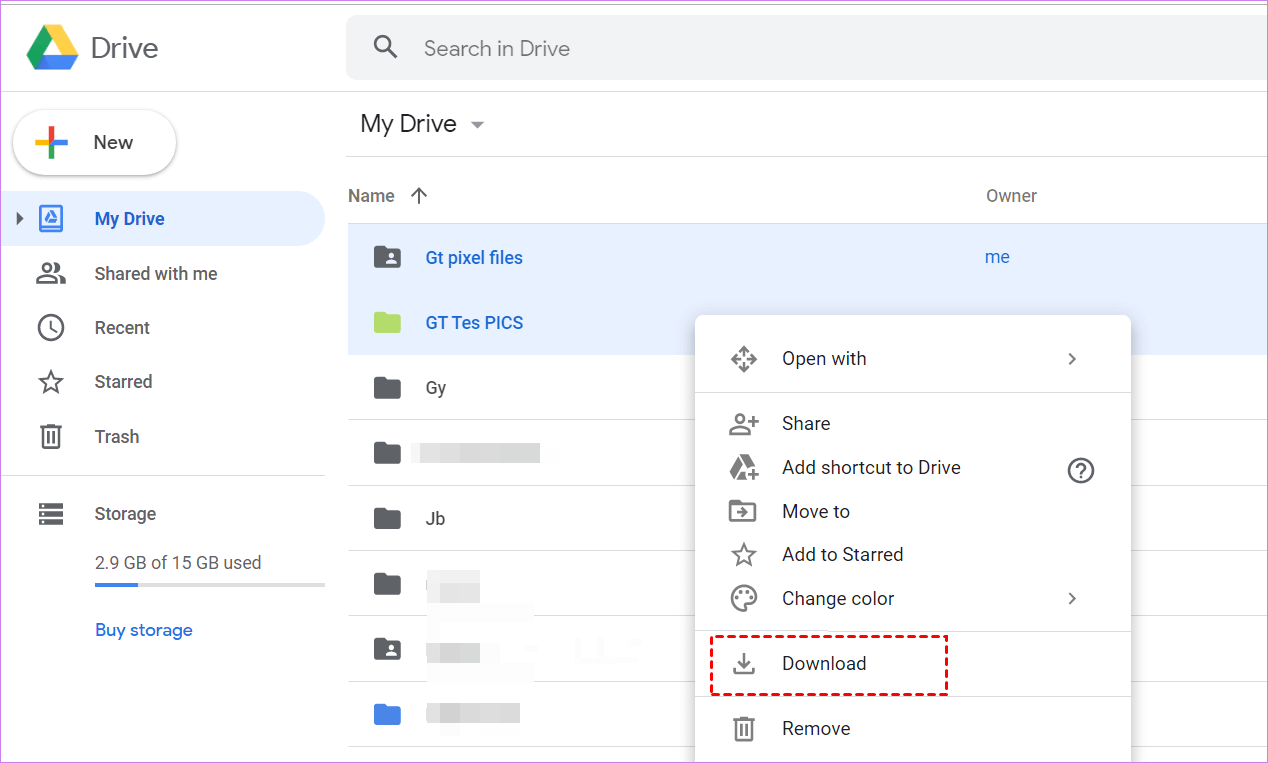
Step 3. Right-click the file and select Download to save a local copy on your PC's hard drive.
Way 4. Quick Share: The Modern "AirDrop" for Android and PC
For years, users looked for how to send a file from phone to PCvia Bluetooth, but Bluetooth alone was often too slow for modern file sizes. Quick Share solves this by using a combination of Bluetooth and Wi-Fi Direct to create a high-speed peer-to-peer network.
Why Use Quick Share?
- No Cables Required: It’s purely wireless and doesn't require a router if both devices are close.
- Privacy Controls: You can set your visibility to "Everyone," "Contacts," or "Your Devices" to prevent random file requests.
- Native Feel: Once installed, it integrates into the Windows right-click context menu.
How to Transfer Files via Quick Share:
Step 1. Download and install the Quick Share for Windows app from the official Android website. Ensure Bluetooth and Wi-Fi are toggled "On" for both your PC and phone.
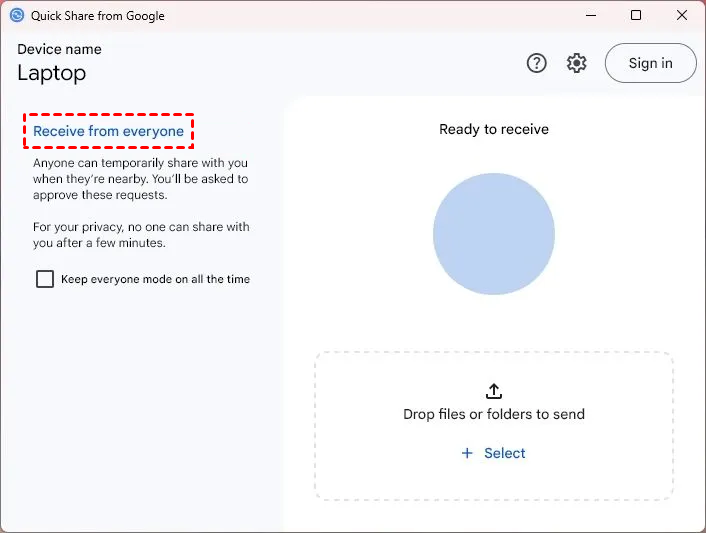
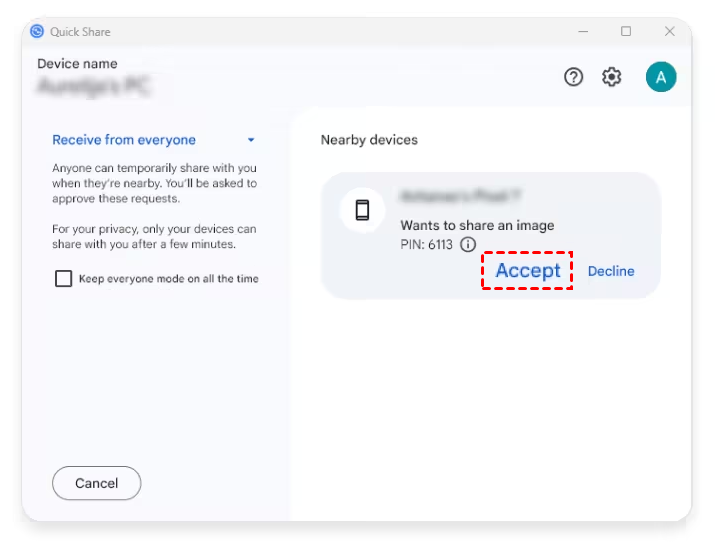
Step 2. On your PC, set your device visibility to "Receive from everyone" or "Your devices."
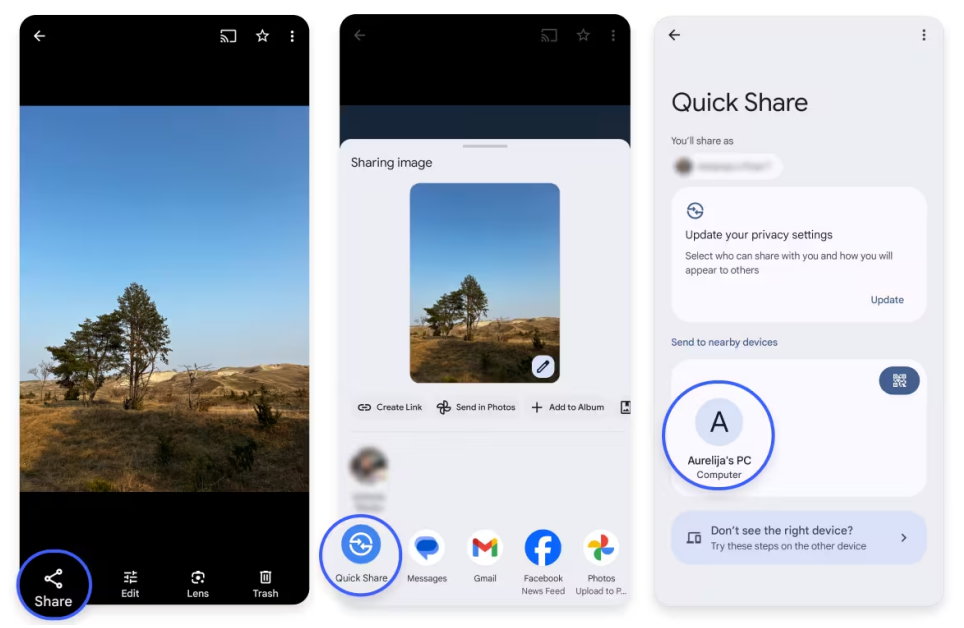
Step 3. Open your Gallery or File Manager, select a file, tap Share, and choose Quick Share. Select your PC from the list.
Step 4. A pop-up will appear on your Windows desktop; click Accept to begin the high-speed wireless transfer.
Way 5. Microsoft Phone Link: Ecosystem Integration
If you are looking for a way to "bridge" your phone’s interface with your desktop, Microsoft Phone Link (formerly Your Phone) is the built-in Windows solution. It is designed less as a dedicated file-mover and more as a continuity tool.
Key Features of Phone Link:
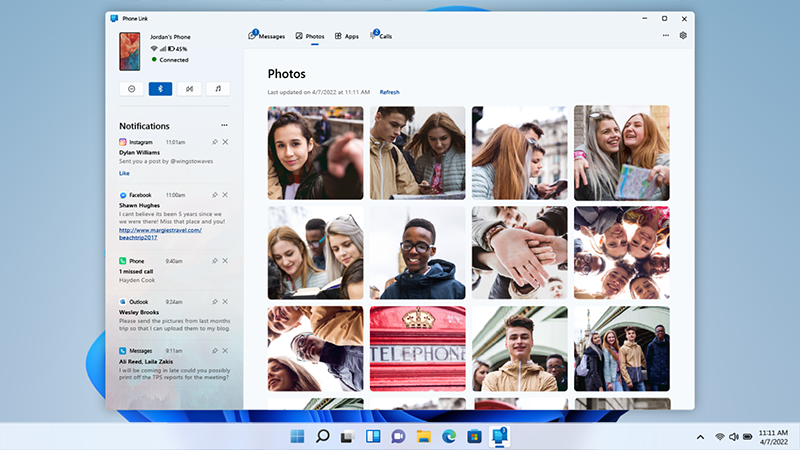
- Photo Access: Instantly view the last 2,000 photos taken on your phone without manual syncing.
- Drag-and-Drop: On supported high-end devices (like Surface or Samsung Galaxy), you can drag files directly from a mirrored phone screen to your Windows desktop.
- Notification Sync: Reply to texts and see mobile alerts on your PC.
How to Set It Up:
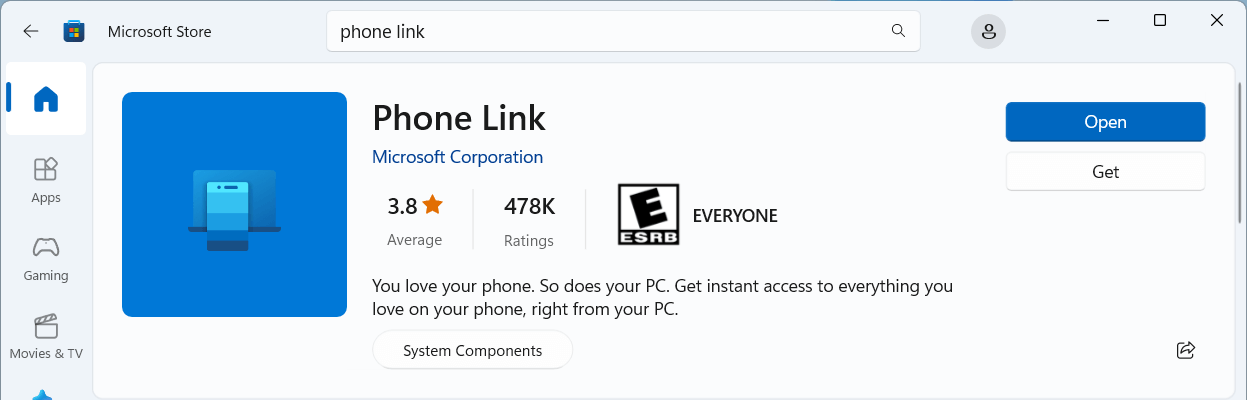
Step 1. Search for "Phone Link" in your Windows Start menu.
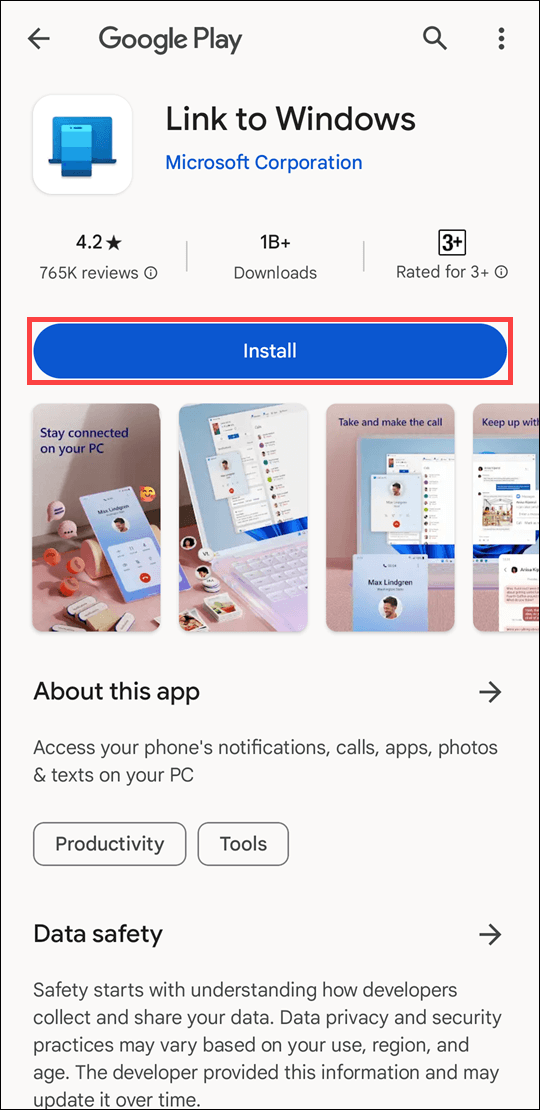
Step 2. Open the "Link to Windows" app on your Android (or the equivalent on iOS). Scan the QR code displayed on your PC screen.
Step 3. Grant the necessary permissions for the PC to access your mobile storage.
Step 4. Click on the Photos tab in the PC app. Right-click any image and select "Save as," or simply drag it onto your desktop.
Conclusion
Learning how to transfer a file between phone and PC doesn't have to be a headache of mismatched cables and slow upload bars. For quick, local transfers, a USB-C cable or Quick Share will do the trick. However, for the modern professional who needs speed, security, and the ability to access files from across the city or the globe, AnyViewer is the definitive solution.
Stop emailing yourself files or waiting for slow cloud syncs. Experience the future of cross-device productivity today. Download AnyViewer for free and start transferring files at lightning speed!
FAQs
Why is my phone not showing up on my PC via USB?
This is a common issue usually caused by one of three things:
- The Cable: Not all cables are data-compatible; some are "charge-only." Try using the original cable that came with your phone.
- USB Mode: By default, phones often connect in "Charging Only" mode. Ensure you swipe down on your phone and select "File Transfer" or "MTP" mode.
- Drivers: Your PC may need a driver update. Check "Device Manager" on Windows to see if your phone is listed with a yellow warning icon.
Can I transfer files between phone and PC without the internet?
Yes. You have two main options:
- USB Cable: The most reliable offline method.
- Bluetooth/Quick Share: These use local wireless protocols (Bluetooth and Wi-Fi Direct) and do not require an active internet connection to move data between two nearby devices.



 as a preferred
source on Google
as a preferred
source on Google