

How to Set Up Remote Desktop Whitelist for Secure Access
Learning how to set up remote desktop whitelist rules starts with deciding what you want to approve: network addresses, Windows users, or remote access accounts and devices. This guide explains the setup, common failures, and verification steps for Windows RDP. It also introduces AnyViewer as an option for remote work and support when maintaining IP restrictions becomes inconvenient.

By Ellie / Updated on September 8, 2026


What a remote desktop whitelist actually controls
A remote desktop whitelist, also called an allowlist, permits access only from approved sources. Windows does not provide one universal whitelist switch: network access and permission to sign in are separate controls.
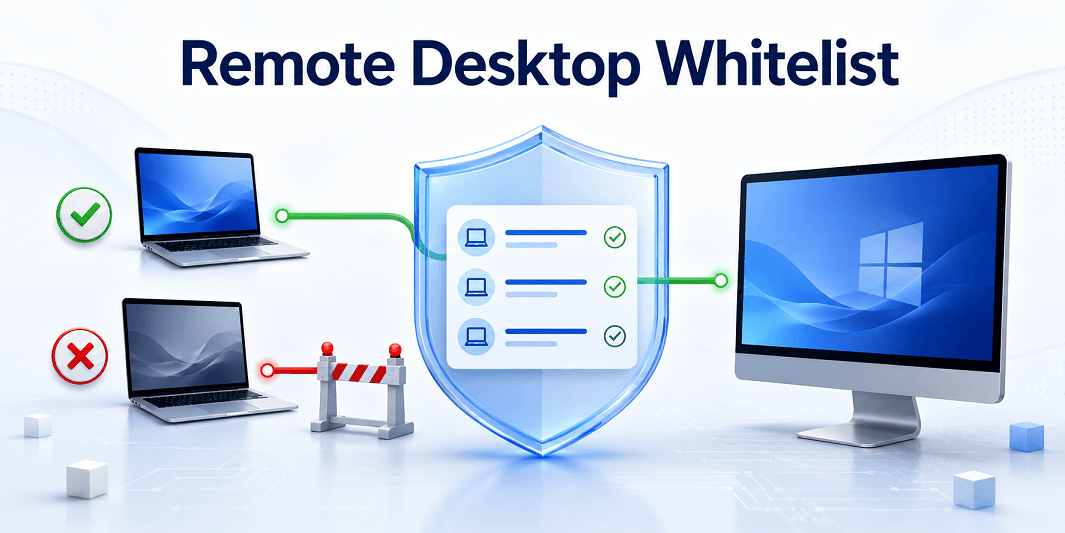
Choose the control that matches your goal:
|
Control |
What it approves |
What it does not establish |
|
RDP firewall IP allowlist |
Source IP addresses or subnets |
The identity of a person |
|
Windows remote access permissions |
Accounts allowed to sign in |
Which networks can reach RDP |
|
Application account or device allowlist |
Approved identities within that application |
Access restrictions for Windows RDP |
For example, approving an office's public IP can permit connection attempts from multiple computers sharing that address. Each user still needs valid credentials and sign-in rights. Only access devices, accounts, and files that you own or are explicitly authorized to use.
How to set up remote desktop whitelist rules in Windows
The following approach uses Windows Defender Firewall with Advanced Security on the destination computer. On managed devices, ask your administrator to apply the equivalent policy centrally.
Prepare the host and a recovery route
Confirm that the destination supports incoming RDP. Microsoft lists Windows Pro, Enterprise, Education, and Windows Server as supported hosts; Windows Home can act as a client but cannot host built-in Remote Desktop sessions. See Microsoft's Remote Desktop requirements.
Before modifying access, arrange local access, a server console, or another approved recovery method. Export the current firewall policy through the console's Action menu. An existing remote session is not a reliable recovery plan if new connections stop working.
Enable Remote Desktop and approve users
- Open the System Properties window by pressing the Windows Key + R, typing sysdm.cpl, and pressing Enter on the host.
- Enable Remote Desktop.
- Keep Network Level Authentication enabled.
- Click Select Users... to open Remote Desktop Users, and add only the accounts that need access.
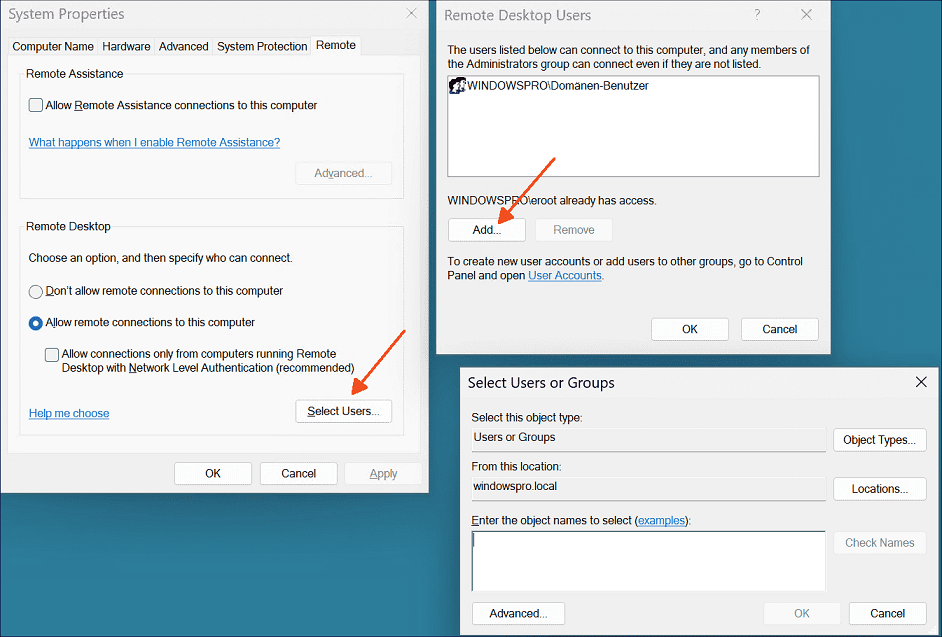
Review administrator membership too: administrators normally have remote access privileges. Adding a short user list does not automatically remove those privileges. Domain policies can further allow or deny remote sign-in.
Identify the source address the host will see
The whitelist must contain the connecting source address, not the destination computer's address.
- On the same LAN, this is usually the connecting computer's private address.
- Through a VPN, it may be the VPN client address or a translated gateway address.
- Across an internet connection with address translation, it may be the client's public egress address.
Confirm the address using your network configuration or firewall logs. A laptop's Wi-Fi address is not necessarily the address seen by a server elsewhere. Include IPv6 where applicable, and avoid approving an entire subnet when a single stable address will do.
Restrict the inbound RDP rules
- Press Windows + R, enter wf.msc, and open Inbound Rules.
- Find the enabled Remote Desktop - User Mode (TCP-In) rule that applies to the host's network profile.
- Open Properties > Scope. Under Remote IP address, select These IP addresses.
- Click Add, enter an approved address or subnet, and save the change.
- Repeat for other applicable RDP allow rules, including Remote Desktop - User Mode (UDP-In) if enabled.
- Check the Advanced tab so the restrictions cover the profiles on which RDP is permitted.

These controls are also documented in Leaseweb's RDP allowlisting guide. Rule names can vary with Windows version and language.
Illustrative example: if your approved VPN laptop consistently uses 10.20.30.15, add that address. Do not approve 10.20.30.0/24 unless every device in that subnet should be able to reach RDP.
Check for broader rules and upstream access
Keep Windows Firewall enabled with its default inbound blocking behavior. Audit other enabled rules that allow the RDP service or listening port, normally 3389. A separate unrestricted allow rule can still permit connections you intended to exclude.
Do not create an explicit block-all RDP rule and expect a specific allow rule to override it. Under normal Windows Firewall rule processing, explicit block rules take precedence over conflicting allow rules. See Microsoft's firewall rule guidance.
For remote access over the internet, prefer an approved VPN or Remote Desktop Gateway instead of directly exposing RDP. Apply appropriate controls to cloud firewalls, routers, and gateways as well. With a gateway, the host may see the gateway as the source, so end-user restrictions also belong at that gateway. Microsoft's Remote Desktop Gateway overview explains its access policies.
Test that allowed and unapproved connections behave differently
A successful login proves that access works. It does not prove that the whitelist blocks anyone else. Use fresh sessions for both tests:
- Connect from an approved source using an authorized Windows account.
- Attempt a connection from an unapproved source that otherwise has a valid route to the host.
- Check firewall logs to confirm the second attempt was blocked by the intended restriction.
- Repeat after policy refreshes or relevant network changes.
For a practical LAN test, approve one computer with a reserved address and leave a second computer unlisted. Both should target the same host and port. The second computer should fail before reaching an RDP session. This is an example test plan, not a claim of laboratory testing.
When AnyViewer is a practical alternative
IP allowlisting fits stable office networks and controlled VPN environments. It becomes harder to maintain when people switch between home broadband, hotel Wi-Fi, and mobile hotspots. An address change can block legitimate work until someone updates the rules.
For authorized remote work or support, consider AnyViewer remote access. Its official product materials describe account or device ID whitelist and blacklist controls. These operate within AnyViewer; they do not configure the Windows RDP firewall whitelist.
The relevant benefits include:
- Account or device access controls for approving sources within the application.
- Unattended Remote Access for authorized access to your own assigned computers.
- Attended Remote Support when someone should approve the connection.
- Remote File Transfer for moving authorized work files during supported workflows.
Typical connections do not require manually forwarding an RDP port. Restrictive business networks may still require administrator configuration. Verify whitelist availability, platform support, and current plan requirements before adopting it. The official download page describes account and device ID access controls.
Start an authorized AnyViewer connection
- Install and launch the current application on both supported computers.
- For your own devices, sign in to your account, select the destination under Device, and choose One-click control.

- For attended support, enter the recipient's device ID, send a control request, and wait for their approval.
- Review the available whitelist and security controls, add only approved accounts or device IDs where supported, and test with an unlisted source.
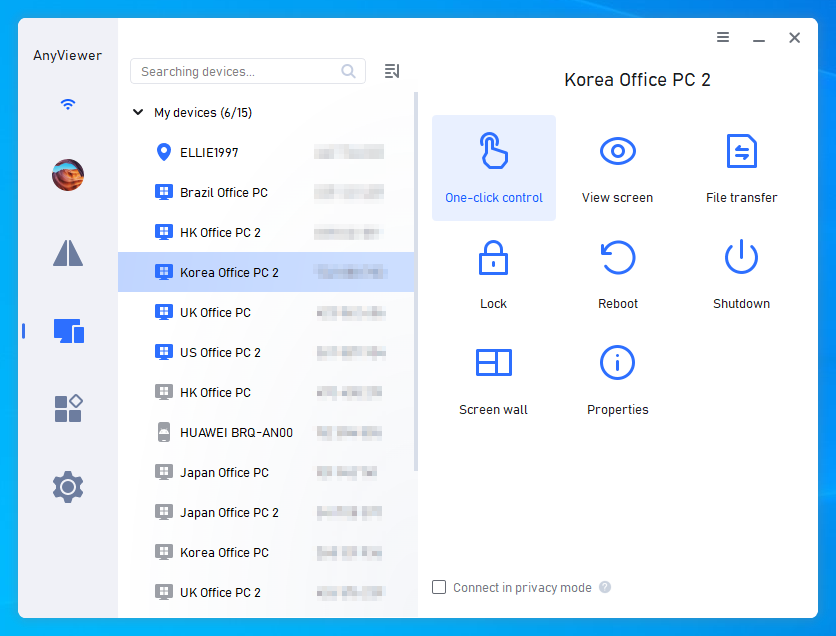
Menu locations can vary by version. Use the current in-app controls and official documentation to confirm enforcement; signing in alone is not evidence that a whitelist is enabled. Keep account credentials private and enable two-factor authentication where available.
If your organization requires native RDP, centralized gateway policies, or a particular audit system, have IT review the fit. For a simpler approved connection workflow, explore AnyViewer's remote desktop solution and test it on two authorized computers first.



 as a preferred
source on Google
as a preferred
source on Google