

How to Revoke Remote Access to a Computer: Stop Unwanted Access
To learn how to revoke remote access to a computer, start by ending active sessions, then disable the service or remove the permissions that allow reconnection. This guide helps home users and remote workers check Windows, Mac, and third-party tools, secure exposed accounts, and verify the results.

By Ellie / Updated on October 14, 2026


What Does Revoking Remote Access to a Computer Mean?
Revoking remote access means removing another person's ability to connect to your computer through a remote service, account, or saved authorization. Disconnecting ends a session; revoking access blocks the route used to reconnect.
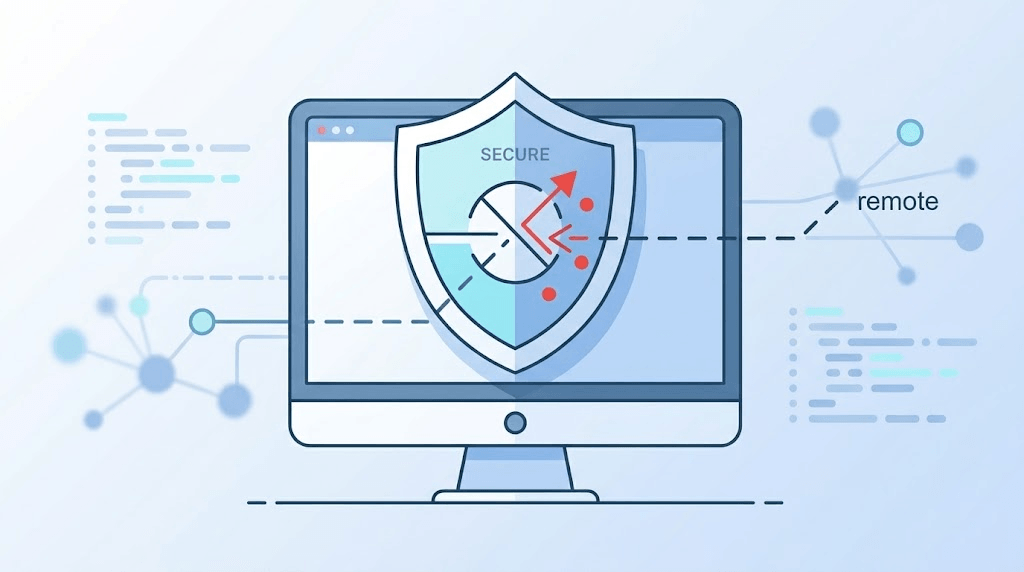
For example, closing a support window may leave an unattended-access service running. You must disable that service or remove its authorization separately.
What Are the Benefits of Revoking Remote Access?
- Protect privacy by removing unnecessary access to your screen and files.
- End outdated permissions after a repair, contract, or job ends.
- Reduce exposure from unused remote services and shared access codes.
- Keep future support under your control through fresh approval.
Revocation cannot recover files someone already copied or undo changes they already made.
How to Revoke Remote Access to a Computer: Step by Step
1. Stop the active connection
Select Stop Sharing, Disconnect, or End Session in the remote-support app. If someone is controlling the computer without permission, turn off Wi-Fi and unplug the Ethernet cable. Disconnect other active network connections too.
Network isolation interrupts access but does not remove saved permissions. Work at the computer locally; otherwise, you could cut off your own route before finishing. For a company-managed device, contact IT from another device.
2. Identify the access method
Check installed apps, the system tray or menu bar, and remote-service settings. More than one tool may be installed.
|
Access method |
Where to revoke it |
What else to check |
|
Windows Remote Desktop |
Settings > System > Remote Desktop |
User permissions and active sessions |
|
Mac built-in sharing |
System Settings > General > Sharing |
Screen Sharing, Remote Management, Remote Login |
|
Chrome Remote Desktop |
Remote Access device list |
Host software and Google account access |
|
Third-party support app |
App and account settings |
Unattended access, codes, assigned devices |
3. Disable built-in Windows or Mac access
On Windows 11 Pro, Enterprise, or Education:
- Open Settings > System > Remote Desktop.
- Turn Remote Desktop off and confirm if prompted.
- If legacy Remote Assistance is enabled, press Windows + R, enter SystemPropertiesRemote, and clear Allow Remote Assistance connections to this computer. Select Apply.
Windows Home does not host Microsoft's built-in Remote Desktop, but third-party tools can still provide access. Microsoft's Remote Desktop documentation explains the edition differences.
On a Mac, open System Settings > General > Sharing. Turn off Screen Sharing, Remote Management, and Remote Login if you do not need them. Remote Login controls SSH access separately from screen control. See Apple's screen-sharing instructions and Remote Login settings.
These switches do not disable every third-party app. Continue with the next step.
4. Remove app-specific access and saved permissions
For Chrome Remote Desktop:
- Open Chrome Remote Desktop.
- Find the computer and select Disable remote connections.
- Uninstall its host component if you no longer need remote access.
Google distinguishes ending a session from disabling remote connections.
For AnyViewer or another support tool, review each enabled connection method:
- Disable unattended access and any saved permanent security code you no longer need.
- Revoke shared-device permissions and account assignments that grant access.
- Rotate exposed access codes and secure the associated account.
- Uninstall the host software if no remote access should remain.
Removing a shortcut or closing the app window may leave its background service active. In AnyViewer, temporary codes, fixed codes, and account-based access are separate routes; changing one code is not a complete revocation check.
5. Secure accounts if access was unauthorized
From a trusted device, change exposed passwords, starting with email and the remote-access account. Use available sign-out-everywhere controls, review recovery details, and enable multifactor authentication.
Update the affected computer and run a security scan. If a scammer had access, follow Microsoft's tech-support scam recovery guidance; a reset may be appropriate. A clean scan alone cannot prove that no changes were made.
For business offboarding, ask IT to revoke the person's VPN, identity-provider sessions, and remote-management permissions as well.
6. Verify that reconnection is blocked
After routine, authorized support access has been removed:
- Restart the computer and confirm disabled settings remain off.
- Check that the removed host software has not returned.
- From a device you control, test the former connection method using the old authorization.
- Confirm it fails or requires fresh approval, depending on your intended setup.
A failed test verifies that route only. If you suspect compromise, keep the computer isolated until IT or a trusted technician has assessed it.
Upgrade Your Remote Access: Why Choose AnyViewer?
Once your system is secure, you may still need reliable remote access for remote work, cross-device file transfers, IT management, or helping friends and family.
Traditional remote desktop tools can be clunky, insecure, or overpriced. AnyViewer provides a modern, high-performance alternative designed with bank-grade security and granular permission controls at its core.
1. What Makes AnyViewer More Secure?
- Strict Request-and-Approval Workflow: Require manual acceptance on the host machine before any remote session begins, ensuring nobody enters without your explicit permission.
- Dynamic Safety Passcodes: Choose between single-use temporary codes that automatically rotate after every session or custom fixed passcodes.
- Black Screen (Privacy Mode): Instantly darken the remote screen and disable the physical keyboard and mouse to prevent local onlookers from seeing sensitive data.
- ECC 2048-Bit End-to-End Encryption: Guard your remote connections against eavesdropping and data tampering with strong, industry-standard encryption.
2. Compare AnyViewer Plans & Features
Choose the right plan tailored to your individual needs, growing team, or corporate organization:
|
Feature / Benefit |
Free Plan |
Solo Plan |
Team Plan |
Enterprise Plan |
|
Best For |
Casual remote help & personal use |
Individual remote work & power users |
Growing teams & IT collaboration |
Corporate IT teams & MSPs |
|
Assigned Devices |
3 Devices |
10 Devices |
100+ Devices |
Unlimited / Custom Scale |
|
Concurrent Channels |
1 Channel |
2 Channels |
Multi-User Collaboration |
Multi-Channel Parallel Access |
|
High-Speed File Transfer |
Up to 5 MB/s |
Up to 10 MB/s High Speed |
Up to 10 MB/s High Speed |
Up to 10 MB/s High Speed |
|
Privacy Mode (Black Screen) |
❌ |
✅ Included |
✅ Included |
✅ Included |
|
High FPS & HD Quality |
Standard |
60 FPS Smooth Ultra-HD |
60 FPS Smooth Ultra-HD |
60 FPS Smooth Ultra-HD |
|
Management Controls |
❌ |
❌ |
✅ Group Management |
✅ Custom Roles & Deployment |
Don't let outdated or insecure remote tools compromise your digital security—AnyViewer delivers fast, seamless, and 100% permission-controlled remote connections! Download AnyViewer Free to secure your remote workflow today, or Upgrade to AnyViewer Solo / Team / Enterprise to unlock 60 FPS Ultra-HD quality, Privacy Mode, and advanced management features!
Conclusion
Knowing how to revoke remote access to a computer is essential to protecting your personal privacy and permanently shutting down unauthorized entry points. Once your system is secure, switching to AnyViewer ensures every future connection remains strictly under your control with permission-based access, dynamic passcodes, and bank-grade encryption.



 as a preferred
source on Google
as a preferred
source on Google