

How to Allow Remote Access Only from Specific Devices Safely
Knowing how to allow remote access only from specific devices starts with identifying what your access policy actually checks. For home offices and small IT teams, this guide compares device identity, network addresses, and user permissions. Follow the Windows RDP steps, assess AnyViewer for application access controls, and use a two-device test to confirm that approved connections work while unapproved sources are rejected.

By Ellie / Updated on October 27, 2026


What Does Allowing Remote Access Only from Specific Devices Mean
Quick answer: Permit connections from explicitly approved endpoints and deny other endpoints. For stronger device assurance, use authenticated device identities, such as device certificates enforced by an access gateway. For stable networks, an IP allowlist can narrow access, but an IP address alone does not prove which physical device is connecting.
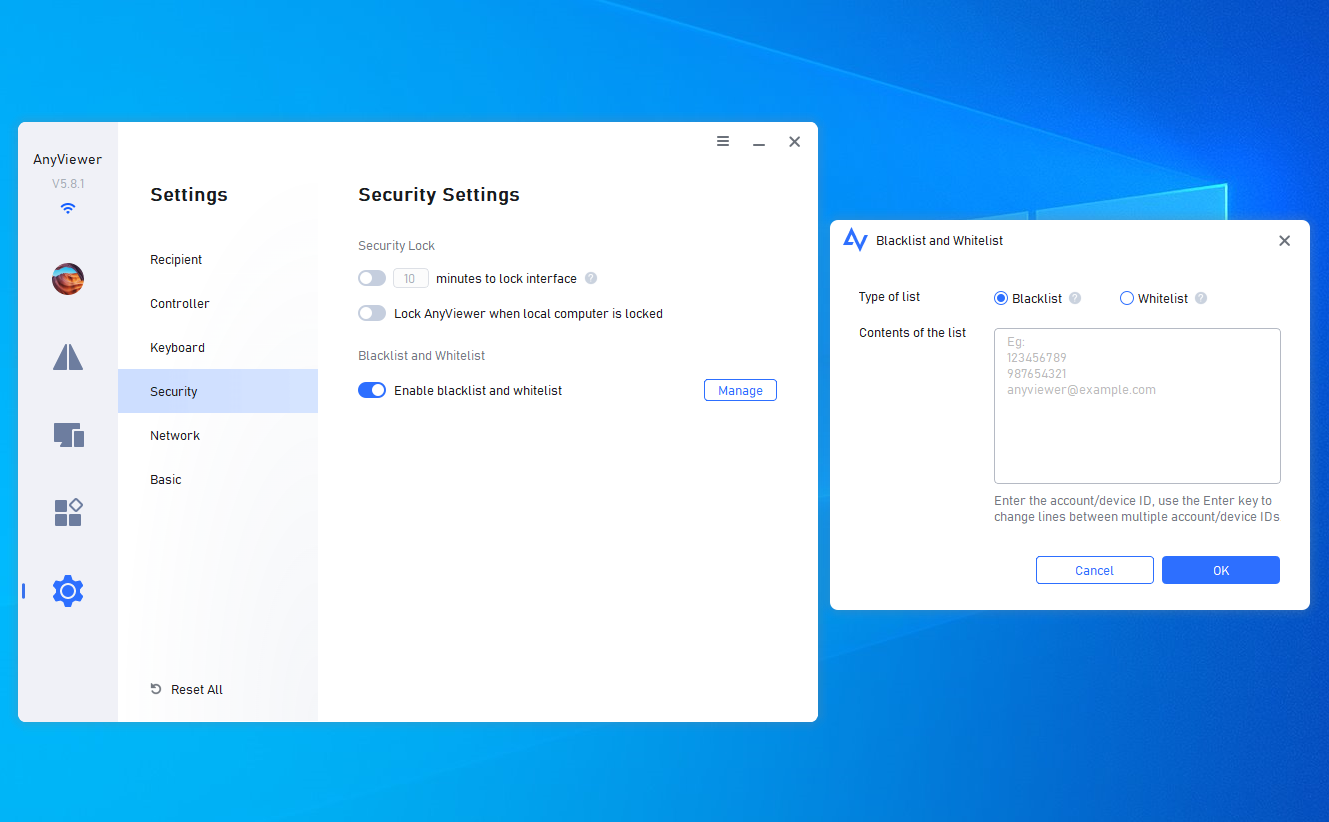
AnyViewer is worth considering for remote work and support when application account or device ID controls suit your needs. With its built-in security features, AnyViewer allows you to effortlessly configure a blacklist and whitelist to restrict access exclusively to trusted, specific devices. Its restrictions apply to AnyViewer connections; Windows RDP needs its own policy.
Three controls answer different questions:
|
Control |
What it checks |
Main limitation |
|
Device authentication |
Whether an endpoint has an approved identity |
Requires enrollment and credential protection |
|
IP allowlisting |
Whether traffic comes from an allowed address |
Shared or changing addresses weaken device specificity |
|
User permissions |
Whether an account may sign in |
An approved user may use an unapproved computer |
Microsoft documents Windows Firewall filtering and IPsec device authentication. Combine device controls with authorized user accounts when both restrictions matter.
Benefits of Restricting Remote Access to Specific Devices
A smaller set of permitted sources makes access easier to review and revoke. It can also limit where stolen account credentials are usable, provided the device check is enforced independently.
- Reduce exposure: Keep unnecessary computers away from remote services.
- Separate work and personal access: Approve managed laptops for sensitive systems.
- Simplify offboarding: Revoke an endpoint when a laptop is retired or lost.
- Control unattended access: Limit which endpoints can initiate remote sessions.
Device approval does not make a compromised laptop safe. Keep approved endpoints patched, protect their credentials, and remove access promptly after loss.
How to Allow Remote Access Only from Specific Devices Step by Step
Choose the Right Enforcement Point
For a traveling employee, prefer a VPN or access gateway that authenticates individual devices and supports revocation. Require the approved device identity and permitted user before allowing traffic to the destination service. Avoid shared device certificates or shared VPN credentials.
For a small LAN with stable addresses, RDP firewall scoping can be practical. Reserve addresses through DHCP, but treat those reservations as address management rather than proof of device identity.
Before editing remote access rules, arrange local or console recovery and export the existing firewall policy. Only access devices, accounts, and files that you own or are explicitly authorized to use.
Restrict Windows RDP to Approved Source Addresses
These instructions limit incoming RDP network traffic. They do not create hardware authentication. Windows Home cannot host built-in RDP sessions; check Microsoft's host requirements first.
- On the destination PC, open Settings > System > Remote Desktop and enable Remote Desktop. Keep Network Level Authentication enabled.
- Approve only necessary Windows accounts. Review administrators too, because they normally have remote sign-in privileges.
- Identify the source address visible to the destination. On a LAN, it is usually the client’s private IP. Through a VPN or gateway, it may be a VPN address or a translated gateway address.
- Press Windows + R, enter wf.msc, and open Inbound Rules.
- Open the applicable Remote Desktop - User Mode (TCP-In)rule. Under Properties > Scope > Remote IP address, select These IP addresses and add approved sources.
- Apply equivalent restrictions to other enabled RDP allow rules, including UDP rules where used. Check all applicable network profiles and IPv6 paths.
- Remove or narrow competing unrestricted RDP allow rules. Keep the firewall enabled with default inbound blocking.
Microsoft explains remote-address scoping. Do not add an explicit block-all RDP rule expecting a narrow allow rule to override it: conflicting explicit blocks normally take precedence, according to Microsoft's firewall rule guidance.
For internet access, use an approved VPN or gateway instead of publishing RDP directly. If the host sees every client as the gateway's address, enforce individual device restrictions at the gateway.
Verify Approved and Unapproved Connections
Use this illustrative test plan before relying on the restriction:
- Approved laptop: Start a fresh connection with an authorized account. It should succeed.
- Unapproved laptop: Use the same destination and a valid network route. It should be rejected by the intended control.
- After revocation: Remove the approved device or address and retry a fresh connection. Terminate existing sessions separately if immediate removal is required.
- After network changes: Repeat the checks after VPN, address, or policy changes.
Inspect logs to establish why a connection failed. A typo or disconnected network is not evidence that the allowlist works.
Why Choose AnyViewer for Secure Remote Access?
When it comes to remote desktop software, security is paramount. AnyViewer is a professional, secure, user-friendly remote access solution that gives you full control over who can connect to your devices.
To safeguard your system from unauthorized access and ensure that only trusted computers can establish a connection, AnyViewer offers a robust Blacklist and Whitelist security feature. With whitelist rules, you can restrict remote access to designated, verified devices and instantly block all others.
How to Configure Blacklist and Whitelist in AnyViewer
Enabling and managing allowed or blocked devices in AnyViewer is quick and straightforward. Follow these simple steps:
- Launch AnyViewer on your host computer.
- Go to Settings (gear icon) in the main interface.
- Select the Security tab from the left menu.
- Check the box to Enable blacklist and whitelist.
- Choose your preferred access control mode (Whitelist or Blacklist) and add the specific device IDs/IPs according to your security requirements.



 as a preferred
source on Google
as a preferred
source on Google