

How to Manage Remote Access Permissions for Employees
To understand how to manage remote access permissions for employees, start with individual accounts, clearly defined roles, and access limited to approved devices and tasks. This guide helps IT administrators and small business teams build that process. It also explains where AnyViewer can help organize employee access to remote computers without treating connection permissions as a substitute for application and operating system controls.

By Ellie / Updated on September 9, 2026


To safely manage remote access permissions for employees, start with individual accounts, clearly defined roles, and access limited strictly to approved devices and tasks. Incorporate strong authentication, document approval workflows, review permissions periodically, and revoke access immediately when responsibilities change.
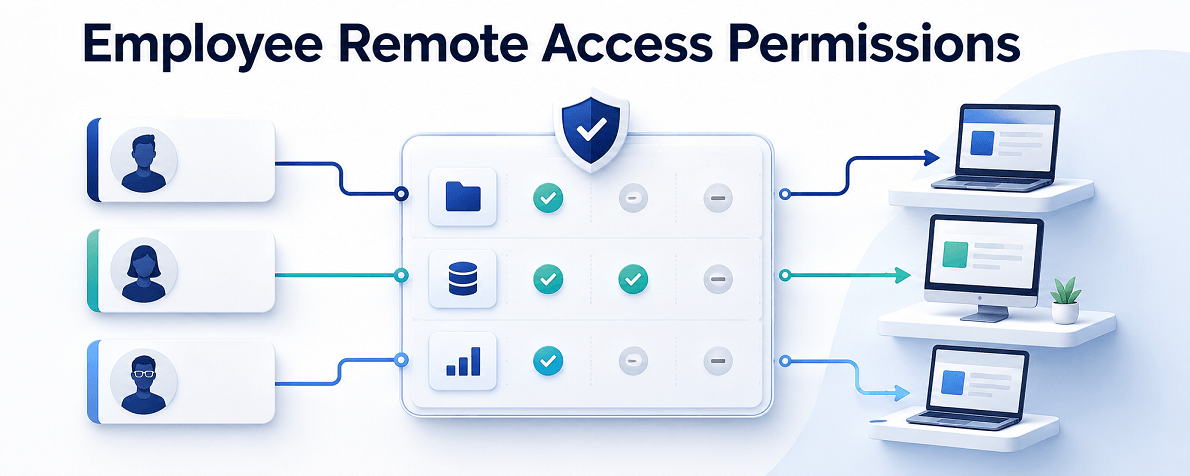
This guide helps IT administrators and SMB leaders establish a least-privilege security framework. It also shows how AnyViewer Enterprise serves as a secure, cost-effective alternative to expensive legacy tools like TeamViewer and AnyDesk, streamlining remote machine management without compromise.
Core Questions Every Remote Access Policy Must Answer
A working remote desktop connection is only the beginning. A robust access policy must define:
- Who can connect
- Which specific systems they can reach
- What session capabilities they are allowed to use
- When their access automatically expires
Keep your security layers clearly separated:
| Access Layer | Core Responsibility | Common Pitfall |
| Network Access | Determines if a device reaches a service via VPN/Gateway. | Assuming a VPN connection gives unlimited system access. |
| Remote Desktop Access | Dictates which machines a user can control and session privileges. | Giving full desktop control when file transfer or view-only is enough. |
| OS & Application Access | Controls internal databases, software rights, and admin changes. | Relying on remote desktop permissions to restrict app-level data access. |
A VPN login does not automatically justify access to every server. Likewise, permission to control a desktop does not replace the accounting application's own user restrictions. Build those boundaries before distributing credentials.
Step-by-Step Guide: Managing Employee Remote Access
1. Inventory users and remote access routes
List employees, contractors, approved computers, remote access tools, and business systems. Include unattended agents, local accounts, and vendor portals that may sit outside your central identity system.
For each access route, record an owner, business purpose, approver, permission scope, and review or expiration date. This inventory becomes the checklist for onboarding and offboarding. It also helps identify tools installed without IT oversight.
2. Create roles based on actual work
Apply least privilege: grant the access needed for an assigned task. The NCSC's access control guidance recommends minimum necessary permissions and separate treatment of privileged management functions.
Use a simple starting matrix, then adjust it to your organization:
|
Role |
Approved resources |
Typical scope |
Review trigger |
|
Office employee |
Assigned workstation |
Routine work without administrative rights |
Job or device change |
|
Help desk technician |
Supported employee devices |
Approved troubleshooting tasks |
Support responsibility change |
|
System administrator |
Assigned infrastructure |
Separate privileged account |
Privileged access review |
|
Contractor |
Named project systems |
Limited tasks with an end date |
Contract change or completion |
These are policy examples, not universal product presets. Do not copy a senior colleague's entire access profile for a new hire. Old project permissions can otherwise spread to every new employee.
3. Require individual accounts and strong authentication
Give each employee a named account. Shared administrator logins make actions harder to attribute and complicate revocation when one person leaves.
Require multifactor authentication for remote access where supported, prioritizing phishing-resistant methods. Protect administrator accounts first, and document a controlled recovery process. The joint government guide to securing remote access software provides supporting security recommendations.
Also define acceptable device conditions, such as supported software, current patches, and endpoint protection. Enforce them through your identity and device management systems where available; a written requirement alone does not enforce compliance.
4. Approve access before granting it
- Have the employee request a specific resource and explain the business need.
- Ask the manager or resource owner to approve the scope and duration.
- Let IT assign the appropriate role and document any exception.
- Test the permitted task and at least one action that should remain blocked.
For example, a finance employee may need their assigned workstation without permission to access another department's devices or edit team membership. Test with a standard employee account, not an administrator account that bypasses the intended boundary.
5. Limit session capabilities and temporary access
Decide whether each workflow needs unattended connections, keyboard and mouse control, clipboard sharing, file transfer, or administrative elevation. Restrict unnecessary capabilities where the tools support it.
Prefer attended support when an employee should approve help. Use unattended access for a documented ongoing need, such as reaching an assigned office computer. Access only devices, accounts, and files you own or are explicitly authorized to use.
Give temporary access a clear end date. Use automatic expiration when available; otherwise assign an owner and a scheduled removal task. Creating a role named Temporary does not make its permissions expire.
Use AnyViewer to Organize Employee Access to Remote Computers
Once individual permissions become difficult to maintain, a central role system can make the process more consistent. AnyViewer Role Permission Management is a practical option for organizations that need remote computer access and delegated IT support. The official feature page identifies it as an Enterprise Edition capability.
Its relevant management functions include:
- Custom roles that group employees with similar responsibilities.
- Separate permissions for member management and device management.
- Defined controllable devices for each role.
This helps separate an employee's access to a workstation from an administrator's authority to change the team. Start with one department and compare the available controls with your permission matrix before expanding deployment.
Why Enterprise Teams Choose AnyViewer Over Legacy Tools
- Granular Role-Based Access Control (RBAC): Create custom roles that separate team member management from actual device control permissions.
- Bank-Grade Session Security: Protect every session using ECC 256-bit end-to-end encryption alongside MFA enforcement.
- Seamless Unattended Remote Access: Support pre-approved, safe remote connections without requiring a user at the remote desk to accept every prompt.
- Unbeatable ROI: Enjoy Enterprise-grade features, central console deployment, and unlimited session capability at a fraction of the cost of TeamViewer or AnyDesk.
Quick 3-Step AnyViewer Configuration Guide
- Set Up Minimal-Privilege Roles: Navigate to the AnyViewer Management Center, create custom roles (e.g., "Tier 1 Support" or "Remote Worker"), and uncheck non-essential rights like MSI package downloads or team management.
- Assign Specific Device Groups: Map each role exclusively to approved computers, preventing unauthorized cross-department access.
- Provision Accounts & Validate: Invite team members as individual sub-accounts and assign their pre-configured role before usage. Verify that access works for assigned machines and fails for unauthorized systems
Review Permissions and Remove Access When Employees Leave
Role changes deserve the same attention as new hires. When someone moves departments, remove obsolete permissions instead of simply adding the new ones.
As a starting policy, review ordinary access quarterly and privileged access more frequently. Adjust the schedule to risk and business requirements. Ask resource owners to confirm each person's ongoing need, then apply and verify the resulting removals. Microsoft's access review workflow illustrates this process.
For offboarding, coordinate the effective time with HR and the responsible manager:
- Disable relevant accounts and remove remote access memberships.
- Terminate active remote sessions and revoke supported tokens.
- Remove local or separately managed access and rotate shared secrets the employee knew.
- Recover devices and transfer business ownership under company policy.
- Verify that a new connection fails and record who completed the checks.
Do not equate a password reset with complete revocation. Applications can maintain their own sessions, as explained in Microsoft's emergency access revocation guidance.
For AnyViewer, removing a sub-account removes its team-device management access according to the team guide. Separately, check existing sessions and alternative authorization paths. Retain necessary business records instead of deleting them merely to block login.
To put this process into practice, review AnyViewer's role management options, pilot one restricted role, and test both access and revocation before rolling it out.



 as a preferred
source on Google
as a preferred
source on Google