

How to Change GoToMyPC Access Code
Need to change GoToMyPC access code? This guide shows you how to update your local security settings on the host computer. Learn to rotate keys, reset forgotten codes, or switch to AnyViewer for advanced ECC 256-bit encryption and flexible one-time passwords.

By Ellie / Updated on April 3, 2026


In the world of remote desktop software, security is the foundation of productivity. When you use a service like GoToMyPC, you rely on two layers of protection: your account credentials (email and password) and your GoToMyPC access code. While your password gets you into your account, the Access Code is the unique encryption key that resides locally on your host computer, ensuring that only you can bridge the final gap to your desktop.
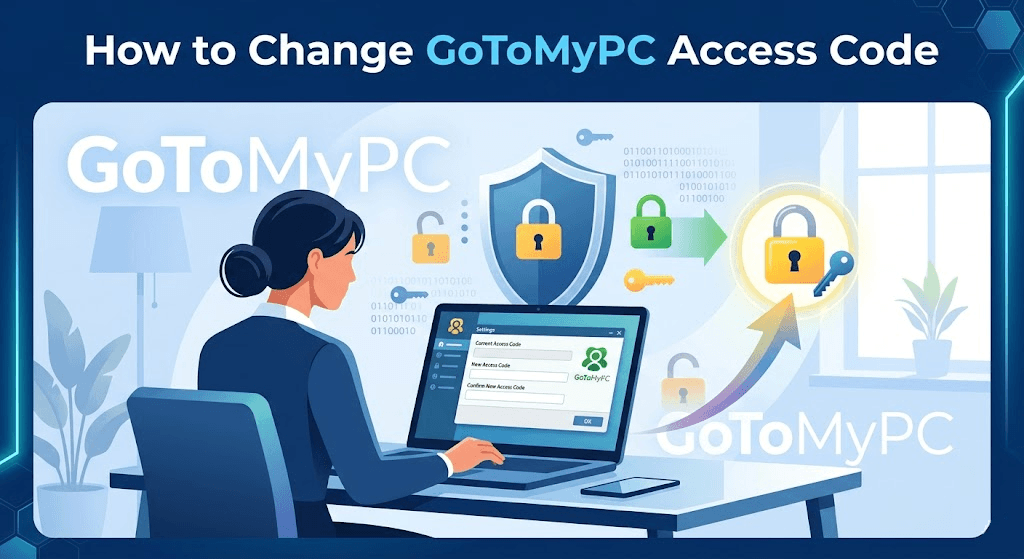
Knowing how to GoToMyPC change access code settings is essential for maintaining a robust security posture. Whether you’ve recently shared your code for a one-time support session, suspect it has been compromised, or simply want to adhere to security best practices by rotating your keys, this guide provides a step-by-step walkthrough.
Prerequisites for Changing Your Access Code
To successfully GoToMyPCchange access code, you must meet two specific conditions:
- Physical or Remote Presence: You must be able to interact with the host computer (the computer you want to access remotely). You cannot change the Access Code from the client device (the computer or phone you are using to connect) unless you are already in an active remote session.
- Administrative Rights: You generally need administrative privileges on the host machine to modify the GoToMyPC software settings.
Step-by-Step Guide: How to Change Your GoToMyPC Access Code
Follow these instructions to update your security settings quickly and efficiently.
Step 1: Access the Host Computer
Log in to the computer that you typically remote into. If you are currently away from that computer, you must first establish a remote session using your current Access Code to perform these changes.
Step 2: Locate the GoToMyPC Icon
In the system tray (bottom-right corner of your Windows taskbar or top menu bar on macOS), look for the blue GoToMyPC icon.
Tip: If you don't see it in Windows, click the "up arrow" to show hidden icons.
Step 3: Open the Preference Menu
Right-click the GoToMyPC icon and select "Preferences" from the context menu. This will open the main configuration window for the host software.
Step 4: Navigate to the Security Tab
In the Preferences window, you will see several tabs (General, Security, Performance, etc.). Click on the "Security" tab.
Step 5: Change the Access Code
Look for the button labeled "Change Access Code".
- A dialog box will appear asking for your Current Access Code.
- Enter your new desired code in the "New Access Code" field.
- Re-enter the new code in the "Confirm New Access Code" field.
Step 6: Save and Verify
Click "OK" or "Apply." GoToMyPC will immediately update the local encryption. The next time you attempt to log in from a remote location, your old code will no longer function, and you must use the new one.
Troubleshooting: What If You Forgot Your Access Code?
A common reason people search for "GoToMyPCchange access code" is that they have forgotten their current one. If you find that the standard method to GoToMyPC change access code not working because the "Current Access Code" field is blocking you, you must follow the reset procedure:
Step 1. Go to the host computer physically.
Step 2. Right-click the GoToMyPC icon and select "Preferences" > "Security."
Step 3. Select "Forgot Access Code."
Step 4. You will be prompted to enter your GoToMyPC Account Password (the one you use to log in to the website).
Step 5. Once verified, you will be allowed to create a new Access Code without providing the old one.
Best Practices for Creating a Secure Access Code
When you GoToMyPCchange access code, don't just choose something easy to remember like "123456" or your "birthday." To ensure maximum security, follow these guidelines:
- Length Matters: Aim for at least 8–12 characters.
- Complexity: Use a mix of uppercase letters, lowercase letters, numbers, and symbols.
- Unique to the Machine: If you have multiple host PCs, use a different Access Code for each one. This prevents a "domino effect" if one machine's security is compromised.
- Avoid Personal Info: Do not use names, pet names, or addresses.
The Importance of the Access Code
Unlike your account password, which is stored on GoToMyPC’s servers, your Access Code is never stored by the service provider.
This is a form of end-to-end authentication. When you attempt to connect to your office or home computer, GoToMyPC verifies your account, but it is your host computer that challenges you for the Access Code. By regularly changing this code, you:
- Mitigate the Risk of Credential Stuffing: Even if a hacker gains access to your email and password via a third-party data breach, they cannot enter your specific PC without this secondary, local code.
- Revoke Unauthorized Access: If you previously allowed a colleague or IT professional to access your machine, changing the code ensures that their access is permanently revoked.
- Enhance Compliance: For professionals in legal, medical, or financial sectors, rotating access keys is often a requirement for meeting data protection standards.
AnyViewer: A Robust Alternative for Streamlined Security

If you find the process of managing local access codes cumbersome, AnyViewer offers a modern GoToMyPC alternative for secure remote access. Unlike GoToMyPC’s dual-layer system, AnyViewer provides a flexible "Security Code" system that can be tailored to your specific needs:
- Fixed Security Code: Similar to an Access Code, you can set a permanent password for unattended access to your devices.
- One-Time Security Code: For temporary support sessions, AnyViewer generates a dynamic 6-digit code that changes automatically after each session, ensuring no one can reconnect without your permission.
Beyond flexible access codes, AnyViewer also supports unattended remote access without any code. You just need an AnyViewer account. To guarantee that your unattended sessions remain private and secure, AnyViewer integrates industry-leading safety protocols like:
- ECC 256-bit Encryption: AnyViewer utilizes Elliptic Curve Cryptography (ECC) to secure your data. Compared to traditional RSA encryption, ECC provides superior protection with shorter key lengths, ensuring your remote sessions remain "bulletproof" while minimizing connection latency.
- Two-Factor Authentication (2FA): You can bolster your account security by enabling 2FA, adding an extra layer of protection beyond just your email and password.
- Privacy Mode: Secure your remote host instantly with "Privacy Mode," which blacks out the remote screen and disables the remote keyboard and mouse. This ensures that unauthorized individuals cannot monitor your work, even if they are physically near the host machine.
Conclusion
Regularly updating your GoToMyPC access code is the simplest way to safeguard your workstation. Whether you stick with GoToMyPC or opt for a flexible solution like AnyViewer, staying proactive ensures your digital workspace remains private and accessible only to you.
Whether you stick with GoToMyPC’s dual-layer authentication or opt for a more flexible solution like AnyViewer—which offers ECC 256-bit encryption and dynamic one-time security codes—the priority remains the same: staying proactive. Security is not a one-time setup, but an ongoing practice that ensures your digital workspace remains private, compliant, and accessible only to you.



 as a preferred
source on Google
as a preferred
source on Google