

Can Splashtop Extended Wireless Display 2 for Windows 10?
This summary explains whether Splashtop Extended Wireless Display 2 can connect to Windows 10. It also introduces another reliable virtual screen software option for your needs.

By Irene / Updated on March 5, 2026


🌟 Quick Summary:
Splashtop Extended Wireless Display 2 is a legacy application that is no longer officially supported on Windows 10. While users can attempt to run it using compatibility modes for older operating systems, the experience is typically plagued by lag and driver instability.
For a more reliable setup, the article recommends three modern alternatives:
1. Splashtop Wired XDisplay
This is the official successor to the wireless version. It requires a USB connection instead of Wi-Fi, which eliminates latency and supports a smooth 1080p resolution at 60fps.
2. AnyViewer
This remote desktop solution features a Virtual Screen capability. It allows users to create up to four independent virtual displays without needing extra physical monitors or hardware, and even supports a smooth 4K resolution at 60fps. It is ideal for organized multitasking and high-speed remote access.
3. Windows Remote Desktop
For users on Windows Pro, Enterprise, or Education editions, the built-in Remote Desktop tool can be configured to use all local monitors for a remote session. This creates a seamless multi-screen environment by adapting the host computer’s display to your local hardware setup.
Can Splashtop Extended Wireless Display 2 for Windows 10?
While you might remember Splashtop Extended Wireless Display 2 as an incredibly handy tool for turning an iPad into a second monitor, it is unfortunately a legacy application that is not officially supported on Windows 10. The original software was primarily designed for older operating systems like Windows 7 and Windows 8. Although you might technically be able to force the old Streamer software to run on a modern Windows 10 machine using compatibility modes, doing so usually results in a buggy, laggy, and frustrating experience because the underlying display drivers are vastly outdated and incompatible with modern updates.
Fortunately, Splashtop did not abandon this highly requested concept; they simply evolved it to match modern hardware. If you want to use a tablet or smartphone as an extended monitor for your Windows 10 computer today, you should use their current, officially supported application called Splashtop Wired XDisplay. As the name suggests, this updated version requires you to connect your device to your PC using a direct USB cable rather than relying on a local Wi-Fi connection. While losing the wireless aspect might feel like a slight inconvenience at first, the wired connection actually solves the severe lag and stuttering issues that frequently plagued older wireless display apps. Splashtop Wired XDisplay fully supports Windows 10 and delivers a highly reliable, smooth performance, allowing you to run your extended screen at a crisp 1080p resolution and sixty frames per second without any noticeable visual delay.
If you absolutely must have a strictly wireless extended display solution for your Windows 10 workspace, you might want to look beyond Splashtop entirely.
How to achieve Splashtop Extended Wireless Display 2 download?
Splashtop Extended Wireless Display 2 was once a popular tool that allowed users to extend their computer screen to a tablet through a wireless connection. Many people still look for it when setting up a multi-screen workspace. However, the software was developed for older Windows environments and has not been updated to match the requirements of modern systems such as Windows 10. As a result, installing it today may require extra work and the performance may not always be stable.
Step 1. Search online for the installation package of Splashtop Extended Wireless Display 2, since the program is no longer widely distributed through official channels by Splashtop.
Step 2. Download the corresponding Splashtop Streamer component to your computer and begin the installation process.
Step 3. If the installation fails or the program does not launch correctly, open the file properties and run it in compatibility mode for an older system such as Windows 7 or Windows 8.
Step 4. Install the mobile client on your tablet or smartphone through the Apple App Store or Google Play if the app is still available.
Step 5. Launch the Streamer on the computer and open the mobile app, then connect the two devices through the same local network to try extending the display.
Because this legacy solution may not run smoothly on newer systems, many users prefer modern tools that offer better compatibility and remote screen features. In the next part, we will introduce AnyViewer, a more reliable option for remote access and screen management.
The best Splashtop alternative: Use AnyViewer to extend displays
If you need a more stable and modern alternative to Splashtop Extended Wireless Display 2. A practical option is to use professional screen software like AnyViewer, a remote desktop solution designed for fast connections and simple operation. One of its most valuable capabilities is the Virtual Screen feature, which allows users to create additional displays (up to 4 virtual screens) during a remote session and expand the workspace without requiring extra physical monitors.
Key benefits of using AnyViewer Virtual Screen include:
• Separate different tasks across screens to keep work organized.
• Reduce the need to constantly switch between windows on a single display.
• Work more efficiently during multitasking sessions such as monitoring systems, editing content, or running multiple tools.
• Avoid extra hardware like display adapters, HDMI dummy plugs, or additional monitors.
Because each virtual screen works independently, users can arrange applications across different displays just like in a typical multi-monitor office setup. This makes remote work feel more natural and comfortable. In addition, AnyViewer provides a high-speed, low-latency remote desktop experience, delivering stable connections and responsive screen updates. For remote workers, developers, designers, and IT professionals who need more digital workspace, it offers a practical way to extend screens without complicated configuration.
Step 1. Install AnyViewer on both the local and remote PCs. Sign up and log in if you have already registered on the official website.

Step 2. Choose One-click control to initiate the connection.

Step 3. From the top toolbar of the remote session, click Screen, select Virtual Screen, and then choose how many virtual displays you want to add to the remote computer. Add the number of virtual screens you need. AnyViewer supports up to four virtual screens, similar to adding four extra monitors.
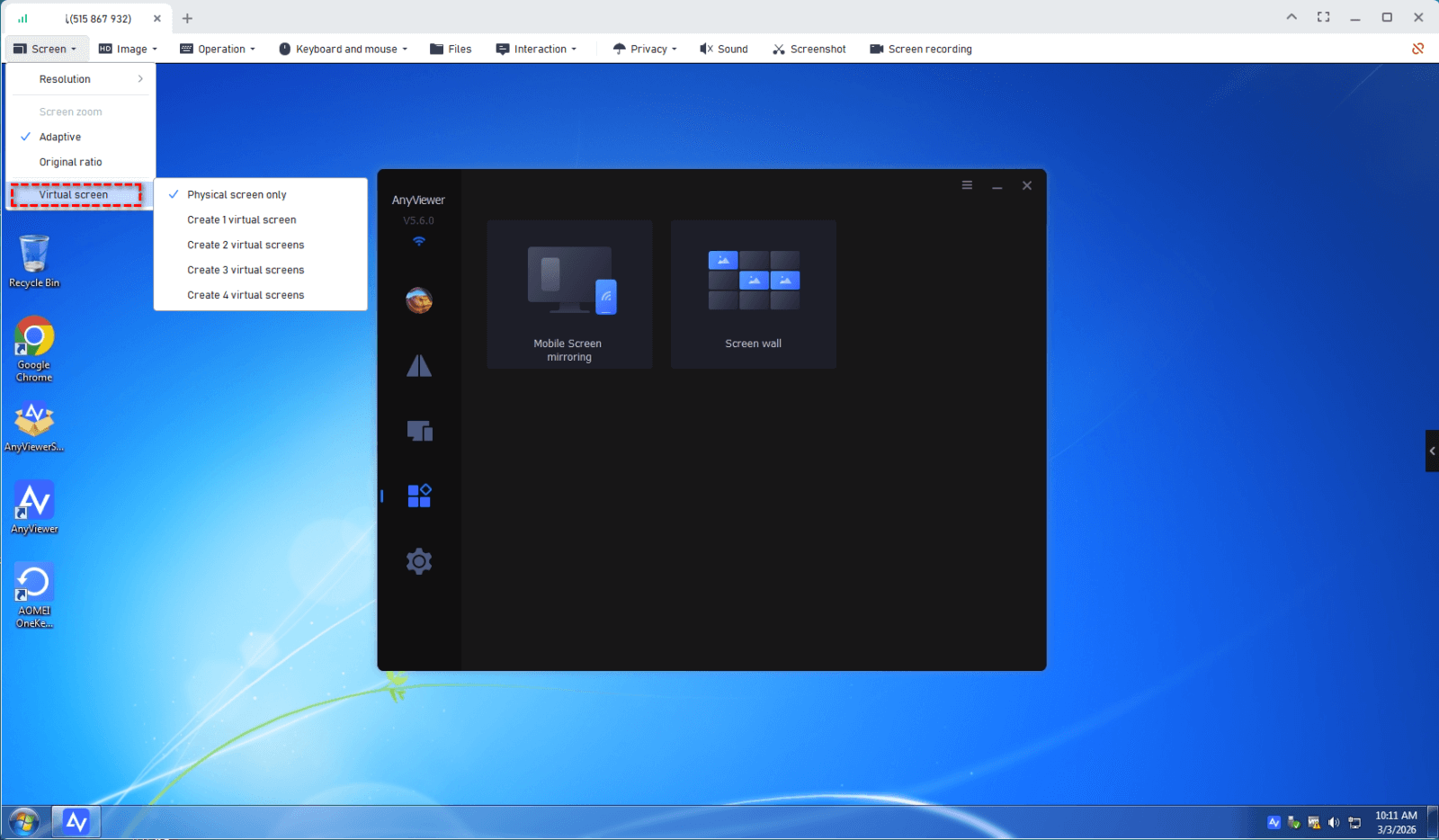
Step 4. Switch between the physical and virtual screens freely. Each screen runs independently, and you can drag windows from Screen 1 to the right to move them to a virtual screen.

- ★Tips:
- Please note that this feature is only available in the Professional or Enterprise plan. After upgrading, you can also monitor multiple desktop screens simultaneously, streamline group management, perform mass deployment, and access additional advanced features.
Extra tip: Extend displays with Windows Pro, Enterprise, or Education
If your host computer runs Windows Pro, Enterprise, or Education, Windows Remote Desktop can be a practical way to work with multiple monitors during a remote session. Instead of simply streaming a screen, it creates a virtual desktop session that can adapt to your local monitor setup. With a simple configuration, you can allow the remote desktop to use all monitors connected to your local computer.
Step 1. Open the Remote Desktop Connection application on your local computer.
Step 2. Select Show Options in the lower left corner to expand the advanced settings panel.
Step 3. Switch to the Display tab where monitor related settings are located.
Step 4. Enable the option labeled Use all my monitors for the remote session. This setting allows the remote desktop to recognize and use every monitor connected to your local workstation.
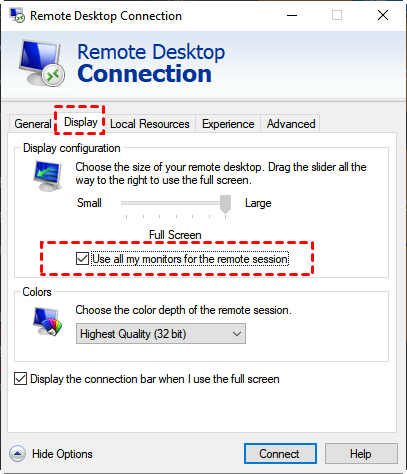
Step 5. Return to the General tab and click Connect to start the session with the new display configuration.
After this option is enabled, the remote system will automatically adapt to your local multi-monitor environment. Even if the host computer only has one physical monitor, the remote session can simulate multiple displays based on your local setup. For example, if your workstation has three monitors, the remote Windows session will behave as if it also has three screens, allowing you to move windows across displays and organize tasks more efficiently.
Conclusion
In summary, Splashtop Extended Wireless Display 2 was a useful tool for extending a computer screen to a mobile device, but it is no longer well suited for modern systems such as Windows 10. Because the software is outdated, installation can be difficult and performance may be unstable.
For users who still want to extend their workspace, modern solutions provide a better experience. Tools such as Splashtop Wired XDisplay offer a reliable wired connection for using a tablet as a second screen. Meanwhile, remote desktop platforms like AnyViewer provide flexible options such as virtual screens and multi monitor management, making it easier to expand your workspace without extra hardware.
By choosing a modern and actively supported tool, you can create a more stable and efficient multi screen environment for work, multitasking, and remote management.
FAQs
🗨️ How to use two monitors with Splashtop?
With Splashtop, first make sure the host computer already has two monitors connected. After you connect to the remote computer, use the monitor switch or multi-monitor view in the toolbar to view and control each screen.
🗨️ Can you connect a second monitor wirelessly?
Yes. You can connect a second display wirelessly with remote desktop tools that support virtual screens. Some software can simulate an extra monitor even without physical hardware.
🗨️ How to extend desktop to 3 monitors?
Connect three displays to your computer using HDMI, DisplayPort, or USB-C, then choose Extend these displays in Windows display settings. If you do not have enough ports, tools like AnyViewer can help by creating virtual monitors, supporting up to 4 virtual screens.
🗨️ How do I wirelessly duplicate my screen?
Open the wireless display or casting feature on your device, choose a compatible display such as a smart TV, and select the duplicate or mirror option.
🗨️ Can you extend 1 HDMI to 2 monitors?
You can use an HDMI splitter, but it will mirror the same screen on both monitors. To truly extend the desktop, you usually need a docking station, USB display adapter, or a graphics card with multiple outputs.



 as a preferred
source on Google
as a preferred
source on Google