

Fixed: Connection Was Terminated By The Remote Computer Before It Could Be Completed
This article explores why a VPN connection terminated before it could be completed. It gently guides readers through understanding remote computer disconnections and finding simple, effective resolutions for their networks.

By Irene / Updated on March 12, 2026


🌟 Quick Overview:
If you are seeing Error 628 (“The connection was terminated by the remote computer before it could be completed”), your computer successfully started reaching out to a remote server or VPN, but the "handshake" failed during authentication or communication.
The most common culprits behind this interruption are outdated network drivers, corrupted WAN Miniport adapters, strict firewall settings, or using an incompatible VPN protocol (like PPTP).
How to fix it right now: To resolve this issue immediately, you will generally need to check your network hardware and tweak your system settings. The most effective solutions will be shared in this passage.
-
Updating your network drivers to ensure hardware compatibility.
-
Reinstalling WAN Miniport adapters to reset your Windows VPN components.
-
Enabling the Microsoft CHAP Version 2 protocol so the remote server accepts your credentials.
-
Disabling your proxy server or temporarily pausing Windows Firewall to ensure security software isn't blocking the connection.
-
Switching to a direct remote support tool (like AnyViewer) if VPN configurations continue to fail.
If you are frustrated by this error and just want to get back online, keep reading. Below is our complete, step-by-step guide to troubleshooting Error 628 and restoring your remote connection for good.
What are the most common causes of Error 628
“The connection was terminated by the remote computer before it could be completed” is a network error that appears when your computer tries to connect to a remote server or VPN, but the remote system ends the connection before it is fully established.
In Windows, this issue is commonly linked to Error 628. It means your device started the connection process, but the remote computer or server stopped it during the authentication or communication stage. As a result, the connection fails before you can access the remote system.
Encountering the message can be incredibly frustrating. Here are some common causes. After knowing it, you can follow our guide to fix this error.
❗Network congestion
If the server is busy or the internet connection is unstable, the connection request may be interrupted before it is fully established.
❗Firewall or security software interference
Firewalls or antivirus programs may block the connection because they detect it as a potential security risk.
❗Outdated or faulty network drivers
Old or corrupted network adapter or WAN Miniport drivers can prevent the system from completing the connection process.
❗Incorrect login credentials
Entering the wrong username or password may cause the server to immediately terminate the connection.
Once you identify the cause, you can apply the appropriate solution to restore the connection successfully.
How to fix The connection was terminated by the remote computer before it could be completed happen?
Method 1. Perform preliminary connection checks
When the connection to a remote computer fails, it is best to start with simple troubleshooting steps. Basic issues such as weak signals, loose cables, or temporary network glitches can interrupt the connection process and trigger the “connection terminated by the remote computer before it could be completed” error. Performing several quick checks can help rule out common problems before moving to more advanced solutions. This approach can save time and quickly restore the connection in many situations.
Step 1. Check the signal strength in your modem or network manager to ensure the connection is stable.
Step 2. Make sure the modem or network device is properly connected to the computer. Step 3. Remove the modem or network cable and plug it back in securely.
Step 4. Restart the modem or router to refresh the network connection.
Step 5. Temporarily disable antivirus software that may block the connection.
Step 6. Restart the computer in Safe Mode and try connecting again.
If the problem continues after these basic checks, the issue may be related to system configuration or drivers. In this case, updating the network driver is a good next step because outdated or corrupted drivers can prevent Windows from establishing a stable remote connection.
Method 2. Update the network driver
Outdated or corrupted network drivers can cause communication problems between your computer and the remote server. When the driver does not work properly, the connection process may fail before it is fully established, leading to Error 628. Updating the network driver through Device Manager can refresh the driver files and improve compatibility with your network hardware. This method is simple and often resolves connection errors related to driver issues.
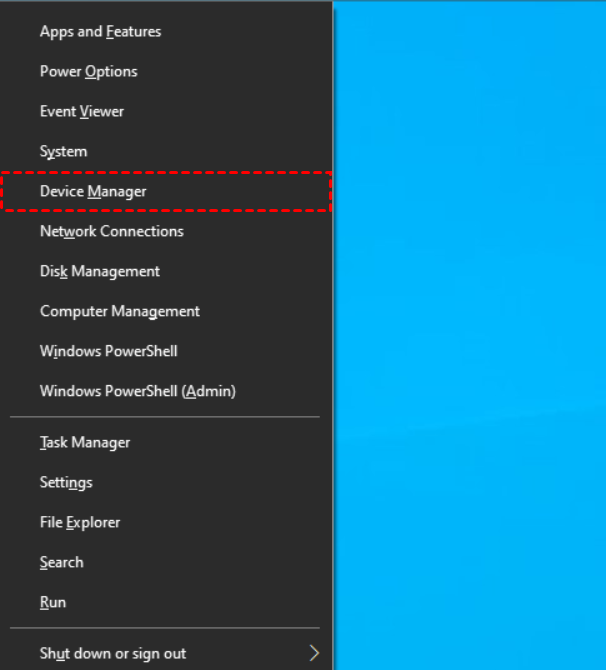
Step 1. Press Win + X and choose Device Manager from the menu.
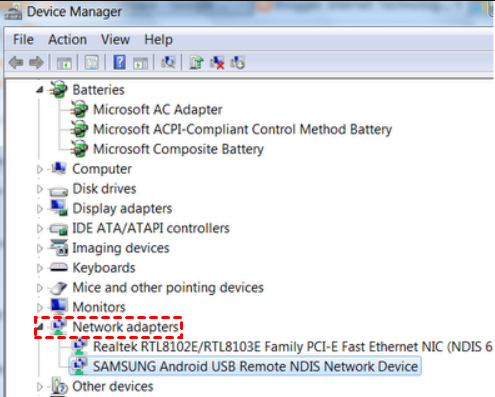
Step 2. Expand Network adapters and locate your modem or network adapter.
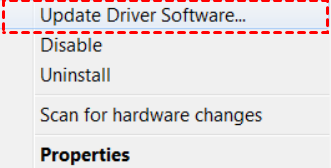
Step 3. Right-click the device and select Update driver.
Step 4. Choose Search automatically for drivers and follow the on screen instructions.
Step 5. Restart your computer after the update finishes.
If updating the driver does not resolve the issue, the problem may involve corrupted WAN Miniport components used for VPN or remote connections. Reinstalling these components can rebuild the connection configuration in Windows.
Method 3. Reinstall WAN Miniport adapters
WAN Miniport adapters are virtual devices used by Windows for VPN and remote network connections. If these components become corrupted or misconfigured, the system may fail to establish the connection and display the connection terminated error. Reinstalling the WAN Miniport adapters forces Windows to rebuild these network components automatically. This process often resolves connection issues related to VPN protocols and remote access services.
Step 1. Press Win + X and open Device Manager.
Step 2. Expand Network adapters and find WAN Miniport (SSTP).
Step 3. Right-click the device and select Uninstall device.
Step 4. Confirm the uninstall action when the prompt appears.
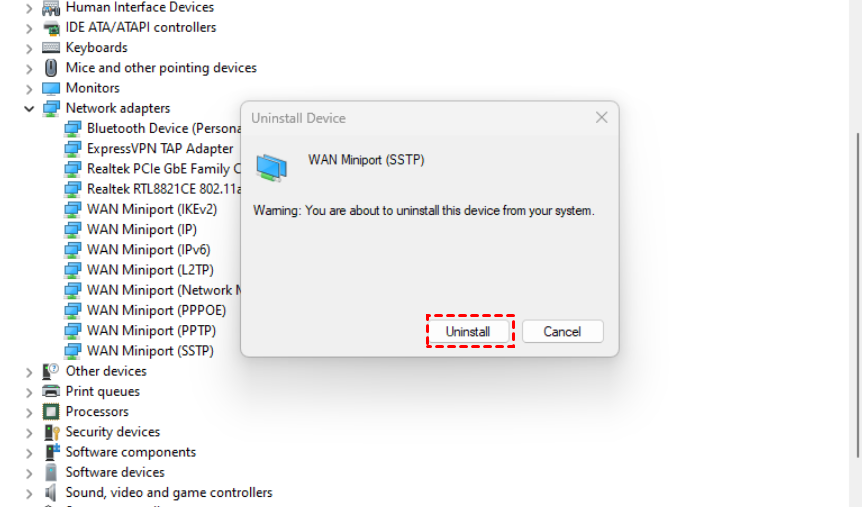
Step 5. Repeat the same process to uninstall other WAN Miniport devices.
Step 6. Right click Network adapters and select Scan for hardware changes to reinstall them.
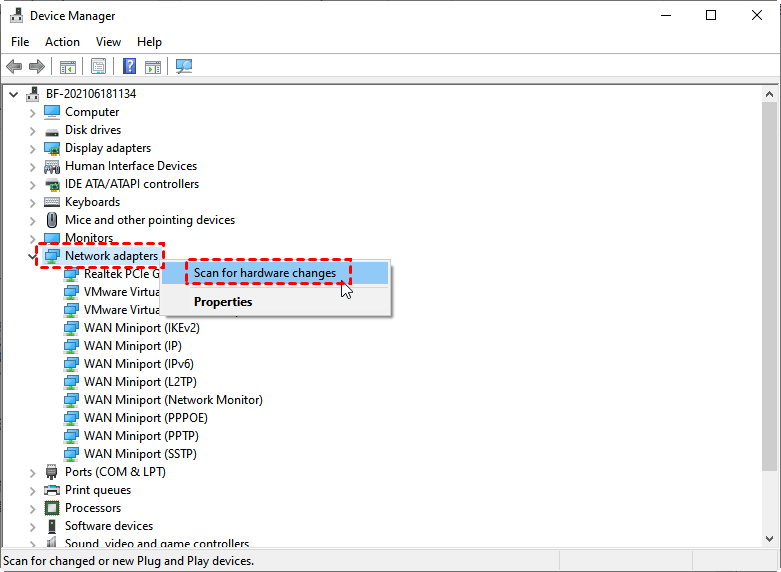
If the issue still occurs after reinstalling the WAN Miniport adapters, the VPN authentication settings might be incorrect. Adjusting the authentication protocol can help ensure that the connection request is accepted by the remote server.
Method 4. Enable Microsoft CHAP version 2 protocol
Some VPN or remote connections require specific authentication protocols to verify user credentials. If the correct protocol is not enabled, the remote server may reject the connection request and terminate it immediately. Enabling Microsoft CHAP version 2 in the VPN security settings ensures that Windows uses a compatible authentication method. This adjustment is commonly recommended when dealing with VPN related connection errors.
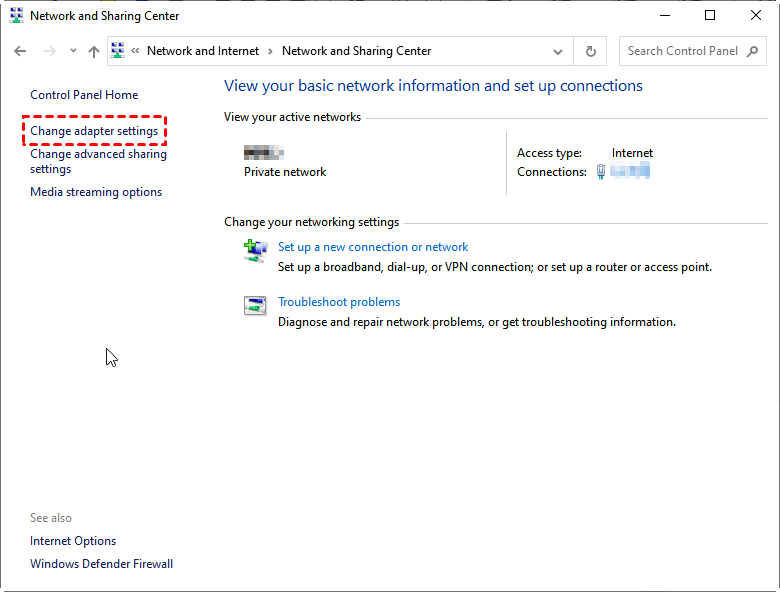
Step 1. Open Control Panel and click View network status and tasks.
Step 2. Select Change adapter settings on the left panel.
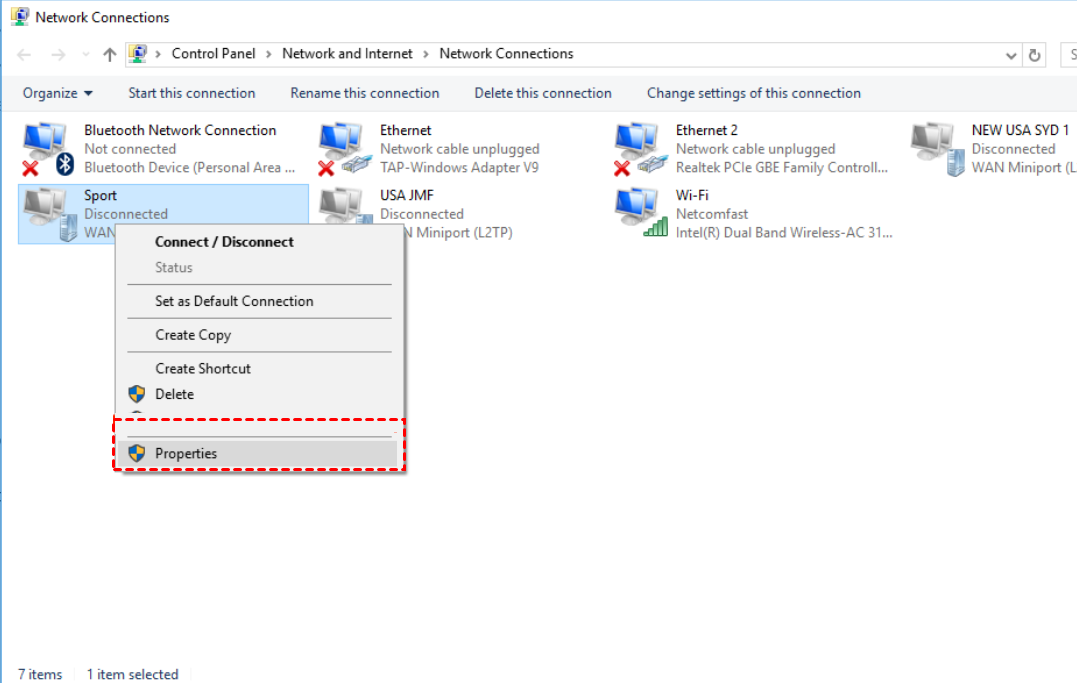
Step 3. Right click your VPN connection and choose Properties.
Step 4. Go to the Security tab.
Step 5. Select Allow these protocols and check Microsoft CHAP Version 2.
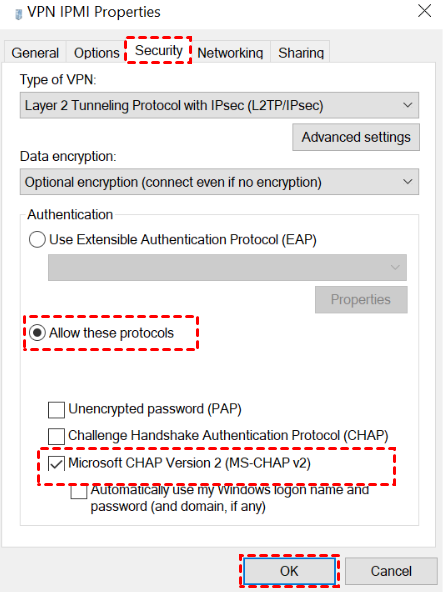
Step 6. Click OK to save the settings.
If the connection problem remains, it may be caused by incorrect network routing through a proxy server. Disabling proxy settings can sometimes resolve remote connection failures.
Method 5. Disable the proxy server
Proxy servers are sometimes used to manage or filter network traffic. However, if the proxy configuration is incorrect or incompatible with your VPN connection, it may interrupt the communication between your computer and the remote server. Disabling the proxy temporarily can help determine whether it is causing the connection termination issue. This method is quick to perform and often resolves network configuration conflicts.
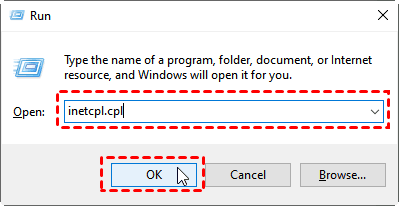
Step 1. Press Win + R, type inetcpl.cpl, and press OK.
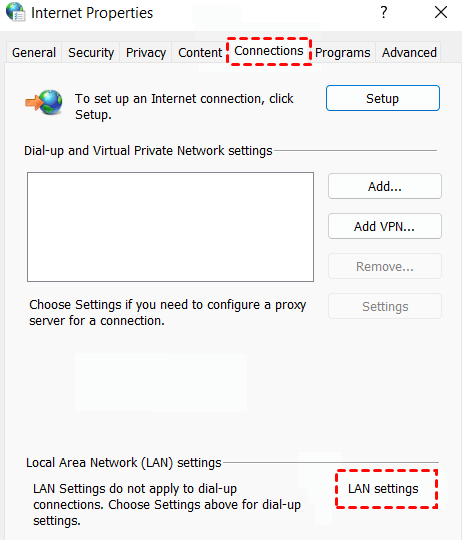
Step 2. In the Internet Properties window, open the Connections tab.
Step 3. Click LAN settings.
Step 4. Uncheck Use a proxy server for your LAN.
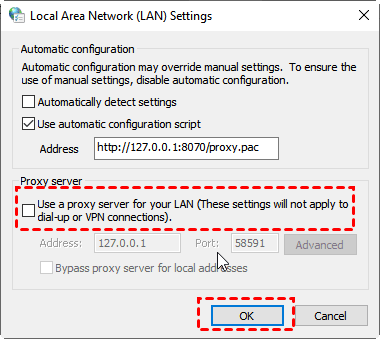
Step 5. Click OK and close the window.
Step 6. Try reconnecting to the remote server.
If disabling the proxy does not solve the problem, the issue may be related to security restrictions from the Windows firewall. Adjusting the firewall settings can help determine whether the firewall is blocking the connection request.
Method 6. Adjust Windows Firewall settings
Windows Firewall protects your system by blocking suspicious network activity. However, in some situations it may also block VPN traffic or remote connection protocols that are necessary for the connection to succeed. Temporarily disabling the firewall can help determine whether it is interfering with the connection process. If the connection works after this change, you can later create proper firewall rules instead of keeping the firewall disabled.
Step 1. Open Windows Defender Firewall from the Control Panel.
Step 2. Click Turn Windows Defender Firewall on or off.
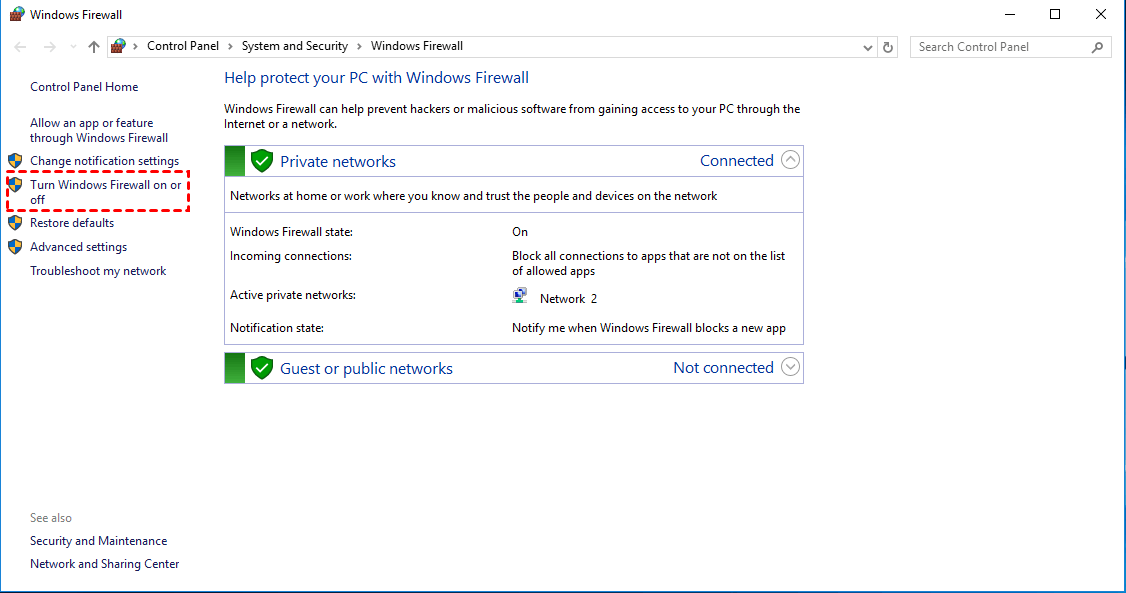
Step 3. Select Turn off Windows Defender Firewall for both private and public networks.
Step 4. Click OK to apply the changes.
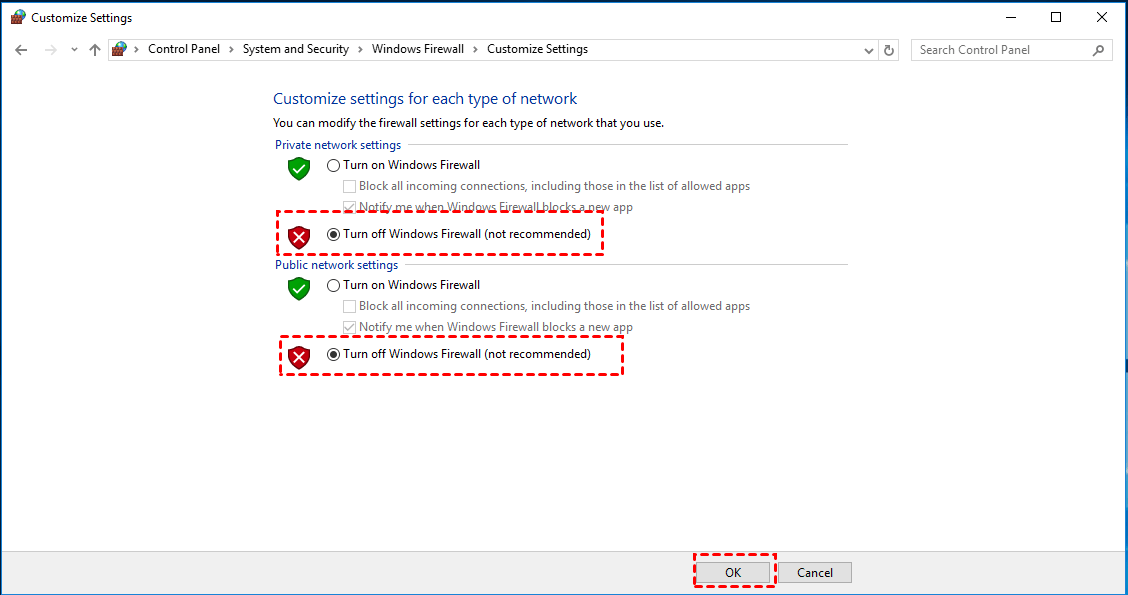
Step 5. Try establishing the connection again.
If the connection works after disabling the firewall, it confirms that the firewall rules are blocking the connection. You can then create exceptions for the VPN or remote access program instead of leaving the firewall disabled for security reasons.
🔥Further reading: Use AnyViewer for stable remote support
If you often encounter connection errors when using VPN or complicated network settings, switching to a simpler remote access tool can help. A professional remote desktop program like AnyViewer provides a more stable way to connect to another computer. It allows you to access remote devices without configuring a VPN, port forwarding, or other complex network settings. Whether the computers are on the same local network or connected through the internet, the software can establish a direct and reliable remote session.
As an all in one remote access solution, AnyViewer also includes several useful features that make remote support easier:
🔶 Unattended remote access
You can connect to a remote computer anytime without someone needing to accept the request.
🔶 Flexible file transfer
Files can be transferred between devices quickly, making it easier to share documents or install programs remotely.
🔶 Multi device management
The software allows you to manage several remote computers at the same time from one interface.
🔶 Built in chat
During a remote session, you can communicate with the other user by sending messages directly in the chat box.
Security is also well protected. AnyViewer uses ECC encryption to keep your data safe during remote connections. It also offers privacy mode in higher plans to help protect sensitive information on the remote screen.
Step 1. Download, install and launch AnyViewer on both computers. Go to Log in, and then click Sign up. (If you already have signed up on its official website, you can log in directly.)

Step 2. Fill in the signup information.

Step 3. Then you can see you successfully logged in to AnyViewer. Your device will automatically be assigned to the account you've logged in to.

Step 4. Log in to the same AnyViewer account on the two devices, then you can achieve a direct connection by clicking One-click control.

What are the most common VPN protocols affected?
While this can happen on any connection, it is most prevalent on older or less secure protocols.
| Protocol | Likelihood of Error | Common Reason |
| PPTP | High | Often blocked by modern ISPs and firewalls. |
| L2TP/IPsec | Medium | Usually caused by incorrect Pre-Shared Keys (PSK). |
| OpenVPN | Low | Generally more stable; failures are usually due to expired certificates. |
How can you prevent this from happening again?
If you find yourself fixing this error weekly, consider these long-term adjustments:
-
Switch Protocols: If you are using PPTP, try switching to L2TP or IKEv2 in your VPN settings.
-
Update Windows: Ensure your OS is fully updated, as Microsoft frequently releases patches for the "Network Stack."
-
Static IP: If you are connecting to a home or office server, assigning a static IP to the machine can prevent handshake "confusion."
When should you contact your ISP? If you have tried all the steps above and the connection still fails across multiple devices, the "remote computer" terminating the connection might actually be your Internet Service Provider. Some ISPs throttle or block specific VPN ports to manage bandwidth. A quick call to their technical support can confirm if there is a block on your line. Or you can directly turn to AnyViewer to gain a stable remote access.
Conclusion
In conclusion, the error “The connection was terminated by the remote computer before it could be completed” usually occurs when the connection process between your computer and a remote server fails before it finishes. This problem is commonly linked to Error 628 in Windows and may be caused by unstable networks, firewall restrictions, outdated drivers, or incorrect login credentials.
Fortunately, this issue can often be resolved with several practical troubleshooting methods. Checking your network connection, updating drivers, reinstalling WAN Miniport adapters, adjusting authentication protocols, disabling proxy settings, and reviewing firewall configurations can all help restore the connection. If VPN related problems continue, using a reliable remote access tool such as AnyViewer can provide a simpler and more stable way to access remote computers. By identifying the root cause and applying the right solution, you can reconnect successfully and prevent the error from happening again.
FAQs
How to fix “no more connections can be made to this remote computer”?
Check if the remote computer has reached its connection limit. Disconnect inactive sessions or restart the remote system to free available connections.
How to fix “a connection to the remote computer could not be established”?
Verify the server address, check your internet connection, and confirm that the remote service or VPN server is running properly.
How do I fix unable to connect to a remote server?
Restart your network, update network drivers, review firewall settings, and make sure the server allows remote connections.
What could the end user do when they are unable to connect to VPN?
Check login credentials, restart the VPN client, switch to another server, and confirm that your internet connection is stable.
Why is my computer blocking my VPN?
Your firewall, antivirus software, or network security settings may block VPN traffic because it is considered a potential security risk.
How do I fix my VPN connection problem?
Restart your device and router, update the VPN application, change the VPN protocol or server, and check firewall or proxy settings.



 as a preferred
source on Google
as a preferred
source on Google