

5 Mac Screen Recording Software
Discover the best Mac screen recording software and apps to capture, edit, and share videos effortlessly. Explore free and paid options, including advanced tools for professional-quality recordings.

By Ellie / Updated on December 16, 2025


What's the best way to screen record on a Mac?
A screenshot can say a lot, but a screen recording can say even more, sometimes ten times over. Recording your screen has streamlined work, reduced unnecessary meetings, and boosted productivity across the board. But if you’re a Mac user, you might be wondering: what’s the best Mac screen recording method?
Macs come with built-in, free screen recording tools, and there are also paid third-party apps with extra features. Choosing the right one depends on your needs, whether you want simple recordings, advanced editing, or professional-quality videos.
Best Mac screen recording software
For many users, a Mac screen recorder only needs to perform a few basic tasks: start recording, capture the content, and allow sharing. However, the efficiency and quality of these tasks can differ depending on the software used.
To provide a clear comparison, the six best Mac screen recording apps were tested and evaluated. The table below offers an objective overview of their features, performance, and usability, highlighting how the top options compare in 2025.
macOS Screenshot App: Basic Screen Recording Features
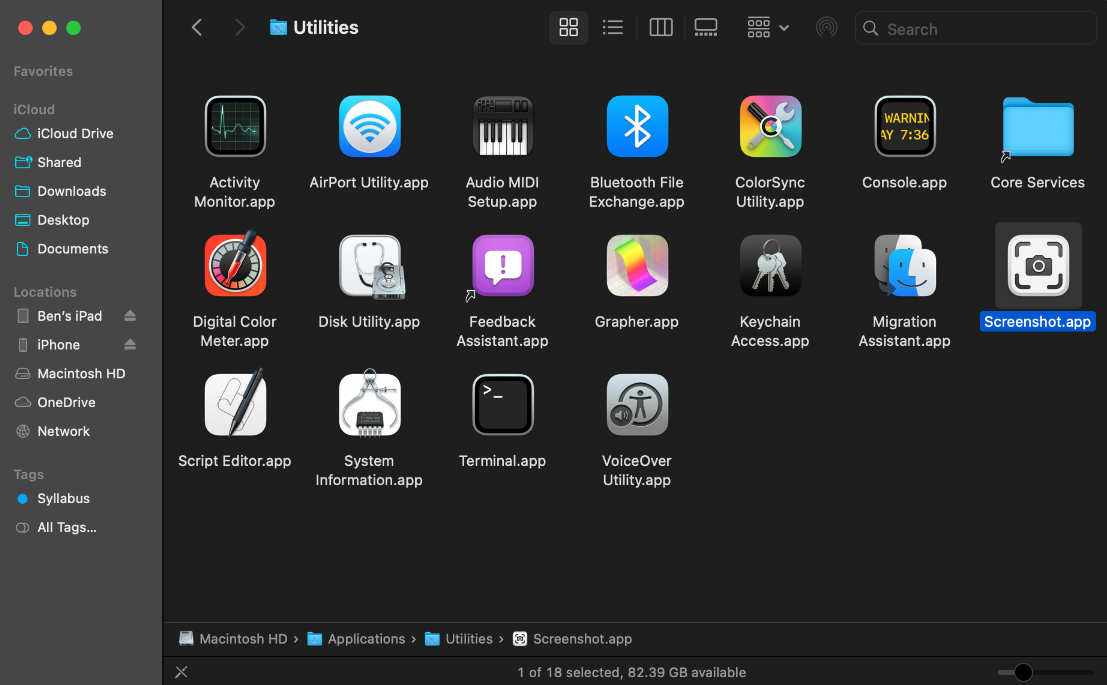
The built-in Screenshot utility is the most accessible free best Mac screen recording software for Mac users. It comes pre-installed with macOS and provides several options for both screenshots and video recordings:
- Capture Entire Screen
- Capture Selected Window
- Capture Selected Portion
- Record Entire Screen
- Record Selected Portion
For screen recording, the last two options, Record Entire Screen and Record Selected Portion, are the ones you’ll use. You can also enable audio recording, set a timer, and highlight mouse clicks during the recording.
How to Record Video with Screenshot
Step 1. Open Screenshot from Applications > Utilities, Launchpad, or use the Shift + Command + 5 shortcut.
Step 2. Select Record Entire Screen or Record Selected Portion.
Step 3. Click anywhere on the screen to begin recording.
Step 4. Click Stop Recording in the menu bar when finished.
Alternatively, you can access the same recording options through QuickTime Player, another pre-installed macOS app. Open QuickTime Player and select File > New Screen Recording (or press Control + Command + N) to launch the best Mac screen recording app interface.
Pros
- Free and easy to use
- Fully integrated with macOS
Cons
- Limited options for video format selection
Technical Details
- Price: Free
- Supported Systems: macOS
- Features: Record full screen or selected area, show mouse clicks
- Availability: App Store (macOS)
CleanShot X: Distraction-Free Screen Recording
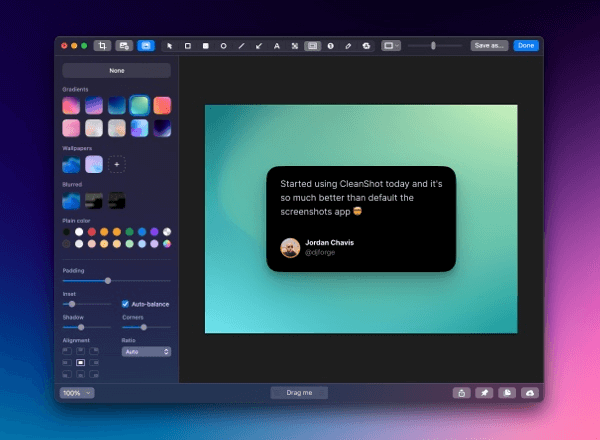
For Mac users accustomed to the default screen recording tools, CleanShot X offers a significant upgrade. This best Mac screen recording software isn’t just a screen recorder; it provides a versatile workspace for capturing, editing, and sharing content with ease.
With CleanShot X, you can:
- Record videos or create GIFs
- Capture a specific window, full screen, or a custom area
- Disable notifications and hide desktop icons while recording
- Set a timer for recordings
- Record scrolling windows, such as long webpages
The app also integrates CleanShot Cloud, enabling quick storage and sharing. Every recording can generate a shareable link immediately, making collaboration seamless.
CleanShot X includes a built-in editing suite. You can annotate, highlight, or blur screenshots without needing additional software, making post-production fast and convenient.
Pros
- Instant cloud sharing
- Ability to hide desktop icons and disable notifications
- Built-in screenshot annotation tools
Cons
- Paid software
Technical Details
- Price: $29 one-time license or included in Setapp (with 250+ other apps)
- Supported Systems: macOS
- Features: Cloud sharing, editing tools, hide desktop icons, disable notifications
- Availability: CleanShot X website, Setapp
Movavi: Webcam and Advanced Screen Recording
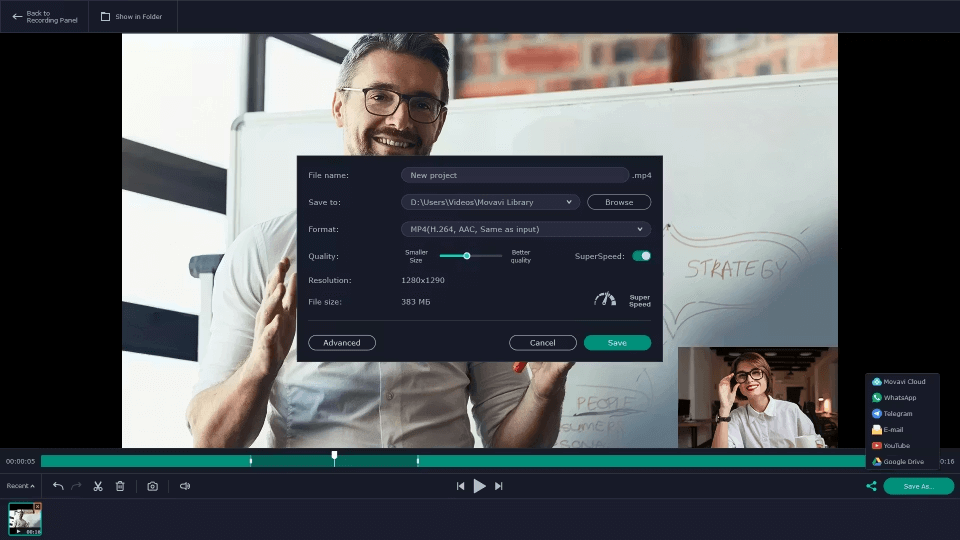
Movavi is a professional-grade best Mac screen recording app frequently compared to CleanShot X. It allows users to record the full screen or a selected area, highlight mouse clicks, display keystrokes, and capture voiceovers either simultaneously or separately.
What sets Movavi apart are its advanced features:
- Record webcam video alongside screen capture
- Schedule recordings for a later time
- Draw on the screen while recording in real-time
Movavi is available for both Mac and Windows, making it a versatile option for cross-platform users.
Pros
- Real-time drawing on videos
- Available on Windows and Mac
Cons
- High monthly subscription cost
Technical Details
- Price: $29.95 per month
- Supported Systems: macOS and Windows
- Features: Scheduled recording, draw while recording, webcam capture
- Availability: Movavi official website
Capto: Screen Recording with Built-In Editing
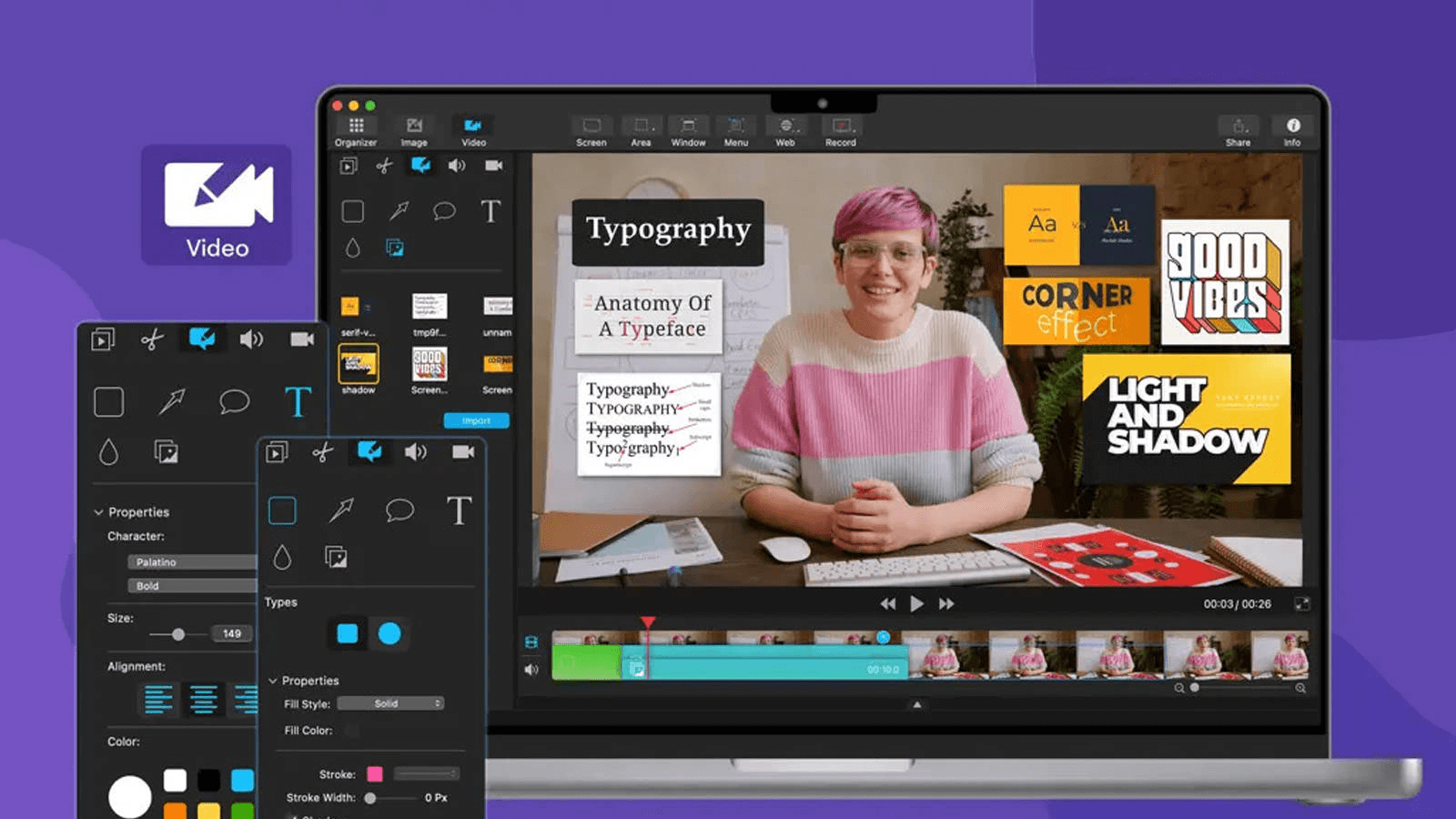
Capto is a versatile Mac app that combines best Mac screen recording software and video editing in a single, user-friendly package. Unlike tools that focus solely on capturing your screen, Capto lets you edit your recordings immediately after they’re made. You can add audio tracks, annotate, crop, cut, and merge clips effortlessly. It also allows you to hide your desktop during recording for a cleaner look. Once finished, videos can be quickly shared via Dropbox, YouTube, Facebook, and other platforms.
The strength of Capto lies in its simplicity. Even users with minimal technical experience can record and edit videos without confusion.
Capto also works for basic screenshot tasks, offering editing and sharing features in the same app.
Pros
- Intuitive and easy to use
- Built-in video editing tools
- Annotation features
Cons
- No native cloud storage for sharing
Technical Details
- Price: $50 lifetime license or included in Setapp (with 250+ apps)
- Supported Systems: macOS
- Availability: Setapp, App Store
Loom: Capture Yourself, Your Screen, or Both

Loom has become a familiar tool in tech and business environments for its ease of use and versatility. It allows users to record themselves, their screen, or both at the same time, then instantly share the video via a link. Loom is widely used for presentation walkthroughs, product demos, brainstorming sessions, software tutorials, and more.
Loom offers a limited free plan for casual use, while the Pro plan costs $15 per month. It’s a solid solution for professionals in sales, customer support, and remote collaboration, though the cost may be high for some users.
Pros
- Free starter plan available
- Edit videos via transcript
- Simple and fast sharing
Cons
- Limited free plan
- Pro plan can be expensive
Technical Details
- Price: Free starter plan, $15/month Pro plan
- Supported Systems: macOS, Windows, Chrome extension, iOS, Android
- Features: Transcript-based editing, instant video sharing
- Availability: Loom official website
Bonus tip: Best screen recording software for Mac

If you want the ultimate combination of screen recording and remote collaboration, consider AnyViewer. While primarily a remote desktop solution, AnyViewer includes high-quality screen recording features. This is ideal if you need to record live presentations, webinars, or software tutorials directly from your Mac while interacting with another device. Unlike standard recorders, it allows simultaneous remote access and recording, making it a powerful choice for professionals who require advanced functionality without switching apps constantly.
Why choose AnyViewer for Mac screen recording?
- Remote and local recording: Capture your Mac screen even when connected to another device remotely.
- High-quality output: Record in HD without lag or stuttering.
- Secure and reliable: Your recordings are protected with encryption and privacy options.
- Easy sharing: Share your recordings directly with colleagues or clients.
Conclusion
Screen recording on a Mac has never been easier, whether you stick with built-in options like Screenshot or QuickTime, or opt for advanced third-party apps like CleanShot X, Movavi, Capto, or Loom. Your choice depends on your needs: for simple, free recordings, macOS utilities suffice. For professional editing, annotation, and sharing features, investing in best Mac screen recording software like CleanShot X, Movavi, or Capto is worthwhile.
And if you want an all-in-one solution combining remote access and recording, AnyViewer offers unmatched flexibility. With the right tool, Mac screen recording can enhance productivity, streamline communication, and make sharing information effortless.



 as a preferred
source on Google
as a preferred
source on Google