

How to Access a Broken Android Phone from PC (2026 Guide)
Learn how to access and control your broken Android screen from a PC. This guide provides effective methods to mirror your display and back up important data even if the touchscreen is unresponsive.

By Irene / Updated on February 27, 2026


🌟Quick Summary:
Even if your phone screen is completely broken, you may still be able to access your data. The solution depends on whether the screen, touch function, or both are damaged.
• You can connect the phone to an external monitor with an HDMI adapter.
• You can use an OTG cable and mouse to control the device and enable file transfer.
With the right method, you can recover photos and files without replacing the screen first.
User case: Can I access a phone with broken screen?
Hey guys, so my phone is broken, both touch screen and the screen itself does not display anything visually but it does power on, what is the best way the best way to use adapters so I can access the phone to get photos and files off of it? Thank you for any assistance you provide.
Specs: Samsung Galaxy A12
- Question from Reddit
Yes, you can still get into a phone even if the screen is broken by connecting it to your computer. When a phone drops, the screen might just crack, turn completely black, or stop responding to touch. Sometimes you can still see the display but the touch will not work, and sometimes the touch works even though the screen looks dead.
The way you access the phone really depends on the situation. If the screen is cracked but touch is fine, it is usually simple. If the screen is black but touch still works, there are also ways to manage it. And if both the screen and touch do not respond, or if the phone does not use touch at all, you still have some options to try.
In this guide, we will walk through the best methods to bring your damaged phone back to life on your PC. A broken screen can be very annoying because you may not even be able to make a quick call or check an important file, but the good news is there are solutions.
One more thing, be careful when handling a broken screen. It is better to wear gloves so you do not hurt your fingers.
How to access Android screen broken view on PC?
Option 1. Use AnyViewer
If your Android screen is broken but still responds, using AnyViewer is one of the easiest ways to control it from a PC. This tool works across Android, iOS, Windows, and Mac, so you can manage your phone right from the PC. Instead of struggling with a damaged display, you can see and operate your phone directly on a larger computer screen.
Install AnyViewer on your Windows PC and your Android device, sign in to the same account on both devices, then connect your phone through the app so your Android screen appears on your computer in real time.
After that, you can use your mouse and keyboard to open apps, transfer files between your computer and Android device, check settings, and back up important data smoothly. Compared with cables or adapters, this method gives you a clearer view and more stable control. It helps you safely access your data without complex setup or risky operations. Let’s see how to mirror a broken screen phone to your computer using AnyViewer.
Step 1. Download and install AnyViewer on your PC. Sign up for an account and stay logged in.

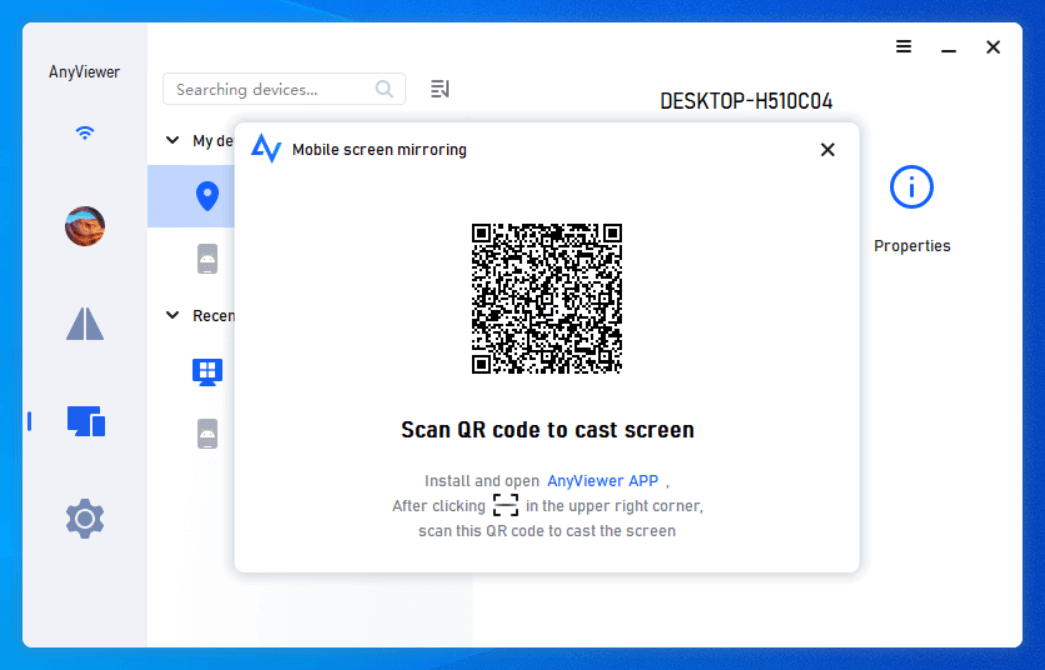
Step 2. Go to the "Device" section, select your PC, and choose "Mobile screen mirroring." A screen mirroring QR code will appear on the screen.
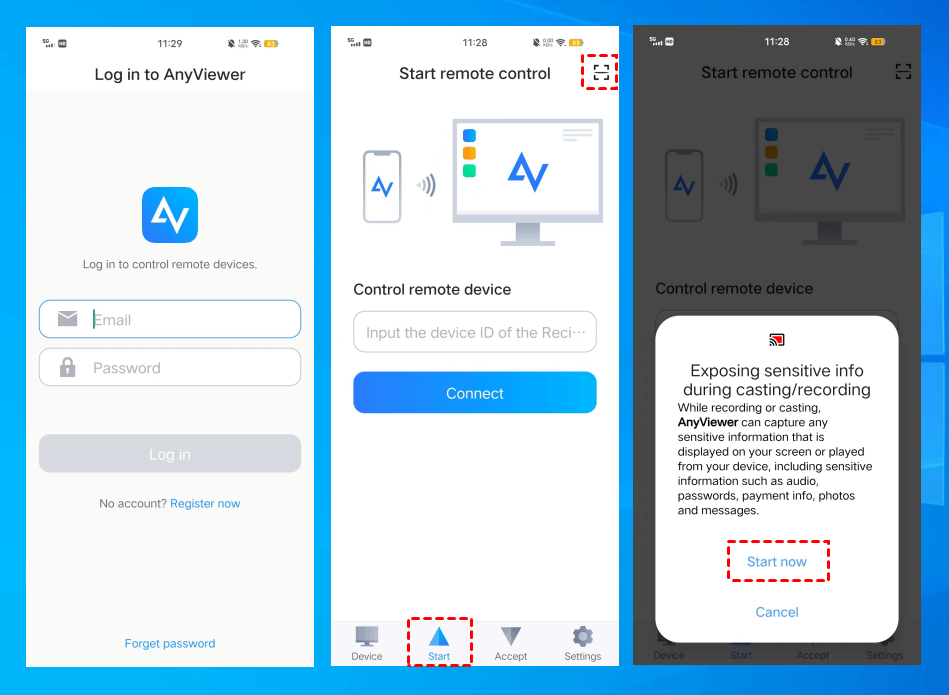
Step 3. Open the Google Play Store on your Android phone, log in to an account, tap "Start," and select the scan icon in the top right corner. Scan the QR code displayed on your PC and click "Start now" when prompted.
Step 4. Your Android screen will now be mirrored to your PC.
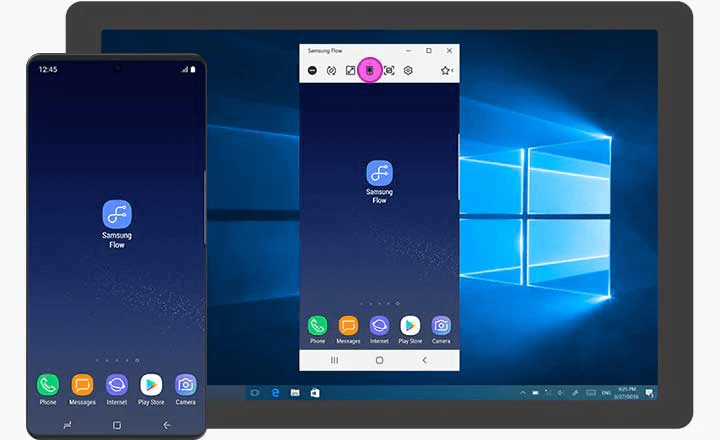
Option 2. Access broken-screen Samsung phone via Samsung Flow
If you are using a Samsung phone, it offer a solution for accessing your device even if the screen is broken. With Samsung Flow, you can easily transfer data and control your Samsung phone from a PC. Here's how to mirror broken screen Samsung phone to PC:
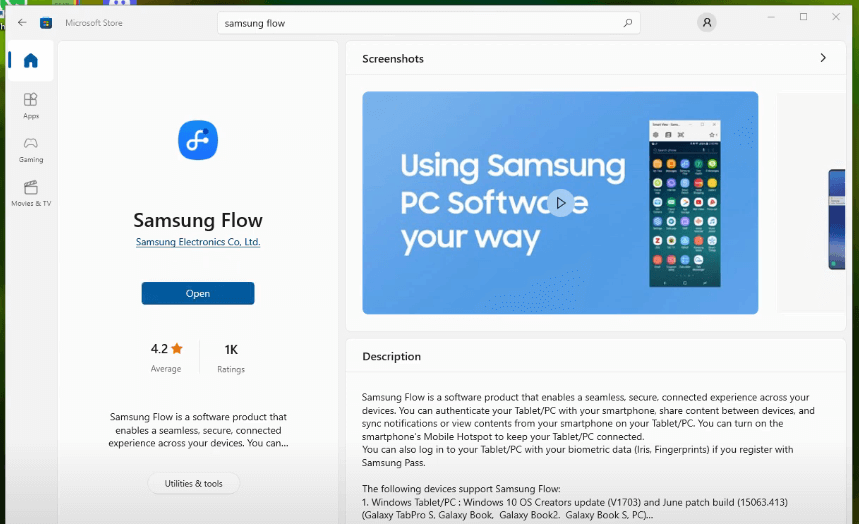
Step 1. Download and install Samsung Flow on both your Samsung phone and PC.
Step 2. Connect both devices to the same Wi-Fi network.
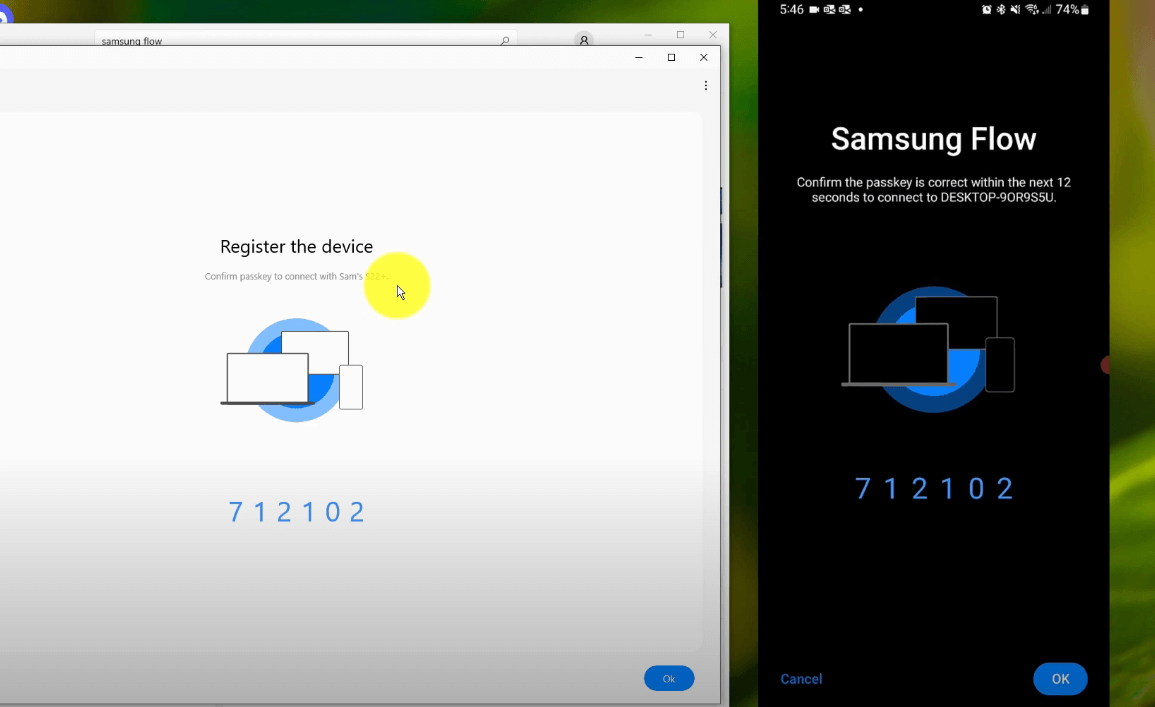
Step 3. Pair the devices by following the on-screen prompts and confirm the verification.
Step 4. Once paired, you can access your Samsung phone and transfer files effortlessly.
Option 3. ApowerMirror
ApowerMirror stands out as an excellent screen tool designed to cast your Android phone onto another device. Originally developed for screen mirroring between phones and computers bidirectionally, ApowerMirror extends its capabilities to mirror phone to phone or tablets. This makes it a valuable tool for sharing your broken Android screen with another Android device.
Notably, ApowerMirror excels in providing high-definition resolution during screen mirroring.To understand how to mirror a broken screen Android to another Android using ApowerMirror, follow the steps below:
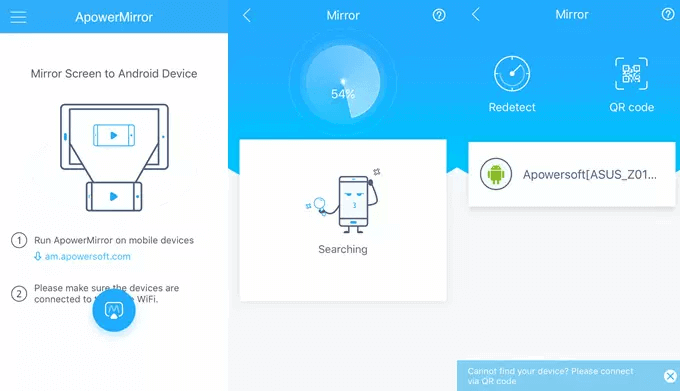
Step 1. Begin by downloading and launching ApowerMirror on both Android devices. Ensure that both devices are linked to the identical WiFi network.
Step 2. Tap the “Mirror” button, and ApowerMirror will automatically detect available devices on the same WiFi connection. Simply select the name of your broken screen Android device.
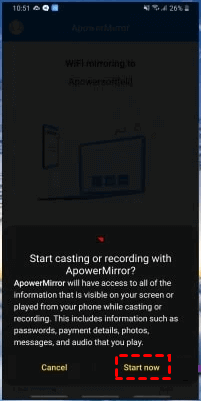
Step 3. Lastly, click “Start now” to commence the mirroring process. Witness your broken screen Android device being displayed on the other Android device seamlessly.
Option 4. ScreenShare
Consider using ScreenShare, an alternative screen mirroring tool, to mirror a broken screen Android to another Android device. ScreenShare enables remote connection and control of your Android device. Upon establishing the connection, it provides features like voice chat and drawing, enhancing the overall screen mirroring experience with smooth functionality.
Follow the steps below to initiate the process of mirroring the broken screen Android to another Android using ScreenShare:
Step 1. Download and install Screen Share on both Android devices.
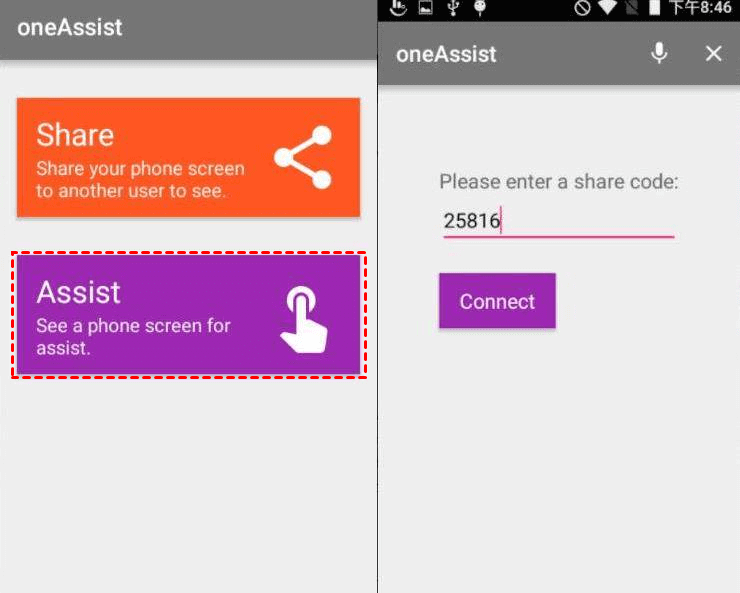
Step 2. Open the app, and on your broken screen Android phone, tap the “Share” option to grant permission for the other Android phone to view your screen.
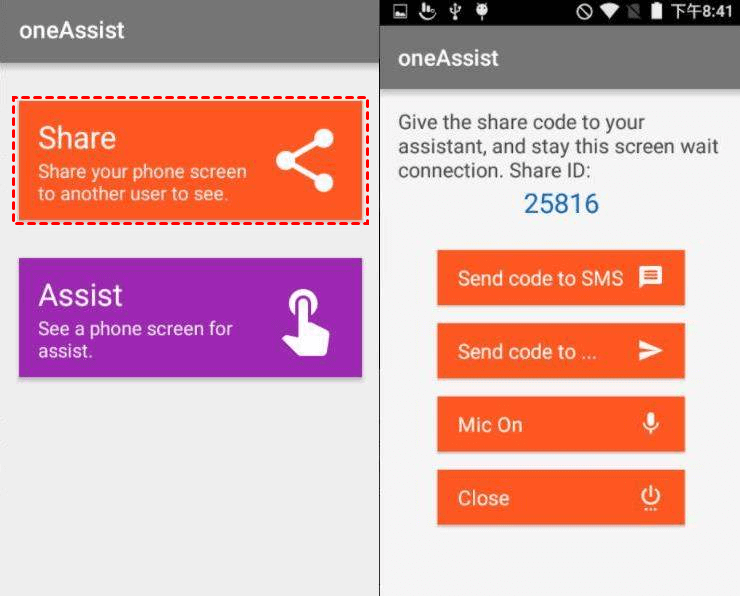
Step 3. On the other Android phone, select “Assist.” Enter the PIN code provided by the broken screen Android phone and click “Connect” to seamlessly access the broken Android screen on your Android phone.
Option 5. Connect your phone to an external display
If you can’t interact with your phone’s screen at all, mirroring it to an external monitor might be your best option. Using an HDMI adapter, you can project your phone’s display onto a TV or monitor and interact with it using a mouse or keyboard.
Steps to Connect a Broken Phone to an External Monitor:
Step 1. Choose the right HDMI adapter:
- For phones with USB-C ports, use a USB-C to HDMI adapter.
- For devices with micro-USB ports, you'll need a micro-USB (MHL) to HDMI adapter.
Step 2. Plug the adapter into your phone’s charging port.
Step 3. Connect one end of an HDMI cable to the adapter.
Step 4. Plug the other end of the HDMI cable into an available HDMI port on your monitor or TV.
Step 5. Use the input/source button on your monitor to select the HDMI port you connected.
Step 6. Once your phone’s screen is mirrored, use a connected mouse or keyboard (via OTG) to operate your device.
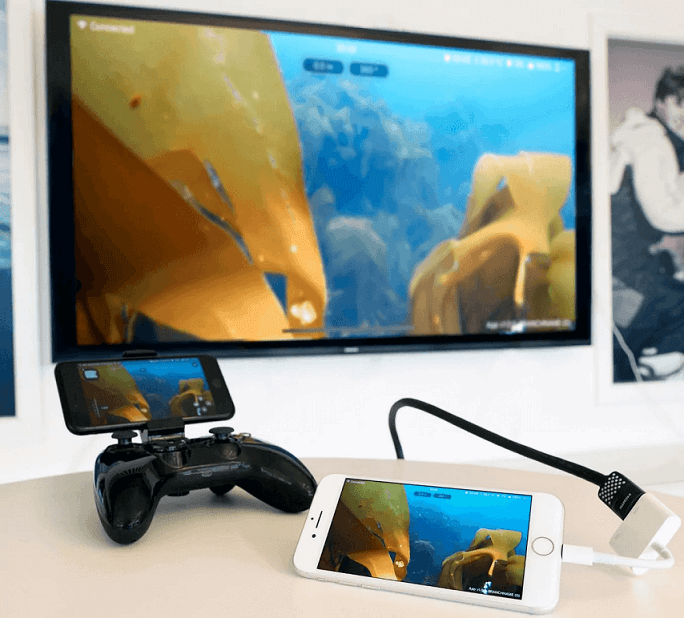
Important: This method only works if your phone supports HDMI output (MHL or DisplayPort over USB-C). Make sure to verify compatibility before attempting.
Option 6. Use an OTG cable and USB ,ouse (Screen Visible but Touch Not Working)
If your Android screen is visible but the touch function is broken, you can still control the device using a USB mouse. This method helps you manually enable USB Debugging, which is required for screen mirroring or PC control tools to work properly.
Step 1. Connect a USB OTG adapter (USB-A to USB-C or Micro-USB) to your phone, then plug a wired or wireless USB mouse into the adapter.
Step 2. Wait for a mouse cursor to appear on the phone screen, then use the mouse to unlock your device by drawing the pattern or entering the PIN.
Step 3. Open Settings, scroll to About Phone, and tap Build Number seven times until Developer Options are activated.
Step 4. Go back to Settings, open Developer Options, and turn on USB Debugging. Confirm the prompt if it appears.
Once USB Debugging is enabled, you can connect the phone to your PC and use screen mirroring or data recovery tools more easily. If the screen is completely black, move to the next method.
Option 7. Use Google Find My Device
If the touch screen does not respond and you cannot use a mouse, you can at least secure or “wake” the device remotely. This helps ensure the phone is active and ready when connected to a PC for file transfer.
Step 1. On a PC, open a browser and go to Google Find My Device.
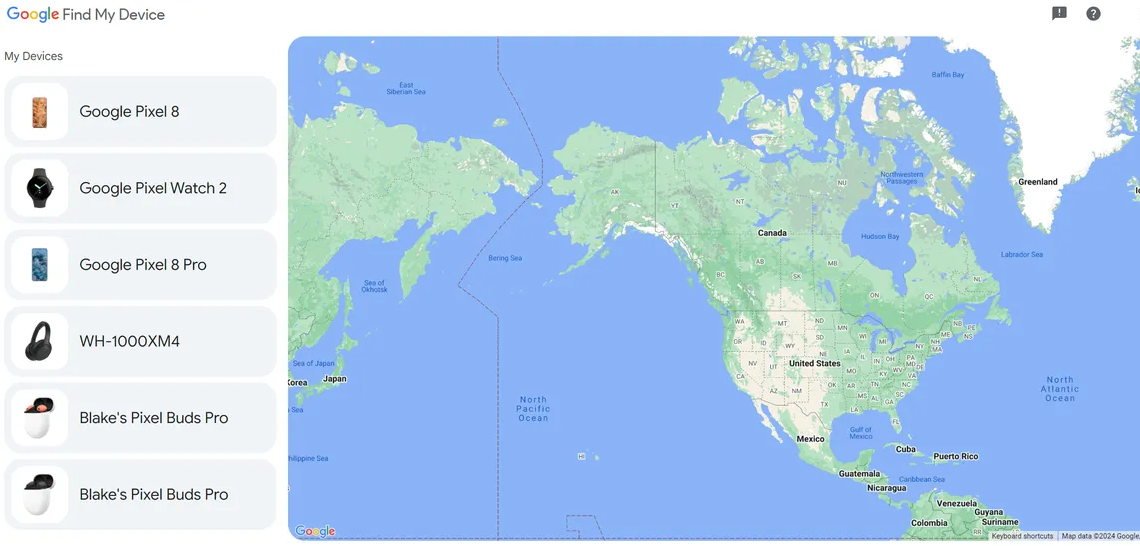
Step 2. Sign in using the same Google account linked to the broken Android phone.
Step 3. Select your device from the list and choose the Lock option.
Step 4. Set a new temporary password if biometric unlock is not working.
Step 5. After locking the device remotely, connect it to your PC using a USB cable and check if it is recognized for file transfer.
This method does not enable USB Debugging directly, but it can help stabilize device recognition. If you want a simpler way to access the screen without using complex commands, see the next solution.
Conclusion
Even if your phone screen is broken, you still have several ways to access it and recover important data. Tools like AnyViewer, Samsung Flow, ApowerMirror, and ScreenShare make it possible to mirror your phone to another device or directly control it from a computer. You can also connect your phone to an external monitor with the right adapter if the screen and touch are completely unresponsive. With these methods, you can safely back up photos, files, and other data from a broken screen phone without much hassle.
FAQs
🗨️ How to mirror display broken Android screen on PC?
You can mirror a broken Android screen to a PC using tools like AnyViewer or ApowerMirror. Install the app on both devices and connect them to the same WiFi network. If the touch screen still works, scan the QR code shown on the PC to start mirroring. If touch does not work, connect a USB OTG mouse first to enable USB debugging, then start screen mirroring.
🗨️ Can I access my phone from PC with a broken screen?
Yes, as long as the phone powers on, you can access it from a PC. You can use screen mirroring software, USB file transfer, or connect it to an external monitor. The exact solution depends on whether the display is visible and whether touch is still functional.
🗨️ How can I connect my Samsung phone to my computer with a broken screen?
You can use Samsung Flow to connect your Samsung phone to a PC. Install Samsung Flow on both devices, connect them to the same WiFi network, and complete the pairing process. After pairing, you can transfer files and control the phone from your computer. If the screen cannot be touched, use an OTG mouse to unlock the device and approve permissions.
🗨️ How do I view my Android screen on my PC?
To view your Android screen on a PC, install a screen mirroring tool such as AnyViewer or ApowerMirror. Connect both devices to the same network and follow the connection steps inside the app. Once connected, your phone screen will appear on your computer.
🗨️ How to show mobile view on PC?
You can show your mobile screen on a PC by using a screen mirroring application, connecting via USB with debugging enabled, or using an HDMI adapter to display the screen on a monitor. If touch is not working, an OTG cable with a mouse can help you control the device first.



 as a preferred
source on Google
as a preferred
source on Google