
How to Fix Erratic Mouse Movement in 3D Games Over RDP
Erratic mouse movement in 3D games over RDP can ruin your remote gaming experience. But don't worry, this issue can often be fixed by changing a few settings or using a different remote desktop app. Try the tips in this guide, and you'll be back to smooth gameplay in no time.

By Ellie / Updated on June 4, 2025


Introduction
Remote gaming has become more popular than ever, and it's not just for casual players anymore. With high-speed internet, cloud computing, and game streaming platforms, playing even heavy 3D games over remote connections is a growing trend. However, one of the most frustrating experiences that gamers encounter during remote gameplay is erratic mouse movement in 3D games over RDP, especially when playing demanding titles that require fast reflexes and precision.
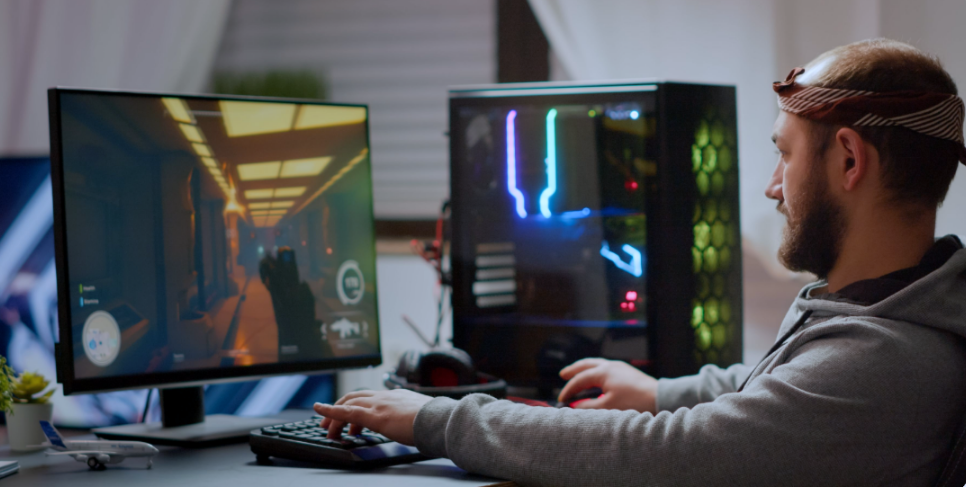
What does this look like? Imagine you're immersed in a fast-paced first-person shooter, but instead of smoothly turning your character, your view jumps around unpredictably or lags behind your movements. Not only does it break immersion, but it also severely affects your performance and gameplay experience. Erratic mouse movement in 3D games over RDP connection may seem like a minor issue at first glance, but stems from deep technical conflicts in how RDP transmits and interprets input signals.
This article dives deep into this issue, why it happens, how to fix it, and what you can do to optimize your setup for a seamless gaming experience, even over RDP.
Understanding the Issue
What Is Erratic Mouse Movement?
Erratic mouse movement refers to sudden, inconsistent, or delayed cursor responses that don't match the physical movement of your mouse. In the context of 3D gaming, this often means:
- Jittery or jumpy camera movement
- Delayed turn or aim response
- Discrepancies between expected and actual pointer location
These problems are especially prominent in first-person shooters, strategy games requiring precision, and fast-action 3D titles where every millisecond counts.
Why 3D Games Are More Affected
2D applications or desktop tasks like browsing or document editing require far less precision and real-time feedback from mouse input. In contrast, 3D games rely heavily on real-time, low-latency input feedback for actions like aiming, camera control, and object interaction. Even a tiny delay or inconsistency in mouse tracking can ruin the experience.
RDP wasn't originally designed with gaming in mind. It's optimized for business use, remote file access, app management, or basic screen sharing. When you combine RDP's inherent latency and input abstraction with the high demand of a 3D game engine, the result is unreliable and often erratic mouse movement in 3D games over RDP Windows 11 systems, especially due to changes in input handling introduced in the latest OS updates.
The Role of RDP in Gaming
What is Remote Desktop Protocol (RDP)?
Remote Desktop Protocol, or RDP, is a Microsoft communication standard that allows users to connect to another computer remotely. It transmits input from the client to the host and sends display updates back. It's widely used in enterprise environments for IT support and remote work.
RDP works well for typical tasks, but gaming is a different beast. It demands real-time data exchange, ultra-low latency, and high display accuracy, areas where RDP has known limitations.
How RDP Handles Input Devices
Here's the tricky part: RDP doesn't forward raw mouse input. Instead, it sends interpreted mouse position data from the client to the host system. That means if you're using raw input settings in a game, you're out of luck, the game won't receive your physical mouse movement but rather the translated version of it via RDP.
This distinction is critical. Games that depend on raw input for accurate aiming or camera control (like most first-person shooters) will behave unpredictably when accessed over RDP.
Also, RDP can introduce problems such as:
- Acceleration inconsistencies
- Non-linear movement
- Input buffering or packet loss
All of which contribute to the erratic mouse behavior you might be experiencing.
Diagnosing the Problem Like a Pro
Step-by-Step Troubleshooting Guide
If you're noticing erratic mouse movement in 3D games over RDP connection, especially when aiming or turning the camera, start with the basics: network stability, display resolution, and game input settings. Pinpointing the trigger can save you hours of frustration.
- Check Local vs. Remote Behavior: First, confirm whether the issue is exclusive to your remote session. Try running the game locally. If the mouse behaves normally, the problem likely lies in the remote environment.
- Assess Network Conditions: Use tools like ping, traceroute, or third-party software like PingPlotter to analyze packet loss and latency. Anything over 80–100 ms may introduce noticeable input lag or jitter in mouse movements.
- Check Resolution and DPI Scaling: If your display settings use custom scaling (like 125% or 150%), it may interfere with mouse position mapping in games. Ensure consistent DPI and resolution settings across your remote and local machines.
- Disable Pointer Precision and Acceleration: Go to Windows' Mouse Properties and uncheck "Enhance Pointer Precision." This helps standardize raw input and often reduces erratic jumps in 3D games.
- Toggle Full-Screen Mode: Many 3D games perform better in exclusive full-screen mode. If you're using windowed or borderless modes over RDP, try toggling these settings.
- Update Drivers and RDP Client: Your RDP client and GPU drivers should be up to date. Older RDP clients may not fully support newer graphics enhancements or mouse input methods.
- Use Raw Input in Game Settings: Most modern games allow switching mouse input to "Raw Input" mode, bypassing Windows settings. This provides a direct connection between your mouse and the game engine, minimizing translation issues.
- Check RemoteFX or Hardware GPU Acceleration Settings: Misconfigurations here can cause erratic rendering, including poor input recognition. You may need to disable RemoteFX or adjust its parameters.
Tools You Can Use for Mouse Movement Testing
Not sure if the problem is the mouse or the network? These tools can help isolate the issue:
- MouseTester (open-source tool): Allows users to visualize mouse polling rate and consistency.
- Raw Input Viewer: Displays real-time mouse input data.
- RDP Performance Monitor (perfmon.msc): Built into Windows, this helps assess CPU, GPU, and network utilization during remote sessions.
- LatencyMon: Useful for identifying system-level latency bottlenecks.
- GameBench or FrameView: Tools for benchmarking frame rates and responsiveness, essential in diagnosing RDP gaming performance.
With the right diagnostic tools and methodical testing, you can usually pinpoint where the issue lies, whether it's the connection, settings, or the game engine itself.
Optimizing RDP Settings for Better Mouse Performance
By default, Remote Desktop Protocol is optimized for productivity tasks, not high-performance gaming. However, several configuration tweaks can significantly improve your gameplay experience:
Use Group Policy Editor for Fine Control:
- Launch gpedit.msc and navigate to Computer Configuration > Administrative Templates > Windows Components > Remote Desktop Services > Remote Desktop Session Host.
- Adjust settings like "Use the hardware default graphics adapter for all Remote Desktop Services sessions" and "Optimize visual experience when using RemoteFX."
Adjust RDP Experience Settings:
- Before connecting, click "Show Options" in the RDP client and go to the Experience tab.
- Uncheck unnecessary features like desktop background, font smoothing, and animations.
- Enable High-Quality Graphics (if network permits):
- For fast connections, try enabling higher visual fidelity and GPU compression features to reduce input lag and sync issues.
Change RDP Display Options:
- Match the resolution to your local display.
- If you're using multiple monitors, try using only one for the session; multiple displays can cause rendering lags and input confusion.
Enable RemoteFX USB Redirection:
- This can help reduce erratic mouse movement in 3D games over RDP Windows 11 by forwarding mouse input as a local USB device, rather than through abstracted position data.
Try Alternative Protocols:
- If RDP continues to lag, try Parsec, Steam Remote Play, or Moonlight (NVIDIA Gamestream). These are built for low-latency game streaming and typically outperform RDP for 3D applications.
Alternatives to RDP for Gaming and 3D Applications
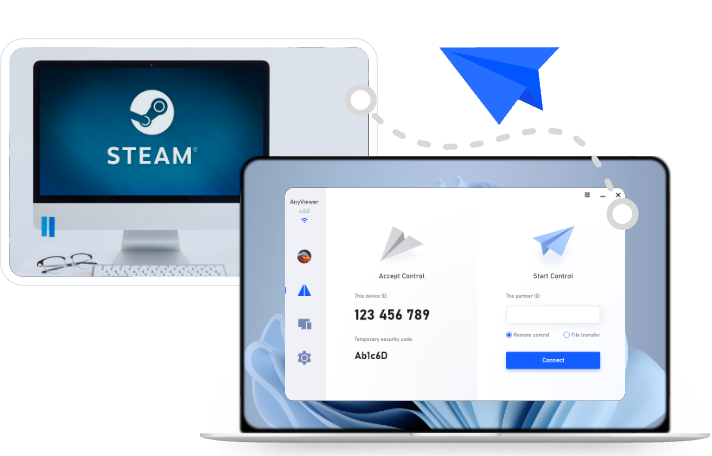
AnyViewer – Easy Remote Access with Game-Friendly Features

AnyViewer is a rising alternative to RDP, offering a smooth and user-friendly experience for remote gaming and 3D software applications. While it's designed primarily for general remote access, its performance and responsiveness make it an excellent choice for gamers and developers seeking seamless control over remote desktops.
Why it stands out:
- Low-latency connections: Built for speed, AnyViewer ensures fast data transmission and reduced ping, making remote interactions responsive and smooth.
- Gaming-compatible mouse handling: Provides stable and consistent mouse movement, crucial for 3D games and applications where precision matters.
- Cross-platform compatibility: Works seamlessly across Windows, Mac, iOS, and Android, allowing users to access their gaming or development PCs from virtually any device.
- Simple setup and intuitive interface: Offers a clean, streamlined interface that doesn't require advanced configuration, making it accessible even for beginners.
Best For:
Users who want an easy-to-use, responsive remote desktop solution that delivers a reliable experience for gaming, creative work, or software development over long distances.
Parsec – Built for Low Latency
Parsec is a game-streaming tool that prioritizes ultra-low latency and 60+ FPS streaming, even over long distances. With support for raw input and high-quality resolution, Parsec eliminates most mouse-related issues present in RDP sessions.
Pros:
- Highly responsive input
- Supports multi-monitor setups
- Very low latency (sub-20 ms in ideal conditions)
Cons:
- Requires setup on both the host and the client
- Needs port forwarding for best performance
Moonlight & Sunshine (NVIDIA Gamestream Alternative)
Moonlight works with NVIDIA Gamestream-compatible GPUs, while Sunshine is an open-source host for AMD and Intel systems. These tools are excellent for game streaming with minimal latency and excellent mouse tracking.
Key Features:
- Full controller and mouse support
- Encrypted connections
- Raw input mode support
Steam Remote Play
Steam's built-in streaming feature allows gamers to play installed titles on another machine, with native mouse and keyboard handling.
Best Use Case:
For users with a Steam library and gaming desktops who want to stream gameplay to another location without needing to install third-party apps.
Optimizing the Network for Smooth Gameplay
A solid internet connection is crucial to eliminate erratic mouse behavior over remote connections. Even the best software can't compensate for poor networking.
1. Upgrade to a Wired Ethernet Connection
Wi-Fi introduces latency and packet loss, especially in busy households or buildings with lots of interference. Ethernet is a game-changer; it offers:
- Stable ping times
- Consistent bandwidth
- Lower jitter
If both the host and client are wired, you'll experience a much more stable remote gaming session.
2. Check and Prioritize Bandwidth Usage
Gaming over RDP or any remote tool requires consistent upload and download bandwidth. Make sure:
- No one else is saturating your connection with downloads or streaming
- You're not uploading large files in the background
- You've set QoS (Quality of Service) on your router to prioritize gaming traffic
Use tools like Speedtest.net to ensure you have at least:
- 25 Mbps download
- 10 Mbps upload
- <20ms ping
These are minimal for decent 3D gaming. More demanding games or higher resolutions will require more.
3. Port Forwarding and Firewall Configuration
Some RDP alternatives or custom configurations require open ports:
- Parsec typically uses UDP 8000-8002
- Moonlight uses a combination of TCP and UDP ports (usually 47984, 47989, 48010)
Ensure your firewall or router isn't blocking these. Also, reduce hops between machines by minimizing VPN or proxy routing, unless privacy is a concern.
Conclusion
Dealing with erratic mouse movement in 3D games over RDP can be a real pain, especially when you're trying to enjoy smooth gameplay from a remote location. Fortunately, with a few tweaks, like adjusting local resources, disabling hardware acceleration, or switching to a more gaming-friendly remote desktop tool, you can fix the issue and improve your experience. If the built-in RDP tool doesn't cut it, consider alternatives like AnyViewer or Parsec for better control and responsiveness. Remote gaming shouldn't be a struggle, and with the right setup, it won't be.



 as a preferred
source on Google
as a preferred
source on Google